
Edits: Video Editor review
 Analysis by Appsdrops
Edits is Instagram’s video maker, built for people who want to shape clips into social-ready videos without turning the process into a full-on editing project. I like the idea behind it: keep the focus on making a video, make the editing steps approachable, and leave room for more deliberate choices as you get comfortable. It sits in the video player and editor space, but its appeal is less about watching content and more about getting from raw footage to a finished piece.
That balance matters. A beginner wants to open an editor and understand what to do next; someone with more experience wants a workflow they can repeat without wasting time. Edits can serve both, provided you treat it as a focused creative tool rather than expecting it to replace every desktop editor. The app is free to download, and its age rating is Everyone. Its version is 452.0.0.50.64, with Android support beginning at version 9.
Starting with a clear video workflow
When I approach a new video editor, I begin with the material rather than the effects. Decide what the clip is meant to communicate, gather the footage that supports that idea, and only then start shaping it. That simple order keeps editing decisions grounded: every cut should help the viewer follow the moment, and every creative choice should have a reason.
With Edits, I’d use that same baseline. Start by bringing the intended video material into the project, then work through it with the finished result in mind. A short, direct piece might need little beyond a clean sequence and a sensible ending. A more involved edit benefits from pausing to check the flow before polishing. I find that reviewing the overall story early is more useful than immediately chasing decorative touches.
Build the rough version first
My first pass is always about structure. I look for the moments that carry the message, remove anything that distracts from it, and arrange what remains in a way that feels natural. This rough pass is not supposed to be perfect. Its job is to reveal whether the video makes sense from beginning to end. If it does not, extra polish will not fix the underlying problem.
Once the sequence feels coherent, I move into refinement. I check whether the opening gives the viewer a reason to stay, whether the middle maintains momentum, and whether the ending feels intentional. Those checks are useful for casual clips as well as more carefully planned posts. The habit also makes editing less intimidating: instead of trying to solve everything at once, I handle one kind of decision at a time.
A strong editing habit is to separate structure from polish. First make the video understandable; then make it feel finished. That approach is especially helpful on a phone, where it is easy to get caught up in small visual choices and lose sight of the complete piece.
Review before calling it done
I recommend watching the full edit from the beginning after making meaningful changes. A clip that seems fine when inspected in fragments can feel abrupt when viewed as a whole. Pay attention to transitions between moments, pacing, and whether the final image or beat gives the video a satisfying stop. If the video is meant to be shared socially, consider how it reads on a small screen rather than judging it only by the editing interface.
This is also where a little restraint pays off. Not every clip needs a dramatic treatment. If the footage already carries the feeling or information you want, a light edit may be the better choice. I prefer a clear, well-paced video over one crowded with changes that compete for attention.
Settings and habits worth checking
Experienced editing is often less about discovering a secret button and more about controlling the routine. Before settling into a project, I check the settings that are actually presented in the app and make sure they suit the video I intend to create. I avoid changing options without a purpose; a setting is useful when it helps achieve a specific result, not simply because it is available.
It is sensible to consider how the finished video will be viewed, how much time you want to spend refining it, and whether the current project should be treated as a quick edit or a more considered one. Those choices shape the work even when they do not involve a special tool. Keeping the goal in view helps prevent a familiar editing trap: tweaking repeatedly without making the result clearer or more engaging.
Make repeatable decisions
When I create similar videos, I try to keep the decision-making process consistent. I use the same broad order—organize, assemble, review, refine—so I do not have to rethink the entire process every time. That does not mean every video should look identical. It simply means the mechanics become familiar, leaving more attention for the content itself.
It also helps to decide in advance what “finished” means for a particular clip. For one project, that might mean the story is easy to follow and the ending feels complete. For another, it could mean that the pacing supports a particular mood. A clear finish line keeps me from spending extra time on changes that do not improve the viewing experience.
Keep the project manageable, too. If a video has a straightforward purpose, let the edit reflect that. If the idea is more complex, work through it in stages and review the whole sequence between stages. This kind of pacing is a practical substitute for rushing through a long list of adjustments and hoping they all work together.
Use shortcuts as habits, not assumptions
With mobile editing, speed comes from learning the controls you can see and use reliably. I recommend taking a moment to understand the visible interface in your own version of the app instead of assuming a gesture or shortcut exists because another editor offers it. Once familiar actions become second nature, they save attention without requiring a complicated system.
That is particularly useful when making several related clips. Repeating a reliable sequence of actions makes it easier to focus on timing and content, while a quick final review catches mistakes that muscle memory can miss. I would rather have a modest workflow I understand than a supposedly advanced one built on guesses about hidden controls.
Where a focused editor can feel limiting
Edits is best approached as a video maker with a focused purpose. That can be an advantage: a narrower toolset may help you stay on task and avoid getting lost in endless adjustments. But it also means that people who want a highly specialized, technical editing environment should be realistic about what they need. A phone-first creative app is not automatically a substitute for every professional workflow.
For me, the useful question is not whether an app can do everything. It is whether it makes the work I actually want to do feel straightforward. If your aim is to make and refine videos without building an elaborate production pipeline, a focused editor may fit well. If your work depends on extensive technical control, compare the available editing experience with your requirements before committing a large project to it.
There is another practical limit: editing quality depends heavily on the footage and the decisions behind it. No app can make an unclear idea compelling simply through polish. Choosing the right moments, keeping the sequence coherent, and reviewing the complete video remain the creator’s responsibility. That is not a flaw unique to Edits; it is part of editing in general.
The app’s price is free, while in-app purchases are listed from $0.99 to $1,049.00 per item. I’d keep that in mind when browsing any optional purchases and make sure a purchase genuinely suits the way I plan to use the app. The core appeal is the act of making videos, so I would begin with the workflow itself and only consider spending if there is a clear reason to do so.
Who is likely to enjoy it?
I can see Edits appealing to creators who want a direct route into video editing, especially those who value a repeatable mobile workflow more than a sprawling set of advanced controls. It can also suit experienced users who already know how to plan a clip and want to bring that discipline to a convenient editing process. In both cases, the best results come from having an idea before opening the editor.
Its scale suggests that many people have taken an interest: it has over 100 million installs, a 4.7 average from around 1.9 million ratings, and about 5,300 written reviews. Those figures are useful context, but they cannot tell me whether the app matches a particular person’s editing style. The more relevant test is whether the workflow feels comfortable and produces the kind of video you want to share.
A confident choice for a repeatable creative routine
My overall take is that Edits is worth considering if you want an Instagram video maker that encourages a practical, focused approach. I like the idea of treating editing as a series of clear decisions rather than a race to apply effects. Start with a goal, shape the footage into a coherent rough cut, refine only what helps, and watch the complete video before you finish. That process is useful whether you are new to editing or already comfortable working with clips.
For more experienced creators, the strongest advantage is not a promise of hidden tricks; it is the opportunity to make a routine efficient through deliberate habits. Learn the controls available in your version, repeat the steps that work, and keep each adjustment tied to the purpose of the video. The app may feel less suited to people who expect a comprehensive technical suite, but a focused tool can be exactly what you want when the job is to make a clear, engaging clip without turning the process into a production marathon.
Edits is at its best when you bring a clear idea and a steady workflow. I’d recommend giving it a try if you want a mobile-first video editor and are happy to judge it by how smoothly it supports your own creative routine. Keep the structure simple, refine with intention, and let the finished video—not the number of adjustments—decide when you are done.
What we like
- Free to download with no subscription required for core editing tools.
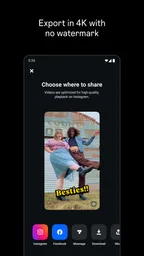
- Supports high-resolution exports for crisp social media videos.
- Offers precise timeline controls for trimming and arranging clips.
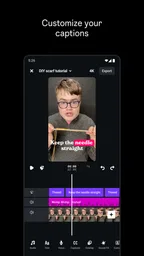
- Includes automatic captions to make videos easier to follow.
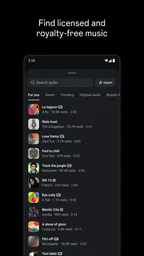
- Provides a library of sound effects and royalty-free music.
What could be better
- Some features may require an Instagram account to use.
- Exporting longer projects can take time on older devices.
- The editing interface may feel crowded on a small screen.
- Available templates may not suit every video style.
- Some music options may be limited by regional licensing.




