



CapCut - Video Editor review
 Analysis by Appsdrops
When I open a video editor on my phone, I want to get from a rough clip to something watchable without having to learn a desktop workflow first. CapCut makes that kind of quick editing approachable, but its usefulness depends on how comfortable you are working with a busy screen and precise touch controls. I find it most rewarding when I treat it as a flexible editing bench rather than expect every task to be effortless.
Finding your way around the editing screen
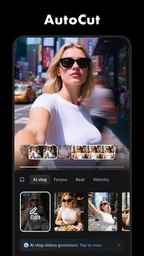
CapCut is a free video editing app from Bytedance Pte. Ltd., listed in the video players and editors category. Its central idea is familiar: bring clips into a project, arrange them on a timeline, and make changes while previewing the result. That visual approach helps newcomers understand the relationship between edits and the finished video. Instead of making every choice in a separate form, you can see much of the work take shape as you go.
The timeline is the part I would spend time getting used to. It makes trimming and ordering clips feel direct, but a phone screen offers limited room to see both the preview and the details of a project. When I am making a quick cut, that compact layout is convenient. When I need to select a very short segment or adjust a small element, I have to slow down and pay attention to where I tap.
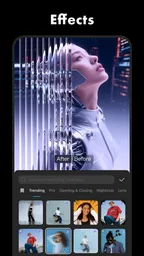
My practical advice is to build a simple first pass before adding visual polish. Put the clips in order, remove the obvious dead time, then review the sequence from beginning to end. Only after that would I add text, effects, or other finishing touches. This reduces the chance of spending time styling a section that later needs to be cut or moved.
The app is currently at version 19.9.0, and it has a broad audience: it has over a billion installs, an average rating of 3.5, and around thirteen million ratings. Those figures suggest a tool many people try, but popularity does not mean every editing style will suit every user. I would judge it by whether its touch-based workflow fits the kind of video I actually make.
Keeping a project understandable
On a small screen, organization is not just tidiness; it is a way to avoid editing the wrong moment. I recommend naming or otherwise clearly distinguishing projects in your own routine, especially if you are making several short videos in one sitting. Before exporting or sharing, replay the whole edit. It is easy to focus on a single transition and miss an abrupt opening, an uneven ending, or a clip that no longer fits the sequence.
That review pass is also useful for readability. If you add text, check it against the moving footage rather than judging it on a still frame. A caption that looks clear over a quiet background can become hard to follow when the image behind it changes. I would keep wording concise and avoid crowding the frame with several competing elements.
Touch, sight, and sound in everyday editing
Editing by touch can be a strength when the task is visual and immediate: move a clip, watch the preview, and adjust. It can also create friction for people who find small targets or repeated gestures tiring. Fine trimming asks for more care than broad rearranging, so I would not choose a phone editor for a long session of frame-by-frame correction if precise touch work is difficult for me.
For a more comfortable session, I would work in short stages: assemble the sequence, take a break, then return for detailed adjustments. Using a larger phone or tablet can give the preview and timeline more breathing room, though the same basic touch-first approach remains. If a task depends on accuracy, I would check each adjustment in playback instead of assuming a single tap landed exactly where intended.
Sensory demands matter too. A video editor can combine motion, changing images, text, and sound in one compact workspace. I find it easier to make deliberate choices when I focus on one layer of the edit at a time. First I listen for whether the audio feels coherent; then I inspect the visual pacing; then I check any text. This workflow is less overwhelming than trying to evaluate everything simultaneously.
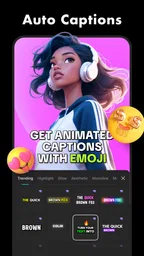
For viewers who rely on readable on-screen language, captions and text need a careful final check. I would not assume that an automatically styled or quickly placed text element is accessible in every scene. Contrast, duration, and placement all affect whether someone can read it before the image changes. The editor can help create a finished video, but the creator still has to make those choices thoughtfully.
When the surroundings change the experience
CapCut is especially practical when I have a few minutes between errands or want to prepare a short personal clip without moving to a computer. For example, after a family gathering I might select a handful of moments, put them in a sensible order, trim pauses, and make a compact recap. Doing the basic assembly on a phone means I can finish while the material is fresh in my mind.
That convenience has limits. In a noisy place, I may not be able to judge audio properly, even if I can still arrange the images. On a crowded commute, precise trimming can be awkward because my hand and the screen are moving. In those situations I would do the rough organization now and leave sound checks and detailed timing for a quieter moment.
Battery, screen space, and attention are practical considerations with any involved mobile edit. I would avoid starting a complex project when I have only a few seconds to spare, because the app rewards a little concentration. A short social clip is a natural fit; a carefully structured presentation with many details may be more comfortable to finish on a larger screen or in a desktop editor.
The app is rated for Teen audiences. It is free to install, while in-app purchases range from about fifty cents to nine hundred dollars per item. I would treat optional purchases as a separate decision from whether the basic editing workflow fits my needs. Before paying for anything, I would consider how often I edit and whether the specific item would solve a recurring problem for me.
Where it fits among mobile video editors
Compared with a basic phone editor, CapCut is appealing when I want more room to shape a clip than simple trimming and joining provide. Its timeline-based approach makes it easier to think in sequences and refine a video in stages. The trade-off is that added editing choices can make the screen feel busier than a minimalist tool. If I only need to shorten a clip and send it privately, the simplest editor already on my device may be quicker.
Against desktop software, the distinction is less about which one is universally better and more about the work. A phone editor is handy for short-form projects and edits made on the move. A computer is usually the more comfortable choice when I need a broad view of a long sequence, repeated precise adjustments, or a workspace that is easier to inspect at a glance. I would use CapCut for convenience and switch tools when the project outgrows the phone format.
A common question is whether it is suitable for a beginner. I think so, provided the first project stays modest. Start with a few clips and basic cuts; learn how the preview and timeline respond before exploring more elaborate styling. A newcomer who tries to use every visible option at once may find the experience harder than it needs to be.
Another practical question is whether it works for more than quick social posts. It can serve personal recaps, short demonstrations, and simple video messages, too. The deciding factor is not the subject but the amount of precision and screen space the project demands. For long, heavily revised work, I would plan to use a larger editing environment.
Barriers worth considering before you begin
The main barrier I notice is the mismatch between detailed editing and a small touch surface. A timeline can make creative work feel immediate, but it is not always the easiest place to make tiny adjustments. I would also expect a learning curve if I am unfamiliar with timeline editing: even straightforward tasks become slower until I understand how the workspace is organized.
Another barrier is the effort required to assess the finished video responsibly. Text may be too brief to read, visual changes may feel too rapid, or sound may be difficult to hear in the place where someone watches. Those are not problems solved simply by finishing an edit; they call for playback and judgement. If I am creating something intended for a wide audience, I would review it on more than one occasion and, where possible, in the context in which it will be watched.
Someone who prefers a very uncluttered interface, has difficulty with small touch targets, or needs highly precise control may be better served by a simpler editor or a desktop setup. That is not a reason to dismiss CapCut; it is a reminder that convenience and fine control do not always come together on a phone.
A useful choice when the workflow matches
For me, CapCut is a capable option when I want to shape short videos directly on a mobile device and can give the edit some focused attention. Its approachable visual workflow is a good starting point, while the compact screen and touch precision are the compromises I would keep in mind. The best results come from making a clean first cut, adding only what helps the story, and checking the whole video before sharing it.
Its inclusive value is therefore practical rather than automatic: the app can support different contexts because it puts editing on a device people already use, but each person’s comfort will depend on screen size, touch control, sensory needs, and the complexity of the project. I would recommend trying it with a small, low-pressure edit first. If the timeline feels manageable, it can be a useful everyday tool; if detailed gestures or a busy workspace get in the way, a simpler or larger-screen alternative is likely the kinder choice.
What we like
- Easy-to-use editing tools suit beginners and casual creators.
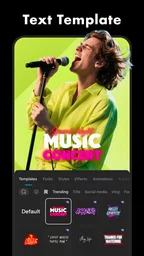
- A large template library speeds up social media video creation.
- Keyframe controls allow precise animation of clips and effects.
- Captions can be generated automatically from spoken audio.
- Exports support multiple resolutions and frame rates.
What could be better
- Some effects and assets require a paid subscription.
- Templates may make videos feel less distinctive.
- Editing complex projects can be demanding on older phones.
- Some features require an internet connection.
- Availability of certain tools can vary by region or device.





