
VLC for Android review
 Analysis by Appsdrops
When I need to open a video or music file without first checking what format it is, VLC for Android is one of the first apps I reach for. It is a free media player from Videolabs, and its appeal is practical: it is built for playing a wide range of files rather than nudging me toward one store, subscription, or media library. That makes it especially useful when a phone has become a catch-all for clips, downloads, and recordings from different sources.
Free access, with value in the files it can handle
The app costs nothing to install, so there is no purchase decision or paid tier to weigh before trying it. In my view, that is meaningful value for a tool people may only open occasionally: it can sit alongside a phone’s default player and be there when a file does not behave as expected. VLC is rated for Everyone, which makes it a reasonable option for a shared household device, while parents should still make their own choices about the media their family opens.
VLC is firmly in the video player and editor category, though its main job is playback rather than editing. The distinction matters: I would choose it to watch or listen to existing media, not to trim a clip, add effects, or prepare a polished video for posting. The app has a 4.0 average from around 2 million ratings, and it has passed 500 million installs. Those figures show broad adoption, but they do not guarantee that every file or phone will behave identically.
VLC for Android is a strong example of free access translating into everyday usefulness. I do not have to build a collection inside a particular streaming service or convert every file into a format preferred by a basic player. If I already have the media, I can try opening it directly. That is a simple promise, but it solves a recurring nuisance for anyone who moves files between devices or receives videos from other people.
Where it earns its place
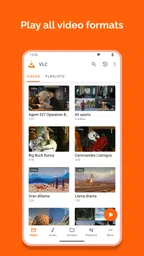
The most useful difference from many preinstalled players is flexibility. A default app may be perfectly adequate for a short phone recording, yet become frustrating when a downloaded film, an unusual audio file, or a video transferred from a computer refuses to play. VLC is designed as a general-purpose player, so it is the app I would keep ready for those exceptions instead of treating format troubleshooting as a separate project.
That flexibility is most noticeable when media comes from several places. Imagine receiving a clip in a messaging conversation, copying a recording from a laptop, and keeping a few downloaded videos for a commute. Rather than remember which app handles which item, I can try the same player for all of them. If a file opens, playback stays straightforward; if it does not, I have learned that this particular file or device combination needs another approach, rather than assuming every media app is interchangeable.
One useful workflow is to test a problem file in VLC before converting it. Conversion takes time and can reduce quality if settings are chosen poorly. A player that accepts more kinds of media can spare that work, especially when the goal is simply to watch once. I would still keep an original copy before experimenting with converters, but VLC makes “try playback first” a sensible first step.
Another practical tip is to use it as a second opinion when a video seems broken. If it plays in VLC but not in the phone’s default player, the file may be fine and the limitation may be the other app. If it fails in both, the file itself, its transfer, or the device may be the issue. This is not a diagnostic guarantee, but it helps narrow down the next step without immediately deleting or replacing the media.
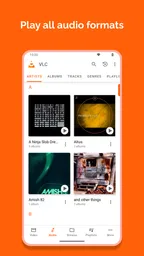
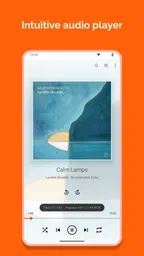
For music, VLC is handy when I want a local player for files I already own or have saved. That is a different use from opening a streaming service and browsing its catalogue: VLC is about playing media available on the device or supplied to it, not discovering a subscription library. People who mainly stream playlists may therefore see less benefit than people who keep albums, recordings, or other audio files locally.
Playback habits that benefit from a flexible player
For travel, the advantage is having saved media ready when a connection is unreliable or unavailable. I would check that the files are actually stored on the phone before leaving, then open them in VLC rather than depend on a service that may require a network connection. This is especially handy for a mixed folder of audio and video. It does not replace downloading or legally obtaining the media in the first place; it simply gives me a convenient way to play files I already have.
It also suits people who move media between devices. A video exported from a computer can be copied to a phone for review, and a voice recording can be opened without searching for a dedicated app for each format. For someone who occasionally checks a long clip, having a familiar player reduces friction. For a creator who needs to cut footage, add captions, or produce a finished edit, though, a dedicated editor is the better tool.
VLC’s open-source identity is relevant for users who value software built around a broadly accessible player rather than a single media storefront. I would not treat that alone as proof that the app is the right fit for everyone; the day-to-day question is whether its playback approach matches your habits. Videolabs develops it, and the app’s long-standing role as a general media player is more important to my recommendation than a promise of features I may never use.
Its scale can be reassuring to a first-time user, but popularity is not the same as a tailored experience. A person who wants one uncluttered button for playing occasional camera clips might find the phone’s built-in app simpler. VLC earns its space when that simplicity stops being enough—when a file is rejected, when audio and video need one common player, or when a collection does not come from one service.
The trade-offs I would consider
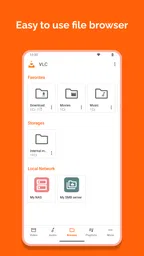
Versatility has a cost in ease of use. A basic player can feel more obvious because it shows only the controls most people need. VLC is aimed at handling varied media, and a newcomer may need a little time to get comfortable with its library and playback choices. If you open videos only once in a while and every file already works in the default app, installing another player may add clutter rather than solve a real problem.
There is also a difference between “can play many kinds of media” and “every file will play perfectly.” A damaged download, an incomplete transfer, or a file that needs a particular decoding path can still cause trouble. Playback may also depend on the phone’s capabilities. I would not promise that VLC can rescue every unsupported or corrupted file, and I would avoid repeatedly changing settings when a fresh copy of the media is the more likely fix.
People focused on streaming discovery may prefer an app designed around recommendations, playlists, and an online catalogue. VLC is not the best choice if the main task is finding new music or watching licensed films inside a service. Similarly, someone who wants to make a video should look for an editor with a timeline and production tools. VLC’s strength is letting me consume existing media, not replacing those distinct jobs.
On a small screen, a wide range of options can feel less welcoming than a minimal player, particularly when all I want is to tap a clip and watch. I would give it a short trial with the files that actually cause trouble, rather than switching my whole routine on principle. If it handles those files reliably and its controls make sense to me, then it has earned a permanent place; if not, the default player may remain the more comfortable choice.
Who is likely to get the most from it?
I would recommend VLC to people who regularly download, transfer, or save media and want one free app to try across different audio and video files. It is also a sensible backup for a phone’s default player, especially for students, travelers, and anyone who receives clips from a variety of sources. The best reason to install it is not its popularity by itself; it is the frustration it can remove when the usual player says no.
It is less compelling for someone whose entire media routine lives inside streaming apps, or for a user who only watches short camera videos that already open instantly. In those situations, VLC may not change much. I would also steer anyone looking for editing features toward a dedicated editor instead of expecting a playback app to become a production suite.
There is no purchase price to recover, so the decision is mainly about whether the extra flexibility is worth having on the device. For a cautious test, install it and open a file that the default player struggles with; then try a familiar audio track and a saved video. That small check tells you more about its fit than simply browsing a long feature list. If it works with your own media and you find the controls comfortable, keeping it costs nothing.
My verdict
VLC for Android is an easy recommendation as a free backup player and a particularly good everyday choice for people with varied local media. I value the way it can reduce format-related hassle without asking me to organize everything around one service. Its broad reach—backed by around 2 million ratings and more than 500 million installs—makes it a familiar option, but my recommendation rests on its practical role, not on those numbers alone.
I would skip it if you already have a simple player that handles everything you watch, if you mainly stream, or if your real need is video editing. For everyone else, trying it is a low-risk way to make a phone more accommodating to the files you already use. The balance is clear: a little extra complexity in exchange for a more capable general player, with no price barrier to giving it a fair test.
What we like
- Plays many audio and video formats without extra codecs
- Supports network streams and shared media
- Includes adjustable playback speed
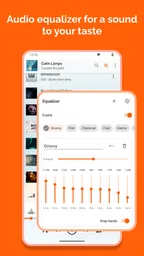
- Offers audio equalizer and subtitle controls
- Works without intrusive ads
What could be better
- Interface can feel crowded on smaller screens
- Library scanning may take time with large collections
- Some advanced settings are difficult to find
- Casting support can vary by device and network
- Battery use can rise during high-resolution playback





