




PowerDirector - Video Editor review
 Analysis by Appsdrops
I judge a video editor not only by the effects it can produce, but by how much effort it asks from someone trying to make a clear, watchable video. PowerDirector is a mobile editing app from Cyberlink Corp, in the video players and editors category. Its tools are aimed at short-form clips as well as more deliberate projects, and my overall impression is that it offers plenty to explore without being as immediately simple as a basic trimming app. That trade-off matters especially for people who need an interface that is easy to read, operate, or use in imperfect surroundings.
Finding your way around the editor
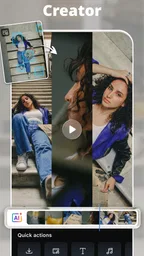
The main appeal is that the app gives you room to assemble a video rather than only trim its beginning and end. You can approach a project as a sequence of clips, make edits, and shape the result for social platforms or a more conventional shareable video. For a beginner, that opens useful possibilities, but it also means there is more to learn than in an editor with just a few obvious buttons.
I find this kind of interface most approachable when I start with one specific task. For example, select a few phone clips, put them in the intended order, and make only the necessary cuts before trying decorative effects. That keeps the project legible and makes it easier to understand what each editing control changes. If you open the app expecting every tool to be self-explanatory, the range of choices can feel busy; a small, goal-led first project is a better introduction.
The app’s scale suggests that many people have found it useful: it has an average rating of 4.2 from around 1.7 million ratings, with more than 69,000 written reviews. Those figures are reassuring as signs of broad use, but they do not tell me whether the workflow will suit a particular person. Navigation is personal: someone comfortable exploring editing controls may welcome the options, while a user who wants a single large “make this video” action may prefer a simpler tool.
One practical habit helps with any timeline-based edit: make the structural decisions first, then add polish. I would arrange the shots, remove unwanted sections, and check the pacing before spending time on effects or titles. This reduces rework if a clip later needs to move, and it is especially helpful on a small screen, where detailed adjustments can take more attention than they would on a computer.
Readable controls and attention demands
Readability is not just a matter of text size. A video editor asks you to distinguish clips, controls, preview playback, and the current editing position. When several kinds of information compete for attention, a newcomer can lose track of whether they are changing a clip, the overall sequence, or the appearance of the finished video. I recommend pausing between major steps and checking the preview rather than relying on memory of the last tap.
Short projects are a sensible way to learn the layout. A simple clip for a family update or a brief social post lets you see how the timeline and preview work together without making you manage a large collection of footage. Once that feels comfortable, try a project with more clips and a deliberate beginning, middle, and ending. This staged approach is useful for anyone who finds dense interfaces tiring, not only for first-time editors.
The app is free to install, though it includes optional in-app purchases priced from $0.99 to $249.99 per item. I would explore the free experience with a real, modest project before considering any paid choice. That gives you a better basis for deciding whether the available editing workflow fits your needs, rather than assuming that a purchase will make the interface easier or remove every point of friction.
Touch, movement, and sensory comfort
Editing on a phone is inherently touch-led, and timeline work can demand repeated, precise gestures. If your hands tire easily or fine movement is difficult, arranging many short clips and making tiny adjustments may be less comfortable than broad edits. I would keep the first project small, make fewer cuts, and check each change in the preview before continuing. For a long or intricate piece, a larger screen or a computer-based workflow may be the more practical choice.
There is also a sensory side to editing. Replaying clips, comparing changes, and watching a preview repeatedly can be distracting or tiring, particularly in a noisy place or when you are already dealing with a lot of visual input. I find it helpful to separate decisions: first decide the order, then review the pacing, and only afterward consider visual treatment. This reduces the number of things I am evaluating at once.
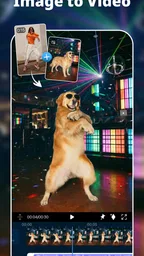
Green-screen work and AI-assisted editing can be tempting starting points, but they are not automatically the easiest route for every user. The best result still depends on the source footage and on whether the effect helps the viewer understand the video. I would treat such tools as optional experiments, not as a required step. A clean cut and a clear subject often serve a short clip better than an effect that adds extra visual activity.
Using it in everyday situations
Imagine recording a few clips at a school event or family gathering, then wanting to share a concise recap that evening. I would first pick the moments that tell the story, put them in order, and trim pauses that do not add anything. Then I would watch the sequence once without editing, asking whether someone who was not there could follow it. That simple review catches a common problem: a video can contain every moment and still feel confusing.
This workflow also helps when the editor is used in a shared or time-pressured setting. If you are making a post while commuting or between other tasks, it is easier to lose your place or overlook a rough cut. I would avoid detailed edits in a distracting environment and save the final review for a calmer moment. The app can support quick creative work, but “mobile” does not mean every editing decision is comfortable to make on the move.
For vertical social clips, it makes sense to think about the viewing context before editing: keep the main action easy to see, avoid unnecessary visual clutter, and make the first moments communicate what the clip is about. For a longer personal video, pacing and continuity may matter more than trendy effects. PowerDirector can serve both intentions, but the editor still benefits from a clear plan; it cannot decide which moments matter on your behalf.
The app is rated Everyone and has been available since June 4, 2014. Its current version is 16.8.1, and it requires Android 10 or later. It has more than 100 million installs, which makes it a familiar option for mobile editing, but those facts do not guarantee a particular device’s performance or a comfortable experience for every person. I would check that your device meets the system requirement and test a short project before committing to a more demanding edit.
Where it differs from simpler alternatives
Compared with a basic editor that focuses on trimming and joining clips, PowerDirector makes more sense when you want room to shape a project and experiment with visual treatment. That flexibility is its strongest reason to choose it. The cost is extra decisions and a more involved learning curve. If you only need to remove the start of a clip and send it to someone, the phone’s built-in editing tools or a very simple editor may be faster and less demanding.
Against desktop editing software, the phone-first approach is convenient for capturing and assembling footage where you already have it. It is less attractive when you need to manage a complicated project, inspect fine details for long periods, or work with a large amount of material. I would choose the mobile app for a short, self-contained video and look elsewhere when precision, sustained comfort, or a bigger workspace matters more than editing on the go.
One useful trade-off is to use PowerDirector for assembly without trying to make every clip look elaborate. A restrained edit is easier to review and can be more accessible to viewers who are sensitive to busy visuals. Another is to make a short test export or preview before building a whole project around a particular style. That reveals whether the approach is readable and coherent before you invest more time in it.
Barriers worth considering before you start
The biggest remaining barrier is complexity. A broad toolset gives experienced users choices, but the same range can make the first session feel crowded. People who need very large controls, minimal visual density, or an interface that requires little exploration may find a simpler editor a better fit. I would not recommend choosing this app solely because it offers advanced-sounding tools; the right question is whether you are willing to learn a more capable editor for the projects you actually make.
Precise touch editing is another limitation to weigh. If selecting small points on a timeline is uncomfortable, a project with many cuts may become frustrating. A practical workaround is to plan the edit before opening the app, keep the number of clips manageable, and avoid repeated micro-adjustments where a broader cut will do. If that still feels strenuous, switching to a larger-screen editor is a sensible choice rather than a personal failure to master the app.
Finally, the optional purchase range is wide, so I would be deliberate about spending. The free starting point makes it possible to assess the core workflow first, while the available purchases mean that some users may encounter decisions about paid extras. I would make those decisions only after identifying a specific limitation in my own project. Paying without a clear need can add cost without solving problems related to navigation, touch precision, or sensory load.
A considered choice for different needs
PowerDirector is worth considering if you want a mobile editor with more creative room than basic trimming and you are comfortable learning a layered workflow at your own pace. I especially like the idea of approaching it in stages: build a clear sequence, review it, and add effects only where they help. That method makes the app more manageable and often leads to a better video than starting with visual flourishes.
For people who need a very simple interface, struggle with precise touch input, or want to make only occasional one-cut edits, I would start with a more basic option. For creators who want to work on short-form videos from a phone and are prepared to explore the tools, this app offers a useful middle ground between a bare-bones editor and a more demanding desktop setup. Its Everyone content rating and free entry point make it approachable to try, while optional purchases are worth treating as a separate decision.
My inclusive verdict is positive but conditional: it can support varied creative goals, yet its flexibility does not automatically make it comfortable for every ability or setting. Start with a short, low-pressure project and judge the controls, visual density, and touch demands for yourself. If the workflow feels clear, the extra options can be rewarding; if it makes a simple edit harder than it needs to be, choosing a simpler tool is the better outcome.
What we like
- Timeline editing makes it easy to arrange clips and audio.
- Templates help create polished videos with less editing effort.
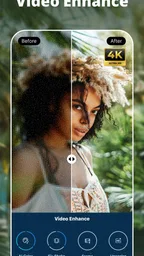
- Supports exporting videos in high resolution.
- A wide range of effects and transitions adds creative options.
- Frequent updates can bring new tools and improvements.
What could be better
- Some advanced tools require a paid subscription.
- The interface may feel crowded to first-time editors.
- Editing large projects can be demanding on older devices.
- Some exports may include a watermark on the free plan.
- Premium assets may require an internet connection to access.





