


Screen Recorder - AZ Recorder review
 Analysis by Appsdrops
I judge a screen recorder not just by whether it can capture a display, but by how much effort it takes to start, manage and make sense of a recording. Screen Recorder - AZ Recorder is aimed at people who want to record what is happening on an Android screen, including audio, without turning the job into a complicated editing project. In my view, its strongest appeal is practical: it gives everyday users a route to make a quick demonstration, save a useful moment or explain a sequence of taps.
It is a free video player and editing app from AZ Screen Recorder, with a 4.7 average from around two million ratings and over 100 million installs. Those numbers make it a familiar choice in a crowded category, but popularity alone does not settle whether it suits your needs. I find the more useful question is whether its straightforward recording approach works for your device, your surroundings and the way you prefer to interact with apps.
Finding your way around a recording
The app’s central task is easy to understand: prepare to capture the screen, record, then deal with the result. That focused purpose helps keep the experience approachable for someone who has never recorded a phone screen before. You do not need to think of it as a full video studio; it is better understood as a recorder that can also help with basic post-capture work.
That distinction matters for readability and navigation. A first-time user may be looking for one clear action rather than a large set of editing tools, while a regular user may want a repeatable process. I recommend trying a brief test recording before relying on it for anything important. Use the test to learn where the recording controls appear, how you stop a capture and where you go afterward to review the file. A small rehearsal is especially useful if you are recording instructions for someone else.
As an app in the screen recording and video-editing space, AZ Recorder is most persuasive when the task is direct: show a setting, demonstrate a mobile workflow or capture a short clip for later reference. It is less compelling if you expect a polished desktop-style editing environment. Keeping that expectation in check makes its purpose clearer and can save time: record the material here, then move to a more capable editor if the finished video needs a more elaborate structure.
The current version is 6.9.14, and it runs on Android 7.0 or later. That broad compatibility makes it relevant to many Android users, though the experience of recording can still vary with the phone, the app being captured and the sound you are trying to include. I would check the result rather than assume every recording will look and sound identical across devices.
Readable results are partly a recording decision
A screen capture can be technically successful yet hard to follow. Small text, fast scrolling and frequent jumps between screens make a tutorial difficult to watch, particularly for someone viewing it on a smaller phone. I get better results by deciding what the viewer needs to notice before pressing record: open the relevant page, pause briefly on important information and move through the steps at a pace that leaves time to read.
This is also a useful way to make recordings more inclusive without relying on special tools. If you are demonstrating a settings change to a family member, for instance, avoid rushing through menus. Keep the important screen visible long enough to understand, and explain the action in a calm voice if the recording calls for narration. The recorder can preserve the process, but thoughtful pacing is what makes the process usable to someone watching later.
Touch, sound and sensory comfort
Screen recording is a task with two sides: the person making the capture has to control the phone, and the eventual viewer has to follow what appears and hear any included audio. On the creator’s side, an uncomplicated workflow is valuable when precise, rapid tapping is inconvenient. I suggest setting up the screen before starting the capture, so you are not trying to navigate through several menus while the recording is already running.
That preparation helps with motor access, but it does not eliminate every difficulty. A person who finds small controls or repeated touch actions tiring may still need to test whether the app’s controls feel manageable on their particular device. I would not assume that a screen recorder automatically provides a hands-free or fully accessible control method. The practical approach is to try a short session and see whether starting and stopping a recording is comfortable in your own setup.
Audio can make a tutorial easier to follow, but it can also create problems in a noisy room or for viewers who prefer to watch without sound. When the explanation is essential, record somewhere quiet and keep speech steady. When the visual sequence is enough, avoid making the viewer depend on audio to understand what to do. This small choice improves flexibility for people watching in shared spaces, with headphones unavailable or with different sensory preferences.
For people sensitive to visual motion, a recording can be demanding even when the app itself is simple. Rapid scrolling, repeated transitions and long, unbroken captures may be uncomfortable to watch. I recommend dividing a demonstration into short, deliberate sections when the task allows it. That also makes it easier to review a clip and decide whether a confusing step should be recorded again.
When a capture helps in everyday life
A realistic use is helping someone troubleshoot a phone setting. Instead of trying to describe a route through several menus over a call, I can record the steps, pause on the screen that matters and send the video through whatever method I normally use. The recipient can replay it at their own pace. This is particularly handy when the person asking for help is less confident with unfamiliar menus, though I would first make sure the capture does not expose private messages or account details.
The same approach works for showing a colleague how to repeat a mobile task, keeping a visual record of a process or capturing an app interaction that is difficult to describe in text. The key trade-off is that a recording may include more of the screen than intended. Before sharing, review the whole clip from beginning to end. Close unrelated notifications and avoid entering sensitive information during the capture. That simple check is more reliable than assuming a recording will contain only the moment you meant to show.
For teaching, I find short clips more useful than one long recording. A concise demonstration lets the viewer revisit one task without searching through unrelated material. It also gives the maker a chance to check that each step is visible and understandable. If the lesson needs captions, careful cuts, a polished title sequence or a precise narrated track, AZ Recorder should be the capture stage rather than the only tool in the workflow.
Choosing it over other recording options
Android users may already have a built-in screen recorder, and for a one-off capture that option can be the simplest choice: there is no extra app to learn. AZ Recorder is worth considering when you want a dedicated recording app and value having recording and some editing in one place. I would compare the actual workflow on your phone instead of choosing on reputation alone. If the built-in tool already captures the screen and audio you need, switching may not add enough value.
At the other end, a more advanced editor is a better fit for carefully produced lessons, multi-part videos or content that needs detailed finishing. A specialist editing workflow can offer greater control, but it can also take more time to learn. AZ Recorder sits between those options: more purpose-built than simply describing a screen in a message, yet not something I would treat as a substitute for a full production setup.
The app is free to download, with in-app purchases ranging from $2.49 to $25.99 per item. I would start by using the free version for the specific task I have in mind and only consider a purchase if I understand what it adds and expect to use that benefit. The age rating is Everyone, which makes it broadly suitable as an app category, but adults should still guide children about what a screen recording can reveal before a clip is shared.
Where the experience may still fall short
Screen recording cannot make every app or situation equally easy to capture. Some tasks are better explained in a written checklist, especially when the viewer needs to search for a particular instruction later. A video can also be less convenient than a screenshot when only one static screen matters. I choose the format based on the information: a sequence of actions calls for video; a single reference point often does not.
There is also a real attention cost. Recording while navigating can make you self-conscious about mistakes, and a long take may leave you with extra material to review. Planning the steps first and making a short test recording reduces that friction. If you need highly controlled accessibility features, a guaranteed captioning workflow or detailed production tools, I would look for an option that clearly meets those requirements rather than presume this recorder provides them.
Finally, sound and visible content deserve care. A microphone recording made in a busy environment may be difficult to understand, while personal details can appear unexpectedly as you move through the phone. I treat a recording as a shareable document: review it, check both picture and sound, and make a fresh capture if private content slipped in. That habit matters more than adding extra editing steps after the fact.
Who I would recommend it to
I would recommend Screen Recorder - AZ Recorder to Android users who regularly need to show a sequence of screen actions and prefer a dedicated recorder over a purely built-in option. It is especially suitable for quick demonstrations, informal support and personal reference clips. Its long-running presence, release date of November 11, 2014, and large user base suggest it is an established choice, while the day-to-day decision should still come down to whether its controls and output suit your phone.
I would skip it if you rarely record your screen, already have a built-in tool that covers your needs, or require a specialized editing and accessibility workflow. For me, its best use is modest and clear: capture a short, useful explanation, make it easy to follow, then check carefully what the clip contains before sharing. That makes AZ Recorder a practical option, not a universal answer—and the right one when quick Android screen guidance matters more than elaborate production.
What we like
- Records gameplay and app demos without requiring root access.
- Supports internal audio recording on compatible Android versions.
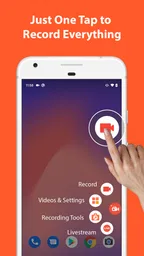
- Offers a floating control for quick access while recording.
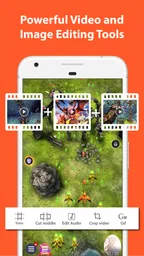
- Includes basic editing tools for trimming and cropping clips.
- Can capture screenshots as well as video.
What could be better
- Some features may require a paid upgrade.
- Recording controls can appear in the captured video if not hidden.
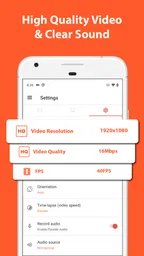
- High-resolution recording can use substantial storage space.
- Performance may suffer on older or less powerful phones.
- Internal audio support varies by Android version and device.





