
YouTube Create: Video editor review
 Analysis by Appsdrops
I can see the appeal of YouTube Create most clearly in a shared-device household: someone records a school project, a recipe, or a quick update, and wants to turn it into a watchable video without moving through a complicated editing setup. It is a free video-editing app from Google LLC, aimed at making a finished clip for YouTube feel approachable. My impression is that it works best as a practical starting point, not as a replacement for a full desktop editor or a carefully managed family media workflow.
Making a quick video on a shared device
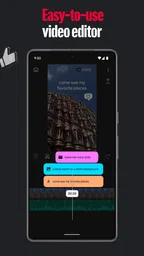
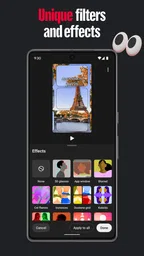
For a common household task, the useful part is having editing tools gathered in one place. A family member can bring together footage, add music or captions, apply a filter, and make a simple piece feel more intentional before sharing it. That is a meaningful step up from sending several unedited clips and expecting viewers to work out the story themselves.
The app’s focus on YouTube also gives the workflow a clear destination. If you already make short videos for that platform, editing and preparing a clip in a YouTube-oriented tool may feel more direct than starting in a general editor and then switching apps. I would still treat the edit and the act of publishing as separate decisions, especially when several people use the same phone or tablet.
A realistic example: a parent records a few moments from a weekend outing, then lets a teenager help assemble a short recap. Captions can make spoken parts easier to follow, while music can give the sequence a more finished feel. Before anything is shared, I’d review the clip together—not because editing itself is risky, but because household footage can include names, school details, other people, or background conversations that were never meant for a public audience.
That kind of review is also a good way to avoid an easy editing mistake: adding music or text before deciding what the video is actually for. I find it more useful to choose the audience and the main point first, trim the material to fit, and then add decoration only where it helps. A filter cannot fix a confusing sequence, and captions are most helpful when they clarify rather than crowd the picture.
Keep the edit simple and deliberate
For a short clip, I would build a rough sequence first and then add captions or music. This makes it easier to notice whether a shot is too long or whether the video makes sense without extra effects. In a shared editing session, it also gives everyone a clear job: one person can choose the best moments while another checks wording or listens for audio that should be removed.
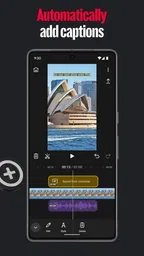
Captions are especially worth checking by eye. Even when a caption looks plausible, a person’s name or a specific phrase can be misread, and mistakes are more noticeable in a short video where every line stays on screen briefly. I’d also read text against the actual footage, since a caption that is easy to see over one shot may become hard to read over a brighter or busier one.
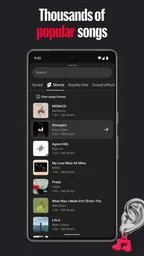
Music is another area where restraint helps. A soundtrack can make a montage feel cohesive, but it can also compete with speech or make a personal clip feel oddly dramatic. I’d listen through the whole edit before considering it done, paying attention to the transitions between talking and music rather than judging the soundtrack only from the opening seconds.
Set boundaries before handing over the device
On a shared phone, the main boundary is not a hidden editing option; it is agreeing on who is using the device and what they are allowed to do with the finished video. I would avoid assuming that a person who is helping with an edit should also post it. Editing footage together can be a low-pressure creative activity, while publishing changes who may see it and how easily it can be passed along.
It helps to decide in advance whether the goal is a private family keepsake, a classroom submission, or a public-facing video. Those are different jobs. For a keepsake, the family may care most about preserving the original clips and making the edit easy to watch. For a public post, they should check the people and details visible in the footage and agree on the final wording before it leaves the device.
I would also make sure everyone knows which account is in use when the phone or tablet is shared. An editor can be used to prepare a video, but the account connected to a later upload is a separate matter. Keeping that distinction clear reduces the chance that a child’s project, a parent’s personal account, and a household video all get treated as one interchangeable activity.
When a project belongs to one person, it is sensible to let that person make the creative choices while another household member handles any account-sensitive step. That division does not require complicated rules: it can be as simple as agreeing that the maker chooses the captions and clips, while the account holder checks the destination and approves sharing.
Coordinate without turning editing into a chore
Shared editing can become frustrating when several people make changes without agreeing on the goal. I’d start with a simple plan: choose the intended viewer, pick the few moments that matter, and decide who has the final say on text and music. That keeps a small project from turning into an endless round of filters and revisions.
It is also useful to keep a clean source of the original footage before experimenting. A practical habit is to make editing decisions on a copy or otherwise keep the unedited clips available, so an ambitious cut does not become the only version left. This is general media housekeeping rather than a special feature claim, but it matters more when several people are taking turns with the same device.
If one person is editing and another is reviewing, ask for specific feedback rather than “make it better.” For example, a reviewer can point out that a caption disappears too quickly, a shot reveals private information, or the music covers a spoken line. Concrete notes help the editor improve the video without handing every creative choice to the loudest person in the room.
Compared with the usual alternatives in video players and editors, this app’s advantage is its close connection to YouTube and its approachable set of creative additions. A general-purpose mobile editor may suit someone who wants a broader toolkit or a workflow not centered on YouTube. Someone doing detailed, multi-layer work may be happier with a more advanced editor, especially if they need precise control over every element. I would choose based on the actual project rather than assuming one app must handle every video job.
Age, trust, and realistic expectations
The app has a Teen content rating, so I would treat it as suitable for that age context rather than as a promise that every video made with it is appropriate for every viewer. The rating is a useful signal for a household conversation, but it does not replace reviewing what is filmed, what is written in captions, or where a completed clip will be shared.
Google LLC develops the app, and it is free. Its average rating is 4.6 from around 218,000 ratings, with roughly 1,900 written reviews and over 10 million installs. Those figures suggest that it has attracted a large audience, but popularity alone cannot tell me whether it matches a particular family’s habits. I would judge it by whether the people using it can complete their intended edits comfortably and understand the difference between preparing a clip and sharing it.
One useful age-related habit is to review the video as a group before it is considered finished. That gives a younger creator room to make choices while helping them notice things they may overlook: a visible address, a friend who did not agree to be filmed, or a caption that gives away more than intended. This is a practical conversation, not a substitute for a caregiver’s own decision about device and account use.
I would not pick this app for a child who needs a tightly supervised, adult-managed publishing process and assume the editor itself will provide that structure. The household still has to set expectations around device access, account use, and sharing. For an adult or teen making a modest YouTube-oriented video with a nearby adult available for questions, the app’s straightforward purpose is easier to recommend.
Who will enjoy it—and when I would choose something else
I’d recommend it to someone who wants to turn phone footage into a more polished YouTube video without first learning a demanding editing workflow. It is also a reasonable option for a household member who wants to add readable captions or a soundtrack to a simple clip and then show the result to others before deciding whether to share it more widely.
I would look elsewhere if the project depends on very fine-grained editing, a highly customized production process, or a workflow that needs to stay entirely separate from YouTube. A dedicated general editor may be a better fit for those needs. And if all you want is to watch a video rather than make one, this is the wrong kind of app: its purpose is creating and editing, not simply playing media.
It is also not automatically the best choice for every household just because it is free. A new tool adds a learning step, and shared-device use adds coordination. If your family already has an editor everyone understands and it handles the job well, switching may not save time. I would try this one when the YouTube connection or its accessible creative tools solve a real problem, not just to collect another app.
A sensible household verdict
My overall view is that YouTube Create is a useful, approachable editor for straightforward videos, particularly when the intended destination is YouTube. Its music, captions, and filters give a basic clip more shape, while the focused purpose makes it less intimidating than a heavyweight editing setup. The trade-off is that a simple editing experience does not settle questions about accounts, privacy, or who gets to publish.
For a shared household device, I’d use it with a small routine: agree on the project, keep the original footage, edit together when needed, and have the account holder review the final destination. That makes it easier for a teen or family member to contribute creatively without confusing editing access with permission to share. With that boundary in place, it is a sensible free choice for everyday video-making; without it, a different editor will not solve the household’s underlying coordination problem.
What we like
- The interface is approachable for beginners.
- Multiple audio tracks make layered edits easier.
- Automatic captions can save time on subtitles.
- Voiceover recording is available within the editor.
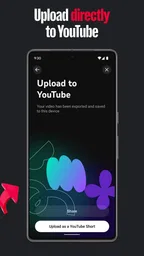
- Finished videos can be shared directly to YouTube.
What could be better
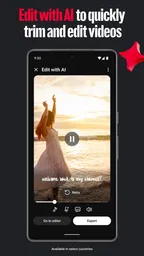
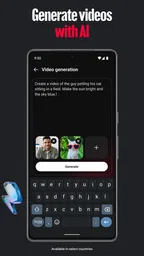
- Some features may vary by device or region.
- Long projects can take time to export.
- Precise edits may feel awkward on a small screen.
- The app offers less control than desktop editors.
- A YouTube account is needed for direct publishing.





