



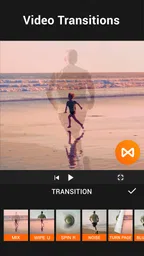


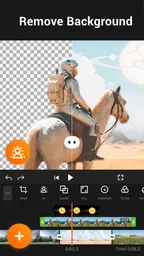

YouCut - Video Editor & Maker review
 Analysis by Appsdrops
I judge a mobile editor not only by how many effects it offers, but by whether I can make a useful video when I have a few minutes, a small screen, and an uncertain connection. YouCut is built for that kind of practical editing: it is a video player and editor from InShot Video Editor, with trimming, merging, music, filters, effects, and slideshow tools gathered in one app. In my view, its strongest appeal is the promise of a straightforward edit without turning a casual clip into a desktop-style project.
Editing when your connection is unpredictable
YouCut is free to install, rated for Everyone, and has reached over 100 million installs. Its average rating is 4.8 from around 8.7 million ratings, a substantial audience for an app that sits in the crowded mobile video-editing category. Those figures suggest broad appeal, but the useful question is whether the editing flow fits your own habits. I find it most compelling for people who want to shape phone footage quickly rather than manage a complicated production workflow.
Connectivity matters most when an editing session depends on something beyond the clips already on your phone. Music, effects, account or store interactions, and other online-facing elements can make a weak connection noticeable, so I would avoid planning a time-sensitive edit around assuming every resource will be ready instantly. The sensible approach is to open the app and check any elements you intend to use before travelling or starting a deadline-driven project. That small check can prevent a last-minute scramble.
I also separate editing from sharing. A finished video may be ready on the device before it is convenient to send or upload, and a poor connection can turn that final step into the slowest part of the job. I would export with enough time to review the result, then share when the network is reliable. That is particularly helpful for anyone sending a clip to a group chat or posting a short update while out and about.
Short edits suit the phone-sized workflow
The app’s tools make sense for everyday tasks: trimming a clip to its best moment, joining a few shots, adding a music bed, or giving a slideshow more rhythm. These jobs are easier to handle on a phone than a complex timeline with many tracks and precise controls. I would use it for a quick family recap, a short travel montage, or a simple video assembled from footage captured throughout the day.
A realistic example is making a weekend clip for friends during a train ride. I would select the relevant shots first, cut away the waiting and camera movement, arrange the moments in a clear order, and then decide whether music helps or distracts. If the connection is unreliable, I would leave any network-sensitive choice until I could confirm it works, rather than interrupting the edit repeatedly to troubleshoot. The result can still be useful even if the final share waits until later.
On a small screen, the trade-off is control. A phone makes it easy to work wherever you are, but finger-based editing can be less precise than using a mouse and a larger display. For a simple trim, that is rarely a problem. For edits that depend on exact timing, many layered elements, or detailed sound balancing, I would prefer a more capable desktop editor. YouCut is better suited to making a clean, watchable short video than to replacing a full production setup.
Choose the right editing order before you begin
One practical improvement is to decide the story before adding polish. I would first put the clips in the order that makes sense, then trim them, and only after that try filters or effects. This avoids spending time styling a shot that later gets removed. With a mobile editor, where the screen gives less room to compare a whole sequence, a simple shot order is an especially useful anchor.
For a slideshow, I would likewise choose the images and their sequence before settling on music. A song can change the pace of the whole piece, but it cannot fix a confusing order. If I am working with a patchy connection, I would keep the core edit focused on the media already selected and postpone optional choices that might take extra time to load or evaluate. This is not a promise about what works offline; it is just a way to keep the project moving when connectivity is uncertain.
It is also worth watching the finished video once before sharing. A quick review catches an abrupt cut, a shot that lingers too long, or music that feels too prominent. That final check is more valuable than adding one more effect, especially for a clip meant to be watched on a phone. The small-screen workflow encourages speed, but a brief playback is where I would trade a little speed for a more deliberate result.
What happens when the process stalls
Mobile editing can be interrupted by a weak signal, a call, or simply having to put the phone away. I prefer to work in clear stages so it is easy to see what is finished: choose footage, make the basic cuts, add optional styling, and then review the output. If something stalls during an online-dependent step, I can return to the core edit rather than rebuilding the whole idea from memory.
I would also avoid making a long sequence of decorative changes before checking that the basic footage is right. A concise first pass is easier to correct than an elaborate edit built on a clip that does not fit. When a connection issue interrupts sharing, keep the edited result and retry the delivery step when practical; do not assume that a failed upload means the edit itself must be repeated. This distinction helps keep connectivity problems from becoming editing problems.
For important work, I would make the project in manageable sessions and review the result before leaving the app. That is sensible with any phone editor, and especially so when the session might be interrupted. I do not treat a mobile app as a substitute for a carefully backed-up professional workflow. If a video is irreplaceable or tied to a strict deadline, keep the original clips and allow time for a second export or another delivery attempt.
Keep mobile data use intentional
If you are editing away from Wi-Fi, it helps to be selective about what you do online and when. I would prepare the footage first, then try any optional music or effects that interest me, rather than repeatedly browsing choices while the signal is poor. The main gain is not a guaranteed reduction in data use; it is less wasted time and fewer interruptions from exploring options that may not be needed.
Exporting and sharing are separate decisions. A large finished video can be inconvenient to send over a limited connection, so I would check whether the recipient needs the full clip immediately or whether it can wait for a better network. For a quick social update, it can be smarter to keep the edit short and focused. For a personal archive, I would prioritize preserving the original footage and sharing the edited version later.
The app is free, with in-app purchases ranging from $2.99 to $59.99 per item. I would start by trying the free experience with a real project before deciding whether any purchase is worthwhile. If your needs are limited to occasional trimming and basic assembly, it may be enough. If you regularly rely on particular paid options, compare their value with how often you actually use them rather than buying simply because a tool appears in the interface.
Where it fits among mobile editors
Compared with a basic phone gallery editor, YouCut is appealing when you want several editing actions in one place instead of only trimming a clip. Its combination of joining, music, filters, effects, and slideshow creation gives casual projects room to develop. Compared with more elaborate mobile editors, its best role is the quick, approachable job: assemble, tidy, and finish without committing to a deep editing session.
That middle ground will not suit everybody. If you need intricate control over multiple layers, carefully coordinated audio, or a long-form project, a more advanced editor is likely a better fit. If you only ever remove the beginning or end of a clip, the extra creative tools may not justify adding another app to your routine. YouCut makes the most sense when you often need a little more than a basic trim but do not want a professional editing environment.
Its current version is 1.722.1225, and it runs on Android 8.0 or later. That matters if you are considering installing it on an older phone: check your device’s system version first, then think about whether its screen and performance are comfortable for editing. The app’s Everyone age rating makes it broadly suitable in that respect, though parents should still make their own decisions about what children create and share.
My connectivity verdict
YouCut is a practical choice for turning phone footage into short, presentable videos, particularly when the task is more than a basic trim but less than a full production. I like the idea of handling cuts, a sequence, music, and visual touches in one mobile workflow, while keeping the actual edit simple enough to finish between other tasks. Its broad popularity is reassuring context, but the deciding factor should be whether its controls and pace suit the kind of clips you make.
Connectivity shapes the edges of the experience more than the creative decision itself: it can affect when you explore optional resources or share the finished file, so I would plan those moments rather than count on a perfect signal. The app is not my pick for precision-heavy projects, and I would not choose it solely for a one-off trim if my phone already handles that comfortably. But for casual recaps, short social clips, and quick slideshow-style edits, it is a sensible tool to try. InShot Video Editor has made an app that feels aimed at people who want to finish a video on the phone they already have, not spend the afternoon learning a complicated system.
What we like
- Exports videos without adding a watermark.
- Offers a broad set of editing tools in one app.
- Supports trimming and merging clips with ease.
- Includes music and sound effects for video projects.
- Provides adjustable export quality and resolution.
What could be better
- Some effects and assets require a paid upgrade.
- The free version may show ads.
- Advanced edits can feel fiddly on a small screen.
- Large projects may take time to export.
- Available features can vary by device and app version.





