
Xfinity review
 Analysis by Appsdrops
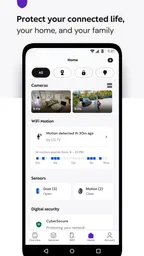
I think of Xfinity as a practical control panel for people who already use Comcast services, rather than as a general-purpose productivity tool. Its appeal is straightforward: it brings account-related tasks into one app, so I can check or manage things without hunting through separate screens or reaching for a computer. That convenience is most valuable when I make the app part of a small, repeatable routine instead of opening it only when something goes wrong.
Making everyday account checks less of a chore
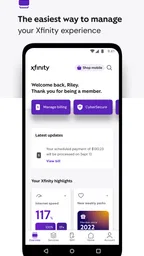
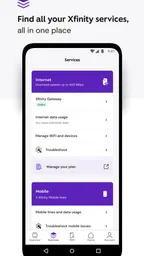
Developed by Comcast, Xfinity is a free productivity app for managing the company’s services. The main benefit is consolidation: I can use a single mobile starting point for account tasks instead of treating every service interaction as a separate errand. It is designed for Xfinity customers, so its usefulness depends heavily on whether Comcast is already part of your household setup.
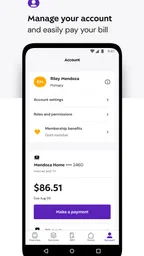
A realistic routine might be checking the app while sorting out household bills, then using it to review the account or handle a service-related task before moving on with the day. That is less dramatic than a major productivity makeover, but it can save the small bits of time spent remembering where to go and signing in again. I find this kind of convenience works best when the app is used as a regular check-in, not as a replacement for every other way of contacting a provider.
For a household, the app can also give the person responsible for the account a clearer place to start when someone asks, “Can you check our Xfinity account?” That does not mean everyone in the home needs to use it. One person can keep the account routine in one place, while others continue to ask them for help. If several people need to manage services independently, it is worth agreeing who handles which tasks rather than assuming the app will settle household roles by itself.
The difference from a typical productivity app is important. Xfinity is not where I would organize projects, notes, or a shared calendar. Its value is tied to managing Comcast services; a to-do app or general account manager will be more useful for broad personal organization. If you are not an Xfinity customer, there is little reason to install it just because it sits in the productivity category.
Build a baseline workflow before you need help
My practical recommendation is to get comfortable with the app while everything is working normally. Sign in, look around, and learn where the account information and service controls you are likely to need are located. When a connection or account question comes up, that familiarity is more useful than trying to learn the layout under pressure.
A simple habit is to check the account at a predictable moment—when reviewing household bills, for example—rather than repeatedly opening the app without a reason. If you have a specific task, complete it and then leave. This keeps the app useful without turning it into another notification or checking habit. It also makes it easier to notice when you are using the app for a real need rather than browsing out of uncertainty.
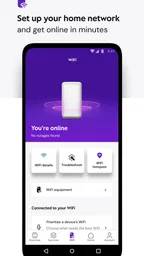
One useful distinction is between an account question and a device or network problem. Xfinity is a reasonable first stop when the issue seems connected to your Comcast account or services. If the difficulty is actually with a particular phone, laptop, or home device, the app may not be the right place to solve it. Identifying which side of that line your problem falls on can prevent a frustrating loop through account screens when the device itself needs attention.
Settings and habits worth checking
Rather than assuming every option is configured the way you want, take a moment to review the settings and account details visible to you. Check that you are signed into the account you intend to manage and that the information you rely on is current. These are modest checks, but they matter: a well-organized control panel is only helpful if you are looking at the right account.
I also recommend deciding how you want to use the app before enabling or relying on alerts. A notification can be useful if it prompts you to act on something important, but a stream of low-value interruptions can make the app easier to ignore. Keep only the reminders that help you follow through. This is a general workflow tip rather than a claim about a particular alert setting: review the choices available on your device and in the app, then keep the ones that suit your household.
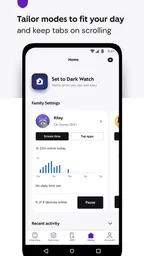
If more than one person shares responsibility for the account, agree on a simple process. For example, the account holder can check the app when a service question comes up, then tell other household members what has been done. That avoids duplicated effort and confusion about who changed or checked something. The app can centralize access, but a clear household routine still does the coordination work.
Another practical habit is to avoid making the app your only record of something you may need later. If a task produces information that matters to your household, keep it in the place where you normally track bills, appointments, or follow-up work. That way, the Xfinity app handles the provider interaction while your own system keeps the broader picture. It is a useful division of labor, especially if you already use a calendar or household checklist.
Faster patterns without overcomplicating things
The quickest workflow is often to enter with a specific question in mind. Before opening the app, decide whether you are checking the account, reviewing a service issue, or looking for a setting. That small pause helps you avoid wandering through menus and makes it easier to tell when you have reached the right place. I would not create a complicated shortcut system for a tool used only occasionally; a consistent starting point is usually enough.
If you use the app for recurring account checks, pair it with an existing routine rather than relying on memory alone. For instance, handle the check when you already review household expenses. The benefit is not a special automation; it is reducing the number of separate moments you need to remember. If the app is only needed for occasional issues, keep it available on your phone and use it when a concrete task arises instead of forcing a daily habit.
It can also help to keep a short note outside the app with the question you want answered or the next action you need to take. That is especially useful when you are helping another household member: collect the relevant details first, open Xfinity to check the account, then record what still needs follow-up. This avoids repeatedly switching between conversations and account screens. It is a simple workflow improvement, not a hidden app capability.
Compared with calling or using a computer, a phone app is convenient when you already have your device in hand and the task is straightforward. A computer may be more comfortable for a longer session, while speaking to customer support may suit a complicated issue that needs explanation. I see the app as one route among several, not a reason to force every problem through a mobile interface.
Where the experience can feel limiting
A consolidated app saves effort only when the task you need is actually available and easy to find there. If you cannot tell whether a problem belongs to your account, the service, or a device, the app may not immediately make that distinction clear. In that situation, I would avoid repeatedly trying the same screen and instead switch to the support route or troubleshooting approach that matches the problem.
There is also a natural trade-off in tying a productivity app to one provider. Xfinity is useful for Comcast customers precisely because it is focused on their services; that focus makes it less relevant to anyone who wants a neutral tool for managing several providers. If your main goal is to track household expenses across different companies, a budgeting app or spreadsheet is likely a better companion. Xfinity can help with its own account, but it should not be mistaken for a complete household finance system.
The app has an average rating of 3.8 from around 357,000 ratings, with about 93,000 written reviews. I take that as a reason to set sensible expectations: a provider app can be valuable for routine account work, but its usefulness is not the same as a guarantee that every service concern will be resolved in a few taps. Its scale is substantial, with over 10 million installs, yet a large audience does not make it the right fit for people outside the Xfinity ecosystem.
Version 6.14.0-2 is the current release, and the app requires Android 12 or later. It is rated for Everyone, which makes the age classification broad, though account management is naturally most relevant to the person responsible for the service. Those details matter when deciding whether it will run on an older phone or whether a family member should be the one managing the account.
Who should keep it—and who can skip it
I would recommend Xfinity to someone who already has Comcast services and wants a convenient mobile place to handle account-related tasks. It is particularly suitable for the household member who pays attention to service details and prefers checking a phone before making a call or sitting down at a computer. Free access lowers the barrier to trying it, and the app’s productivity purpose is clear even if it will not replace a general task manager.
I would skip it if you do not use Comcast, or if you expect one app to coordinate every provider, household bill, and personal reminder. It is also not my first choice for a complicated technical problem that needs a detailed conversation. In those cases, a broader account-tracking tool, a computer session, or direct support may be more appropriate than trying to make a provider-specific app cover everything.
My overall view is that Xfinity is most effective when treated as a focused utility: learn the layout once, check the relevant settings, and return with a clear task. Comcast’s app has a straightforward role in a customer’s routine, but it does not need to become the center of that routine. If you are an Xfinity customer, keeping it installed is sensible; if you are not, its narrow purpose gives you little reason to make room for it.
What we like
- Manage your Xfinity account and services from one place
- Check for service outages in your area
- Pay bills and view payment history in the app
- Use the built-in Wi-Fi hotspot map to find nearby access
- Get support without needing to call customer service
What could be better
- Many features require an active Xfinity account
- Some account changes may redirect you to a web page
- App performance can vary after updates
- Outage information may not reflect issues immediately
- Features available depend on your Xfinity services





