




Microsoft PowerPoint review
 Analysis by Appsdrops
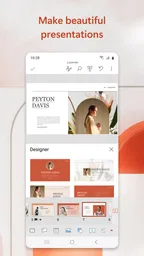
When I choose a presentation app, I care less about how many effects it can add and more about whether I can make a clear deck, revise it at short notice, and trust it to open when I need it. Microsoft PowerPoint is strongest when the presentation itself matters: it gives me a familiar way to build and edit slides on a phone or tablet, then carry the same kind of work into a live presentation. It is a practical choice for class, client meetings, and workplace updates, though it is not always the easiest option for a quick, collaborative deck.
What matters when choosing a slide app
I would start by asking where the presentation will be made and shown. If you already use PowerPoint on a computer, the mobile app makes more sense because your files and habits can carry over. If you need to draft a few slides while away from your desk, it can handle that too, but a phone’s small screen makes precise layout work slower than on a larger display.
The other question is how you work with other people. PowerPoint is a familiar format in many offices and classrooms, so it can be a sensible choice when recipients expect a conventional slide deck. If your priority is a shared, browser-first workflow or a highly visual template-led presentation, another category of tool may suit you better. The right choice depends on whether compatibility, co-editing, design speed, or detailed control matters most.
As a productivity app from Microsoft Corporation, it has a broad audience rather than a narrow specialist focus. It is free to install, rated for Everyone, and has an average rating of 4.8 from around 4.3 million ratings. More than a billion installs suggest that many people already encounter its file format in work or school, which can reduce the awkwardness of sending a deck to someone else.
Where PowerPoint earns its place
The central advantage is continuity. I can think of a presentation as a file I keep developing, not a one-off design that only works inside one service. That matters when a meeting changes, a teacher asks for a revision, or a colleague needs the deck in a familiar format. The app’s purpose is straightforward: create, edit, and present slides without being tied to a desktop at every step.
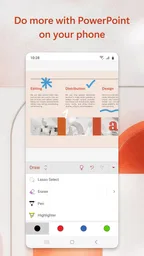
A useful mobile workflow is to do the thinking and rough editing on the phone, then reserve careful visual adjustments for a bigger screen when possible. I might update a title, reorder the story, or add a note after a meeting, then polish alignment later. This division of work is more realistic than expecting a phone to replace a full desktop setup for every design task.
One less obvious benefit of working in a standard slide deck is that the structure itself can help you edit. When a presentation feels crowded, I find it useful to review one slide at a time and ask whether it supports the point immediately before or after it. Moving or removing a slide can improve the argument more than adding another graphic. PowerPoint is built around that familiar sequence, so it supports a disciplined revision pass rather than only decorating individual pages.
For a practical everyday example, imagine I have to present a project update after a conversation that changes the order of priorities. I can use the mobile app to revise the wording and rearrange the relevant slides before the next meeting, rather than waiting until I am back at my computer. I would still check the finished deck on a larger screen if spacing or small text matters, but the ability to make a timely content change is valuable.
Presentation mode is another reason to choose it over a notes or document app. A slide deck is meant to be shown, and PowerPoint keeps the creation and delivery stages in one place. That reduces the number of handoffs in a simple workflow: prepare the slides, review their sequence, and present them from the same app. For a straightforward talk, avoiding a last-minute export can be more useful than having a long list of decorative options.
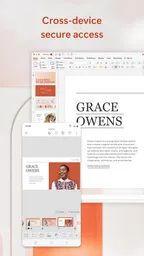
There is also a real advantage in familiarity. People who have used PowerPoint before are less likely to need a new mental model for basic slide work. That can matter in a group where some people contribute content, others make edits, and one person presents. With an average rating of 4.8 and roughly 19,000 written reviews, it is clearly a well-established choice, although popularity alone does not make it the best fit for every workflow.
Small-screen editing and sensible habits
Mobile editing works best when I keep the task narrow. Fixing a sentence, adjusting the order, or checking the overall story is more comfortable than trying to align many objects by touch. Before presenting, I would review the deck from beginning to end and pay special attention to long headings, dense slides, and any text that might be hard to read at a distance.
A good practical habit is to separate content review from visual review. First, read only the titles in sequence: they should tell a coherent story on their own. Then inspect the individual slides for unnecessary detail and consistency. This makes a phone session useful even when fine layout work is awkward, because it lets you improve the presentation’s logic without relying on tiny touch targets.
I would also avoid treating a presentation as a place to store every detail. If a slide is carrying the full script, the audience will struggle to follow it. Use the deck for the points people need to see, and keep supporting explanation in your spoken delivery or a separate document. That advice is especially relevant when making last-minute edits on a small screen, where adding one more paragraph can seem easier than simplifying the message.
When another kind of tool may be better
PowerPoint is not automatically the easiest choice for a team that wants everyone editing the same presentation through a browser-first process. A collaborative presentation service may be a better fit when live co-editing and shared access are the main requirements. Likewise, a design-focused slide tool can be preferable when template-led visual polish matters more than compatibility with established PowerPoint files.
For a short, informal talk, a document or whiteboard-style tool may also be enough. If your content is mostly text, a slide deck can force it into fragments that are harder to read than a well-organized page. And if you need to do detailed visual design regularly, using a desktop or tablet with a larger display is generally more comfortable than relying on a phone, regardless of the app.
These alternatives are not inherently better; they optimize for different work. I would stay with PowerPoint when file familiarity and presenting are central. I would look elsewhere if the group’s process depends on a different format, if rapid visual templates are the priority, or if slides are the wrong container for the information in the first place.
Price, extras, and the cost of changing tools
The app is free, with in-app purchases listed from $0.99 to $199.99 per item. That range means it is worth checking the purchase details in the app store before relying on a particular paid option, rather than assuming every capability is included at no cost. For a basic decision, I would first install it and see whether the editing and presenting workflow meets my needs before paying for anything.
Switching away from a familiar slide format has a cost that is easy to overlook. You may need to move existing decks, learn a new editing interface, and make sure collaborators can open what you create. Conversely, staying with PowerPoint can be inconvenient if your team already works in a different service and expects shared edits there. I would test the exact handoff that matters—such as revising a deck with a colleague or presenting it from the device you plan to use—before moving a whole project.
The app has been available since January 6, 2015, and its scale is part of the practical picture: it has over a billion installs. That does not guarantee a perfect fit, but it does make it a familiar option for people who regularly receive or share PowerPoint presentations. If your existing files are already in that format, keeping them in their native environment may be simpler than converting everything just to try a different workflow.
Who I would recommend it to
I would recommend Microsoft PowerPoint to students, teachers, and professionals who need a dependable way to revise and present conventional slide decks, especially if they already work with PowerPoint files elsewhere. It is also a reasonable option for occasional mobile edits when the goal is to keep a presentation moving rather than perfect every visual detail on a phone.
I would not make it my first recommendation for someone who mainly wants frictionless group editing in a browser, a highly automated design experience, or a comfortable environment for extensive layout work on a small display. Those needs point toward a collaborative service, a template-led design app, or a larger-screen workflow. PowerPoint’s strength is not that it suits every presentation style; it is that it makes the familiar slide-deck workflow accessible in more places.
My overall view is positive but conditional. If you need to create, adjust, and deliver standard presentations, it is a capable productivity app with a clear role and a familiar format. If you are choosing from scratch, decide first whether compatibility or collaboration matters more, then try the workflow you will actually use. For many people who already exchange PowerPoint decks, that practical continuity is enough to make it the sensible choice.
What we like
- Works smoothly with Microsoft 365 files.
- Offers familiar slide editing tools.
- Supports presenting directly from a mobile device.
- Lets you collaborate with others on presentations.
- Includes templates to help start a new deck.
What could be better
- Some advanced features require a Microsoft 365 subscription.
- Editing slides on a small screen can feel cramped.
- A Microsoft account is needed for cloud features.
- Large presentations may be slow on older devices.
- Offline access may not include the latest shared changes.





