Microsoft Excel: Spreadsheets review
 Analysis by Appsdrops
Microsoft Excel is still one of the most useful spreadsheet apps you can carry in your pocket. Its main appeal is familiar: organize information into rows and columns, make sense of figures, and turn a jumble of data into something you can act on. The mobile experience is at its best when you need to review a workbook, make a quick change, or sketch out a table away from your desk. It is less comfortable when a task calls for extensive editing or precise control, but that trade-off is common to spreadsheet work on a small screen.
A familiar spreadsheet with a mobile focus
As a productivity app from Microsoft Corporation, Excel brings a well-established spreadsheet format to Android and iOS. The core idea is easy to understand even if you are not a spreadsheet expert: enter information into cells, arrange it in a useful structure, and use the resulting worksheet to track, compare, or communicate what matters. That makes the app practical for everything from a simple household list to work documents with more involved calculations.
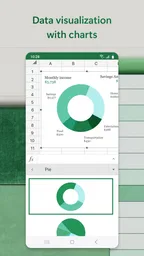
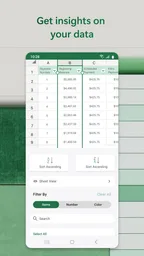
I like that the basic layout does not demand a new way of thinking. If you have used a spreadsheet before, the grid feels immediately recognizable; if you have not, it offers a clear starting point for keeping information orderly. The app’s store summary also highlights AI tools for generating visual charts from data, pointing to a broader goal than merely storing figures: Excel aims to help turn raw information into a more readable visual story.
That ambition is especially relevant on a phone, where a long table can be difficult to scan. A chart can make a pattern easier to spot than a collection of cell values, and a well-organized worksheet can keep essential details together. In my view, Excel’s lasting value is this combination of structure and interpretation. It can serve as a digital ledger, a lightweight planning tool, or a place to make sense of information before sharing it with others.
Why the spreadsheet format still works
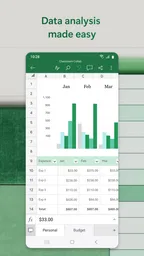
A spreadsheet is flexible without being tied to one particular kind of task. You can use the same grid-based approach to record expenses, maintain an inventory, plan a schedule, compare options, or keep project details in order. The format encourages clear labels and consistent entries, which is useful even when the workbook contains no elaborate formulas. For many everyday jobs, simply replacing scattered notes with a tidy table is already a meaningful improvement.
Excel is also a sensible choice when other people in your work or personal circle already use spreadsheets. Familiarity matters: a workbook is easier to exchange and discuss when its format is widely recognized. With more than a billion installs and an average rating of 4.8 from 9.9 million ratings, the app clearly has a substantial audience. Those figures do not guarantee that every workflow will feel effortless, but they do underline how established Excel is as a mobile productivity tool.
What works best on a phone
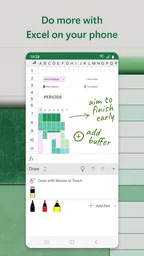
For me, the strongest mobile use case is focused, practical work rather than a full day of spreadsheet construction. Checking information, entering a few details, making a modest adjustment, or looking over a chart all suit the format better than managing a sprawling workbook through touch controls. The phone version makes it possible to keep spreadsheet tasks within reach, which is handy when the alternative is waiting until you are back at a computer just to consult or update a small piece of information.
The same convenience can make Excel useful for quick capture. Instead of letting figures or task details sit in a message or loose note, you can place them into a structured worksheet. That structure makes later review easier, particularly when the information naturally belongs in columns. I would still keep the layout uncomplicated on a phone: concise headings and a clear purpose help a sheet remain readable, while overly dense tables can become a chore to navigate on a compact display.
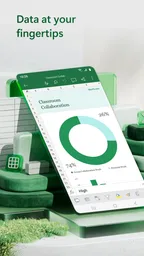
The chart-focused AI description gives the app an appealing direction for people who need to present data, not just collect it. Visual summaries can help readers notice comparisons and broad patterns quickly. Used thoughtfully, that sort of presentation can make a spreadsheet more approachable for colleagues or family members who would rather see a picture of the information than inspect every row. The key is to treat visual output as a way to clarify the data, not as a substitute for checking that the underlying information is organized correctly.
Where the experience can feel limiting
The obvious compromise is screen size. Spreadsheets often depend on fine distinctions between cells, headings, and values, and a phone gives you less room to see them all at once. Navigating a wide or lengthy worksheet can mean shifting your attention around the screen, while precise edits are naturally less comfortable with touch than with a keyboard and mouse. That is not a flaw unique to Excel; it is a real constraint of doing detailed spreadsheet work on mobile.
This makes the app a less compelling choice as the sole workspace for people who routinely build complicated models or spend hours formatting large sheets. A desktop environment offers more room to compare sections and make careful changes. On a phone, the smallest edit may be easy, but repeated adjustments can add friction. I would treat mobile Excel as a capable companion for everyday access and targeted work, rather than assume that every desktop habit transfers neatly to a smaller device.
There is also a learning curve if you are new to spreadsheets. The grid looks simple, but good results depend on deciding what belongs in each column, keeping entries consistent, and knowing when a chart will genuinely help. AI-assisted chart generation may make the visual side more accessible, yet a chart is only as useful as the data and question behind it. Beginners should start with a straightforward sheet and build complexity gradually instead of trying to solve every organizational problem at once.
Another practical consideration is that the app is free to download but includes in-app purchases, with listed items ranging from one dollar to one hundred ninety-nine dollars and ninety-nine cents each. That does not change the basic appeal of trying a familiar spreadsheet tool, but it is worth keeping in mind if you are comparing productivity apps or deciding what you need from a broader software setup. The right choice depends on your workflow, not simply on the name of the app.
Who should choose Excel?
Microsoft Excel is a strong fit for people who already rely on spreadsheets and want to consult or handle them while away from a desk. It also makes sense for students, small teams, and anyone who wants a structured place for lists, schedules, records, or comparisons. If your needs are mostly about keeping information organized and occasionally turning it into a chart, the familiar format gives you plenty of room to grow without forcing you to adopt a specialized tool for every task.
It is particularly appealing when compatibility with a widely used spreadsheet format matters. In a workplace or classroom where worksheets are part of the routine, being able to access that style of document on a mobile device can be more useful than choosing an app with a narrower focus. The scale of Excel’s audience—along with around 50,000 written reviews—suggests that it serves a broad range of users, from people managing simple personal lists to those working with data in more structured settings.
By contrast, someone who rarely needs tables or calculations may find a dedicated notes or task app more direct for their everyday routine. And if your work involves sustained, intricate spreadsheet editing, a phone alone is unlikely to be the most comfortable setup. I would recommend Excel most confidently to people who value access and flexibility, understand the limits of a small screen, and want one familiar tool that can cover a wide range of ordinary data tasks.
A practical verdict for everyday productivity
Excel earns its place on mobile because spreadsheets remain an effective way to bring order to information. The app’s strongest qualities are its recognizable grid-based approach, its usefulness across different kinds of records, and its aim to make data easier to understand through visual charts. It can help you keep a small task moving when you are away from a computer, and it offers a familiar environment for people who already exchange or maintain spreadsheet documents.
Its limitations are just as clear: a phone is a cramped place to inspect a large workbook, and detailed editing can feel slower than working at a desk. Those drawbacks do not outweigh the convenience for focused tasks, but they should shape expectations. I would not choose mobile Excel for every demanding spreadsheet session; I would choose it to keep useful information close, make sensible updates, and review data when a computer is not at hand.
Overall, this is a dependable productivity app for users who want a versatile spreadsheet rather than a narrowly defined organizer. It is free to install, rated for Everyone, and has been available since January 6, 2015, giving it a long-standing presence in the mobile productivity space. If your daily routine involves tables, figures, or visual summaries, Excel is well worth considering. If you need deep, continuous spreadsheet work, pair the mobile convenience with a larger-screen workflow. That balance is where the app makes the most sense.
What we like
- Files can be opened and edited across Android and iOS devices.
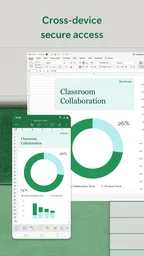
- Cloud syncing helps keep spreadsheet changes available across devices.
- Templates make it easier to start common spreadsheet projects.
- Charts help present spreadsheet data visually.
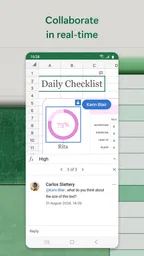
- The app supports collaboration on shared workbooks.
What could be better
- Some advanced features require a Microsoft 365 subscription.
- Editing spreadsheets on a phone can feel cramped.
- Large workbooks may be slow on older devices.
- Some desktop features are unavailable in the mobile app.
- Offline edits may not sync until an internet connection returns.





