

Link to Windows review
 Analysis by Appsdrops
I find Link to Windows most useful when my phone and computer are already part of the same routine. Instead of repeatedly picking up the handset to check a message or see whether a call has come in, I can bring some phone activity onto a Windows PC. That can make a work session, a study period, or a busy day at home feel less fragmented. It is a practical bridge between devices, not a replacement for a phone or a complete solution for every kind of access need.
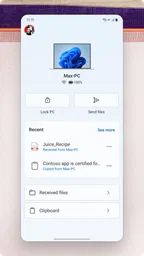
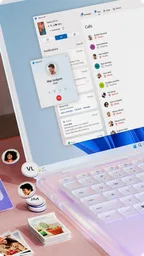
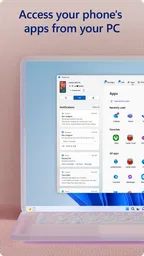
Link to Windows is a free productivity app from Microsoft Corporation. Its purpose is straightforward: connect a phone with a PC so selected notifications, calls, apps, photos, and texts can be accessed from the computer. The app has a 4.0 average from around 1.3 million ratings, and it has been installed over a billion times. Those figures suggest broad use, though they do not tell me whether the connection will suit a particular phone, PC, or personal workflow.
Reading and navigating without constant device switching
The main accessibility benefit I notice is not a special reading tool; it is the option to handle some phone activity on a larger computer screen. If I am already looking at a document or typing at a desk, seeing a notification there can spare me the repeated movement between screen and handset. For someone who prefers a larger display, a physical keyboard, or a familiar desktop setup, that change in where information appears may make ordinary tasks easier to manage.
There is a useful distinction between bringing phone activity to a PC and making that activity universally easier to read. Link to Windows does not turn a small-screen app into a fully redesigned desktop experience. What I can do depends on the connected devices and the particular phone activity. A notification may be convenient to glance at on the computer, while a complicated task may still require opening the relevant app on the phone.
I would treat it as a way to reduce navigation overhead, rather than as a general screen-reading or text-enlargement tool. If I need the phone’s own accessibility settings, display controls, or specialist reading support, I would set those up on the phone itself and check how they behave in the apps I use. Linking devices can change where I notice something; it does not automatically change the structure or readability of the original content.
A calmer way to manage interruptions
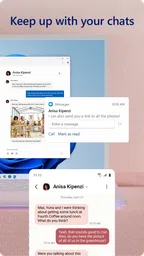
One less obvious strength is the possibility of deciding which interruptions deserve a glance while I stay at the computer. For example, I might check an incoming text between tasks without unlocking the phone and then losing my place in a document. That can help someone who finds frequent device switching tiring or distracting. It can also be a drawback: moving alerts to a second screen may increase interruptions if I do not already have a good way to manage notifications.
I recommend approaching the connection with a small, deliberate routine. Start with the phone activity that genuinely saves effort, such as checking messages or seeing notifications while working, and see whether it helps before making the PC another source of constant alerts. The useful question is not whether every phone feature can be reached from the computer, but whether the activities that matter to you are easier to notice and handle there.
Motor and sensory needs in everyday use
For someone who has difficulty reaching for, holding, or repeatedly tapping a phone, a PC-based workflow may reduce some physical effort. A person already using a keyboard and mouse, or another computer input setup, may find it easier to respond to certain phone activity without changing posture. This is a potential advantage, not a guarantee: the experience still depends on the connected devices and on whether the task can be completed from the PC.
There is a practical trade-off between fewer phone interactions and having to maintain a connection between two devices. If the link is unavailable or a particular activity does not behave as expected, I may need to return to the phone. Someone who relies on consistent, low-effort access should try the specific actions they use most before building a routine around the connection. I would not assume that every call, message, or app interaction works identically across different setups.
Sensory preferences also vary. A PC can put alerts closer to the work in progress, which is helpful when looking down at a phone is uncomfortable or inconvenient. But a notification appearing on the computer may be just as distracting as one appearing on the handset. I would adjust my notification habits on the devices rather than expecting Link to Windows itself to make alerts quieter, less frequent, or easier to process.
Useful in shared and changing situations
The app can make sense for a person who moves between a desk and a phone throughout the day: a student checking a message while taking notes, or someone at home keeping an eye on a call while working at a PC. It may also help when handling a photo or text is more convenient from the computer than from the phone. The benefit is greatest when the PC is already in use and the phone is nearby, not when setting up a computer would add another step.
Shared spaces deserve a little thought. Bringing phone content onto a computer can make it easier to see, but that may be less private if other people can view the screen. I would consider where the PC is placed before relying on it for personal messages or notifications. This is a situational choice: a private desk may be convenient, while a communal screen may make the same workflow uncomfortable.
Where the connection still has limits
Link to Windows is not the right choice if what I need is a complete desktop version of every phone app, a universal accessibility layer, or a way to use a phone without the phone itself. Its role is to connect selected parts of phone use with a PC. Anyone who needs a task that remains tied to the handset should expect to keep using the phone for it.
It is also worth weighing the setup and maintenance against the benefit. A two-device workflow can be excellent once it fits, but it adds a connection to manage and another screen where information may appear. If I rarely work at a computer, the link may not save enough effort to matter. If I mainly want to organize tasks, take notes, or read documents, a dedicated tool for that purpose may be a better fit than routing phone activity through a PC.
Compared with simply picking up a phone, the app’s advantage is continuity at the computer; the phone alone remains the more direct option when I am away from the desk. Compared with using separate desktop and mobile apps, Link to Windows focuses on bringing phone activity into the PC routine rather than replacing every app with a computer counterpart. That distinction helps set expectations: it is a companion connection, not a general-purpose device-management or accessibility suite.
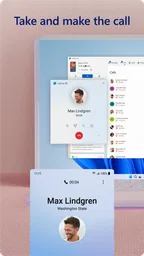
The app is rated Everyone and is currently at version 1.26102.152.0. It was released on December 16, 2015, and its large, established audience makes it a familiar option for people exploring a phone-to-PC workflow. Still, popularity is not a substitute for trying the actions that matter in your own setup. I would test a few ordinary tasks first, such as noticing a message or checking a call, and judge whether the link actually reduces effort.
Who I would recommend it to
I would recommend Link to Windows to someone who spends a meaningful part of the day at a PC and wants fewer reasons to pick up a phone. It is especially worth considering if working with a larger display or familiar computer input makes checking phone activity more comfortable. For a person with motor, visual, or sensory preferences, the potential benefit comes from changing the context of access, not from any promise that the app addresses a particular disability.
I would be more cautious if alerts are already overwhelming, if privacy on the computer is a concern, or if the essential tasks all require direct use of the phone. In those cases, the connection may add complexity instead of removing it. The best test is specific: choose one repeated phone task, try doing it through the PC during a normal day, and notice whether it saves movement or attention without creating new interruptions.
Overall, I see this as a useful, focused bridge rather than an all-in-one answer. Its inclusive value depends on the person, devices, surroundings, and chosen workflow. When it brings the right phone activity into a comfortable computer setup, it can make everyday transitions smoother. When the computer is not the easier place to work—or when the task needs the phone directly—using the phone on its own is the more sensible choice.
What we like
- Connects your phone to a Windows PC without a cable.
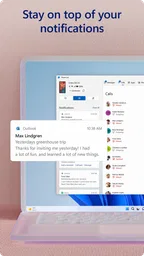
- Shows phone notifications directly on your computer.
- Lets you reply to texts from a compatible PC.
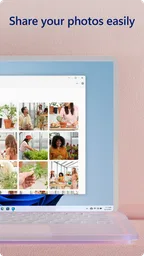
- Makes recent photos easy to access on Windows.
- Supports calls on compatible phones and PCs.
What could be better
- Some features require a Microsoft account on both devices.
- Feature availability varies by phone model and region.
- Call support may require Bluetooth pairing.
- Battery use can increase when the connection stays active.
- Setup can be confusing if permissions are denied.





