

HP Print Service Plugin review
 Analysis by Appsdrops
Printing from a phone sounds simple until the document is buried in an app, the printer is across the room, or the person using the device cannot comfortably manage a fiddly setup. HP Print Service Plugin is a practical Android utility for sending print jobs to HP printers from other apps. I see its value less as a feature-packed printing suite and more as a bridge: when it works with your printer and the app you are using, it can remove several steps between finding a document and getting a paper copy.
Finding the print option and understanding the workflow
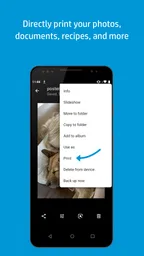
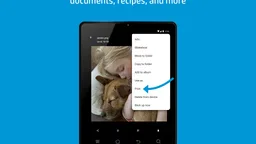
This is a productivity app from HP Inc., but it is not a full document editor or a general-purpose printing hub. Its role is to let compatible apps hand a print job to an HP printer. In everyday use, that means I would first open the item I need—perhaps a PDF, photo, or message attachment—and look for the app’s print option in that app’s menu. The plugin then provides the route to the printer rather than asking me to recreate the document elsewhere.
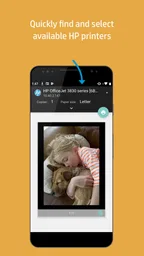
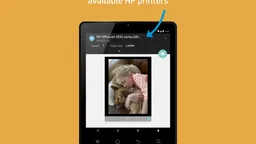
That distinction matters for readability and navigation. If the original app presents a clear print command, the workflow can feel familiar: open, choose print, select the available printer, and review the job. I do not need to learn a separate editing environment just to print a page. At the same time, the exact route into printing depends on the app holding the document, so someone expecting one identical button in every app may find the experience uneven.
It is also useful to separate this plugin from the broader tasks people associate with printer software. I would not choose it to revise a long report, organize files, or manage every aspect of a printer. Its strength is the handoff from an Android app to an HP printer. Keeping that job narrow is convenient, but it means the quality of the surrounding experience partly depends on the document app and the printer setup already in place.
The app is free and has an Everyone age rating, which makes it straightforward to consider for a household device. It has a 4.1 average from around three million ratings, and more than a billion installs. Those figures suggest broad use, but they do not guarantee that a particular printer, phone, or document app will behave exactly as expected. I would treat the actual printer connection and the print menu in my own apps as the useful test.
How I would use it for ordinary documents
For a realistic example, imagine needing to print a school form received as an attachment while getting ready to leave home. I would open the attachment in the app where it arrived, use that app’s print command, and choose the HP printer if it appears. The practical benefit is avoiding the detour of moving the file to a computer simply to make a basic paper copy. If the menu is not obvious, I would check the document app’s share or overflow options rather than assuming the plugin has disappeared.
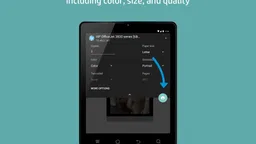
A small but helpful workflow choice is to review the document before sending it. A page that looks fine on a phone can still be awkward on paper: a message may include extra conversation, a web page may have sidebars, or a form may be scaled unexpectedly by the app handling it. When possible, I would use a document or PDF view that shows the page layout, then inspect the print choices before committing. That reduces wasted paper and avoids blaming the printer for formatting decided upstream.
For repeated tasks, the simplest improvement is to start from the right source app. If I print a photo, I would open it in a photo app that exposes printing; for a form, I would use a PDF or document viewer. This can be more reliable than trying to print a screenshot, which may include status icons, unwanted margins, or text too small to read. The plugin’s usefulness therefore depends not only on the printer but also on choosing a sensible route through the content.
Readability, motor control, and sensory comfort
Because this tool sits inside other apps’ print flows, its accessibility is not a single, self-contained experience. A person who relies on larger text, screen reading, strong contrast, or a simplified interface will encounter a combination of the phone’s system settings, the source app, and the print controls. I would test the complete path with the actual document app rather than assume that one accessible screen guarantees an accessible job from beginning to end.
For someone with limited dexterity, reducing unnecessary navigation is a real advantage. Printing directly from the app that contains the file can avoid switching between several applications or transferring it to another device. But there may still be several small decisions—finding the print command, selecting a printer, and checking options—and those steps can be tiring if controls are crowded or inconsistent between apps. A useful practical adjustment is to keep the source document in an app whose menus the person already knows, rather than changing apps for every print task.
Sensory needs can shape the choice too. A person who finds visual clutter difficult may prefer a straightforward document viewer and a short, familiar route to print. Someone sensitive to printer noise or movement may need to consider the physical printer’s location and timing, since the plugin’s role is to send work, not to make the printer itself quieter. For a shared household, agreeing on a predictable place for printed pages can also make the overall process less stressful, especially when multiple people use the same device.
I would not assume that every print option is equally easy to understand for every user. Labels and controls can vary with the app supplying the document, and a print preview may present information in a way that is easier for some people than others. If a user depends on assistive technology, a low-risk first test—such as a short, non-sensitive page—can reveal whether the full sequence is workable before an important form or lengthy document is involved.
Where access works well—and where context matters
The strongest situational fit is a person who already uses an HP printer and wants to print occasional documents from an Android phone or tablet. It can be especially handy when a computer is unavailable, when the file arrives in a messaging or email app, or when someone needs a quick paper copy without learning a separate printing workflow. The Android minimum is version 6.0, and the current version is 23.2.6.3182, so the operating-system requirement is worth checking before planning around it.
It is less compelling for someone who does not use an HP printer, prints only from a desktop, or needs a single interface that handles a broad mix of printer brands. In those situations, the printer maker’s own tools for the devices already in use, the operating system’s built-in printing route, or a computer-based workflow may be a better match. Those alternatives are not automatically easier; the point is to choose the route that fits the printer and the person’s established habits.
There is also a difference between being able to start a job and being able to complete it independently. A user may be able to send a document from the phone but still need help loading paper, checking supplies, clearing a printer issue, or locating the finished pages. That is not a flaw unique to this plugin, but it matters when evaluating accessibility in a real home, school, or workplace. The app supports a digital step in a larger physical process; it does not remove every barrier around printing.
For a busy family, a useful setup is to keep common forms in a clearly named folder and use the same document app whenever possible. That reduces the chance of printing an outdated attachment or getting lost in a different menu each time. In a shared environment, I would also check that the correct printer is selected before sending anything personal. A quick glance at the destination is a simple habit that helps prevent a private page from appearing on the wrong machine.
Trade-offs and remaining barriers
The biggest limitation is that the plugin’s experience is conditional: it is useful when the phone, the app containing the file, and the HP printer cooperate. If the printer is not available in the selection flow, the document app may offer little guidance about what to fix. That can be frustrating for anyone who needs a dependable process, particularly when printing is urgent. I would troubleshoot the connection and printer setup first, then retry from a simple document app before concluding that the file itself is the problem.
Another trade-off is the lack of one universal route. A user may find printing in a document viewer but not in the same place in a photo or web app. For someone who values consistency, that is a reason to standardize on one or two familiar apps for routine print jobs. If that is not practical, written steps or a brief demonstration can help a family member or colleague repeat the process without having to rediscover each menu.
People who need extensive editing before printing should prepare the file in an editor first. The plugin is not a substitute for correcting text, adjusting a layout, or removing pages from a document. Similarly, anyone who needs a highly controlled print workflow should check whether the options available through their source app meet the task. A basic handoff is convenient for everyday pages, but it may not be enough for work where precise layout choices are central.
HP’s long-running presence in this category is reflected in the app’s release date of May 14, 2013, but age alone does not make it the right answer for every setup. I would focus on current compatibility with the particular Android device and HP printer, then judge it by a small test job. That is more useful than assuming that a widely installed app will solve every printer problem automatically.
Who should choose it
I would recommend it to Android users who own an HP printer, print from phone-based documents, and want a direct route that does not require a computer. It is a sensible utility for occasional household paperwork, quick copies of forms, and other modest jobs where the source app already offers a print command. The fact that it is free makes trying that workflow low-commitment, while its large user base and 4.1 average give some reassurance that it is widely used rather than an obscure add-on.
I would skip it if the printer is not an HP model, if printing is mainly done from another platform, or if the person needs a single, carefully guided interface for every stage of the process. I would also be cautious about making it the sole solution for a user who cannot independently manage the physical printer and has no support nearby. In those cases, a different printer workflow or a more hands-on arrangement may be more reliable than adding another app to the chain.
My overall view is that HP Print Service Plugin does one useful job: it helps connect Android apps to HP printing without pretending to be a complete document workspace. Its best quality is the shorter path from a file already on the phone to a paper copy; its main drawback is that navigation and accessibility depend on the apps and printer around it. If that combination matches your setup, I think it is worth trying with an ordinary, non-sensitive page first. That small test will show whether the workflow feels readable, manageable, and dependable for the people who actually need to use it.
What we like
- Print directly from Android apps without opening a separate printing app.
- Works with many HP printers on the same Wi-Fi network.
- Supports printing from cloud storage and web pages.
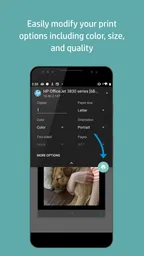
- Offers options for paper size and color printing.
- Can print PDFs and common image file types.
What could be better
- Requires a compatible HP printer for wireless printing.
- Some printers need a USB connection or an additional setup step.
- Printing features can vary by printer model.
- The plugin may not detect printers on restricted networks.
- Advanced printer settings may be limited in some apps.





