
Google Sheets review
 Analysis by Appsdrops
I find spreadsheet apps most useful when they become part of a routine rather than a project I open once and forget. Google Sheets makes that transition fairly easy: it lets me create and edit spreadsheets online, and it feels familiar enough to start with a simple list while offering room for more involved work. The catch is that its convenience can encourage me to build a workbook more complicated than the task deserves. It earns a lasting place when I use it to keep information current and shareable, not merely because it is already on my phone.
Easy to start, useful beyond the first week
As a free productivity app from Google LLC, Google Sheets is approachable for everyday tasks: tracking household spending, keeping a packing list, or organizing a small project. I can begin with a blank sheet, add headings, and fill in rows without needing to learn spreadsheet theory first. That low barrier matters on mobile, where starting a document from scratch can otherwise feel like a chore.
The app belongs to a well-established tool. It has a 4.7 average from around 2.7 million ratings, and it has passed over a billion installs. Those figures suggest broad use, but they do not tell me whether it suits a particular workflow. My own test is simpler: can I open the sheet, understand what needs attention, and update it without fighting the interface? For straightforward lists and shared records, the answer is often yes.
The first-week appeal is especially clear when a spreadsheet solves a small recurring problem. I might make a meal plan with columns for the day, dish, and ingredients, then add a checkbox-like status using a simple cell value. Or I might track a group’s contributions in a table, with one row per person and a total at the bottom. A useful sheet is not just a grid; it gives the next person a clear place to enter information.
One practical tip is to keep the first version deliberately plain. Put one kind of information in each column, use a descriptive header row, and avoid merging cells just to make the sheet look like a flyer. That structure makes sorting and filtering more useful later. It also makes the document easier to read on a phone, where wide layouts and decorative formatting can quickly become awkward.
Where mobile editing helps—and where it slows me down
Mobile editing is good for quick changes: correcting a quantity, adding a new item, or checking a total while away from a desk. I would not choose a phone as my main workspace for building a large workbook, though. Selecting a precise cell, entering longer formulas, and adjusting a crowded layout are naturally more comfortable with a larger screen and keyboard. The app is a handy companion to desktop work, but it does not make every spreadsheet task equally pleasant on every device.
A useful workflow is to build the basic structure first, then treat the phone as the place for small updates. For example, I can prepare a travel budget with categories and a total, then record a purchase when it happens instead of saving receipts to enter later. That reduces forgotten entries. But if the budget needs elaborate formatting, several calculated sections, and frequent rearrangement, I would do the setup on a computer and reserve mobile use for recording and checking.
Sheets is rated for Everyone and is free, which makes it easy to recommend for personal organization and ordinary shared work. Its release on April 30, 2014, also means it is not a new experiment that depends on novelty to feel useful. The app’s role is practical: give people a place to create and edit spreadsheets, with the value coming from the habits and information they maintain inside them.
Why it can keep earning a place month after month
The strongest recurring value is continuity. A list that stays useful is better than a beautifully formatted list that goes stale. I get more from a spreadsheet when I revisit it at a natural moment: updating a weekly plan during the weekend, entering expenses as they happen, or checking a shared task table before a meeting. The habit is small, but the document can save repeated messages and mental bookkeeping.
For a realistic example, imagine coordinating a family gathering. One sheet can hold the guest list, food assignments, and a simple status column. Each person can see what is still unclaimed, rather than asking the organizer for the latest version. The trade-off is that someone needs to keep the sheet understandable. If several people invent their own labels, leave blanks without explanation, or change the layout casually, the shared record becomes less reliable than a short conversation.
That is why I recommend defining a few conventions before inviting others to edit. Use consistent terms such as “needed,” “bought,” and “done,” and keep one row per item. If a column has a specific purpose, say so in its heading. These small choices prevent common spreadsheet confusion without requiring advanced formulas or a formal process. They also make it easier for a newcomer to contribute without asking how the document works.
For recurring personal tracking, a spreadsheet is more adaptable than a rigid checklist app. I can decide what counts as a useful entry and change the columns as my needs change. That flexibility is also a responsibility: there is no guarantee that an open-ended table will stay focused. I try to ask whether a new column will help me make a decision or remember something. If not, it is probably clutter.
Keeping a workbook healthy without turning it into a chore
Maintenance is modest for a small sheet but grows with the workbook. I find it helpful to separate raw entries from summaries: keep the original records in a tidy table, then put totals or conclusions elsewhere. That makes corrections easier and reduces the temptation to overwrite information just to make a summary look right. For a simple shopping list this is unnecessary; for an ongoing budget or inventory, the distinction can prevent avoidable mistakes.
Another useful habit is to test formulas with a deliberately simple example before relying on them. If a total should add three amounts, enter a few easy values and check that the result is what I expect. A formula can look plausible while pointing at the wrong cells, especially after rows are inserted or a layout changes. For anything consequential, I would verify the result rather than assume the spreadsheet is right because it displays a number.
Names and structure matter as a sheet grows. I give files and tabs clear labels, keep related information together, and avoid making one tab do several unrelated jobs. When a workbook gets difficult to explain in a sentence, that is often a sign to split the task or simplify it. This is not a shortcoming unique to Sheets; it is the price of using a flexible grid as an all-purpose database.
Shared editing also calls for a little care. Before multiple people enter information, I decide which cells are instructions, which are inputs, and which are calculations. Clear headings and a short note near the relevant area can prevent accidental edits. This is especially worthwhile when a sheet is used by people with different levels of spreadsheet experience. The app makes collaboration possible, but the organizer still has to make the workbook legible.
When the flexibility starts to feel tiring
The main source of fatigue is not a complicated feature; it is the blank canvas. A spreadsheet can be shaped to fit almost anything, but that means I have to choose the structure, decide how to handle exceptions, and keep the information consistent. For a one-off reminder, a notes app or task list is usually quicker. For a polished document that people mainly read rather than edit, a document or presentation tool may be a better fit.
Another limitation is that the grid encourages detail even when detail is not useful. I can add categories, status fields, color rules, and extra tabs until the system takes longer to maintain than the work it tracks. I avoid that by starting with the smallest useful table and adding complexity only after a real need appears. If I stop updating a sheet because the process feels burdensome, that is a signal to remove steps, not to decorate the workbook further.
Compared with dedicated budgeting, inventory, or project-management apps, Sheets is less opinionated. A specialist app may provide a guided setup and a ready-made view for its particular task, which can be easier for someone who wants decisions made for them. Sheets is better when I need to define my own fields, combine different kinds of information, or share a custom table. The choice depends less on which app is universally stronger and more on whether I value flexibility or a built-in workflow.
There is also a difference between a spreadsheet that helps me think and one that tries to become an entire operating system. I would not use a loose collection of tabs as the only place to manage a complicated project if the team needs dependable assignments, notifications, and a clear process. A grid can record decisions, but it does not automatically make people follow them. In that situation, a purpose-built project tool may reduce the coordination burden.
Who should stick with it—and who should choose something else
I would recommend Sheets to students organizing research notes, households keeping shared lists, freelancers tracking simple income and expenses, and small groups that need a customizable table. It is particularly useful when the same information changes over time and more than one person needs to refer to it. The app’s broad reach is reassuring, but the real reason to keep it is that a spreadsheet can evolve alongside a routine without requiring a new tool for every small change.
I would steer someone elsewhere if they dislike maintaining their own system, need a highly guided workflow, or primarily want a quick reminder. I would also be cautious about using a casually built sheet as the sole record for high-stakes decisions. Spreadsheets are powerful precisely because they are easy to reshape, and that makes clarity and checking important. A specialized service or a professionally managed system may be more appropriate when errors carry serious consequences.
After the first burst of experimentation fades, Google Sheets still deserves space on my device if I have a repeating task that benefits from a shared, editable record. Its long-term strength is not that every job belongs in a spreadsheet; it is that modest tables can be adapted without much ceremony. I get the best results by keeping layouts simple, checking calculations, and pruning fields that no longer help. Used that way, it becomes a quiet practical tool rather than another app I feel obliged to maintain.
What we like
- Edits sync across devices when you sign in to your Google account.
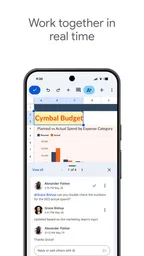
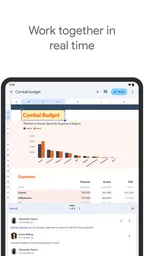
- Multiple people can edit a spreadsheet at the same time.
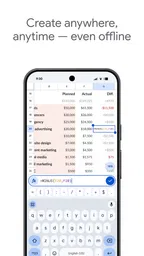
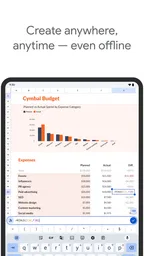
- Offline access lets you work without an internet connection.
- Built-in templates help you create common spreadsheets quickly.
- Voice typing can make entering text easier on supported devices.
What could be better
- Some advanced features are easier to use on a computer.
- Large spreadsheets may feel slow on older phones.
- Offline editing requires setup before you lose internet access.
- Spreadsheet formatting can be fiddly on a small screen.
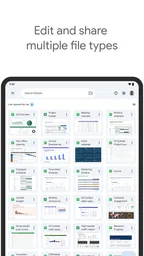
- Some file features may not transfer perfectly from other spreadsheet apps.





