
Dropbox: Secure Cloud Storage review
 Analysis by Appsdrops
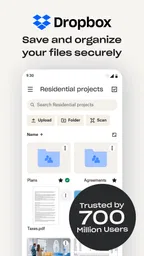
I think Dropbox is easiest to judge by a simple question: does it make the files I need feel close at hand, without turning sharing and syncing into another task to manage? In my experience, it is most useful when work moves between devices or people—documents to review, photos to keep, and folders that need to stay accessible away from a desk. It is a productivity app from Dropbox, Inc., and its focus is practical rather than flashy: keep files in one cloud-based place and make them easier to use elsewhere.
What feels quick—and what depends on your setup
Dropbox is designed to reduce the back-and-forth of emailing attachments to yourself or hunting through different device folders. When the file you need is already available in your account, opening or sharing it can feel much more direct than moving it manually. That is the kind of speed I value here: fewer steps in a routine, rather than a promise that every transfer will be instant.
Actual syncing depends on the connection, the file, and the device. A small document is a different job from a large batch of videos, and cloud storage cannot make a weak network behave like a fast one. I would plan around that distinction if I needed something urgently: make sure important material has finished syncing before leaving reliable Wi-Fi, rather than assuming a file will be ready at the last moment.
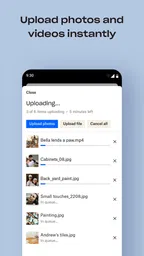
That habit matters especially for photos and videos. Dropbox can serve as a useful home for media you want to keep accessible, but sending or bringing a large collection into cloud storage takes more time and data than handling a few work documents. If I were preparing for a trip or a day with limited connectivity, I would check the specific files I expect to need in advance instead of treating cloud access as the same thing as local access.
Dropbox is free to start, but in-app purchases range from $5.99 to $299.99 per item. I would think about the intended workload before paying: someone who mainly shares occasional documents may have different needs from someone using cloud storage for a growing media library or regular team handoffs. The useful question is not simply whether the app opens quickly, but whether the storage arrangement suits the volume and frequency of your work.
When several files and people are involved
The app becomes more valuable when a task involves more than one isolated file. Imagine taking reference photos during the day, then needing to send a selection to a colleague and keep the originals available for later. A shared cloud location can spare you from making duplicate copies in several messaging threads. It also gives the work a clearer home: instead of asking which attachment is the latest, you can return to the same shared material.
There is a trade-off, though. A shared folder is convenient only if people understand where to put things and how to distinguish finished work from drafts. I would agree on a simple naming habit before a folder fills up—for example, use a recognizable project name and date in filenames. That small bit of organization makes Dropbox more useful than simply uploading everything and hoping search will rescue you later.
For a heavy-use moment, such as collecting a batch of event photos while also reviewing documents, I would avoid starting every large transfer at once on a slow connection. Letting one important upload finish first can make it easier to tell what is actually available, and it reduces the confusion of checking several pending items. This is a practical workflow choice, not a special performance setting; the point is to keep the work understandable when the app is handling more than one thing.
Dropbox is also a better fit for people who need files to travel between devices than for someone who only wants a one-off way to send a single attachment. If the task is occasional and the recipient already uses a different service, that service’s built-in sharing may be simpler. Dropbox earns its place when keeping a continuing collection accessible and handing it around repeatedly is part of the routine.
Reliability is also about knowing where the latest file lives
For me, cloud storage is dependable when it reduces uncertainty, not merely when the app is available. Dropbox helps by giving files a central place rather than leaving the only copy on a phone that might be misplaced or run out of room. Still, I would not treat one cloud account as a complete backup plan for irreplaceable work. For important material, I would keep a separate copy as well; a convenient working library and a resilient backup are related, but they are not the same thing.
Recovery also depends on the way a person works. If you edit a document on one device and immediately need it on another, allow time for the change to sync and check that you are opening the current file. This is especially sensible when several people are working from shared material. A little patience can prevent the familiar mistake of editing an older copy and later wondering why the latest changes are missing.
I would use a consistent folder structure for active projects and archive completed ones rather than keeping every file at the top level. That makes it easier to find what you need and lowers the chance of sharing the wrong item in a hurry. It is a small, non-obvious advantage of treating Dropbox as part of a workflow instead of a dumping ground: organization improves both day-to-day access and confidence about what has been shared.
The app has an average rating of 4.3 from around 2.3 million ratings, and it has been installed over a billion times. Those figures suggest broad familiarity, but they do not tell me whether a particular person’s connection, phone, or storage needs will suit it. I would use them as context, not as a substitute for thinking through how much I plan to store and how often I expect to move files.
Device limits and the right kind of storage
The current version is 498.2.2, and the minimum operating-system requirement is version 10. That makes checking an older device worthwhile before relying on Dropbox for a new routine. Even when an app is compatible, performance can feel different on a device with little free space or several demanding tasks running, so I would leave room for the phone’s ordinary work rather than assuming cloud storage removes every local constraint.
As a productivity app, Dropbox is for everyone by content rating, but its usefulness is not universal. It suits students exchanging project files, people who switch between a phone and computer, and anyone who wants a convenient shared place for work or personal media. It is less compelling if you rarely handle files outside one device, prefer a platform’s built-in storage tools, or do not want another account and file library to maintain.
Compared with the usual alternatives—built-in cloud storage, email attachments, or a messaging app—Dropbox’s advantage is the idea of a continuing file collection that can be shared and revisited. Built-in storage may be more seamless if all your devices already belong to one ecosystem. Email can be simpler for one document and a small group. Messaging is convenient for quick photos, but it can leave useful material scattered across conversations. I would choose based on the shape of the task, not on a claim that one tool is always best.
One helpful way to decide is to try the free version with a real, modest workflow before moving an entire archive. Put a few current documents and a small set of photos into a clear folder, then see whether switching devices and sharing with the people involved actually saves effort. If the routine feels natural, expanding it makes sense; if you find yourself constantly reorganizing or paying for more room than you need, a simpler alternative may be a better match.
My performance verdict
Dropbox feels strongest when it is used as a dependable working shelf for files that need to be reached and shared repeatedly. I like the practical payoff: less manual shuffling, a clearer place for collaborative material, and a way to keep important files accessible across a changing workday. Its speed is best understood as smoother access when syncing has completed, not as a guarantee that large transfers or poor connections will disappear as problems.
My main cautions are straightforward. Large media collections take planning, shared folders benefit from naming discipline, and cloud access should not be confused with a separate backup. People with older devices should check the operating-system requirement, and anyone deciding whether to spend should consider how much they actually store. Dropbox is free to begin, with optional in-app purchases, so I would first make sure its workflow solves a recurring problem rather than paying simply because the app is familiar.
Dropbox was released on May 4, 2010, and its long presence is reflected in how many people use it: more than 87,000 written reviews sit alongside its large rating base. That history may make it easier to recognize as a familiar option, but the choice still comes down to your habits. If you regularly move documents or photos between devices and want one place to share them, I would recommend giving it a try. If you only need occasional transfers or want storage tightly tied to one device ecosystem, I would start with the tools you already have.
What we like
- Files sync across devices so the latest versions stay accessible.
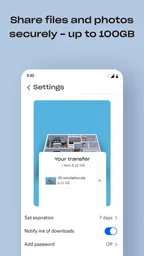
- Shared links make it easy to send large files.
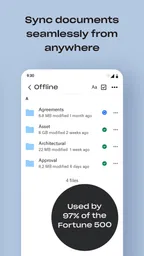
- Offline access lets you view selected files without a connection.
- File recovery can help restore deleted items or earlier versions.
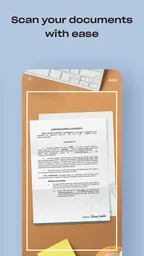
- Document scanning turns paper pages into digital files.
What could be better
- Free storage is limited compared with some competing services.
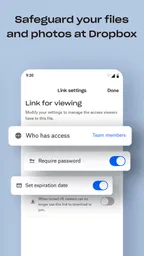
- Advanced sharing controls require a paid plan.
- Uploading large files can use substantial mobile data.
- Some features work differently across the web and mobile apps.
- Automatic camera uploads may consume storage quickly.





