
Google One review
 Analysis by Appsdrops
I think of Google One less as a place to organize files and more as the account-level safety net behind the Google services I already use. That distinction matters: it can make managing storage and keeping a phone backed up feel straightforward, but it is not a universal replacement for a file manager or a dedicated backup workflow. My recommendation depends on whether your photos, email, documents, and Android device already live in Google’s ecosystem.
Trust starts with knowing what the app is for
Google One is a free productivity app from Google LLC, built around cloud storage and phone backup. Its scale is hard to overlook: it has more than a billion installs, an average rating of 4.1 from roughly 934,000 ratings, and around 45,000 written reviews. Those figures suggest broad use, but popularity alone does not answer the more important question: whether its role and controls suit your own comfort with cloud storage.
I find the app easiest to understand when I separate the app itself from the Google account it helps manage. Google One gives you a place to review storage and backup-related options; it does not turn cloud storage into a private folder that is automatically disconnected from the rest of your account. Before relying on it, I would check which Google account is active, what content is being backed up, and which devices appear in the account’s backup settings.
That account check is especially useful for people who use more than one Google login. A phone can be signed into a personal account and a work or school account at the same time, and it is easy to assume the wrong one is handling a backup. I would confirm the account shown in the app before changing storage settings or treating a backup as protection for important files.
What it does well in everyday use
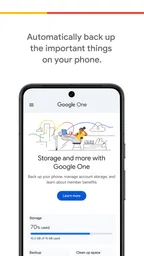
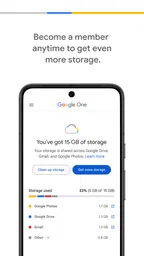
The practical appeal is that Google One gathers storage management and phone-backup tasks in a familiar Google setting. If you already use Google services, that can be less effort than stitching together a separate cloud provider, a device backup tool, and a storage checker. It is particularly useful when you want to understand why your account is running short on space rather than discovering the problem only when a service stops accepting more content.
A realistic example is preparing to switch phones. I would open the app before the move, check the account and backup status, and make sure the content I care about is included in the relevant device backup. That does not remove the need to review important items individually, but it gives me a clearer starting point than assuming a new phone will simply reproduce everything. After signing in on the replacement device, I would verify that the expected content has returned before wiping or handing over the old one.
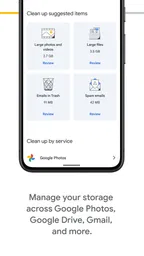
Another useful moment is a storage warning. Instead of deleting random files in a hurry, I would first inspect what is using account space and decide whether an item is genuinely disposable. That small pause can prevent the common mistake of clearing something important just to make a warning disappear. The app’s value here is less about dramatic automation and more about making storage decisions visible in one place.
Controls worth checking before you rely on a backup
For me, the most important control is knowing what is included, not merely seeing that a backup exists. A backup can be reassuring while still failing to cover a specific item someone assumes is protected. I would review the device and account settings that describe backup coverage, then check the status again after making changes. Treat the displayed state as a prompt to verify, not as a reason to skip sensible copies of irreplaceable material.
The same cautious approach applies when a device is shared or changes hands. Check which account is signed in, review the devices associated with your account, and remove or sign out of access you no longer need using the account controls available to you. If you are preparing an old phone for someone else, confirm that personal content is no longer accessible from that device before passing it on. Google One can help you think through the account and backup side, but it is not a substitute for completing the device’s own handover and reset steps.
Storage management also benefits from deliberate choices. I would avoid deleting a large batch of content until I know whether it is synced elsewhere and what deletion means for that account. Cloud syncing and backup are easy to confuse: seeing content in a cloud service does not necessarily mean that removing it from one location leaves every other copy untouched. When the consequence matters, test your understanding with an unimportant item first and check what happens before making broad changes.
Data-sensitive moments call for a slower check
Phone backup is convenient precisely because it can happen with little day-to-day attention. That convenience is also why I would be thoughtful about what I place in a cloud account. Personal photos, device details, and other content can feel very different from ordinary documents once they are collected in one account. Before enabling or relying on backup, I would decide whether that arrangement fits the sensitivity of the material and review the choices shown in the app and the relevant account settings.
I would not treat a general sense of trust in a familiar brand as a substitute for checking actual controls. The useful questions are practical: which account is selected, what content is covered, which devices are connected, and whether the app presents choices that match what I want. If a permission or setting appears during use, I would read its explanation and choose based on the task at hand rather than accepting every prompt automatically. I would also revisit those choices after changing phones or accounts.
There is a trade-off between convenience and separation. Keeping files and backups within the same Google account can make access simpler, but someone who wants a clear boundary between personal and work material may prefer separate accounts or a different provider for one side of that divide. In that case, the important step is consistency: choose where each type of content belongs, then check that the phone is not quietly backing it up to an account you did not intend to use.
Where it fits among storage and backup alternatives
Compared with a general cloud-drive app, Google One feels more focused on the health and capacity of a Google account than on manually arranging every file into a carefully designed folder system. If your main task is collaborating on documents or sorting a large archive by project, the relevant Google productivity apps—or another drive service you already use—may be a more natural daily workspace. Google One makes more sense as the place to review account storage and backup rather than as the only interface for every file-related task.
Compared with a manufacturer’s phone-transfer utility, its advantage is that it belongs to the Google account ecosystem rather than being tied solely to one phone brand. The trade-off is that a cloud backup should not be assumed to reproduce every setting, app, or piece of local data exactly as it appeared on the old device. For a major migration, I would use the phone’s setup and transfer options as well, then inspect the result instead of expecting one app to handle every detail.
If you already pay for or rely on another cloud provider, adding Google One may create unnecessary overlap. I would compare which account stores photos, documents, and device backups before committing to a second system. The app is a stronger fit when Google is already central to your routine; it is less compelling if you want one provider to stay entirely separate from your email, phone, or other services.
Who should use it—and who may prefer something else
I would recommend it to Android users who want a clearer view of Google-account storage and a convenient place to review phone backup, especially if they already use Google services every day. It can also help people who are approaching a storage limit and want to make a considered cleanup plan rather than deleting files blindly. The app is rated for Everyone, but that broad age rating does not remove the need for adults to think carefully about the content and accounts used on a shared family device.
I would be more cautious about recommending it to someone who needs strict separation between work and personal data, prefers local-only copies, or wants detailed manual control over every file transfer. A dedicated external backup or another cloud provider may suit those priorities better. Likewise, someone who rarely uses Google services may find that installing an account-management app adds little value compared with the storage tools already available in their preferred setup.
The app is free to install, while in-app purchases range from $0.89 to $499.99 per item. I would treat any purchase decision as a separate choice from whether the basic app is useful: first identify the storage need, then review the plan and terms presented at the point of purchase. A higher capacity is not automatically the right answer if the real problem is duplicated content, an unused account, or an unclear backup setup.
A cautious verdict on Google One
The version currently listed is 1.334.1013190745, and the app supports Android 9 and later. It has been available since May 24, 2018, which places it among the established tools many Google users encounter when managing their accounts. I would still judge it by the controls and account choices visible on my own device, because my confidence depends on understanding what is being stored and where.
My overall view is positive, with a clear condition: use it as a practical control point, not as a promise that every important item is safely handled without checking. The strongest habit is to verify the active account, review backup coverage, and confirm storage changes before deleting or moving anything valuable. That small amount of attention is what makes the convenience worthwhile.
Google One is a sensible choice when Google already holds a meaningful part of your digital life and you want an easier way to keep an eye on storage and phone backup. If you want a fully separate, local-first, or highly manual system, I would look elsewhere or pair it with a more suitable backup method. For everyone in between, it is useful precisely when its boundaries are understood: it can simplify account upkeep, but careful choices still belong to the person using it.
What we like
- Backups can make switching to a new Android phone easier.
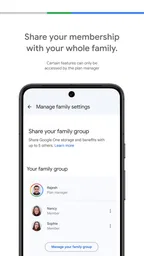
- Membership plans can be shared with up to five family members.
- Some plans include access to Google experts for product help.
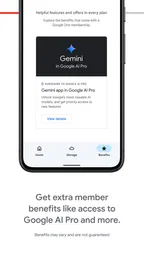
- Higher tiers can include extra Google Photos editing tools.
- Storage is shared across Gmail Google Drive and Google Photos.
What could be better
- Free storage is limited and fills up quickly for active users.
- Storage is tied to a recurring subscription after the free allowance.
- Family members share the plan's storage pool.
- Benefits and plan prices vary by country.
- The app offers limited value if you already have enough storage.





