Word Document: DOCX, PDF, XLSX review
 Analysis by Appsdrops
I think of Word Document: DOCX, PDF, XLSX as a mobile document toolbox rather than a full desktop office suite. Its appeal is straightforward: when a file arrives and I need to read it, make a small change, or check a spreadsheet or presentation, I can try to handle the task in one place instead of hunting for a separate viewer. That convenience is most useful when it supports a reliable routine: find the right file, make only the changes the phone is suited for, then check the result before sharing it.
This is a free productivity app from iKame Applications - Begamob Global, with optional in-app purchases. The app has a 4.4 average from around 379,000 ratings and has passed 50 million installs, so it is clearly reaching people who want document access on a phone. Those figures suggest broad use, but they do not tell me whether it will fit your particular workflow. The practical question is whether you mostly need quick access and occasional edits, or depend on precise, collaborative work all day.
Start with a document routine, not another app
Before installing another office tool, I would decide what problem I want it to solve. If I regularly receive DOCX files, PDFs, spreadsheets, and slide decks while away from a computer, a single app for opening those formats can reduce friction. If I mostly create long reports, build complex spreadsheets, or coordinate live edits with coworkers, a phone-centered reader and editor is unlikely to replace the desktop tools built around those tasks.
That distinction matters because a compact mobile workflow works best when each step has a clear purpose. I use a phone to check a document, fix a typo, confirm a figure, or make a small adjustment before sending it on. I do not treat a small screen as the ideal place to redesign a lengthy report or audit a complicated workbook. The app is more appealing when it fills the gap between “I have the file” and “I can deal with this now,” rather than promising to make every office task comfortable on a phone.
The name points to its broad scope: Word documents, PDFs, Excel-style spreadsheets, and PowerPoint presentations. That range can be helpful for a mixed inbox, but it also means the experience should be judged by the file you need to handle. Reading a PDF is a different job from changing a table in a DOCX or checking formulas in a workbook. I would test the most important format in my own routine first, rather than assuming that a long list of supported document types makes every format equally convenient to edit.
Capture files with a little discipline
The useful part of a document app is not just opening files; it is being able to find the right version later. I recommend adopting a simple naming habit before editing: keep the original recognizable, and give a changed copy a name that makes its status clear. That is especially valuable on a phone, where several attachments can look alike and it is easy to send an earlier draft by mistake. The habit is useful regardless of how the app arranges files internally.
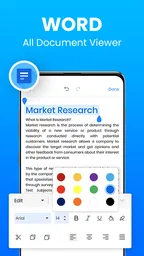
A realistic example is receiving a DOCX agenda on the way to a meeting. I can open it to check the order of topics, make a small correction if the editor handles the change cleanly, and review the saved copy before forwarding it. I would avoid making broad layout changes in a hurry. A quick visual scan after editing helps catch line breaks or spacing shifts that can be hard to notice while focused on a single sentence.
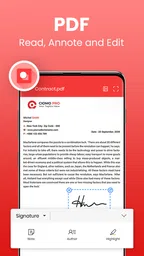
For a PDF, I would treat the phone workflow primarily as a way to inspect information and make a limited intervention when needed. PDFs are often shared because their layout is meant to stay stable, so I would be cautious about turning a quick check into an extensive editing session. If the document needs a precise redesign or a dependable print-ready result, a larger screen and a dedicated desktop editor are the safer choice.
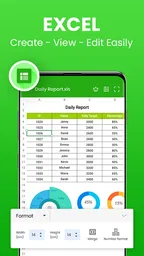
With a spreadsheet, my best mobile use case is checking a particular value or making a small correction, not building a model from scratch. A tip that saves trouble is to confirm both the cell and its surrounding labels before changing a number: on a small display, a misplaced tap can affect the wrong entry. After saving, I would revisit the relevant row or column and check that the displayed result still makes sense. That extra pause is more valuable than trying to edit quickly.
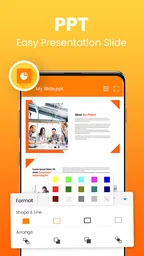
Slides need a different kind of check. If I am reviewing a presentation on a phone, I focus on whether the main text and sequence are understandable, not whether every detail looks exactly as it will on a projector. Small-screen previews can make layout judgments misleading. For final presentation work, I would open the file on the device and in the setting where it will actually be shown.
Build a repeatable review-and-send routine
Rather than opening every file and improvising, I would use the same short routine each time: identify the format, make the smallest necessary change, save, reopen or review the result, and then share the intended copy. That sequence helps prevent the common mobile mistake of editing a document and sending it without checking whether the change was retained or whether the attachment is the latest version.
This is also where the app’s broad format focus can be useful. A person who receives a mix of office documents may prefer one place to begin rather than switching among a word processor, a spreadsheet viewer, and a presentation app. Still, I would keep a separate, trusted backup of important work and avoid assuming that opening a file on the phone automatically makes it safely organized. A document routine is only dependable when the user knows where the final version lives and can distinguish it from the source.
For instance, imagine a parent receiving a school form as a PDF, a budget sheet as an Excel file, and a club announcement as a Word document. The practical benefit is having a single mobile starting point to inspect each item. The sensible boundary is to use it for checks and modest changes, then move to a more specialized tool if the form demands precise placement, the budget requires careful formula work, or the announcement needs extensive formatting.
I would also separate “read now” from “edit now.” If a file only needs a quick review, opening it without changing anything reduces the chance of producing an accidental new version. If an edit is necessary, I would make one focused pass rather than revising several unrelated parts on a small screen. This is a useful trade-off: the app may help me act sooner, but not every task becomes better simply because I can start it immediately.
Where the phone workflow can break down
The biggest limitation is the device itself. A compact screen makes long documents tiring, hides context around spreadsheet cells, and offers less room to compare two sections at once. Touch input can also be less precise than a keyboard and mouse. Those are not unique flaws of this app, but they directly affect how comfortable its editing role can be. I would not choose it as my main environment for detailed formatting, extensive spreadsheet analysis, or repeated revisions to a long report.
Another point to keep in mind is the difference between viewing and editing. A file may be easy to inspect but still awkward to change in the way I need. Before depending on the app for an important task, I would try a noncritical copy of the same kind of document and check the result in the software used by the recipient. This is a practical test, not a reason to assume something is wrong: document formatting can behave differently across apps, particularly when the file contains more than plain text.
The free download keeps the first step accessible, while in-app purchases range from $1.99 to $39.99 per item. I would look carefully at what an optional purchase offers inside the app before paying, and decide whether it solves a recurring problem rather than a one-off inconvenience. If I only need occasional reading or a modest edit, I would first see how far the free experience gets me. If my work depends on advanced capabilities, I would compare the purchase with a dedicated office product instead of paying automatically.
It is also worth setting realistic expectations about what “one app for several document types” means. It can simplify the first step of dealing with mixed files, but it does not guarantee that each format will have the depth of a specialist editor. For shared documents and complex workbooks, the tools already used by a team may offer a smoother handoff. For straightforward, individual tasks on a phone, the convenience of a general-purpose option may matter more than specialist controls.
Choose the app that matches your level of work
I can see Word Document: DOCX, PDF, XLSX working well for students, busy parents, travelers, and anyone who often needs to inspect office files away from a desk. It is particularly suitable for people who want to check a document, make a small correction, or keep moving while waiting for access to a computer. The app is rated for Everyone, and its version is 311702; it supports Android 8.0 and later. Those details make it easy to assess basic compatibility, though I would still check that the phone itself has enough room and feels comfortable for the files I handle.
I would be less inclined to recommend it to someone whose daily work involves coauthoring, detailed page layout, intricate formulas, or frequent changes across large documents. In those cases, a desktop office suite is usually more comfortable, and a cloud-based collaborative editor may be better when several people need to work on the same file. The usual alternative is not automatically superior for every person: a specialized app can mean more switching, while a broad mobile tool can make quick access simpler. The right choice depends on whether control or convenience is the bigger need.
The app has been available since January 27, 2020, and its substantial audience suggests that mobile document handling is a familiar use case for many people. I would treat that popularity as context, not as proof that it will suit every file or workflow. A short trial with a harmless copy is more informative: open a Word document, inspect a PDF, and check a spreadsheet or presentation that resembles the work you actually receive. Notice whether the actions you need are easy to find and whether the saved result remains usable elsewhere.
My recommendation is measured but positive: try it if your goal is to make everyday document access less of a chore, especially when you are away from a computer. Keep edits focused, review the saved version, and leave demanding layout or spreadsheet work to a better-equipped tool. It works best as one practical part of a sustainable productivity system—a quick mobile stop for reading and modest changes, supported by sensible file naming and a more capable option when the job grows beyond the phone.
What we like
- Works offline after files are downloaded to your device.
- Supports editing and formatting documents on mobile.
- Cloud storage makes files accessible across devices.
- Includes templates for common document types.
- Can export documents as PDF for easy sharing.
What could be better
- Some features require a Microsoft 365 subscription.
- Advanced formatting is harder on a small screen.
- Large files may take longer to open on older devices.
- Editing may change layouts in complex documents.
- Cloud features require an internet connection.





