
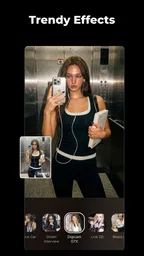



Wink: Video Enhancer & Editor review
 Analysis by Appsdrops
I see Wink as a handy option for people who want to improve a video without learning a full editing suite. Its appeal is straightforward: it focuses on making footage clearer and more polished, with tools for enhancement and retouching rather than a long list of complicated production controls. That makes it approachable, but it also means the best results come from understanding what the app can reasonably improve—and what needs a different fix.
Wink: Video Enhancer & Editor is a free video editing app from Meitu (China) Limited. It has a 4.5 average from around 1.1 million ratings and more than 50 million installs, so it is a familiar choice for people looking to touch up clips on a phone. It is rated for Everyone, while optional in-app purchases range from $0.99 to $99.99 per item. I would think of it as a convenient enhancement tool, not a promise that every blurry or poorly lit recording can be rescued.
When a simple enhancement workflow gets stuck
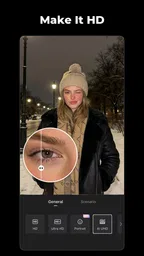
The first point of confusion with an enhancer is often the difference between improving a clip and changing its underlying quality. A soft, slightly hazy video may benefit from sharpening or upscaling, but motion blur, missed focus, and lost detail are different problems. If a face moves during the shot, for instance, making the image sharper can also make smudges or edges more noticeable. I get the most believable result by treating enhancement as a careful correction, not a magic repair button.
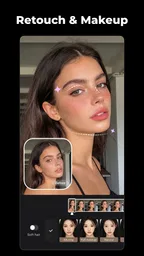
Retouching creates another small judgment call. It can help a person look more evenly lit or polished, but pushing edits too far can make skin and facial details look unnatural, especially when the video contains movement. I recommend checking a few different moments in the clip rather than judging only a still frame. A subtle adjustment that looks fine on one paused image may be distracting once the subject turns or the lighting changes.
It also helps to decide what you want before opening the editor. If the goal is to make a dim family clip easier to watch, concentrate on clarity and natural appearance. If you are preparing a polished social post, you may care more about a consistent look across several shots. Those are different jobs, and a result that suits one may not suit the other. Keeping the goal narrow prevents aimless editing and makes it easier to tell whether the final export is actually better.
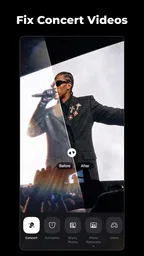
One useful habit is to preserve the original footage and compare it with the edited version on the same screen. Phone displays can make contrast and sharpness look impressive, but an overly processed result may stand out when shared or viewed elsewhere. I would also review the beginning, middle, and end of a longer clip. This catches changes in lighting or movement that a single preview frame can hide.
Check the basics before editing
Before blaming the app for a slow or unsuccessful job, I would first check that the source video opens and plays normally on the device. If the original itself stutters, appears incomplete, or has an unexpected orientation, editing may not solve the underlying issue. Make sure the intended clip is the one selected, especially when several similar recordings are saved together. A quick check at this stage can prevent a lot of unnecessary re-editing.
Wink’s current version is 3.20.5, and it requires Android 8.0 or later. Those details are worth checking if you are installing it on an older Android phone or troubleshooting an update. I would also make sure the app is current through the app store before repeating a failed workflow; updating is a sensible general check, though it cannot guarantee that a particular source file or device issue will disappear.
For a first attempt, choose a short, representative section of the footage rather than committing to a long recording immediately. Use a moment that includes the detail you care about—a face, a moving object, or a darker background—then inspect the result before applying the same approach to the whole clip. This is a practical way to learn whether enhancement helps your particular video without spending time processing material that may need a different solution.
Storage can matter in everyday editing, too. Video files take space, and keeping both originals and finished versions is useful if you may want to undo a decision later. Before starting a large project, I would make room for the output and avoid deleting the source until I have watched the finished clip. If an export does not complete, checking available space and trying again with a shorter section is a safer first step than repeatedly changing edits without knowing the cause.
Recover the workflow without making it worse
If an edit looks wrong, I recommend changing one thing at a time. Return to the original where possible, make a restrained adjustment, and compare again. Altering several settings in one pass makes it harder to identify which change caused a plastic-looking face, harsh edges, or an inconsistent image. This is especially useful when retouching and clarity adjustments interact: a correction that looks mild by itself may become too strong when combined with another.
When a preview freezes or an export seems stuck, do not immediately assume the video is lost. Give the operation a moment, then check whether the app or device is still responding. If it remains unresponsive, closing and reopening the app is a reasonable basic recovery step. After that, try a short test clip. If the short clip succeeds but a longer one does not, the source length or the device’s available resources may be part of the trouble; if neither succeeds, a general app or device issue becomes more plausible.
A failed result can also come from the file rather than the editing choices. Try opening the original in another player to see whether it behaves normally, and avoid making repeated copies of a file that may already be damaged. If only one recording causes trouble while other clips work, focus on that source. If every clip behaves the same way, check the app and device setup before spending time adjusting individual videos.
For a clip that is important, work in stages: test a short segment, review it, then continue with the full recording. This is not just a way to avoid wasted time. It gives you a clear reference for whether the chosen treatment holds up across motion and changing light. If the test looks worse, stop and try a gentler approach rather than assuming that more enhancement will eventually produce a better image.
Know when another fix is the better one
Some problems are easier to solve before editing. If a new recording is badly out of focus, shaky, or too dark, a steadier position, better light, and a clean lens can do more than later enhancement. That is particularly true for moving subjects: sharpening cannot recreate detail that was never captured clearly. Wink is most useful when there is already enough usable information in the footage for the app to work with.
Likewise, if the issue is an unwanted pause, a missing beginning, or the need to combine several scenes in a very specific order, a conventional timeline editor may be a better fit. Wink’s identity is centered on improving and retouching video, so I would not choose it first for a project that depends on detailed sequencing, precise cuts, or a more involved production workflow. The usual alternative in this category—an editor built around a timeline—offers more control over assembly, while Wink is more appealing when enhancement is the main task.
There is also a good reason to skip a paid purchase until you know what you need. The app is free to install, but it offers in-app purchases, with individual items priced from $0.99 to $99.99. I would try the basic workflow first and decide whether a paid option addresses a specific need, rather than paying simply because a video did not improve as much as hoped. A limitation in the original recording cannot necessarily be fixed by choosing a more expensive option.
For casual use, a phone-based editor is convenient because it keeps the correction close to the footage and avoids moving a clip to a computer. For demanding work, however, a desktop editor or a dedicated tool with more manual control may be preferable. The trade-off is simple: Wink is easier to approach for quick enhancement, while a more comprehensive editor is usually better when the job requires exact control over every stage.
Who will get the most from Wink
I would recommend it to someone who regularly shares short personal clips and wants a straightforward way to make them look cleaner before sending or posting them. A realistic example is recording a quick video indoors, then noticing that the image looks a little soft on a phone screen. Testing a restrained enhancement on a short section can show whether it improves the subject without making skin or edges look artificial. If it does, the same approach may be worth using on the rest of that recording.
It can also suit people who prefer a focused mobile workflow over a large editing interface. You do not need to approach every clip as a full production: sometimes the useful outcome is simply a more presentable version of a moment you want to keep. Meitu’s emphasis on video enhancement and retouching makes Wink relevant for that kind of task, especially when speed and convenience matter more than a complex edit.
I would steer away from it if your priority is frame-by-frame correction, professional delivery, or rebuilding footage that is severely blurred or damaged. It is also not the right choice if you prefer to avoid optional purchases altogether without first checking what is included in the version you use. The app’s wide reach and strong average rating suggest that many people find it worthwhile, but popularity does not make every workflow a match for every user.
My practical verdict
Wink is worth trying when the main problem is that a usable video needs a little more clarity or polish. I like the focused purpose: it keeps enhancement and retouching at the center instead of asking me to build an elaborate edit just to improve a clip. The most reliable approach is to start with a short test, make modest changes, preserve the original, and judge the result in motion as well as in a still preview.
For people who want a full timeline editor, more precise control, or a way to fix recording mistakes at their source, another tool—or a better recording setup—will serve them better. But for everyday clips that are almost good enough, Wink offers a convenient place to try a careful improvement. I would use it with realistic expectations: it can help footage look more finished, but good capture and restrained editing remain the difference between a natural result and an overworked one.
What we like
- AI tools can sharpen soft footage and improve its visual clarity.
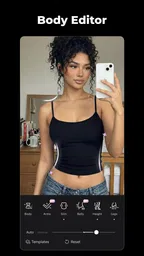
- The editor combines enhancement tools with basic video-editing features.
- Portrait retouching options help refine faces in recorded clips.
- Short-form video creators can edit and enhance content in one app.
- The interface makes common editing tools easy to find.
What could be better
- The best enhancement tools may require a paid subscription.
- AI processing can take time on longer or high-resolution videos.
- Results may look unnatural when enhancement settings are pushed too far.
- Export quality and available options can vary by plan.
- Processing and editing can drain battery on older phones.





