


WakeBox review
 Analysis by Appsdrops
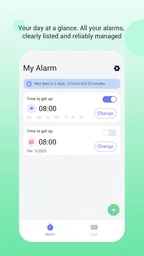
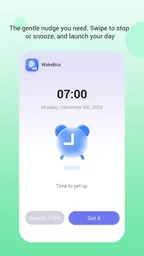
WakeBox is a productivity app for one focused job: making an alarm hard to miss. I find that emphasis useful for anyone who sleeps through ordinary tones or needs a clear wake-up prompt, but it also means the app is best judged as a dependable part of a morning routine, not as a full-featured planner. Its central appeal is the combination of an alarm and a full-screen alert; optional email access is an additional choice, rather than a reason everyone needs to use it.
Made by BLYTHEWOOD NY LLC, WakeBox is free and has a 4.1 average from around 2.6 thousand ratings. That reception suggests it works well for many people, while leaving room for the setup and device-specific frustrations that often affect alarms. It has passed one million installs, is rated Mature 17+, and its current version is 1.2.6. It is presented for devices running version 7.0 or later. I would treat those details as a starting point, then check how it behaves on the particular phone that will sit beside the bed.
Where an alarm app can trip you up
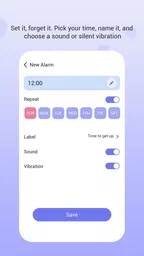
The most important question is not whether a full-screen alert sounds impressive; it is whether the alarm is configured in a way that fits your actual mornings. A wake-up time that is easy to set but easy to overlook can be less useful than a simpler alarm you understand. Before relying on WakeBox for an important morning, I would make a test alarm for a time when I am awake, confirm that I can recognize its alert, and check that I know how to dismiss or respond to it.
That small rehearsal is especially worthwhile if you are switching from a built-in clock. Familiar habits can cause mistakes: assuming the new alarm inherited an old schedule, expecting a familiar tone, or thinking a screen alert behaves exactly like a notification. I would not carry those assumptions over. Set the time directly in WakeBox, inspect the result, and test it without waiting for a workday or appointment to reveal a missed step.
The full-screen approach has a practical trade-off. A more prominent alert may be helpful when a subtle banner would disappear into the lock screen, but it can feel intrusive if you share a room, wake at different times from someone else, or need a quiet start. If your main need is a gentle, customizable sunrise routine, a clock app built around gradual light or sound may be a better fit. WakeBox makes more sense when visibility and urgency matter more than a soft, elaborate wake-up experience.
Optional email access is another place to pause rather than tap through automatically. If you do not see a clear personal reason to connect email, you can leave that choice aside and focus on the alarm itself. For a bedtime utility, I prefer to keep setup lean: grant or connect only what I intend to use, and make sure the basic wake-up workflow is comfortable before adding any optional access.
Check the routine before trusting it
I would build a short pre-sleep check around the alarm rather than assume that setting it once settles every future morning. Confirm the intended time, make sure the alarm is enabled, and glance at the phone’s sound state and battery. These are ordinary checks, not special WakeBox controls, but they prevent confusing a phone-level issue with an app failure. They matter most on nights when you have changed your usual settings or are preparing for an unusually early start.
A useful non-obvious habit is to test the complete path, not merely the time picker. A test should tell you whether the alarm becomes noticeable in the state you normally leave the phone in, whether you can identify the alert promptly, and whether dismissing it feels straightforward. If something is unclear, fix that while you are awake. This is much safer than discovering at dawn that you expected a different sound or action.
Also consider where the phone will be overnight. If it is face down, across the room, or tucked under bedding, the screen’s prominence may matter less than the audible alert and your ability to reach the device. Try the placement you actually plan to use. The point is not to create an elaborate experiment; it is to avoid judging the alarm under conditions that differ from your normal routine.
WakeBox belongs to the productivity category, but its role is narrower than a calendar, task manager, or broad routine app. I would not expect it to replace those tools. Instead, it can act as a clear boundary between planning tomorrow and getting out of bed: put the wake-up time in the alarm, keep appointments in the calendar you already trust, and avoid relying on a single app to communicate every part of the day.
Recover calmly if an alert seems wrong
If an alarm does not behave as expected, start with the simplest checks. Open WakeBox and confirm that the intended alarm is still present and enabled. Verify the displayed time and check whether the phone’s current time and time zone make sense. Then inspect the device’s volume and sound settings. Changing one thing at a time makes it easier to identify what was wrong; rapidly toggling several settings can leave you uncertain about what fixed the problem.
If the screen or alert seems stuck, close and reopen the app, then make a harmless test alarm while you are available to observe it. Restarting the phone can also help with a temporary device-level problem. I would avoid deleting app data or reinstalling as an opening move, since a broad reset can remove local setup and does not tell you whether the original issue came from an alarm setting, the phone, or the app. Use more disruptive steps only after checking what you might lose.
After an operating-system update or a change to sound and notification settings, run another test instead of assuming the previous routine still behaves identically. That is a useful recovery workflow for any alarm app, and particularly sensible when the alert style is central to why you chose this one. Keep a backup alarm for a high-stakes morning until you have observed WakeBox working reliably in your everyday setup.
There is also a practical distinction between an alarm that fails to appear and one that appears but is easy to miss. In the first case, check the alarm configuration and device state. In the second, experiment with phone placement and the surrounding routine, and decide whether a full-screen alert is enough for your needs. If you habitually sleep through sound entirely, changing apps may not solve the underlying problem; a separate wake-up method or support from someone nearby could be more dependable.
Know when the phone, not WakeBox, is the issue
Alarm reliability depends on the whole device setup. A muted phone, very low volume, an unexpected schedule change, or an empty battery can undermine an otherwise correct alarm. If you suspect WakeBox is at fault, compare what happens with a test alarm and the phone’s general sound behavior. If other sounds are also missing or the device is powering down, troubleshoot the phone first rather than repeatedly rebuilding the alarm.
Likewise, do not treat email access as a requirement for waking up. The app’s description makes that access optional, so I would separate any email-related setup question from the core alarm test. If you are uncomfortable connecting an inbox, leave it unconnected and assess the wake-up function on its own. That keeps the decision clear and avoids giving an optional feature more influence over your choice than it deserves.
WakeBox may not be the right pick if you want a comprehensive sleep tracker, a tightly integrated calendar, extensive smart-home routines, or a wide collection of gradual wake-up tools. The appeal here is a focused alert, not a promise to manage your whole morning. A built-in clock is likely enough if your current alarm is already reliable and you only need a basic time-and-tone setup. Conversely, someone who routinely overlooks ordinary alarms may value the more conspicuous presentation.
How it compares with familiar alternatives
Compared with a phone’s standard clock, WakeBox’s distinguishing idea is the full-screen alert rather than simply setting another time. That can make it feel more direct, but a built-in clock often wins on familiarity and avoids maintaining a separate alarm routine. I would switch only if the standard alarm is not getting your attention or if you specifically prefer WakeBox’s presentation after testing it.
Compared with sleep-focused apps, it is a more straightforward choice for someone who wants an alarm rather than a broader account of nighttime habits. Compared with alarm apps that emphasize puzzles, elaborate schedules, or gradual sound, WakeBox may suit a person who wants the alert to be unmistakable without turning wake-up into a game or a long configuration project. The trade-off is that users seeking those richer routines should look elsewhere instead of expecting this focused tool to grow into them.
The Mature 17+ content rating is worth noticing when choosing apps for a younger family member or a shared device. It does not change the practical alarm workflow, but it may affect whether the app is appropriate for the intended user. Since WakeBox is free, trying it does not require a purchase, though I would still spend a few minutes testing it before relying on it for a flight, exam, shift, or other consequential start.
My practical verdict
I would recommend WakeBox to someone who wants a prominent alarm and is willing to verify the setup on their own phone. Its strongest idea is easy to understand: make the wake-up alert more difficult to ignore. The 4.1 average and broad adoption make it a plausible option to try, but neither should replace a real test in your bedroom, with your usual sound settings and phone placement.
My most useful advice is to start with one ordinary morning, not the most important one of your month. Set a test time, observe the full-screen alert, check that the sound is audible from where the phone will rest, and confirm you can dismiss it without fumbling. Keep a backup while you build confidence. If the alert suits your routine, WakeBox can be a simple, focused addition; if you need gentle wake-up stages, sleep insights, or a familiar no-frills clock, the standard clock or a more specialized alternative will probably serve you better.
What we like
- Wake-up alarms can be scheduled for different days.
- A gradual alarm can make waking less abrupt.
- The interface is straightforward to navigate.
- Alarm settings can be tailored to personal routines.
- It offers a focused alternative to a standard clock app.
What could be better
- Some features may require a paid upgrade.
- Alarm reliability can depend on device settings.
- Background restrictions may affect alarm behavior.
- It may not offer as many tools as full sleep apps.
- The experience may vary across Android and iOS devices.





