




Volume Control Home review
 Analysis by Appsdrops
I’m wary of volume boosters that promise to make every speaker sound dramatically louder. Turning up a signal can help when a recording is quiet, but it cannot make a small phone speaker produce deep bass or clean sound at any level. Volume Control Home is most useful when treated as a convenient way to manage sound, not a repair for weak hardware or a guarantee of better audio.
This Android music and audio app comes from Utility Apps Home. It is free, rated for Everyone, and has an average rating of 4.4 from around 4.9 thousand ratings, with over 500 thousand installs. Its current version is 1.6.4, and it runs on Android 9 or later. That gives prospective users a quick sense of its reach and compatibility, though those figures don’t tell you whether it will suit your particular phone, headphones, or listening habits.
When the volume depends on what you’re listening to
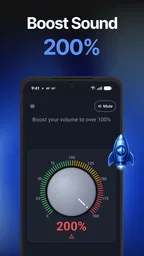
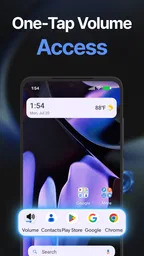
The app’s appeal is straightforward: it offers a way to control sound from the home screen and push media volume beyond the phone’s usual 100% setting. That can be handy when a video, podcast, or recording is noticeably quieter than the rest of your media. Instead of digging through menus each time, you can keep sound control close at hand and make an adjustment when the situation calls for it.
There is an important distinction between a quiet source and a quiet device. A volume boost can raise the level of media that reaches the speaker or headphones, but it can also make distortion more obvious. If a voice recording already sounds fuzzy, increasing its volume may simply make the fuzz louder. I’d start with a modest adjustment and listen for harshness, crackling, or loss of clarity rather than jumping straight to the maximum.
Connectivity matters because the sound you hear may come from several places: a stream, a downloaded recording, a video, or a connected audio device. The app’s volume controls address sound level, while your network connection determines whether online content arrives reliably. A playback interruption caused by a weak connection is not the same as a volume problem; raising the level won’t restore missing audio or smooth out buffering.
That difference is easy to miss in the moment. If a podcast suddenly becomes quiet, check whether the episode itself changed, whether playback moved to another output, or whether the app you are using has its own volume setting. Only after those checks would I reach for a system-level boost. This simple order helps avoid turning up a quiet section and then being startled when a louder advert, notification, or next track plays.
Keep the control useful, not merely loud
The home-screen angle is the more practical part of the idea. A control that is easy to reach can make small adjustments less disruptive, particularly when you are switching between spoken audio and music. It also encourages a more deliberate habit: raise the level for the quiet item, then bring it back down before changing tasks. The best result is often not “as loud as possible,” but “loud enough without unpleasantness.”
For a realistic example, imagine listening to a softly mixed lecture while preparing dinner. The phone is on the counter, and you don’t want to stop what you’re doing to hunt through settings. A readily available volume control could make the speech easier to follow. If the kitchen is noisy, though, increasing phone-speaker output may still be less effective than moving the phone closer or using headphones. Placement and background noise can matter more than an extra boost.
On the move, the output device changes the equation
Mobile listening is not one fixed setup. You might use the built-in speaker at home, earbuds on a walk, or a car’s audio system on a drive. Each changes what “too quiet” means. A level that seems comfortable through earbuds can be excessive on a speaker, while a phone that sounds weak in a large room may be perfectly adequate at close range.
I’d be particularly cautious about boosting audio through headphones. A louder setting can become uncomfortable quickly, and long listening sessions make it harder to notice how high the level has crept. Make small changes, keep the volume at a comfortable level, and lower it again when you switch to a more sensitive output. The app is a control convenience, not a reason to ignore hearing comfort.
Before blaming the app or the phone, check the active output. Bluetooth headphones and speakers can have their own volume behavior, and a phone’s media level may not be the only control involved. If the sound stays low after an adjustment, reconnecting or selecting the intended output may be more useful than pushing the booster higher. That is especially worth checking when moving from earbuds to a car or room speaker.
For people who mainly need quick, occasional adjustments, a home-screen control can be more appealing than a full equalizer. Equalizers are better when the goal is to alter tonal balance, such as reducing harsh treble or shaping bass. A volume tool addresses loudness instead. If your complaint is that voices are hard to understand because they are muffled, an equalizer, clearer recording, or different speaker placement may be the better route.
What to do when the sound does not behave as expected
There are several sensible checks before assuming a volume boost has failed. Confirm that media volume, rather than ringtone or alarm volume, is being adjusted. Test a second recording or app to see whether the problem is limited to one source. Then check the selected speaker or headphones and try a small change in level. These steps help separate a quiet file, an output-device issue, and a control mismatch.
If the sound becomes distorted, reduce the boost rather than trying to push through it. Phone speakers have physical limits, and extra level can expose those limits as buzzing or roughness. A quieter but cleaner sound is usually easier to listen to than a louder, strained one. If the problem persists across different sources and outputs, the phone’s hardware or audio route may be the issue, not the setting you changed.
Network trouble needs its own recovery steps. If a stream pauses, skips, or drops out, check the connection or try content that is already available on the device, if you have it. Don’t use volume changes to compensate for silence or intermittent playback. Once the audio resumes, reassess the level from a low, comfortable point; a boost chosen during a quiet moment could be too strong when the stream returns at normal volume.
Another useful habit is to make one change at a time. If you alter the phone’s media level, the playback app’s controls, and the connected speaker all at once, it becomes difficult to tell which adjustment helped. Set a comfortable baseline on the output device, then use the phone control for small corrections. This is especially helpful when switching between a quiet spoken recording and louder music.
Using it without wasting attention or mobile data
A volume-control app is not a substitute for managing data use. Streaming audio and video can consume mobile data, while changing playback loudness does not, by itself, reduce the amount of content delivered over a network. If you are on a limited plan, use the playback app’s own data-saving or download options where available, and reserve volume adjustments for listening comfort.
That distinction is useful on commutes. A person listening to a stream in a weak-signal area may experience pauses and mistakenly think the sound level is the problem. First check whether playback is actually continuing. If it is, adjust loudness; if it is not, work on the connection or choose content that can play without relying on a live stream. Keeping those decisions separate saves time and avoids unnecessary volume jumps.
When you’re sharing a space, consider who else can hear the phone. Increasing a speaker’s output can disturb people nearby, and it may not improve your own experience as much as moving closer or using headphones. In a quiet room, a small boost may be enough; on a crowded bus, the right answer may be a better-fitting pair of headphones rather than a much higher level.
Who should choose it—and who should look elsewhere
I can see this app suiting someone who regularly encounters uneven media levels and wants sound controls close to the home screen. It may also appeal to people who find system menus fiddly and prefer a direct way to make a quick adjustment. With a 4.4 average and over 500 thousand installs, it has attracted a substantial audience, but popularity does not guarantee the same behavior across every Android device or audio accessory.
I would skip it if your main goal is to improve the quality of weak speakers, repair a faulty headphone connection, or make a poor recording sound professionally mastered. It is also not the right answer if your problem is unstable streaming, limited data, or a particular app that keeps resetting its own playback level. In those cases, fixing the source, connection, output, or playback settings is more likely to help than adding more volume.
The usual alternatives are built-in Android volume controls, the controls inside a media player, or an equalizer. Built-in controls are the simplest choice if you only adjust volume occasionally. A player’s own controls can be better when one app is consistently quiet. An equalizer is more appropriate for changing sound character. Volume Control Home makes the most sense when convenience and louder media output are the specific needs—not when a broader audio problem needs diagnosis.
My connectivity verdict
Volume Control Home is a focused option for people who want sound adjustments within easy reach and sometimes need more media loudness than their usual setting provides. Its usefulness depends less on the strength of a network than on the source, the phone, and the output device. It can make a quiet recording easier to hear, but it cannot stabilize a stream, improve a weak connection, or overcome every speaker’s physical limits.
My advice is to treat it as a careful, occasional adjustment rather than a permanent maximum-volume setting. Start low, test with the content and output you actually use, and lower the level when switching to headphones or louder media. If you mostly need ordinary volume changes, Android’s built-in controls may be enough; if you want a handy home-screen route for uneven media, this free app is worth considering on a compatible device running Android 9 or later.
Overall, Volume Control Home has a clear role: quick access to media loudness, with a boost available when a source is too quiet. I like that practical focus, provided expectations stay realistic. Used thoughtfully, it can make day-to-day listening less fiddly; used as a cure for poor audio or unreliable connectivity, it is likely to disappoint.
What we like
- Adjusts volume quickly without opening the full Settings app.
- Separate controls make media and call levels easier to manage.
- A home-screen widget can provide convenient access.
- Useful for reducing volume before entering quiet places.
- Simple controls are easy for new users to understand.
What could be better
- Some features may require accessibility permissions.
- Widget availability can vary across Android versions.
- Volume controls may differ by device manufacturer.
- System settings can override the app's chosen levels.
- Ads or paid features may affect the experience.





