






Volume Booster - Sound Booster review
 Analysis by Appsdrops
If your phone’s audio feels a little too quiet, a volume booster can sound like a simple fix. Volume Booster - Sound Booster is designed to raise the sound output from a speaker or headphones, giving you another way to adjust listening volume when the usual controls don’t feel like enough. I’d approach it as a straightforward audio utility: useful to try when you want more punch from your device, but best used with care and realistic expectations.
More volume, with a simple purpose
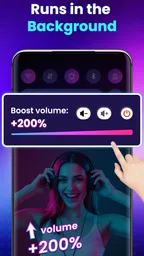
The app’s central idea is easy to understand: it aims to boost volume and maximize sound from a phone speaker or connected headphones. That focused purpose makes it appealing if you often listen to music, watch videos, or follow spoken audio on a mobile device and wish the output were louder. Rather than presenting itself as a music library or player, it works around the listening experience you already have.
I like that the concept doesn’t require a complicated explanation. You’re looking for a volume boost, and that’s what the app is built to provide. Still, “louder” isn’t automatically the same as “better.” The result depends on the phone, the speaker or headphones, the source audio, and the environment. If a recording is quiet, extra output may help it feel more audible; if it’s already harsh or distorted, pushing it further may make listening less pleasant.
That’s why I’d treat volume boosting as an adjustment rather than a guarantee of improved sound quality. It can be useful when the standard volume range leaves you wanting more, but it won’t change the quality of a recording or turn a small phone speaker into a larger sound system. A careful, modest increase is usually a more sensible starting point than immediately chasing the maximum.
What it’s like to use an audio utility
For a tool like this, the best experience is one that stays out of the way of what you’re trying to hear. You open it when the sound needs attention, make the adjustment that suits the moment, and return to your music or video. That practical role is different from a full-featured audio editor: the appeal is convenience, not an elaborate production workflow.
The app is free to download, with in-app purchases listed from $2.99 to $11.99 per item. That gives people a way to try the basic idea before deciding whether any purchase is worthwhile. I’d recommend checking the available options inside the app and considering whether you genuinely need them before spending. The core decision is simple: does the volume boost improve your everyday listening enough to make the app worth keeping?
Its broad reach suggests that many Android users are interested in an easy volume boost. It has more than 50 million installs and an average rating of 4.7 from around 847,000 ratings, while users have also left roughly 29,000 written reviews. Those figures offer a useful sense of its popularity, though they can’t predict how it will behave with every device or pair of headphones.
When connectivity enters the picture
A volume booster is not usually the first app people think about when considering network use, but connectivity can still shape a mobile listening session. Music and video may come from online services, while the booster’s purpose concerns how loudly sound is played through a speaker or headphones. In practice, the network affects access to the content, while the device and audio setup affect what you hear.
That distinction matters when something seems wrong. If an online track pauses or a video keeps buffering, increasing the volume will not solve the interruption. If playback is steady but the sound feels too low, then adjusting volume may be relevant. Separating those two situations can save time: first check whether the content is playing properly, then decide whether the output itself needs a boost.
Network conditions can also change where and when a booster feels useful. At home, a stable connection may make streamed listening feel seamless, but a phone speaker can still seem subdued in a busy room. On the move, a weak signal may disrupt streaming even when the audio output is perfectly adequate. In that case, the problem is access to the stream rather than loudness, and a booster is unlikely to address the real cause.
On the move and with headphones
Mobile listening happens in a lot of different settings: a quiet room, a shared space, a commute, or outdoors. A volume booster can be tempting when background noise makes speech or music harder to hear, but turning sound up in a noisy environment deserves extra caution. I’d rather move somewhere quieter or use a more suitable listening setup than keep increasing volume to compete with surrounding noise.
Headphones are specifically part of the app’s stated purpose, alongside the device speaker. That makes the app relevant to people who switch between listening directly from a phone and using headphones. The experience can differ between those setups, so I’d check the sound at a comfortable level each time rather than assuming one adjustment will feel right everywhere.
When listening through headphones, take care not to push the sound higher than you need. Audio that feels comfortable in a quiet room may become tiring during a long session, and a sudden change in volume can be unpleasant. I’d increase it gradually, pay attention to how the audio sounds, and lower it again if it becomes sharp, strained, or uncomfortable. The goal is clearer, more satisfying listening—not simply the loudest possible output.
The phone speaker has its own limits, too. A boost may make audio more noticeable nearby, but the speaker’s physical size and the recording itself still shape the result. If a podcast voice remains muddy or a song sounds rough, raising the volume may emphasize those issues rather than fix them. For me, this is where reasonable expectations matter most: the app is a volume tool, not a replacement for better source audio or stronger hardware.
When sound doesn’t behave as expected
If the result isn’t what you expected, I’d troubleshoot one thing at a time. Check the phone’s regular volume setting, confirm that the intended speaker or headphones are active, and make sure the audio source is actually playing. If the content comes from a network service, check whether playback itself is steady before judging the booster. This simple sequence helps distinguish an output issue from a connection or source issue.
It’s also worth making small adjustments rather than changing everything at once. If the sound becomes distorted or uncomfortable, bring it back down and compare the result with the phone’s normal volume. A quieter setting that sounds clean can be more enjoyable than a louder one that makes voices or music unpleasant. You can then decide whether the app is helping with that particular device and listening situation.
Connectivity failures can be especially confusing because they often look like audio problems at first. A stream that stops, skips, or takes time to resume may create the impression that the sound has weakened, when the real issue is interrupted delivery. In those moments, restoring playback is the priority. Once the content is flowing consistently again, you can judge whether the volume needs adjustment.
For a practical recovery routine, I’d return to a comfortable baseline, check the audio source, and then reapply only the increase that seems necessary. This avoids letting one unusual situation dictate settings for every later session. If a particular combination of headphones, source material, and volume consistently sounds poor, it may simply not be a good match for aggressive boosting.
Keeping mobile listening data-conscious
The app’s role is to adjust sound output, while the content you listen to may be delivered over a mobile connection. That means data use is more closely tied to streaming music, video, or spoken audio than to the act of making sound louder. If you’re watching your data allowance, it makes sense to pay attention to the listening service and the kind of content you’re playing, rather than assuming a volume adjustment will reduce streaming use.
On a limited connection, interruptions can also make listening less enjoyable. A booster won’t make a weak network stronger or prevent an online service from buffering. If playback is unreliable, checking your connection or choosing a more stable listening situation is a better first step. Once playback is consistent, the app’s volume-focused purpose becomes easier to evaluate.
It can help to think of the whole setup as three separate parts: the content source, the network carrying it, and the phone or headphones producing the sound. When each part is doing its job, it’s easier to tell whether a boost is genuinely useful. That’s a small but helpful habit for anyone who switches between streaming and other forms of mobile audio throughout the day.
A focused app with sensible limits
Volume Booster - Sound Booster is a free Music & Audio app from 360 Tool. It was released on February 6, 2023, and its current version is 3.0.0.61. The listed minimum operating system is Android 8.0, and the content rating is Everyone. Those details make it easy to see who the app is aimed at: Android users looking for a direct way to boost speaker or headphone volume.
The app’s strongest appeal is its narrow focus. If you regularly find that ordinary output is too quiet, having a dedicated volume-boosting tool may be convenient. If your main frustration is interrupted streaming, weak network coverage, or poor-quality recordings, though, an increase in loudness may not address it. Understanding that boundary helps set expectations and makes the app easier to judge fairly.
I’d also keep comfort at the center of the experience. More volume can be useful in the right situation, but it should remain under your control. Start with a small increase, listen for distortion, and use a lower setting whenever the sound feels harsh or tiring. With headphones especially, a cautious approach is more worthwhile than trying to make every audio source as loud as possible.
My connectivity verdict
For me, this is a practical option to consider when the problem is genuinely low output from a phone speaker or headphones. It has a clear purpose, a free starting point, and a large audience of Android users. Its usefulness is less convincing when the real obstacle is a poor connection, a paused stream, or audio that already sounds rough. Those situations call for attention to the source or network before any volume adjustment.
In short, Volume Booster - Sound Booster makes the most sense as a small, focused companion to mobile listening—not as a fix for every audio annoyance. If you want a straightforward way to push sound higher, it may be worth trying while keeping adjustments moderate. For streaming on the go, remember that connectivity determines whether the audio arrives smoothly; the booster’s job begins only once there’s sound to hear.
What we like
- Simple controls make volume adjustments easy.
- Can boost quiet audio from videos and music.
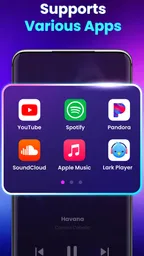
- Works with several types of media playback.
- Compact interface keeps the main controls accessible.
- Useful for improving sound on devices with weak speakers.
What could be better
- Excessive boosting can cause distorted or harsh audio.
- High volume may strain device speakers.
- Results can vary between devices and audio apps.
- The boost may reset after restarting the app.
- It cannot improve the quality of poorly recorded audio.





