

Filmora: AI Video Editor&Maker review
 Analysis by Appsdrops
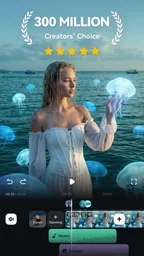
When I have a handful of phone clips and want something shareable before I lose interest in the project, I look for an editor that helps me get from raw footage to a finished vertical video without turning the evening into a production session. Filmora: AI Video Editor&Maker is built for that kind of quick, guided work: it is a video editing app from Wondershare Filmora, with AI-led creation and templates at the center of its appeal. I would recommend it to casual creators who value momentum and visual polish, though not to everyone who needs precise control.
From scattered clips to a clear starting point
The best way to approach Filmora is with a small, specific idea rather than an empty timeline. For example, I might want to turn a few clips from a weekend walk into a short Reel, or combine product shots into a simple clip for a small business account. A clear subject makes template-led editing more useful: instead of browsing effects without a plan, I can choose a direction that suits the footage and keep the edit focused.
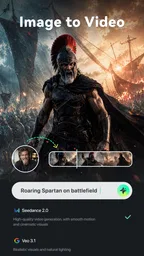
The app sits in the video players and editors category, but its practical draw is creation rather than playback. Its store summary points toward AI-assisted video generation for short-form social clips, and the short description identifies it as Filmora. That makes the intended audience fairly easy to read: people who want help assembling an eye-catching edit, especially for Reels and Shorts, rather than a traditional desktop-style editing workspace on a phone.
There is a sensible reason to prepare the clips before opening an editor. I would first pick the shots that actually tell the story, then put them in roughly the order I want. A template can add pace and style, but it cannot make unrelated footage feel coherent by itself. This small bit of planning helps me avoid the common trap of choosing a flashy look first and then trying to force every clip to fit it.
Filmora is free to download and is rated for Everyone. It has a 4.0 average from around 1.2 million ratings, with roughly 23,000 written reviews and over 100 million installs. Those figures suggest a well-established app with a broad audience, but they do not tell me whether a particular template or workflow suits my project. I would still judge it by how comfortably it handles the kind of clips I actually make.
Choosing a route through the edit
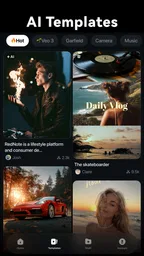
Once I have an idea, I would treat the template options as a starting route, not a substitute for editing decisions. A template can provide a visual rhythm and make a simple montage feel intentional. The trade-off is that a strong preset may also impose a mood or pace that does not match the footage. If the result feels too busy, I would simplify the selection rather than keep adding effects to rescue it.
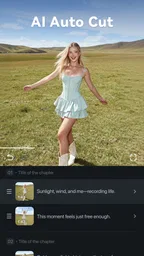
For a quick social post, a useful workflow is to decide on the opening shot, identify the moment that should carry the main point, and finish on a clip that feels like an ending rather than an accidental cutoff. That sequence matters more than piling on transitions. It also gives me a practical way to judge an AI-assisted result: does it make the story easier to follow, or is it only adding decoration?
One non-obvious advantage of a guided editor is that it can lower the cost of experimentation. I can try a different visual treatment on the same small group of clips before committing to a longer, more elaborate edit. That is useful when I am unsure whether a bright, energetic style suits a travel montage or whether a cleaner look would work better. I would keep the source clips organized so I can return to the original selection if an experiment takes the project in the wrong direction.
Making the handoff from phone footage to a finished post
The workflow does not end when an edit looks good inside the app. I still need to check the result in the context where I plan to share it: a vertical clip should read clearly on a phone screen, and the important moment should not be buried after a long setup. I would watch the entire video once before posting, paying particular attention to the first few seconds and the transition into the closing shot.
That final review is especially worthwhile with template-based editing. A transition that looks lively while I am tapping through an editor can distract from the subject when the whole sequence plays. I would also check that the selected footage appears in the intended order and that the edit does not lean on a visual effect to communicate information the clips themselves fail to show. These checks are simple, but they make the handoff from editing to sharing less frustrating.
Another useful habit is to think about the destination before choosing a style. A personal recap can tolerate a more playful treatment, while a clip meant to explain a service or show a product benefits from a clearer sequence and fewer distractions. Filmora’s AI-oriented approach is most helpful when I want a polished starting point quickly; it is less valuable if the project depends on exact pacing, restrained branding, or a very specific visual identity.
I would also keep expectations realistic around the word “AI.” In this app, the promise is a faster route to a styled short video, not a guarantee that every choice will suit the footage. The creator still needs to decide what belongs in the edit, what should be emphasized, and whether the generated direction feels appropriate. Treating AI as an assistant rather than an editor with perfect taste leads to a better experience.
What the finished result is good for
For an everyday scenario, imagine I have clips from a family outing: a few wide views, a close-up of a detail, and a short moment that captures everyone’s reaction. I can use a guided template to turn that loose collection into a compact recap, then review whether the chosen sequence gives the reaction enough space. If the template pushes too quickly through the most meaningful moment, I should choose a simpler direction or rethink the order instead of assuming more effects will fix it.
The app is also a reasonable fit for someone who posts occasionally and does not want to learn a full editing system just to make a short clip. A small creator can use a template to establish a consistent feel across informal posts, then spend attention on selecting better footage and writing a clear caption. For a beginner, having a visual route through the edit can be less intimidating than facing a blank timeline and a long list of controls.
By contrast, I would choose a more hands-on editor when exact timing and detailed adjustments are the main point of the project. Filmora’s appeal is speed and guided creation, so its strongest use case is not necessarily frame-by-frame refinement. Someone assembling a long interview, synchronizing a complicated sequence, or trying to control every visual detail may prefer an editor designed around that level of precision. The best choice depends on whether the project needs quick direction or deep control.
Compared with the usual alternatives in mobile video editing, Filmora’s emphasis on AI templates makes it feel more like a shortcut to a presentable social clip than a blank canvas for a meticulous editor. A basic manual editor can be better when I want to make every decision myself; a simple social-media editor may be enough when I only need to trim a clip and post it. Filmora earns its place when I want a more styled result without building the whole look from scratch.
Where the workflow can become frustrating
The same guidance that makes the app approachable can become a limitation. Templates narrow the creative choices, and a polished preset can make different projects look alike if I rely on it without adapting the footage or pacing. I would not use the app’s guided route as a reason to stop making editorial decisions. The most effective clips still have a clear point, and no template can decide that for me.
There is also a cost consideration. The app is free, but it includes in-app purchases ranging from $0.49 to $119.99 per item. I would explore the free experience first and pay only if a particular option addresses a real need in my workflow. The range is broad enough that it is worth checking the terms of any purchase in the app store before committing, especially if I only make occasional videos.
Filmora is not the right choice if I want a completely neutral editing environment, dislike template-led creation, or need a very specific professional workflow on my phone. It may also be unnecessary for someone who only trims a single clip now and then; a simpler tool can get that job done with fewer creative choices to sort through. On the other hand, a beginner who wants help turning several clips into a coherent short video is more likely to appreciate the structure.
Version 15.7.70 is the current version, and the app requires Android 7.0 or later. That makes it relevant to a wide range of Android users, though I would still consider how comfortably my own device handles editing and previewing video. A workflow that feels quick on one phone may feel less pleasant on another, so it is sensible to test a short project before planning a larger one.
My recommendation after following the workflow
I see Filmora as a practical middle ground: more guided and expressive than a bare-bones trimming tool, but not the option I would pick when every cut must be controlled with precision. The best results come from arriving with a simple story, choosing a template that supports it, and reviewing the finished sequence with fresh eyes before sharing. That process keeps the app’s shortcuts useful instead of letting them dictate the whole video.
I would recommend Filmora: AI Video Editor&Maker to casual creators, beginners, and anyone who regularly turns phone footage into short social posts and wants a faster way to add structure and style. I would skip it in favor of a more manual editor for detailed, tightly controlled work, or a simpler option for basic trimming. Developed by Wondershare Filmora, it has a sizeable audience and a free entry point, but the real question is whether its template-led approach matches how I like to edit. If it does, it can make the trip from a few scattered clips to a shareable result feel pleasantly manageable.
What we like
- Easy-to-use tools make basic edits approachable for beginners.
- Templates help create polished clips with less manual editing.
- The timeline supports precise trimming and clip arrangement.
- Built-in music and sound effects simplify audio selection.
- Exports are available in formats suited to social media sharing.
What could be better
- Some advanced tools require a paid subscription.
- Free exports may include a Filmora watermark.
- AI features may use credits or have usage limits.
- High-resolution editing can strain older phones.
- Some templates and effects require an internet connection.





