vivago.ai - AI Image & Video review
 Analysis by Appsdrops
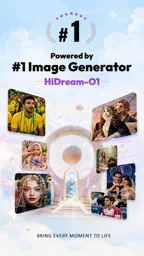
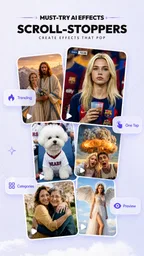
When I want a quick visual concept for a post, I’m often less interested in a full editing suite than in a way to turn a rough idea into something I can actually share. That is the space vivago.ai aims to fill: it is a creative app for generating and working with AI-made images, videos, and effects, rather than a conventional player for browsing a media library. I’d approach it as a playful production tool for social content and visual experiments, not as a replacement for a detailed desktop editor.
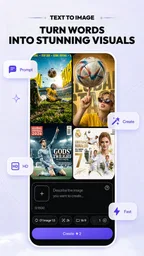
The appeal is easy to understand if you have ever had a caption, theme, or mood in mind but no image to match it. Instead of beginning with a camera roll and a blank editing timeline, you can start from a creative prompt and explore an AI-driven result. That makes the app particularly relevant to people who want ideas to look more polished or unusual without first learning a complicated design workflow.
From a rough idea to a visual starting point
I find AI image and video tools most useful when I treat them as sketchbooks, not as automatic art directors. A short concept such as a dreamy portrait, a dramatic background, or a playful effect can give you something to react to. The first result does not have to be the final asset; it can simply reveal what is working and what needs a change.
That distinction matters with vivago.ai. Its focus is on creating trendy AI visuals and effects, so it suits someone chasing a particular look for a social post, profile image, or short creative experiment. It is less compelling if your starting point is a precise commercial brief with strict brand rules, exact product details, or a demand for consistent characters across a large batch of assets. In those cases, a more controlled design or editing workflow is usually the safer choice.
The app is developed by Sparking Innovations Limited and sits in the video players and editors space, though its creative-generation angle is more central than ordinary playback. It has a 4.1 average from around 201,000 ratings and more than 50 million installs. Those figures suggest broad interest, but they do not tell me whether a particular generated result will suit my taste; the best way to judge that is to try a small, low-stakes idea before building a whole post around it.
Choose a brief that leaves room for discovery
A useful prompt gives the tool a clear subject and mood without trying to dictate every tiny detail. I would begin with the main object or person, then add a visual direction—soft, cinematic, surreal, or energetic, for example. If the first attempt feels too busy, simplify the brief rather than adding more adjectives. This is a practical way to avoid spending a session chasing a result that was already over-specified.
For everyday use, I can imagine making a visual for a friend’s birthday, testing a few looks for a creator profile, or turning a vague campaign idea into a mood-board-like image. These are forgiving jobs: a result can be expressive rather than exact. By contrast, I would not rely on an AI-generated image as the only source for a factual announcement or a product listing where small visual inaccuracies could mislead someone.
Making and refining without losing the idea
The interesting part of AI creation is rarely the first tap. It is the judgment involved in deciding whether a result is close enough, whether it needs another direction, or whether the original idea should be abandoned. I recommend keeping a simple note of what you asked for and what you liked in each result. Even a few words—“better lighting,” “less crowded,” or “keep the subject”—can make the next attempt more deliberate instead of turning iteration into random trial and error.
A non-obvious trade-off with this kind of app is that more visual novelty does not always mean more usable output. A striking effect may catch the eye but compete with the message you want to publish. When I am making something for a post, I would first decide what the viewer should notice, then judge each generated option against that purpose. If the effect becomes the whole story, a simpler treatment or a regular photo editor may serve the content better.
Another practical habit is to separate experimentation from delivery. I would explore several visual directions early, then choose one and stop changing the brief once it is working. This prevents a common time sink: repeatedly generating alternatives that are different but not actually better. For a casual creator, the goal is often a coherent, shareable image—not a theoretical perfect result.
AI output can also be unpredictable in ways that matter more for some projects than others. A stylized background can tolerate a few odd details; a face, hand, logo, or piece of text may not. Before sharing, inspect the focal area at full size and check whether the image still communicates what you intended. If a detail is essential and looks wrong, I would switch to a manual editor or use a real photograph rather than hoping another generation fixes it.
Build a small workflow around the result
For a realistic daily scenario, imagine preparing a weekend event post during a short break. I would start with one clear theme, make a few visual explorations, and select the version that leaves enough room for the event information. Then I would add or check the final wording in a tool designed for typography, because AI-generated visuals are not a dependable substitute for carefully placed text. The useful insight is to let vivago.ai handle the visual spark while keeping factual copy under direct control.
This split workflow is also helpful for creators who already use familiar social platforms. The AI app can be the place to develop a distinctive background or effect; a separate editor can handle precise cropping, captions, layout, and final checks. That may sound like an extra step, but it often saves time when the asset must fit a specific format or include readable information.
Compared with a standard photo editor, the advantage here is the creative leap from an idea to an AI-led visual direction. A conventional editor gives you more direct control over an existing image, while vivago.ai is better suited to exploring looks that you might not have made by hand. Compared with a general design app, it is more appealing when the source material itself is the challenge; a template-based tool may be better when you need reliable layouts, repeatable branding, or clean text placement.
Preparing work for sharing
When a visual is ready, the handoff should be treated as part of the creative process, not an afterthought. I would review the composition on the screen where it is likely to be seen, check that the subject is not awkwardly cropped, and make sure any surrounding text remains legible. If the piece is meant for a feed or story, consider how the crop changes the balance before committing to it in another app.
I also recommend keeping the original idea and the chosen final version distinct in your own workflow. That makes it easier to revisit a concept later without confusing a rough experiment with the asset you intended to publish. For a creator juggling several posts, a simple naming habit or a dedicated album can prevent the common problem of losing the right version among a pile of alternatives.
There is a broader limitation to keep in mind: a generative visual can feel finished while still needing human review. Check for strange details, unintended symbols, and any mismatch between the image and the message. If the content represents a real person, a business, or an event, take extra care that the visual does not suggest something inaccurate. That last check is more important than generating one more variation.
Costs, access, and who should be cautious
The app is free to install, with in-app purchases ranging from $0.99 to $899.99 per item. I would treat the free entry point as a chance to see whether its creative approach fits my habits, then pay close attention to any purchase screen before proceeding. The wide range makes it especially sensible to check what an individual option includes and whether it matches a one-off project or regular use; I would not assume that every useful creation step is included at no cost.
Its content rating is Mature 17+, so it is not an app I would choose for a young child to explore unsupervised. For adults, the main question is whether AI-generated effects and images are a good match for the content they want to make. If you need a quiet, predictable editor for routine cropping and color correction, the app’s generative emphasis may feel like more than you need.
The current version is 4.8.0, and the minimum operating system requirement is 9. That makes compatibility worth checking before planning a project around it, particularly on an older device. For creators who work across multiple devices or rely on a specific editing setup, I would also test the complete route from first idea to a saved, share-ready result before making it part of a regular publishing routine.
My verdict for creators
I see vivago.ai as a useful creative starting point when you want an eye-catching AI visual and are happy to guide the result rather than expect exact control. Its strongest use case is quick exploration: finding a mood, creating a distinctive image, or adding an imaginative angle to casual social content. It can help a blank canvas feel less intimidating, especially when you already know the feeling you want but do not have a finished visual in mind.
I would skip it as my main tool for precise brand production, detailed retouching, or any job where every element must be dependable on the first pass. A conventional editor is better for targeted corrections, and a layout-focused design tool is better for typography and repeatable templates. That is not a knock against AI creation; it is a reminder that different parts of a creative job benefit from different tools.
For someone curious about making AI-assisted images and effects, the free install offers a straightforward way to explore the approach, while the purchase range calls for a careful look before spending. My advice is to start with one simple, low-risk project, evaluate the result as an editor would, and move the final asset into a more controlled tool if the job needs exact framing or text. Used that way, it is a lively companion for visual brainstorming—not a shortcut around creative judgment.
What we like
- Turns text prompts into images without requiring design skills
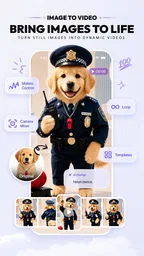
- Offers AI video creation for short visual concepts
- Useful for experimenting with different creative styles
- Can help speed up early-stage content creation
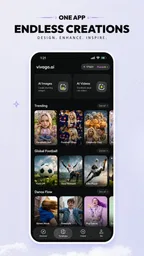
- Combines image and video tools in one app
What could be better
- Generated results may not match the prompt exactly
- AI video output can look inconsistent between frames
- Creating polished results may require several prompt attempts
- Some features or generations may require payment
- Results may need editing in another app before sharing





