
Video to MP3 - Video to Audio review
 Analysis by Appsdrops
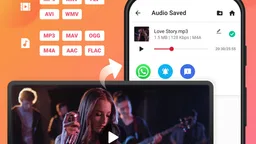
When I need the audio from a video without keeping the video itself, I want a tool that gets to the point. Video to MP3 - Video to Audio is built around that straightforward job: trimming video and converting video into audio files. Its focus makes it easy to understand from the outset, whether I want to save a music excerpt, isolate a spoken passage, or prepare a shorter audio clip for listening later.
A straightforward route from video to audio
The app’s central appeal is its uncomplicated purpose. Rather than presenting itself as a full video-editing studio, it concentrates on extracting sound and converting video to MP3. That narrow scope can be a real advantage when I already have a clip and simply want its audio. I can focus on the task instead of navigating a long list of unrelated creative tools.
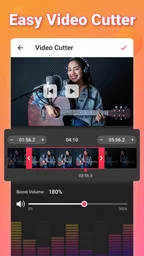
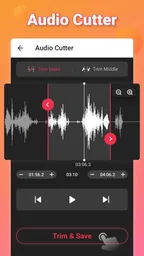
In my usual approach, I start by choosing the video I want to work with, then consider whether the whole clip is useful or whether I only need a section. The trimming function matters here: it gives the conversion a more deliberate starting point, especially when a video includes an introduction, silence, or other material I do not need. After narrowing the selection, I can move on to the audio conversion.
This makes the app suitable for small, practical jobs as well as occasional experiments. Maybe I want to keep a short piece of background music, a memorable line from a clip, or a useful spoken segment. The important thing is to have the rights and permission to use the material. For personal organization, the basic idea is simple: select, trim when appropriate, and convert.
The name says exactly what kind of task to expect. Video to MP3 - Video to Audio is a video-to-audio utility, not a replacement for a complete editing suite. I find that distinction helpful because it sets sensible expectations. If the goal is to extract music from a video quickly, the app’s purpose is clear; if the goal is to assemble a polished video project, this is not the tool I would reach for first.
The baseline workflow
A good first run is also a good way to learn the app. I would choose a familiar video rather than an important one, check that it is the right clip, and decide whether I need the full audio or just a trimmed portion. That small pause prevents the most common avoidable mistake: converting a whole video when only a brief passage was needed.
Before starting, it helps to think about the result rather than tapping through the process on autopilot. Am I after music, speech, or a sound effect? Where does the useful part begin and end? Answering those questions first makes trimming feel purposeful, and it can save time if I plan to repeat the same kind of conversion later.
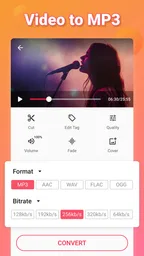
The conversion itself is the app’s main event, so I treat it as a simple utility workflow rather than a creative session. I select the source, make any needed trim, and create the audio. For everyday use, that is appealing: I do not need to learn a complex timeline just to turn one clip into a sound file. The best results come from choosing a source with the content I actually want and keeping the selection focused.
Settings worth checking
Even in a focused converter, it is worth taking a moment to look at the choices presented during a task. I check the selected video and the intended segment before conversion, then pay attention to whatever output options are shown in the app. That habit is more useful than assuming every conversion should use the same setup. A spoken recording and a music excerpt may serve different purposes, so I make the choice with the intended listening situation in mind.
I also keep file organization in view. Once an audio clip has been created, being able to find it later matters as much as making it. I use clear names when the app gives me a naming choice, and I avoid creating several nearly identical exports without a reason. A tidy collection is easier to browse on a phone, particularly when I use the converter for more than one project.
There is a practical privacy consideration too: selecting a video means working with personal media on a device. I make sure I am choosing the intended file, especially when the gallery contains private recordings or multiple versions of the same clip. That is a sensible routine for any media utility, not a special technical requirement. It keeps an otherwise quick task controlled and intentional.
The app is free to install, with in-app purchases offered from $3.99 to $19.99 per item. I would think about whether I need anything beyond the core conversion workflow before buying an optional item. If my use is occasional and limited to trimming and extracting audio, it makes sense to begin with the basic experience and decide later whether additional offerings are relevant to my routine.
Faster patterns for repeat jobs
Once the basic steps feel familiar, speed comes from preparation rather than rushing. I sort out which video I want before opening the conversion flow, and I decide in advance whether I need its full duration. If I have several clips to handle, I work through them in a consistent order and check each source before moving on. That small repeatable pattern reduces mix-ups and makes routine conversions feel less tedious.
For a recurring task, I keep the same decision points in mind: identify the source, define the useful section, review the output choice, and make sure the result is easy to locate. These are habits, not hidden shortcuts, and they work because they remove unnecessary backtracking. I would rather spend a few seconds confirming the right video than discover later that I converted the wrong one.
Trimming is especially useful when the source is longer than the audio I want to keep. I listen or inspect the clip carefully enough to choose a sensible start and finish, then avoid making the selection so tight that it cuts off the beginning or ending of a phrase. For music, that can mean preserving a clean transition; for speech, it means keeping the words understandable and not chopping into a sentence.
Another helpful habit is to treat the first conversion as a check when a clip is unfamiliar. I review the resulting audio before repeating the same process with similar material. If the selection was right, I can follow the same approach for the next clip; if not, I adjust my trimming choices. This is a simple way to build confidence without assuming the app can automatically correct every source.
Where a focused converter fits
Video to MP3 - Video to Audio makes the most sense for people who want a direct utility, not a broad editing environment. Its store summary emphasizes video trimming and extracting music from video, and that captures the practical use case well. I can see it being handy for someone who occasionally wants to turn a video clip into an audio file without learning a more involved production workflow.
The app is listed as suitable for everyone, which makes its basic purpose easy to understand across a broad audience. Still, age suitability does not change the importance of using media responsibly. I would only convert material I own or have permission to use, and I would be mindful of copyright if I planned to share the resulting audio beyond private use.
Its reach is substantial: it has over 50 million installs, an average rating of 4.7 from around 742,000 ratings, and about 9,700 written reviews. Those figures suggest that many people have found a reason to try it, but popularity alone does not tell me whether it matches my needs. The better question is whether I want a simple video trimmer and audio converter or a more comprehensive editor.
Advanced limits and sensible expectations
Experienced users can get more consistent results by being precise about the source material and the segment they choose. But a focused conversion app should not be mistaken for a tool that can transform every recording into studio-quality audio. The sound in the output depends on the source video, including how the original audio was captured. If the source is noisy, distant, or distorted, extracting it does not automatically make those problems disappear.
Likewise, trimming can select the portion I want, but it is not the same as detailed audio restoration or multitrack editing. When I need extensive cleanup, careful mixing, or a finished soundtrack, I would look for an editor designed for those jobs. That is not a knock against this app; it is simply a matter of choosing a tool that matches the task.
File management also becomes more important as a collection grows. I avoid keeping unnecessary copies, and I make sure I know which clip is the source and which is the converted audio. If I am preparing audio for another app or device, I check that the resulting file works for that destination rather than assuming every workflow handles files in exactly the same way.
For occasional conversions, the lightweight approach is a plus. For someone who edits audio every day, the narrow focus may feel limiting compared with a dedicated audio workstation. I see the app as a convenient bridge between a video and an audio file, not as an all-purpose media toolbox. Understanding that boundary helps me use it efficiently and avoid expecting features that belong in a different kind of editor.
My mastery verdict
My preferred way to use this converter is calm and repeatable: choose the correct video, decide whether trimming is needed, review the audio output choices, and keep the finished file organized. It is not a complicated routine, but consistency makes it more reliable. Once I know what I want from a clip, the app’s focused design keeps the task easy to follow.
For anyone searching for a video to MP3 converter or a simple way to extract music from video, this app is worth considering. It combines trimming with video-to-audio conversion in a clear, utility-first package. I would recommend it most to people who want a practical tool for straightforward conversions, while users looking for deep audio editing should choose a broader editor instead.
Overall, I like the app’s direct approach. It keeps attention on the job of turning video into audio, and a few good habits—checking the source, trimming thoughtfully, and organizing the result—make that job smoother. If that is the kind of media task I need to handle, Video to MP3 - Video to Audio offers a simple place to start.
What we like
- Converts video files into MP3 audio for listening on the go.
- Supports audio extraction from common video formats.
- Offers a straightforward workflow for quick conversions.
- Lets you keep audio versions without storing full video files.
- Useful for creating audio clips from personal recordings.
What could be better
- Conversion quality may depend on the source video's audio.
- Large videos can take longer to process.
- Some formats or codecs may not be supported.
- Audio extraction may require access to local media files.
- Check the app's privacy policy before importing personal videos.





