
Video Player - Media Player review
 Analysis by Appsdrops
I think Video Player - Media Player makes most sense as a practical viewing tool, not as a full creative studio. Its controls can help when I’m checking footage, listening closely to a clip, or organizing videos on a phone, but playback and editing are different jobs. If you want to watch files at a pace that suits you and keep private clips separate, this app is worth considering. If you need a timeline, trimming tools, captions, or a finished export, you’ll want a dedicated editor instead.
A useful starting point for reviewing video
Video Player - Media Player is an Android video player from 1MB Apps Studio. It sits in the video-player-and-editor category, though its practical role is closer to playback and file management than to creating a finished video. The app is free to install, is rated for Everyone, and has a 4.0 average from around 14,000 ratings. It has passed five million installs, which suggests plenty of people use it as a general-purpose player rather than as a specialist editing suite.
The most useful way to approach it is to start with a clear task: watch a downloaded clip, inspect a recording, or find a video you’ve tucked away. The store summary points to playback speed controls, an equalizer, a file manager, and a private vault. Those features give it a broader purpose than a bare player, but they don’t turn it into a tool for altering the video itself. I would use it to review source material and manage viewing, then move to a separate editor if the goal is to change the footage.
That distinction matters for anyone working on creative output. A player can make it easier to judge timing, dialogue, and sound, but it cannot replace the steps of cutting, arranging, or preparing a project for publication. I find this app more appealing for quick checks and personal media organization than for a creator who expects one app to handle the whole path from raw clip to delivery.
Fit the playback to the task
Speed control is especially handy when a clip is too long to review at normal pace or when a moment deserves closer attention. For example, if I’m checking a spoken explanation, I can slow playback to follow a phrase without repeatedly scrubbing through the whole recording. When I already know the content and only need to locate a section, moving faster can make a review session less tedious. The trade-off is that speed changes are for watching; they do not create a newly edited or re-timed video file.
The equalizer gives the app another useful angle for review. If dialogue sounds muffled through a phone speaker, sound adjustment may make listening more comfortable. I’d treat that as a playback aid rather than a reliable way to judge how a final mix will sound everywhere. For a creator, the practical check is to compare the clip at ordinary settings too, since an adjusted listening profile can make problems seem better or worse than they are.
One small but valuable workflow is to separate the question “Can I hear this clearly?” from “Is the audio mix ready to publish?” The player can help with the first. For the second, I’d still listen on more than one device or use an editing app with proper audio controls. That keeps a convenient equalizer from becoming a substitute for a final quality check.
Keep review sessions organized
A file manager is useful when videos are scattered across the device and I want to get to a particular clip without bouncing between unrelated apps. This matters during a simple review cycle: record a short take, open it in the player, check the pacing and sound, then decide whether it needs another take or should be sent to an editor. The player can sit in the middle of that routine, helping me inspect material before I make a more involved change.
For an everyday example, imagine recording a few clips for a family update while commuting home. Later, I want to check which take has the clearest speech and whether the framing holds steady. A focused player is a more comfortable place to watch those files than a general gallery if I’m also using playback controls and want to keep my review session centered on video. I can make a note of the best take, then hand it off to an editor if I need to trim pauses or combine clips.
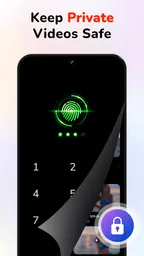
The private vault is relevant for personal organization, but I’d use it with a specific purpose rather than assuming it is a complete backup or a publishing workflow. It may suit clips I prefer not to keep alongside everyday videos. Before placing anything important there, I’d check how the app presents its vault controls and make sure I understand how to retrieve the files. A private viewing area can be convenient, but it should not be treated as a replacement for a separate backup of irreplaceable footage.
That is one of the app’s less obvious trade-offs: combining playback and private storage can reduce app-switching, but it also means I’d be more deliberate about where I keep files. If I’m reviewing material that needs to be shared with a team or transferred into an editing project, I’d keep the handoff location clear and avoid burying the working copy in a private area. A tidy source folder is often more helpful than an elaborate organization scheme.
Iteration without pretending to edit
The app supports iteration in a modest, useful sense. I can watch a clip at a different speed, pay attention to its sound, and decide what to change in the next take. That is different from editing the current file. There’s no reason to expect a playback-focused app to provide the trimming, transitions, titles, or export controls found in a dedicated editor, and I would not choose it on the assumption that it can produce a polished cut.
That limitation can actually keep a workflow simple. If the problem is a line delivered too quickly, I can replay it slowly and record another take rather than trying to repair the original in a tool that is not built for editing. If the issue is a long pause, however, I’d take the clip into an editor and cut it there. Knowing which kind of problem I’m solving prevents wasted time: playback tools help me assess; editing tools help me alter.
For anyone comparing it with the usual alternatives, a phone’s built-in gallery or player is likely enough for occasional viewing. This app is more interesting when speed controls, equalizer adjustment, file browsing, and a private vault are features you expect to use together. A full video editor is the better choice once you need to assemble clips, refine a sequence, or prepare a final version. The right option depends less on the word “player” and more on whether your next step is to watch, organize, or make changes.
I’d also avoid turning every playback session into a technical review. For a short personal clip, the fastest useful check may be to watch once at normal speed and listen for obvious issues. Slow playback is best reserved for details that are genuinely hard to catch, while faster playback is useful for scanning longer material. Used selectively, the controls can save attention; used constantly, they can make it harder to judge the natural rhythm of a video.
From review to handoff
When a clip is ready to move on, the useful handoff is usually a clear decision and an accessible source file: this take is the one to edit, this section needs another recording, or the audio should be checked elsewhere. The player’s role is to help reach that decision, not to package a finished creative project. I’d keep the next step explicit, especially if I’m moving between the app and an editor, so I don’t confuse a convenient playback copy with the version I intend to publish.
If your main goal is to send a video to someone, a general file-sharing or messaging workflow may be more direct than looking for export options in a player. If your goal is to publish a polished clip, use an editor that gives you control over the final sequence and output. This distinction answers a common practical question: the app can help you inspect and manage viewing, but it should not be your assumed final stop for creative delivery.
There is also a sensible privacy habit here. If a clip is personal, decide before you start whether it belongs in ordinary device storage or in the private vault, then keep track of where you placed it. If a clip is part of a project that must be passed to someone else, prioritize an easy-to-find working copy and a separate backup. These small choices matter more than adding extra steps to a simple review process.
What to expect from the current app
The current version is 6.0, and it requires Android 7.0 or later. That makes it a possible option for a range of Android devices, but I’d still check that the phone has enough free space for the videos I plan to manage. The app itself is free, with in-app purchases ranging from $2.99 to $39.99 per item. I’d begin with the free experience and consider a purchase only if I encounter a specific paid feature I genuinely need.
It was released on December 8, 2022, and its age rating is Everyone. Those details help set expectations for a general audience, but the more important decision is whether its combination of playback controls and organization matches your routine. Its 142 written reviews are a smaller set than its overall rating count, so I would focus on trying the actual workflow that matters to me rather than treating any single score as proof that it will suit every device or viewing habit.
For a creator, the best test is straightforward: open a typical clip, try the playback pace you need, listen with and without equalizer adjustment, and see whether the file manager makes finding the next video easier. If those steps improve your review routine, the app has earned a place on the phone. If you immediately find yourself wanting a timeline or a way to make a new file, you have reached its boundary and should switch to an editor.
My verdict for creators and everyday viewers
I’d recommend Video Player - Media Player to someone who wants more control over watching local videos and values having playback, browsing, and private storage in one app. Its strongest creative use is as a review station: check a take, slow down a difficult moment, listen more carefully, and decide what happens next. That is a real, practical role, even though it does not make the app a video-production suite.
I’d skip it if my priority were editing footage into a finished piece, exporting a social-ready cut, or collaborating around a project. In those cases, a dedicated editor or a simpler sharing tool is a better fit. I’d also be cautious about using a private vault as the only home for important videos; organization and backup are separate needs.
Overall, I see it as a useful middle step between recording and editing, particularly for people who review clips often on their phone. It brings together controls that can make watching more deliberate, while leaving the actual creative changes to other software. If you go in expecting a capable player rather than an all-in-one production app, Video Player - Media Player is an approachable choice; if you need a complete editing path, its limits will show quickly.
My practical recommendation: use it to inspect and sort video, keep your source files easy to find, and hand serious edits to an editor built for that job. That division of labor is where I think this app is at its best.
What we like
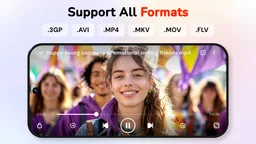
- Supports a wide range of common video and audio formats.
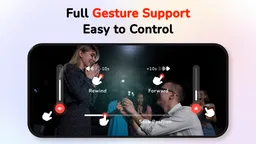
- Playback controls make it easy to adjust speed and seek through videos.
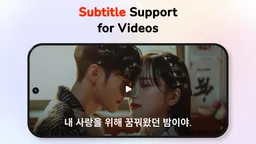
- Subtitle support helps with watching foreign-language content.
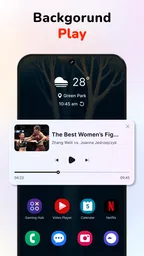
- Background playback lets audio continue while using other apps.
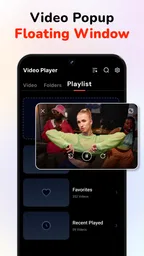
- A built-in file browser helps locate media stored on the device.
What could be better
- Some advanced features may require in-app purchases.
- The interface may show ads during use.
- It may not play files that need uncommon codecs.
- Battery use can rise during long high-resolution playback.
- No desktop version is available for managing a media library.





