
Video Cut-Video Editor review
 Analysis by Appsdrops
When I need to trim a clip quickly, I care less about a long list of editing tools than about getting from a full recording to a shorter, usable video without a complicated setup. Video Cut-Video Editor is aimed at that straightforward job. It belongs to the video editing category, is made by Zivaj.com, and presents itself as a free app for simple cutting. Its modest scope is also the main question to ask before installing it: does a focused editor suit the way you work, or do you need a broader creative toolkit?
Making the cut the main event
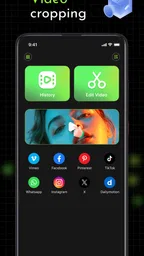
The useful idea behind Video Cut is its emphasis on trimming rather than turning every edit into a project. For a casual user, that can mean less time hunting through menus and more attention on the part of a clip worth keeping. I find that approach appealing for practical edits: removing an awkward start, shortening a recording before sharing it, or isolating a moment from a longer video.
That focus matters most when the source clip is already close to what you want. A simple cut can solve a common problem without requiring titles, layered effects, or a full timeline workflow. The app’s short description, “Video Cut,” points to this narrow purpose, while its broader identity as an editor leaves room for a basic editing experience around that task. I would approach it as a quick utility, not assume it replaces a desktop editor or a feature-rich mobile suite.
The distinction is useful because video apps often make a small job feel larger than it is. If all I need is to remove several seconds from a clip, I don’t necessarily want to learn a complicated interface or build a polished sequence. A tool centered on cutting is a sensible fit when speed and clarity matter more than creative control.
A practical trimming workflow
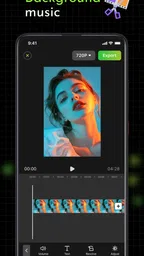
For a typical trim, I would start by choosing the video that needs attention, then focus on where the retained section should begin and end. The important judgement is not simply how much footage to remove, but whether the cut preserves the context that makes the moment understandable. A reaction, a spoken sentence, or a small movement can feel abrupt if the edit begins or ends too tightly.
My practical tip is to decide the purpose of the cut before opening an editor. If I am preparing a clip for a message, I might want only the main moment; if I am keeping it for myself, a little lead-in and tail can make playback feel more natural. That small decision prevents the common cycle of trimming too aggressively, reopening the clip, and trying to restore context.
I would also review the beginning and ending after making a change rather than judging the edit from the middle of the footage. A cut can look fine when positioned on a still frame yet feel rushed in motion. For a clip with speech, listening through the boundary is especially worthwhile: a tiny slice removed from the wrong place can interrupt a word or make a sentence sound clipped.
One useful workflow is to keep the original recording untouched until I am happy with the edited result. That gives me room to reconsider a boundary if I later notice a missing gesture or a sentence that needs more breathing space. This is good editing discipline for any simple cutter, and it is particularly sensible when the goal is a quick, irreversible-looking change rather than a multi-stage project.
Where a simple cut earns its place
Imagine recording a family moment, a short demonstration, or a quick message and realizing the clip includes a long pause before the useful part. I would use a focused cutter to remove that dead time before sending the video, so the recipient reaches the point without scrubbing through the recording. The same idea works for a brief social post or a personal archive where the best moment is surrounded by setup footage.
Another everyday case is a phone recording made in one take. A person may start speaking before they are ready, stop to think, and then continue. Trimming the opening hesitation and the pause can make the result easier to watch without requiring a full edit. The trade-off is that a very tight cut may make the clip feel abrupt, so I would leave a little natural lead-in when the viewer needs to understand what is happening.
For a small business or a class project, the app may help with a quick cleanup when the footage itself is already suitable. It is less convincing as the whole production environment if the video needs a carefully arranged sequence, visual branding, captions, or more involved polishing. In those cases, a broader editor is the better starting point, even if it takes longer to learn.
Before sharing, I would play the finished clip from the beginning and check that the chosen section still makes sense on its own. That final watch is a simple but often overlooked step: a cut that works while editing can leave a confusing first frame or an ending that stops before the action resolves. If the result is meant for someone who has not seen the original, clarity matters more than shaving off every spare second.
What the focused approach does not solve
The clearest limitation is the same thing that makes a narrow editor attractive: a basic trimming task is not the same as complete video production. If I want to combine several recordings, shape a story, add detailed overlays, or fine-tune a soundtrack, I would compare it with a fuller mobile editing app. A dedicated cutter can be easier for a small job, but it should not be mistaken for a substitute when the project has several moving parts.
There is also a judgement cost to trimming. The editor can help shorten footage, but it cannot decide which context is essential to the viewer. Cutting out a pause may improve pace; cutting out the moment that explains why the next action happens may make the video confusing. I recommend making edits with the intended audience in mind, rather than treating the shortest possible clip as automatically the best one.
When accuracy matters, I would take extra care around speech and movement. A cut placed too close to a spoken phrase can sound unnatural, and an action may need a little space on both sides to feel complete. If the project is important, I would keep the source file and review the exported result before deleting or replacing anything. That cautious approach is more valuable than rushing through a simple interface.
People who expect an editor to provide a guided creative process may also find this approach too spare. A focused tool is best when the user already knows what should be removed. If you are still deciding how to arrange a story, which shots to combine, or what visual style to use, a more comprehensive app can offer a better environment for experimentation.
How it compares with broader editors
Compared with the usual all-in-one video editors, Video Cut makes the most sense when the task is defined and modest. A larger editor typically earns its place through a wider set of controls and creative options, but those can add steps to a job that only needs a shorter clip. I would choose the simpler route for a quick trim and switch to a more capable editor when the edit starts involving multiple decisions beyond the cut itself.
Compared with a phone’s built-in editing tools, a separate app is worth trying if its workflow feels clearer for the particular trimming job. The deciding factor should be convenience, not the assumption that a dedicated editor automatically produces a better result. If the built-in option already lets you make the cut cleanly and share the video as intended, there may be no reason to add another tool to your routine.
That is why I see this app as a practical specialist rather than a universal recommendation. Its appeal depends on how often you need to shorten clips and how much control you expect around that operation. The fewer extra editing steps your videos require, the more its focused purpose is likely to feel like a benefit rather than a restriction.
Who should give it a try
Video Cut-Video Editor has a 3.7 average from around 500 ratings, with over one million installs. It is free, rated for Everyone, and its current version is 2.1.4. The app was released on February 26, 2025, and supports Android 7.0 and later. Those details make it accessible to a broad range of Android users, but they do not change the core decision: it suits people who want a simple way to shorten video, not those seeking a complete editing studio.
I would recommend giving it a try if you regularly record clips that need a quick start-and-end cleanup, especially when the footage is already good and the edit is obvious. It may also suit someone who finds large editing suites distracting and wants to handle one small task at a time. The most successful use is likely to be a clear, short job with an easy-to-judge beginning and ending.
I would skip it in favor of a broader editor if your routine depends on combining clips, building a sequence, or making a highly finished presentation. I would also stay with the phone’s existing tools if they already handle your occasional trims comfortably. For me, the right test is simple: take an unimportant clip, remove a clear stretch of dead time, and watch the result all the way through. If that process feels easy and the cut sounds natural, this focused approach may be exactly enough.
A sensible choice for small edits
My overall view is that Video Cut is most appealing when I know what I want to remove before I start. Its emphasis on cutting can make a routine video cleanup feel less involved, and that is a real advantage for quick personal clips. The same narrow focus means it is not the choice I would reach for when a project needs extensive creative work.
Used with a little care, it can help turn an overlong recording into something easier to watch and share. I would keep the original, avoid cutting away context just to make a clip shorter, and check the final playback before sending it. If your everyday need is a straightforward trim, this free editor is worth considering; if your needs grow beyond that, a more complete editing app will serve you better.
What we like
- Simple tools make quick edits easy for beginners.
- Trim and split clips without a complicated workflow.
- Useful transitions help connect scenes smoothly.
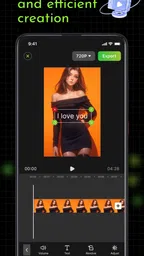
- Text overlays add context to short videos.
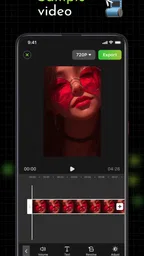
- A built-in preview helps check edits before saving.
What could be better
- Export options may be limited compared with professional editors.
- Some features may require in-app purchases.
- Ads can interrupt the editing process.
- Large projects may take longer to export.
- Device storage is needed for source clips and finished videos.





