



UpFoto - AI Photo Enhancer review
 Analysis by Appsdrops
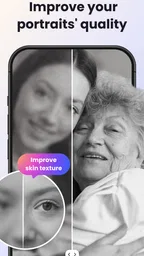
When an old photo is the only copy of a moment you want to keep, even a small improvement can matter. I see UpFoto as a practical first stop for that kind of rescue: it is a photography app from AI Photo Team, built around AI-assisted photo improvement and the creation of images and videos. Its promise is appealing, but the useful question is not whether AI can make a picture look sharper. It is whether the result still feels like your picture, and whether the work fits easily into an ordinary editing routine.
Starting with the photo you actually have
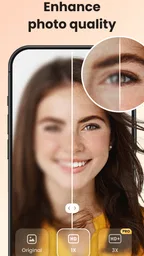
The app makes the most sense when you begin with a specific image that has a clear problem: a family snapshot that looks soft, a scanned print that has lost some clarity, or a portrait that could use a little polish. Rather than opening a full desktop editor and facing a wall of controls, you can approach UpFoto with a simple goal: improve this one image and see whether the change is worth keeping.
That focused approach is also its main strength. General-purpose photo editors are better when you want to control exposure, color, cropping, and detail separately. UpFoto is more appealing when the source needs a broad AI-assisted lift and you would rather inspect a generated improvement than tune every setting yourself. I would treat it as an enhancer, not as a replacement for careful manual editing.
There is a useful distinction between repairing a photo and beautifying it. A worn or soft image may benefit from enhancement, while a portrait can become less convincing if its features are altered too aggressively. I recommend deciding what you want to preserve before you start. For a keepsake, that may mean keeping facial character and texture; for a casual social image, a more polished look may be acceptable.
A sensible first pass
Choose a representative image, not the most important one in your collection. Compare the original and the result with the same question in mind: can I recognize the same expression, lighting, and atmosphere, with the distracting softness reduced? This is more useful than asking whether the edited image simply looks more vivid. AI enhancement can produce a cleaner impression while also changing fine details, so a quick visual check is part of the process, not an optional extra.
For a photo that contains both a face and important background details, inspect both areas. A face may look improved while lettering, hair edges, or small objects become less faithful. That trade-off is easy to miss when judging an image at thumbnail size. I would zoom in before deciding to share or print anything, especially if the photo is old or irreplaceable.
Moving from input to a useful result
UpFoto is free to install, with in-app purchases ranging from $0.99 to $99.99 per item. That makes it reasonable to try the basic workflow before deciding whether paid options suit you, but it is still worth checking the purchase details shown in the app before committing. If you only need to improve a single picture, think about the value of that specific outcome rather than assuming a paid upgrade is necessary.
The app is rated for Everyone, and it has reached over 100 million installs. It holds an average rating of 4.5 from around 1.5 million ratings, with about 17,000 written reviews. Those figures suggest broad use, but they cannot tell you whether its particular treatment of an old portrait or a low-quality scan will match your taste. For that, a trial on a nonessential image is much more informative.
Its current version is 1.4.3, and it requires Android 8.0 or later. The release date was May 11, 2022. These details matter when you are deciding whether an older phone can run it, but compatibility alone does not guarantee a smooth experience on every device. If you are preparing a batch of important images, test one first and make sure you are comfortable with the result and the saving process before doing more.
Keeping the edit in context
A realistic everyday use is finding a slightly blurred family picture on your phone before sending it to a relative. I would improve a copy, inspect the face and background, then compare it with the original before sharing. If the image looks cleaner without losing its recognizable character, the handoff is simple: save or share the version that feels right. If it looks noticeably artificial, keep the original and try a conventional editor with gentler, more controlled adjustments.
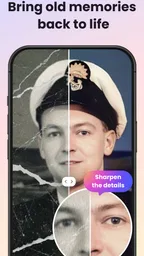
That copy-first habit is especially useful for scanned prints. A scan may contain fading, dust, paper texture, or damage that an enhancer cannot truly restore as historical detail. It can improve the overall impression, but it may also smooth or reinterpret what is there. Keep the untouched scan as your archival master, and use the enhanced version as a convenient viewing or sharing copy. This gives you room to experiment without turning an AI interpretation into your only record.
Handing the image to other tools or people
UpFoto works best as one stage in a larger routine. I would use it to create a stronger starting image, then move to a familiar editor if I needed a precise crop, careful color correction, or selective retouching. That division of labor is more dependable than expecting one app to handle restoration, creative editing, and final presentation equally well.
Before sending an edited photo into a messaging app or another editor, compare the saved result with what you saw inside UpFoto. The next app may display or compress an image differently, and a change that looked subtle on screen can feel stronger after sharing. For a print or a family archive, keep both versions together and label them in a way you will understand later. That small handoff step prevents confusion about which file is original.
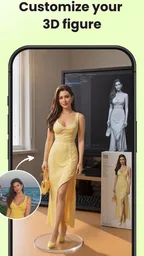
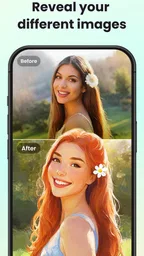
The app also includes AI photo and video creation, which broadens its role beyond repairing existing pictures. I would approach that as a separate creative task rather than assuming it is part of a restoration workflow. If your main goal is faithful preservation, focus on the photo-enhancement result and judge it against the source. If your goal is a more imaginative output, decide in advance whether likeness and documentary accuracy matter less than visual effect.
Where the workflow can break
The central limitation is the same quality that makes AI enhancement convenient: it makes decisions for you. A manually controlled editor lets you reduce one issue without necessarily changing another. An automated result may look more finished at first glance but can also alter texture or small details. That makes UpFoto a weaker fit for professional retouching, evidence-sensitive images, product photography where exact detail matters, or restoration work that needs a documented, conservative approach.
It is also not the best choice when the original is already good and you want nuanced creative control. If you know how to adjust tone, contrast, and sharpening and care about each separately, a traditional editor gives you clearer decisions. Likewise, if you want to restore severe physical damage, an enhancement tool should not be mistaken for a full restoration service. It may help with the overall appearance, but it cannot guarantee recovery of information that is absent from the image.
Another point of friction is expectation. Words such as “restore” and “fix” can suggest that a damaged picture will return to its original state. I would read the outcome more modestly: the app can offer an AI-generated improvement, and you decide whether that improvement is attractive and believable. For a treasured photograph, that distinction matters. A polished version can be worth keeping even when it is not a faithful reconstruction, provided the original remains safe.
Who I would recommend it to
I would recommend UpFoto to someone who wants a quick, approachable way to test improvements on soft portraits, older snapshots, or images that need a general lift before sharing. It is especially useful if you do not want to learn a full editing toolkit for an occasional fix. The best results are likely to come from users who are willing to compare versions and accept that enhancement is an interpretation rather than a guaranteed repair.
I would skip it as my main editor if I needed detailed manual control, consistent professional output, or a strict record of every change. I would also avoid relying on it as the only copy of an archival image. In those cases, keep the original untouched and use a dedicated editing or restoration workflow that gives you more control over what changes.
Overall, I find the app most convincing when treated as a fast, experimental step between finding a photo and deciding what to do with it. Start with a copy, inspect the result closely, and pass it on only if it still feels true to the moment. That simple workflow makes its convenience worthwhile while keeping its limits in view.
What we like
- Enhances soft or blurry photos with a simple workflow.
- Can restore old images without requiring editing skills.
- AI processing helps improve portraits with little manual effort.
- Useful for preparing photos for sharing on social platforms.
- Offers a quick alternative to detailed editing apps.
What could be better
- Results can look overly smooth or artificial.
- Enhancement quality varies depending on the source image.
- Some features may require payment or a subscription.
- AI processing may take longer on older devices.
- Uploading personal photos may raise privacy concerns.





