






Collage Maker | Photo Editor review
 Analysis by Appsdrops
I like photo collage apps when they help me make a considered choice quickly, rather than turning a simple post into a design project. Collage Maker | Photo Editor is built around that idea: it brings photos together in a single composition, with a large selection of layouts and finishing touches. In my experience, its most useful quality is not just having many options; it is being able to start with a layout and then make small adjustments until the photos feel like they belong together.
One layout can change how a set of photos feels
This is a free photography app from Photo Editor & Collage Maker, aimed at people who want to combine pictures without opening a full desktop editor. Its central capability is choosing a collage arrangement, then giving that arrangement a personal finish with filters, stickers, and text. The app advertises more than a thousand layouts, so the choice is broad enough to cover simple grids as well as more expressive compositions.
That breadth has a practical effect. A row of similar images can look repetitive when posted one by one, but a layout can turn them into a small visual story: a detail, a wider view, and the finished result all in one frame. I find this especially useful when the photos are related but not strong enough to justify separate posts. The collage gives them context without requiring me to build a design from scratch.
The layout is also a kind of editing decision. A tight grid makes each image feel equally important; a composition with differently sized spaces can give one photo more emphasis. That means choosing a template is not merely decoration. It determines what a viewer notices first, so I would pick the arrangement before adding stickers or captions.
From selecting photos to a finished composition
The natural workflow is straightforward: choose the pictures that belong together, select a layout, and refine the result. I recommend deciding on the story before opening the editor. For a weekend outing, for example, I might pick one establishing shot, two candid moments, and a close-up rather than selecting every picture from the camera roll. A smaller, purposeful set usually gives the collage a clearer rhythm.
Once the images are in place, check how each crop works inside its frame. A photo that looks fine on its own can lose the subject when squeezed into a narrow cell. I would adjust the photo choices or arrangement before trying to rescue every crop with extra decoration. This small step often makes a collage feel more intentional and keeps the main subjects visible.
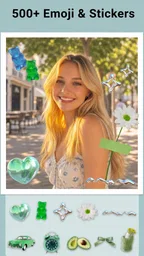
Filters, stickers, and text offer ways to tie the images together, but restraint matters. A shared filter can make photos taken in different lighting feel more consistent. A short caption can explain the occasion or add a date-like note in your own words, while several stickers and competing text styles can make the layout harder to read. My rule is to add one finishing element, pause, and decide whether the collage actually needs another.
A useful trick is to treat the layout as the frame for the story, not as a checklist of empty spaces to fill. If one picture is noticeably weaker, leaving it out can improve the whole composition. Likewise, a collage with a few strong images may read better than one packed with every available slot. The app’s variety gives room to experiment, but a larger menu does not mean every option will suit a particular set of photos.
A realistic use: sharing a small moment without flooding a feed
Imagine I have several pictures from a family lunch: the table before everyone sits down, a favorite dish, and a candid group moment. Sharing each image separately can feel like overkill, while choosing only one loses the details that made the occasion memorable. I would place the strongest image where it draws the eye, use the other frames to add context, and keep text short enough not to compete with faces or food.
The same approach works for a craft project, a room refresh, or a simple before-and-after. In those cases, a collage can make comparison easier because the images sit together rather than relying on someone to swipe back and forth. For a small business or hobby account, it can also help present a few product angles in one image. I would still check that the subject remains clear at the size where people are likely to view it; tiny frames can undermine the whole point of showing details.
Before finishing, I would scan the composition at a glance instead of focusing on each cell separately. Ask what catches the eye first, whether the images feel balanced, and whether the caption is readable. That quick review catches common problems: a bright sticker stealing attention, a crop cutting off a face, or a text block covering the detail the collage is meant to show.
Where the convenience comes with trade-offs
A large layout selection is a strength, but it can also slow down the first decision. If I am in a hurry, browsing many similar arrangements may take longer than using a basic grid in a simpler editor. I find it helps to decide in advance whether I want an orderly grid or a more varied composition, then browse with that purpose instead of inspecting every option.
There is also a difference between making a collage and doing detailed photo correction. The app’s focus is combining images and adding finishing touches; it is not the choice I would reach for when I need careful, individual adjustments to lighting, color, or retouching. If one photo needs substantial correction, I would edit it in a dedicated photo editor first and bring the improved image into the collage afterward. That extra step is worth it when image quality matters more than speed.
Another trade-off is visual consistency. Filters can help photos sit together, but applying the same look does not automatically make shots taken in very different conditions match. I would compare the images after the filter is applied and avoid forcing a uniform effect if it makes one photo look unnatural. Similarly, decorative extras can make a collage feel personal, yet too many can obscure the photos that should remain the focus.
The app is free to download, with optional in-app purchases listed from about $0.39 to $21.99 per item. That makes it approachable for trying the workflow, though anyone who prefers not to make purchases should pay attention to what is available in the app before settling into a routine. I would judge it by whether the layouts and editing choices I actually use fit my needs, rather than assuming every option is included at no cost.
How it sits beside other photo tools
Compared with a general photo editor, this app puts the combined image at the center of the experience. That is convenient when the goal is a finished grid or a visual recap, but less suited to someone who begins by tuning each picture independently. Compared with a bare-bones collage tool, its broad range of layouts and decorative choices offers more room to shape the result, though that choice can bring extra browsing.
I would use a phone’s built-in photo tools when I only need a quick crop or a basic adjustment to one picture. I would choose a dedicated design tool when the work depends on precise typography, layered elements, or a carefully controlled brand style. Collage Maker | Photo Editor makes most sense between those extremes: more expressive than simply placing photos side by side, but focused enough that I can finish a casual composition without treating it like a full design assignment.
Who will get the most from it
This is a good fit for people who regularly share groups of related photos and want a quick way to make them feel connected. It suits family recaps, travel highlights, hobby updates, and simple comparisons especially well. Beginners can start with a layout rather than facing a blank canvas, while more confident users can use filters, text, and stickers selectively to establish a mood.
I would skip it if my main need were detailed retouching, advanced graphic design, or precise control over every element. It may also frustrate someone who wants the fastest possible result and has no interest in browsing layouts or refining a composition. For those users, a simple grid or a dedicated editor for the task may be a better fit.
The app has an average rating of 4.9 from around 3.7 million ratings, with about 42,000 written reviews and over 100 million installs. It is rated for Everyone, was released on October 24, 2016, and its current version is 2.454.225; it requires Android 9 or later. Those figures suggest a widely used, established option, but the deciding question is still whether its collage-first workflow matches the way you want to share pictures.
My recommendation is to try it when you have a specific set of photos to bring together, rather than opening it just to browse effects. Pick a small group, choose a layout that supports the story, check the crops, and add only the finishing details that improve clarity. The strongest reason to use this app is that it makes a collection of ordinary moments easier to present as one coherent image.
What we like
- Combines collage creation and photo editing in one app.
- Offers a simple way to arrange photos into a single image.
- Useful for preparing pictures to share on social media.
- Lets users personalize collages with creative design options.
- Provides a convenient alternative to editing photos separately.
What could be better
- A large set of options may take time to explore.
- Some designs or features may require in-app purchases.
- Collages can look crowded when too many photos are used.
- Editing controls may feel limited for advanced users.
- Export quality may depend on the selected settings.





