


Google Photos review
 Analysis by Appsdrops
I find photo apps easiest to judge when something goes wrong: a picture seems missing, a backup takes longer than expected, or I need to find one shot among years of camera rolls. Google Photos is built to make that growing collection easier to revisit, share, and sort, but it works best when I understand how its library and backup workflow fit together. It is a free photography app from Google LLC, rated for Everyone, and its scale is striking: it has more than ten billion installs and an average rating of 4.4 from around 54 million ratings. That popularity makes it familiar, but it does not make every part of using it self-explanatory.
Where photo libraries become confusing
The first thing I would check when a picture appears to be missing is whether I am looking at the right place in the app. A photo can be on the device without having finished backing up, and a backed-up item may be easier to find by searching or browsing than by scrolling through a long timeline. Those are different situations, even though both can feel like the app has lost a picture.
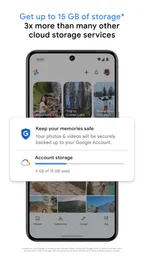
I also avoid judging backup status from a single image view. I check the app’s overall backup state and give the library time to catch up, especially after taking many pictures or changing devices. If an image is important, I verify that it appears in the library before assuming it is safely available elsewhere. That small habit is more dependable than relying on memory of whether backup was enabled.
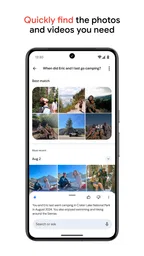
Search can be a useful alternative to endless scrolling. I might look for a place, person, or subject rather than trying to remember the exact day I took a photo. It is convenient when the library is large, but I treat search as a shortcut, not a guarantee: unclear subjects, similar-looking images, or a vague memory can still make the right result hard to spot.
Sharing can create another kind of confusion. Sending a photo to someone and organizing it in my own collection are separate tasks, so I check that I have chosen the intended images before sharing and that I can still locate them afterward. For a family event, for example, I would select a small, relevant group rather than send an entire camera roll and leave the recipient to sort it out.
Start with the simple checks
When backup does not seem to be moving, I first confirm that I am using the account where I expect the library to live. Then I check the app’s backup status, whether the device has a working connection, and whether the app is open and able to continue its work. I avoid repeatedly changing settings while a large upload is underway; changing several things at once makes it harder to tell what helped.
If the app is not showing recent pictures, I look at the device’s own photo library as a comparison. If the image is not there either, the problem is probably earlier in the camera or saving process. If it is present on the device but not in Photos, I can focus on backup and account checks instead of searching through the app’s menus at random.
For a new phone, I would sign in and inspect the existing library before deciding that everything needs to be imported again. This helps distinguish photos that are already available from items that exist only on the old device. I also keep the old device and its local pictures intact until I have checked that the important images are accessible in the new setup.
A calmer way to recover a messy workflow
When the timeline feels overwhelming, I do not try to organize every year in one sitting. I start with a useful boundary: a recent trip, a school term, or a family occasion. I find the relevant pictures, remove obvious duplicates or unwanted shots only if I am sure, and then make the collection easier to revisit. This is a practical compromise between accepting a chaotic camera roll and turning photo management into a second job.
One non-obvious advantage of a searchable, centralized library is that it can change how I take and retrieve reference pictures. I can photograph a parking location, a product label, or a recipe page, then search or browse for it later rather than trusting myself to remember where it was saved. I would still keep important records in an appropriate document or note system, but for everyday visual reminders, a photo library can be quicker than building a folder structure in advance.
Another useful habit is to treat sharing as a deliberate selection step. Before sending pictures from a gathering, I review the chosen group for accidental duplicates, blurry frames, or images meant to stay personal. That takes a little longer than sharing the whole batch, but it saves other people from a cluttered stream and gives me a chance to catch an image I would rather not distribute.
There is a trade-off to relying on search and automatic organization: they reduce manual filing, but they do not replace my judgment. If I need a carefully curated portfolio, a precise archive for professional work, or a strict folder-based system, I would create and maintain that structure intentionally rather than assume the app will make every organizational decision the way I would.
Know when the cause may be outside the app
A missing image is not always an app problem. It may never have saved successfully, may be on another device, or may belong to a different account than the one currently open. I check those possibilities before reinstalling an app or changing account settings, because drastic fixes can add confusion without addressing the actual cause.
Likewise, a slow or paused backup can reflect conditions on the device or its connection rather than a damaged library. I make sure the phone is connected and usable, then give the process a reasonable chance to continue. If only one image is affected, I compare it with other recent pictures: a single-file issue points me toward that item’s location or save history, while a broader gap makes account or backup status more relevant.
For shared photos, I also separate what I can see from what another person can see. If a recipient says an image is missing, I confirm which pictures I selected and how I sent them before concluding that the whole library is unavailable. A quick, specific test with one image is often clearer than repeating a large share operation.
Who will appreciate it—and who may not
I would recommend Google Photos to someone who takes pictures regularly and wants a straightforward way to browse a growing collection without manually filing every shot. It is particularly useful for people who move between everyday subjects—family moments, trips, pets, and visual reminders—and later need to retrieve one image quickly. The app is free, and its long-running presence since May 28, 2015, has made it a familiar option for many phone users.
Compared with a basic gallery app, its strongest appeal is the idea of organizing and revisiting a broader photo collection rather than merely displaying what is on the device. A manufacturer’s gallery may feel more direct if I mainly want a local camera roll with minimal account-related decisions. A dedicated photo editor is a better fit if my priority is detailed creative control over individual images, while a professional cataloging tool may suit someone who needs a rigid, carefully managed archive.
The main friction is that the difference between a picture stored on a phone and one that has completed backup matters. Account choice, backup status, and connectivity can affect what appears where, and a large library can take patience to understand. I would not choose this as my only answer for sensitive records that require a separate, carefully verified archival process, nor would I expect automatic organization to replace a deliberate workflow for professional projects.
My practical verdict
For ordinary photo life, I think Google Photos is most valuable when I use it as both a viewing and retrieval tool, not as a magic box that makes every image instantly findable. I check the account and backup state when something looks wrong, compare the app with the device’s local library, and organize in small, meaningful batches. Those steps resolve many everyday uncertainties without needless troubleshooting.
Google developed the app, and its reach is reflected in more than a million reviews as well as its very large install base. I would try it if I want a convenient home for everyday pictures and am comfortable checking backup rather than assuming it has completed. If I prefer strictly local browsing, highly manual filing, or specialized editing, another tool may suit me better. For a broad personal library, though, the balance of easy discovery and practical sharing makes it a strong choice—as long as I stay attentive to where each photo actually lives.
What we like
- Automatic backup keeps photos accessible across devices.
- Powerful search can find images by people places and objects.
- Shared albums make it easy to send photos to friends and family.
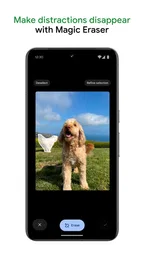
- Editing tools include useful adjustments and filters.
- Memories offers a convenient way to revisit older photos.
What could be better
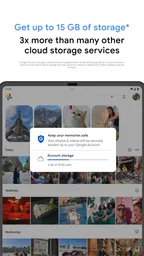
- Free storage is shared with Gmail and Google Drive.
- Full-quality backups can use a large amount of storage.
- Some features require an internet connection.
- Face grouping may be unavailable in certain regions.
- Editing options are less advanced than dedicated photo editors.





