


TV Cast & Mirroring: All TV review
 Analysis by Appsdrops
I judge a TV-casting app less by how impressive its feature list sounds than by what happens when I’m ready to watch something: can I get the picture onto the television without turning a simple evening into a troubleshooting session? TV Cast & Mirroring: All TV is built for that practical job, bringing video, photos, and a phone screen to a Smart TV while offering remote-control functions. Its appeal is straightforward, but the experience depends on the connection between phone and television as much as on the app itself.
When the connection makes or breaks the viewing experience
In day-to-day use, casting is a chain of small handoffs: the phone needs to find the TV, both devices need a suitable connection, and the content has to make the trip without frustrating delays. This is why I’d treat network reliability as part of the app experience, not just a technical footnote. A stable home network makes the basic idea convenient; a crowded or unreliable one can make even a simple photo session feel fiddly.
The app is a video player and editing-category utility from Jakka Apps, though its central purpose here is sending media and mirroring a screen rather than editing clips. That distinction matters if you are choosing between it and a conventional video editor: this is for moving what is on your phone to a larger display, not for building a polished video project.
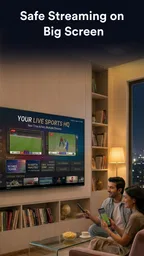
For a typical evening, I can imagine opening a clip on the phone, connecting to the living-room TV, and letting everyone watch together rather than passing the handset around. Photos are another natural fit: a family gathering can look through a set of pictures on the television while the phone stays in the presenter’s hands. The benefit is less about elaborate presentation and more about making shared viewing feel immediate.
One useful habit is to connect before you have an audience waiting. Confirm that the television is discoverable and that the phone is on the network you intend to use, then start the media. This small change in order can avoid the awkward moment of searching through device settings while other people are ready to watch. It is especially sensible when switching between home, guest, and workplace networks.
What casting is good for—and what it cannot solve
Sending a video is often a better fit than mirroring every phone action. With a video, the goal is simply to watch the clip on a larger screen. Screen mirroring is more useful when the material is already on the phone screen, such as a photo sequence or an app view, but it also exposes everything visible on the handset. I would close private messages and notifications before mirroring in a group setting.
That distinction is a practical trade-off, not a minor technicality. If you only want to share a few pictures, casting the relevant media can keep the session focused. If you need to demonstrate something that changes on the phone, mirroring may be the more direct route. In either case, the television becomes an extension of the phone rather than an independent source of content.
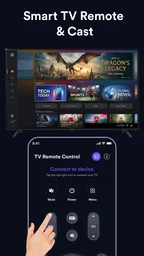
The app’s remote-control angle may also be useful when the phone is already in your hand and you would rather not reach for a separate controller. Still, I would not assume it replaces every television remote function. For changing TV settings or navigating the television’s own menus, the physical remote or the manufacturer’s companion app may remain the more dependable choice.
Different phones, rooms, and reasons to cast
TV Cast & Mirroring: All TV is most appealing to someone who often has media on a phone and wants a simple way to share it on a Smart TV. It may suit people who keep travel clips, event photos, or short videos on their device and do not want to transfer files before showing them. The app is free, has an Everyone content rating, and is listed as supporting Android from version 8.0 onward.
That Android requirement is worth checking before installing: an older phone that does not meet it is not a good candidate, however suitable the television may be. The app is currently version 1.6. The developer is Jakka Apps, and the app’s focus is narrow enough that I would choose it for casting rather than expect it to replace a broader media library or editing suite.
There are also situations where a different route is better. If the video already lives in a streaming service with a built-in cast button, using that service’s own casting option can be simpler because you stay within the app where the content is playing. For presentations with strict timing or a requirement for a consistent, business-ready setup, a dedicated presentation system may be more predictable than relying on a phone-to-TV connection.
For travel, the appeal is less certain. A hotel television may not be configured for easy discovery, and guest networks can separate devices from one another. I would not plan an important viewing session around the assumption that any Smart TV will be reachable. If casting is central to the trip, check the room’s television setup and network arrangement before depending on it.
Recovering when the TV does not appear
When a television fails to show up, I would troubleshoot from the simplest cause outward rather than repeatedly tapping the same control. First, check that the phone and TV are connected to the intended network. Then confirm that the TV is on and ready to accept a connection, and try again after reopening the casting session. These steps address common discovery problems without assuming the app can overcome network restrictions.
If the TV is visible but playback does not behave as expected, distinguish a connection problem from a content problem. Try another photo or short clip that you know is available on the phone. If that works, the original item may be the issue; if nothing works, focus on the connection and television readiness. This simple comparison saves time because it avoids changing several settings without knowing which one mattered.
Mirroring can also make troubleshooting more confusing: the phone may connect successfully while the displayed image lags or feels less responsive than normal. For a clip that does not require interaction, that may be tolerable. For a task where precise taps or quick changes matter, a slower mirrored response can undermine the point. I would switch to direct video casting when possible, or use the phone itself for anything that needs immediate control.
Connection recovery is not always instant, so it helps to keep a fallback ready. If guests are waiting, playing the clip directly on the phone or using the TV’s own playback options is often less disruptive than spending the whole gathering diagnosing discovery. That does not make the app useless; it simply recognizes that casting depends on several devices cooperating at once.
Using it thoughtfully on shared or limited networks
Because the experience relies on sending media or a screen across a connection, I would be deliberate about where I use it. A home network is a natural setting for sharing personal photos and videos with people in the room. On a shared public or workplace network, device discovery may be restricted, and mirroring can reveal more of the phone than intended. I would avoid showing sensitive screens and check who can see the television before starting.
For people watching their mobile data use, the important distinction is the connection path. Casting over a home Wi-Fi network is different from relying on a mobile connection, and the app’s role is to send content or a screen to the TV rather than make every network situation equivalent. I would check which network the phone is using before starting a long video session, especially away from home.
There is a practical trade-off between convenience and control. Mirroring is flexible because it shows what the phone displays, but that flexibility means notifications, accidental swipes, or a low battery can interrupt the shared view. Casting a selected video is more focused, while keeping the phone’s screen free for other tasks may be less possible when the entire display is being mirrored. Picking the method based on the session avoids some avoidable interruptions.
The app has an average rating of 3.6 from around 3,300 ratings, alongside 39 written reviews and more than a million installs. I read that as a sign of a tool many people have tried, but not one that should be expected to work identically across every combination of phone, TV, and network. The rating is a useful point of context, not a guarantee that a particular television will connect smoothly.
Who should try it, and who may prefer another option
I would recommend giving it a try if your main need is occasional phone-to-TV sharing and you are comfortable checking the network when a device is not found immediately. It makes most sense for short, informal sessions: showing holiday photos, watching a saved clip with family, or putting a phone screen in front of a small group. The free price lowers the barrier to testing whether it fits your own television setup.
I would skip it if you need a guaranteed presentation workflow, expect every TV to be discoverable automatically, or want a complete replacement for a television’s native interface. People who mostly watch subscription or streaming content may be better served by the cast controls already built into those services. And if your aim is to edit footage, this app’s casting-first purpose is not a substitute for a video-editing tool.
My practical recommendation is to test the connection with an unimportant photo or short clip before relying on it for a gathering. That reveals whether your devices can see each other and gives you a chance to choose between sending media and mirroring the screen. It also helps you decide whether the phone can stay in your hand as a controller or whether the TV’s own remote is still the easier option.
A sensible choice when your network is ready
TV Cast & Mirroring: All TV is a focused convenience app: it brings phone media and screen content to a Smart TV and adds remote-control functionality, with a connection-dependent experience that calls for realistic expectations. I like the use case most when the goal is casual sharing, not a flawless, high-stakes setup. Its strongest practical advantage is turning a phone into a source for a larger shared display; its main limitation is that discovery and smooth playback still depend on the devices and network working together.
If that matches how you watch, the app is worth trying on a familiar home network and with a simple piece of media first. If you need guaranteed compatibility, minimal setup, or the controls of a dedicated streaming device, another option may be a better fit. For occasional casting, though, its modest purpose is also its appeal: it offers a direct way to bring what is on your phone into the room.
What we like
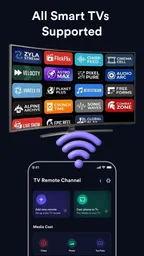
- Works with many smart TV brands and streaming devices.
- Lets you mirror your phone screen on a larger display.
- Can cast videos and photos stored on your device.
- Useful for sharing presentations and other content.
- A simple setup makes basic casting easy to start.
What could be better
- Some TVs may require extra setup before connecting.
- Screen mirroring can introduce noticeable lag.
- Casting may drain your phone battery quickly.
- Connection quality depends on a stable Wi-Fi network.
- Some features may require a paid upgrade.





