
Snapseed review
 Analysis by Appsdrops
The most useful thing about Snapseed is not that it offers a long menu of edits; it is that I can make a change to one part of a photo without having to accept the same change across the whole frame. That local control is what makes this free photography app from Google LLC feel more like a careful editing tool than a quick filter picker. I reach for it when a picture is basically right but one area needs attention, and I want to make that adjustment on my phone rather than move to a desktop editor.
That approach suits everyday photography particularly well. A face might be too dark while a bright window already looks right, or a small distraction may pull attention from the subject. Instead of applying a dramatic look to everything, I can work on the specific problem and keep the rest of the image closer to how I remember it. The strength here is selective editing, not automatic perfection.
Why local adjustments make a difference
Snapseed is a photo-editing app, but its most compelling use is as a set of tools for making deliberate, limited changes. A global adjustment is easy to understand: the whole image becomes brighter, warmer, or more contrasty. The drawback is that a change that helps one area can damage another. Local editing gives me a way to respond to that unevenness, which is common in real photos taken in mixed light.
This matters more than it may sound. When I brighten a shadowed subject, a pale sky or a lit wall can become washed out. When I add contrast to make a subject stand out, details in darker parts of the frame may disappear. Selective work lets me avoid treating every pixel as though it needs the same correction. It also encourages restraint: a small adjustment to the part that needs help often looks more believable than a heavy effect applied everywhere.
The app’s reputation suggests that many people value this kind of control. It has a 4.8 average from around 1.9 million ratings, and it has passed 100 million installs. Those figures do not tell me whether every individual edit will suit my taste, but they do place it among the more widely used mobile photo editors. Google released it on December 6, 2012, and its long presence in the category makes it a familiar option rather than a new, untested experiment.
Working on one part without losing the whole picture
In practice, I start by looking at the image as a whole, then identify the one area that is holding it back. If a person’s face is underexposed, I avoid immediately lifting the brightness everywhere. I try a local adjustment on the face and compare it with the surrounding scene. The key is to check the transition: if the edited area looks like a bright patch pasted into the photo, the correction is too strong or too broad.
That comparison step is an important habit. I prefer to make a subtle correction, inspect the complete composition, and then decide whether it needs anything else. A close view can make a change seem more successful than it looks when the whole image is visible. In portraits, a modest lift in shadow detail can help a face read clearly while preserving the mood of the background. In a street scene, a selective adjustment can bring attention to a sign or doorway without turning the entire image into a high-contrast treatment.
Local editing is not a shortcut around good framing or difficult light. If the subject is badly blurred, a selective brightness adjustment cannot restore the missing detail. If a bright area has lost its detail in the original image, editing may not bring back a convincing texture. I see the tool as a way to refine a photo that already has something worth keeping, not as a promise to repair every mistake.
A practical workflow for a phone photo
For a useful everyday workflow, I first choose a photo with a clear subject and decide what I want the viewer to notice. I make any broad correction only when the entire image needs it, then use a local change for the specific area that remains too dark or too prominent. I pause between edits and view the picture at normal size. This catches the common mistake of overworking a face or object because the adjustment looked subtle while zoomed in.
I also keep a mental “before” image. It is easy to keep adding tweaks because each one seems small on its own, yet the cumulative result can lose the character of the original scene. A good stopping point is when the subject is easier to see but the lighting still feels plausible. If I am editing a photo to share quickly, I would rather leave a minor flaw than spend time making every area look unnaturally even.
Another useful trade-off is that selective editing asks for more attention than tapping a filter. That is the price of control. A one-tap style is quicker when I want a consistent mood across several images or simply do not care about fine adjustments. Local work is more valuable when the image has a particular problem and I can describe what I want to fix. If I cannot say what the edit is meant to improve, adding another adjustment is unlikely to help.
Where it earns a place in an everyday routine
A realistic example is a family photo taken near a window. The daylight makes the room bright, but the person standing farther inside comes out a little dark. A global brightness increase may make the window area distracting, while leaving the image untouched can make the person difficult to see. I would use a restrained local correction on the subject, then check that the result still looks like a naturally lit room rather than a studio portrait.
The same reasoning works for travel photos. A building in shade may be the reason I took the picture, while the surrounding street is already bright enough. Instead of making the pavement and sky even more intense, I can give the building a little more presence. For food photography, local changes can help a dish stand out from a busy table, though I would avoid pushing color so far that the meal looks unlike what was served. These are small improvements, but they are precisely the sort that can make a phone photo feel considered without looking heavily processed.
It is also useful when I want to keep a photo’s overall atmosphere. A dim evening scene may be intentionally moody. Brightening everything would remove that feeling, but lifting only a face or a key detail can make the image easier to read while preserving the darker surroundings. This is where selective control feels less like decoration and more like visual judgement.
How it compares with quick filters and larger editors
Compared with the usual filter-first approach, Snapseed rewards a more hands-on way of editing. Filters are convenient when I want an immediate style, but they often affect the whole frame and can make unrelated parts of a photo shift together. A local adjustment is slower, yet it gives me a clearer reason for each change. I would choose a filter for speed and a selective workflow when the photo’s uneven lighting or composition calls for a specific response.
Compared with a full desktop editing setup, the appeal is convenience. I can make a thoughtful correction directly on a phone photo without turning a casual image into a larger project. The compromise is that a phone screen and touch-based controls are less comfortable for very fine, prolonged work. If I were preparing a demanding commercial image, managing a large batch with consistent technical requirements, or doing detailed retouching that needs precise control, I would prefer a more specialized desktop workflow.
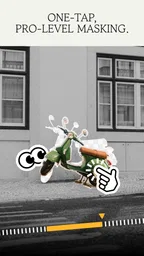
It is also worth distinguishing careful local correction from object repair. If an unwanted item is the main problem, or if I need exact masking and repeatable edits across many images, a tool designed around those tasks may be a better fit. Snapseed makes most sense when I want to improve the balance of an individual image and can judge the result by eye. It is not automatically the best choice simply because it has many editing possibilities.
The small decisions that keep edits believable
My first non-obvious tip is to use local edits to preserve contrast, not just to brighten things. Sometimes the subject already has enough light, but a nearby area is too prominent. A restrained adjustment to that distracting area can restore the intended hierarchy without making the subject unnaturally bright. Thinking in terms of attention—what should the viewer notice first?—often produces a better result than chasing a technically even exposure.
Second, inspect the edge of an adjustment as carefully as its center. The center may look right while the boundary gives away the edit. I check the entire frame at normal viewing size and look for halos, abrupt tonal changes, or a face that appears detached from its surroundings. If I notice one, I reduce the strength or revise the area rather than trying to hide the mismatch with another global effect.
Third, keep an original copy when the photo matters. Editing is subjective, and a treatment that feels polished today may feel excessive later. Keeping the untouched image gives me room to reconsider, try a different approach, or share a more natural version. This is especially helpful with family and travel pictures, where the moment may matter more than a particular visual style.
Who will get the most from it
I recommend Snapseed to people who take photos on their phones and want more control than a filter provides, especially when they are willing to make a few considered adjustments instead of accepting an automatic look. It is a sensible option for portraits in uneven light, travel scenes with a subject in shade, and everyday pictures that need one area brought forward or toned down. The app is free and has an Everyone age rating, so it is easy to consider for general personal use.
It may be less satisfying for someone who wants every edit completed in one tap, or who expects an app to make a weak photo look professionally captured. It is also not my first choice for people who need a highly precise desktop-style workflow or consistent processing across a substantial image collection. The more control an editor gives, the more responsibility it places on the person using it; this one is most rewarding when I know what I want to change.
With around 21,000 written reviews and more than a decade in the photography category, it is clearly an established choice, but popularity is not the same as a perfect fit. My recommendation is narrower and more practical: use it when a photo is close to working and you want to improve one part without flattening the whole scene. That focused approach is why I would keep it on my phone. For selective, natural-looking corrections, Snapseed is a strong free editor; for instant uniform styling or highly technical retouching, another kind of tool may suit you better.
What we like
- Precise selective adjustments let you edit specific areas without changing the whole image.
- Healing can remove small distractions from photos with little effort.
- The editing tools work without requiring an account.
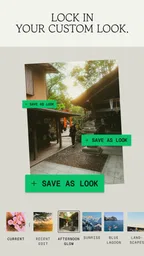
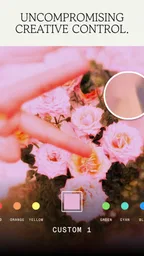
- You can save custom Looks and reuse them on other images.
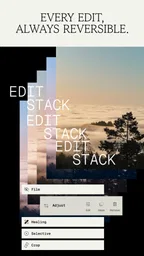
- Editing is non-destructive so you can revisit changes later.
What could be better
- The interface can take time to learn if you are new to photo editing.
- Some tools offer fewer controls than professional desktop editors.
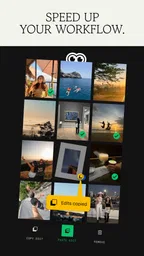
- Batch editing options are limited for handling many photos at once.
- The app does not include built-in social sharing or community features.
- Large edits can be slower on older phones.





