


Skullcandy review
 Analysis by Appsdrops
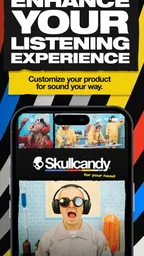
I think of Skullcandy less as a music player and more as a companion app for getting more from Skullcandy gear. That distinction matters: if you want a place to stream songs or manage a general collection of headphones, this is not the right tool. Its appeal is narrower and more practical—bringing supported Skullcandy products and their settings together, rather than asking you to juggle separate controls or guess how a device is configured.
Made by Skullcandy Inc., this free Music & Audio app is aimed at listeners who already own, or are considering, compatible products. It has an average rating of 3.5 from around 16,000 ratings, with more than 5 million installs. Those figures suggest a sizable audience, but also mixed experiences; I would treat it as a useful accessory rather than an essential part of listening. The app is rated for everyone, and its current version is 5.0.6.
What the app is meant to do
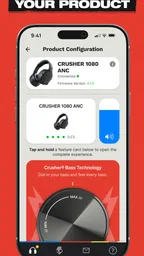
The clearest way to understand the app is as a control point for the Skullcandy ecosystem. A music app handles the songs; this one is for the relationship between your phone and supported Skullcandy hardware. That can make daily listening easier when you want to check or adjust device settings without repeatedly relying on physical controls or remembering what you changed last time.
There is an important catch: the value depends on the specific product you own and what that product supports. Before installing, I would check that your exact headphones or earbuds are compatible, rather than assume every Skullcandy model will expose the same controls. If you do not own compatible gear, the app has little reason to stay on your phone.
I also would not approach it expecting a replacement for Spotify, Apple Music, or a phone’s built-in audio settings. Those serve different jobs. A streaming service helps you find and play music; system settings manage broad phone behavior; Skullcandy’s app is relevant when you want product-specific control. Keeping those roles straight prevents disappointment and makes the app’s narrower purpose feel more useful.
Quick setup and speed expectations
For an accessory app, speed is mostly about reducing small bits of friction: opening it when you need a setting, finding the device, and getting back to listening. I would judge it by whether that routine feels straightforward on your own phone, not by expecting it to improve sound quality automatically or transform an unsupported product.
A useful first-session workflow is to install the app, connect the Skullcandy product using the phone’s normal pairing process where needed, then open the app and see what controls appear for that device. If something is missing, check the product’s compatibility and connection before repeatedly tapping through menus. That simple order can save time: the app cannot expose useful controls for a device it has not recognized.
For everyday use, I would avoid opening the app before every song. Once you have set things the way you like, treat it as a utility you return to when you want to change a preference or troubleshoot a connection. That keeps the app from becoming an unnecessary extra step in listening. If you mainly use one stable setup, the phone’s ordinary Bluetooth controls may be enough most days.
Where it helps during heavier use
The app becomes more relevant when your listening habits change throughout the day. Imagine commuting with earbuds, taking them off for a conversation, then using them again later at a desk. If your supported Skullcandy model offers settings you want to adjust between those situations, having a dedicated companion can be more convenient than relying on memory or physical button combinations.
A second useful scenario is sharing a device between routines without sharing the headphones themselves: you might prefer one configuration for a noisy journey and another for quiet work. The practical tip is to make adjustments deliberately and test them in the setting where you will use them. A change that feels helpful at home may not suit a crowded street, and an app control is only valuable if it makes the real listening situation better.
There is a trade-off, though. More interaction is not automatically better. If you only want to connect headphones and press play, a dedicated control app can feel like another layer to maintain. I would install it when you have a clear need—such as managing supported device options—not simply because every accessory seems to require an app.
Heavy use also means more chances to notice interruptions. If the app does not immediately show a device, I would first check that the headphones are powered on and connected to the phone, then close and reopen the app before changing phone settings. This is a sensible recovery sequence for a companion app, but I would not interpret one delayed connection as proof that the headphones themselves have failed.
Reliability, recovery, and everyday friction
With a device-control app, reliability is less about constant background activity and more about whether it is dependable when you choose to use it. I would expect the basic listening connection to remain the priority: if audio works through the phone’s Bluetooth connection, the app is not necessarily required for every listening session. That separation is reassuring because it gives you a fallback when the app is being uncooperative.
If a control seems unavailable, I would take recovery in stages. Confirm the product is connected, reopen the companion app, and check whether the device appears again before attempting a full reset or removing pairings. Avoid changing several settings at once; otherwise, it becomes hard to tell which step fixed the issue. This is especially useful when you are troubleshooting in a hurry, such as just before leaving home.
The average rating of 3.5 points to a mixed reception rather than universal satisfaction. I would read that as a reason to keep expectations measured: companion apps can be valuable for owners who use the controls, but frustrating for people who expect flawless, effortless behavior across every model and phone. Since the app has thousands of written reviews as well as ratings, prospective users can also look for comments that mention their particular device before deciding how much they will rely on it.
In my view, the main reliability question is not “Will this replace my audio setup?” but “Does it consistently make my compatible Skullcandy product easier to manage?” If the answer is yes, occasional visits are enough. If it repeatedly adds steps to a simple connection, the phone’s built-in Bluetooth panel is a reasonable fallback for basic pairing and playback.
Phone compatibility and the cost question
The minimum operating-system requirement is Android 9, so users on older Android releases should check their device before planning around the app. Even on a supported phone, available controls depend on the Skullcandy product, so operating-system compatibility alone does not guarantee that every feature will appear. That is why checking both the phone and the exact accessory is the most useful pre-install step.
The app is free to download, with in-app purchases listed from $4.99 to $49.99 per item. I would not assume a purchase is necessary just to try the core companion experience; instead, review any purchase prompt carefully and decide whether it relates to something you actually want. If you only need basic device management, do not buy anything before confirming what the free app already offers for your product.
On a phone with limited space or a preference for keeping background apps to a minimum, I would install it only if I expect to use product controls. A companion app is not a music library, so its usefulness does not grow just because you listen for more hours. If you rarely adjust headphones after setup, removing it later may be a perfectly reasonable choice, provided you are comfortable managing basic connections through the phone.
Who will get the most from it
I would recommend trying it to someone who owns a compatible Skullcandy product and wants a more direct way to manage the options that product supports. It is also a sensible choice for people who change their listening setup often and would rather use an app than memorize controls. Skullcandy’s large install base shows that many owners have given it a try, but popularity alone does not make it necessary for every listener.
I would skip it if you do not use Skullcandy hardware, if your model is not supported, or if your only goal is to play music. I would also be cautious if you expect one app to manage every headphone brand equally well: a manufacturer’s companion app is naturally most relevant within its own product range. For mixed-brand households, the phone’s Bluetooth settings may be the more consistent place for basic connections.
Compared with generic Bluetooth utilities, this app’s reason to exist is its Skullcandy-specific role. A general utility may offer broad device-management conveniences, but it will not necessarily provide product-tailored controls. Compared with using no companion app, the trade-off is simple: you gain a dedicated place to manage supported options, while accepting another app to install and occasionally troubleshoot.
My performance verdict
I see Skullcandy as a practical extra, not a must-have for every listener. Its strongest case is straightforward: you own compatible Skullcandy gear and want to manage its available settings from one place. In that situation, it can make the accessory feel easier to live with, especially when your preferences change between travel, work, and home.
My advice is to check compatibility first, try the app with one real listening routine, and keep the phone’s ordinary Bluetooth controls in mind as a fallback. Do not judge it by whether it adds songs, replaces a streaming service, or improves hardware that it cannot support. If its controls save you repeated fiddling, keep it; if you set things once and never return, it may not earn a permanent spot.
Overall, I would recommend giving it a measured try if Skullcandy is already part of your setup. The app is free, but in-app purchases are available, so I would make any spending decision separately from the basic install. For the right owner it is a useful control layer; for everyone else, skipping it is the simpler choice.
What we like
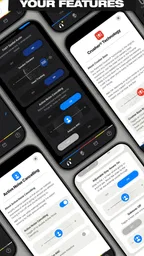
- Easy-to-use controls make it simple to manage compatible Skullcandy headphones.
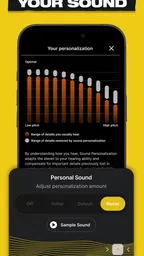
- Personalized audio settings let you tailor the listening experience.
- The app can help locate supported headphones if they are misplaced.
- Firmware updates may add improvements for compatible devices.
- A clean interface makes key headphone settings easy to find.
What could be better
- Features vary depending on the Skullcandy headphone model.
- Some app controls are unavailable with older headphones.
- Bluetooth pairing issues can prevent the app from recognizing a device.
- Location features may require extra permissions on your phone.
- The app offers limited value if you do not own compatible headphones.





