

Shots - AI Photo & Video Maker review
 Analysis by Appsdrops
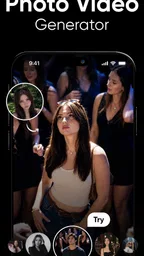
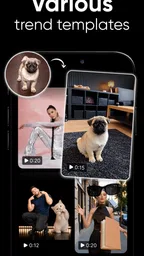
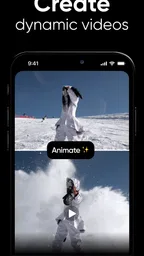
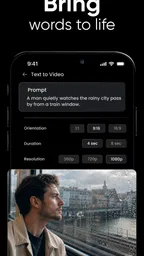
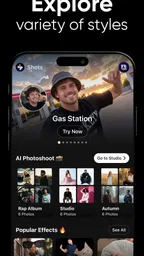
I’d look at Shots as a quick creative tool for turning a photo into something more animated and shareable, rather than as a full video editor. Its focus on AI dance and viral-style videos gives it a clear use: make a playful clip from a still image without building an edit from scratch. That can be fun for a casual post or a message to friends, but it also means the app is most appealing when you want a fast, stylized result—not precise control over every frame.
It’s a free photography app from DeePix AI Apps, with optional in-app purchases ranging from $0.99 to $79.99 per item. The Teen age rating is worth noting if you’re choosing it for a younger user, and purchases are worth checking before anyone starts experimenting. The app has a 4.7 average from around 176,000 ratings and over a million installs, which suggests broad interest, though popularity alone won’t tell you whether its particular visual style suits your taste.
Where a quick AI video workflow can get stuck
The main friction with an AI image-to-video app is often not editing skill; it’s getting a source image that translates well. A clear, well-lit photo with the subject easy to distinguish gives an automated effect a better starting point than a busy group shot, a face partly hidden by a hand, or a picture with several people close together. I’d begin with a simple image, especially on a first try, so it’s easier to judge the result rather than wonder whether the source photo caused the oddness.
It also helps to set expectations about the style. A dance effect is intentionally a transformation, not a faithful record of how someone moved. If you want a natural-looking clip for a family memory or a polished product demonstration, this may feel too playful. If the goal is a lighthearted post, the same exaggeration can be the point. I’d treat each result as a creative interpretation and review it before sharing, particularly when the image includes someone else.
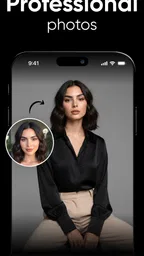
For a first session, keep the workflow deliberately small: choose one image, make one version, and inspect it before trying alternatives. That gives you a useful baseline and avoids spending time changing several things at once. If the output looks strange, try a different source photo before assuming the app itself is failing. A front-facing portrait with a single, unobstructed subject is a more informative test than a cropped, dim, or crowded picture.
Another practical sticking point is the difference between making a result and deciding what to do with it. People often open a creative app expecting a finished social post, but an AI clip may still need a human check for framing, expression, and whether the effect feels appropriate. I’d watch the whole result before sending it anywhere. A funny transformation can land well among friends and feel awkward in a professional context, even when the image itself is harmless.
Setup checks that save time
Shots is currently at version 1.7.9 and requires Android 9 or later. Before troubleshooting an unexpected close or a sluggish session, I’d check that the phone meets that minimum and that the app is current in the app store. Those are simple checks, but they help separate a compatibility issue from a problem with one particular photo or attempt. The release date is July 21, 2025, so this is a relatively recent app rather than a long-established editing suite.
On the first launch, take a moment to read any on-screen prompts and decide what you’re comfortable allowing. I wouldn’t grant access casually just to get past setup, and I’d choose the image deliberately rather than selecting a whole collection at once. This is a good habit for any photo tool: it makes the initial test easier to understand and keeps the task focused on the picture you actually want to animate.
If a feature or output appears to require payment, pause and review the purchase screen before continuing. The app is free to install, but optional items can cost from $0.99 up to $79.99 each. That range makes it especially sensible to confirm what an offered purchase covers and whether it is a one-time item or something else, using the wording shown in the app store or purchase prompt. I wouldn’t assume that “free” means every creative option is included.
For a smoother first run, use a stable connection and leave enough room to save the finished media on your device. These are general precautions for working with image and video files, not a promise that a particular processing method or export option is available. If a task stalls, note what you were doing—opening the app, selecting an image, or generating a result—before trying again. That small distinction makes basic troubleshooting much more useful.
A practical way to recover a stalled attempt
If a result fails to appear, I’d avoid repeating the same action over and over. First, return to the image selection step and make sure the intended photo is actually the one being used. Then try a simpler, clearly framed picture. If that works, the original image was probably a poor fit for the effect; if it doesn’t, close and reopen the app, check the connection, and try again once. This is a measured way to distinguish a source-image problem from a temporary app or network hiccup.
When an output is technically complete but visually off, changing the photo is usually a better next move than repeatedly asking the same picture to produce a different-looking result. Try a tighter crop with the subject centered and fewer distracting elements around them. Avoid a crop that cuts through the face or body in an awkward place. This is a useful, non-obvious trade-off with automated animation: a cleaner starting image can matter more than spending time searching for a perfect prompt or a hidden editing control.
If you’ve made several attempts, compare them one at a time rather than relying on memory. Keep the best result and discard the ones that miss the mark, if the app’s available controls allow it. The point is not to build a complicated library; it’s to avoid sharing the first output simply because it finished first. A brief review for visual glitches and tone is worthwhile, especially if a clip will be seen outside a private chat.
If the app becomes unresponsive, restarting it is a reasonable basic step. If that doesn’t help, check for an update and make sure the device has enough free space for ordinary media use. I would avoid deleting the app or clearing its data as an early fix, since that can remove local work in some apps. Save or preserve anything you care about before taking more disruptive steps, and use the app store’s support route if the issue continues across different images.
When the app may not be the problem
A disappointing result doesn’t automatically mean something is broken. AI transformations can look less convincing when the photo has poor lighting, motion blur, an unusual angle, or more than one possible subject. I’d test a straightforward portrait before concluding that the app is unreliable. If the same kind of problem appears with several clean images, that points more toward a technical issue than a single difficult source photo.
Likewise, a slow attempt can have several possible causes, including the phone’s available resources or the connection. Close other demanding apps, wait briefly, and retry once rather than repeatedly tapping controls. If only one image causes trouble, switch to another. If every simple image stalls, record the device and the step where it stops before seeking help; that is more actionable than reporting only that “it doesn’t work.”
There’s also a taste issue that can be mistaken for a quality issue. Shots is aimed at expressive, social-friendly transformations, not subtle color correction or careful timeline editing. If you want to remove a blemish, tune exposure, make exact cuts, or combine multiple clips with deliberate pacing, a conventional photo editor or video editor will be a better fit. Those tools generally offer more direct control, while this app’s appeal is the quicker leap from a still image to an animated idea.
Privacy and sharing deserve a human decision too. Before using a picture of a friend, child, or colleague, consider whether they would be comfortable with the transformation and where you intend to post it. The Teen rating is a useful signal for age suitability, but it doesn’t replace supervision or common sense about images and purchases. For a public-facing account, I’d be more selective than I would be when sending a silly clip to a small group.
Who gets the most from it
I can see the app working well for someone who enjoys quick visual jokes, wants a fresh format for a social post, or is curious about turning a portrait into a short, stylized moment. A realistic everyday use would be taking a clear photo at a family gathering, making a playful version to share in a group chat, and choosing the result that feels funny without embarrassing the person in it. That’s a low-stakes way to explore the idea before using it for anything more public.
It’s less suited to people who need dependable, natural motion or a precise finished video for work. A small business owner preparing a product clip, for example, may need accurate movement, readable details, and a consistent brand look; an automated dance treatment can distract from those goals. Someone who prefers to adjust every cut and transition will likely be happier in a traditional editor. The right choice depends less on technical skill than on whether you want automation or control.
Compared with the usual photography alternatives, Shots occupies a narrower but more playful lane. A standard photo editor is better for retouching and composition; a full video editor is better for timing and assembling scenes. This app makes more sense when the starting point is a single image and the desired result is an eye-catching transformation. I’d keep it as a novelty or social-creation tool rather than replacing the editing apps I use for careful work.
My practical verdict
I’d recommend trying Shots if you like AI-driven dance clips and are happy to judge each result on its own merits. Its free entry point makes experimentation straightforward, while the optional purchases mean it’s smart to check costs before committing to extras. The 4.7 average and large audience indicate that many people are engaging with it, but your own first test should still be a clear, simple photo and a realistic expectation of a playful rather than documentary result.
My advice is to use one strong image, make a single test, and inspect the clip before sharing or buying anything. If you want quick amusement and an easy route from portrait to animated post, it has a clear purpose. If your priority is realistic motion, detailed editing, or a polished commercial video, I’d choose a more controllable editor instead. That distinction is what makes this app worth trying for the right person—and easy to skip for everyone else.
What we like
- AI effects make it easy to create eye-catching content.
- The editing tools suit quick social media projects.
- Photo and video creation are available in one app.
- Templates help users start projects without advanced editing skills.
- The app offers creative options for experimenting with images.
What could be better
- Some features may require a paid subscription.
- AI results can vary in quality from one image to another.
- Processing may take longer for complex edits.
- An internet connection may be needed for AI tools.
- New users may need time to explore the editing options.





