
Shizuku review
 Analysis by Appsdrops
I would describe Shizuku as a bridge, not a typical utility with a long list of buttons. It helps other Android apps use capabilities that normally require root access or an ADB session. That makes it valuable in the right setup, but also explains why some people install it and then wonder what they are supposed to do with it: Shizuku’s usefulness depends on the apps you want to use alongside it.
For someone comfortable following Android setup instructions, that arrangement can be a practical middle ground. You may be able to use compatible tools without rooting your phone, while avoiding the need to repeat certain ADB steps for every app that needs elevated access. I like the idea, but I would not recommend it as a general-purpose cleaner, speed booster, or beginner’s “make my phone better” app.
Why setup is where many people get stuck
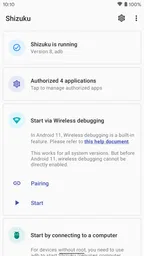
Shizuku is a free tools app from Xingchen & Rikka, and its core job is to make a service available to other apps that need root/ADB-level access. It is not a substitute for those apps: installing it alone does not automatically add new controls to Android. First you need a compatible app and then a working way to start Shizuku’s service.
That distinction is easy to miss. Someone might open the app expecting a familiar dashboard of ready-to-use tweaks, find little they can do on its own, and conclude it is broken. In practice, the first useful question is not “What can Shizuku change?” but “Which specific app am I trying to use, and does that app support Shizuku?” If there is no compatible app in your plan, there may be no reason to install it.
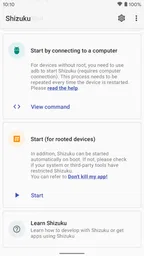
There are different ways to start the service, and the right one depends on the device and the access available to you. ADB-based setup requires a computer or a suitable way to issue ADB commands; rooted users have a different route. These methods are not interchangeable in every situation, so I would follow the instructions for the exact setup method and device rather than mixing steps from unrelated guides.
The app’s minimum operating system is Android 7.0, which is useful context if you are checking whether an older phone can run it. That does not mean every compatible companion app or every setup method will behave the same way on every device. Android version, manufacturer software, and the instructions for the companion app can all affect the experience.
Checks that save time before you begin
I would start by identifying one concrete task, such as using a particular compatible utility, and checking its own Shizuku instructions. That keeps the setup focused. It also helps distinguish a Shizuku problem from a companion app that does not support the feature you want, or from a guide written for a different device configuration.
Next, read the setup steps all the way through before starting. ADB workflows can involve several stages, and skipping a step or entering a command incorrectly can leave the service unavailable. Keep the phone’s Android version and the chosen setup route in mind, and avoid applying commands just because they appear in a tutorial for a different tool.
When the service is running, return to the companion app and check its own access or connection status. This is a useful diagnostic split: if Shizuku is not active, the issue is likely with its startup path; if Shizuku is active but one tool still cannot do its job, focus on that tool’s compatibility and settings. I find this more reliable than repeatedly reinstalling everything.
Shizuku has been available since June 6, 2017, and its current version is 13.6.0.r1086.2650830c. Its age and continuing version updates make it a familiar part of the Android power-user toolkit, but version numbers alone do not guarantee that an old tutorial still matches the current interface or a recent Android release. Prefer current instructions that name the relevant method and explain what to check if startup fails.
Recovering a workflow without starting over
A common practical snag is that the service no longer appears to be running after a device restart. With an ADB-started setup, needing to start it again can be part of the workflow rather than proof that installation failed. If the status changes after a reboot, first follow the same supported startup procedure you used originally; avoid assuming that clearing app data or reinstalling is the necessary fix.
Another helpful habit is to change one thing at a time. If a companion app stops working after an update, first check whether Shizuku is active, then check whether the companion app still offers the feature and recognizes the service. If both appear normal, consult that app’s own troubleshooting steps before changing the Shizuku setup. This simple order makes it easier to find the actual point of failure.
For example, imagine you use a Shizuku-compatible tool to adjust a phone setting and it works one evening but not after you restart the phone. I would check the service status, start it again using the method configured for that device, and then retry the action in the tool. If the service reports as active but the setting still does not change, I would investigate the tool’s instructions or the setting itself instead of repeating the entire Shizuku installation.
It is also worth keeping track of the method that works on your phone. A short note to yourself—whether you use a rooted setup or an ADB-based one, and what step you repeat when needed—can make later recovery much less confusing. This is especially useful if you use several compatible apps: they may all rely on the same running service, so checking that shared piece first can save you from troubleshooting each app as if it were unrelated.
When Shizuku is not the cause
Shizuku can provide a route for an app to request access, but it cannot make every Android feature available to every app. If a task is unsupported by the companion app, restricted by the device, or dependent on a different kind of access, starting Shizuku successfully will not solve it. That is why I would treat “service active” and “desired action works” as two separate checks.
Manufacturer customizations can also make a guide’s instructions differ from what you see on your own phone. A menu may be named differently, a setup step may behave differently, or the companion app may describe a device-specific limitation. In that situation, I would use instructions written for the same Android version or device family where possible, and avoid forcing a command that does not match the documented workflow.
If a tool reports an error, look for the exact point at which it appears. An error during service startup points toward the selected setup method; an error after a successful connection points more toward the companion app or the operation it is attempting. This is a more useful distinction than judging the whole system by a single failed action.
Compared with ordinary tools apps that perform their own work directly, Shizuku is an enabling layer: more flexible for compatible apps, but less self-explanatory and more dependent on setup. Rooting can offer broader access for some advanced users, while a simple app-store utility is usually easier when it already performs the task you need. I would choose the least complicated option that actually covers the job, rather than adding Shizuku just because it sounds more powerful.
Who will get the most from it
I think Shizuku makes sense for Android users who already have a particular compatible app in mind and are willing to follow a technical setup. It can also suit people who want to use certain advanced utilities without rooting, provided those utilities support this route and the user accepts the extra startup and troubleshooting steps. For that audience, one shared service can be more convenient than treating each compatible app as a separate special case.
I would skip it if you want a one-tap fix, do not know which app will use it, or are uncomfortable with ADB instructions. It is also not the right choice when a normal, simpler app already handles your task. The setup overhead is real, and the payoff depends entirely on whether the companion app’s feature matters enough to justify it.
The app is rated for Everyone and is free. It has an average rating of 4.2 from around 61,000 ratings, with over 10 million installs. Those figures suggest broad interest, but they do not change the central decision: Shizuku is most useful when you understand the access problem you are trying to solve and have a compatible app ready to use it.
My practical verdict
My view is that Shizuku is a capable, specialized tool whose value is easy to overestimate if you expect it to work like a standalone Android optimizer. Its real strength is acting as a shared access layer for other apps; its main friction is that users must get the startup method right and understand which part of the chain is failing when something goes wrong.
If you have a specific compatible app and are comfortable with a little setup, I would consider trying it. Start with one use case, follow instructions for your device and chosen method, and check the service before troubleshooting the companion app. If you want a straightforward tool that works immediately without learning an access workflow, choose a simpler alternative instead. That is the fairest way to judge Shizuku: not by how much it does alone, but by whether it makes a particular Android tool you value practical.
What we like
- Enables supported apps to use system APIs without root access.
- Keeps elevated access limited to apps that explicitly support Shizuku.
- Works with wireless debugging on compatible Android versions.
- Can be restarted after a reboot without repeating the initial setup.
- Open-source code makes its implementation easier to inspect.
What could be better
- Requires compatible apps to provide practical features.
- Wireless debugging setup can be confusing for new users.
- The service stops after a device reboot.
- Some Android versions restrict wireless debugging in the background.
- Incorrect use by an app could affect sensitive system settings.





