





Google review
 Analysis by Appsdrops
When I use Google as a phone app, I think of it less as a single search box and more as a quick route to information, voice search, and other Google services. That flexibility can make everyday tasks easier, but it also means the experience is not always as simple or predictable as a dedicated tool. My view is that Google works best when I treat it as a flexible starting point, not as a guarantee that every answer or action will be effortless.
Finding a clear path through search
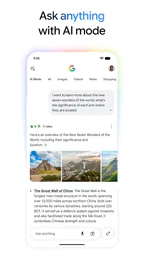
The app is a free tools app from Google LLC, and its central job is familiar: I enter a question or speak it, then scan results and choose where to go next. That sounds basic, but the useful detail is how often a search can replace several small steps. I might look up a shop’s hours, check a phrase, and then find directions without opening a separate browser first. For quick errands, that compact flow is a real convenience.
Readability depends heavily on what the search returns. A direct answer can be easy to spot, while a page of similar links asks me to compare snippets, source names, and dates. I try not to assume that the first result is automatically the best one, especially for health, financial, or fast-changing information. Opening a source and checking its context is a small extra step that often matters more than the speed of the initial search.
Navigation feels most manageable when I start with a specific question rather than a broad topic. “How do I change a bike tire?” is more useful than “bikes,” because the narrower wording tends to give me a clearer set of routes. If the first attempt misses, I refine one part of the query instead of starting over completely. This is a practical way to reduce scrolling and make the results easier to judge.
The app has a 4.0 average from around 30 million ratings, and it has been available since August 12, 2010. Those figures suggest that it is a familiar, widely used product, but popularity does not tell me whether a particular search will be clear for a particular person. I would judge it by the task at hand: a quick lookup is different from reading a long article or comparing complex information.
Keeping the reading task manageable
One useful habit is to make the search phrase do more of the organizing. Adding a location, a time frame, or a specific constraint can help narrow the results before I have to inspect them. For example, someone comparing nearby services can include the neighborhood and the type of service, rather than wading through broad national results. This is not a substitute for checking details, but it can cut down unnecessary choices.
When a result opens a long page, the experience becomes partly dependent on that page’s own design. Google can help me find the material, but it cannot make every destination equally readable or well structured. I keep that distinction in mind if a page has cramped text, distracting elements, or a confusing layout: the difficulty may belong to the site rather than the search app itself.
The app is rated for Everyone, and Google reports more than 10 billion installs. That broad reach makes it a common entry point for people with very different routines and abilities. It does not, by itself, establish that every screen or result will suit every reader. I see it as a widely accessible starting place in the everyday sense, while still expecting users to encounter variation from one result to another.
Voice, touch, and different ways of interacting
Speaking a query can be useful when typing is awkward, slow, or inconvenient. I might use it while carrying groceries or when I want to look up a word without spelling it perfectly. The trade-off is that voice input works best when I can speak clearly and comfortably, and when the surrounding environment is quiet enough. In a noisy room or a shared space, typing may be the more dependable and private choice.
Voice search also changes the kind of effort involved rather than removing effort altogether. A spoken question can be quick, but I still need to review the result and decide whether it answers what I meant. If speech recognition misunderstands a name or an unfamiliar term, editing the query can be more frustrating than typing it from the start. I treat voice as an option to choose situationally, not as an inherently easier method for everyone.
For touch interaction, the main practical consideration is the amount of browsing a task demands. A short query and a direct answer can be comfortable on a phone. Comparing many links, opening several pages, or moving between results may require more precise and sustained interaction. When I know I will be doing a longer research session, I prefer a larger screen or a more focused browsing workflow if one is available to me.
A less obvious way to make the app easier to use is to search in stages. I first ask for the broad answer, then add a detail such as a place, model name, or time period. That keeps each query simpler and gives me a chance to notice when results have gone in the wrong direction. It is especially helpful when a long, highly specific question produces a confusing mix of interpretations.
Using it in different places and moments
Google is convenient when I have a small question in the middle of another activity. Imagine I am planning dinner, realize I am missing an ingredient, and want to check a substitution before heading to a nearby shop. I can search the ingredient, assess a few results, and then look for local options. The strength is the transition between related questions; the weakness is that each step still depends on whether the results are relevant and easy to verify.
In a quiet setting, I can read through several sources and compare them. On a crowded commute, I may only want a quick, low-effort lookup, and spoken search might be impractical or too public. This is where context matters more than a general claim that one interaction style is best. I choose between typing, speaking, or waiting until later based on noise, privacy, time, and how much attention I can give the results.
For someone with limited time or attention, a direct query can be more useful than browsing a broad feed of possibilities. I would phrase the task as a question with a clear outcome, such as finding an opening time or understanding a term. If I need to make a consequential decision, I slow down and inspect the source rather than relying on a short answer alone. Speed is valuable, but it should not replace judgment.
The app is also a reasonable choice for people who already rely on Google services and want a familiar point of entry. Still, if the job is only to read saved articles, manage a specialist reference library, or search within a particular collection, a dedicated app may offer a more focused and consistent experience. Google’s breadth is an advantage for varied questions, not proof that it is the best tool for every narrow task.
Where the experience can still get in the way
The biggest friction I notice is the gap between finding something and knowing whether it deserves trust. Search results can mix sources with different purposes and levels of quality, so I need to judge authorship, recency, and relevance. This matters most when a confident-looking snippet could be mistaken for a complete answer. I would not use a quick result as the final word on a complicated medical, legal, or financial issue.
Another limitation is that the app cannot make every result equally usable. A page may be difficult to read, contain distracting material, or demand actions that are awkward on a phone. If a user depends on a particular way of reading or navigating, the destination’s own design may be the deciding factor. In that situation, a source with a clearer layout or a specialist service may be a better option than continuing to struggle with the first result.
Search breadth can also create decision fatigue. When several results seem plausible, I have to compare them rather than simply accept the first. A useful correction is to add a constraint to the query and look for a source that directly answers it. If that still leaves too many options, I narrow the task: identify what fact I actually need, then search for that fact rather than the whole subject.
People who want a calm, tightly controlled reading environment may prefer a dedicated reader or a curated reference app. Likewise, someone who needs a particular workflow to work consistently should test that exact workflow rather than assuming a popular search app will cover it. Google is strongest when I need a flexible route into the wider web; it is less suited to tasks where predictable structure and a single trusted source matter more than breadth.
Who I would recommend it to
I would recommend Google to someone who regularly needs quick answers across unrelated subjects and is comfortable making a judgment about sources. It is particularly handy for short, practical searches that arise during the day, and for people who want to move from a question to related information without choosing a separate tool for every small task. The app is free, which makes trying it an easy decision for someone who wants that general-purpose access.
I would be more cautious about recommending it as the sole tool for someone who finds dense result pages tiring, needs every destination to follow the same accessible pattern, or wants answers without having to evaluate sources. In those cases, a specialist app, a trusted reference source, or a larger-screen browser may be a better fit. The right alternative depends on whether the main obstacle is reading, interaction, confidence in the information, or simply too many choices.
My most practical advice is to use precise queries, add context when results are broad, and pause before acting on important information. If voice input helps in a particular moment, use it; if it creates effort or exposure, switch to typing. If a result page is hard to work with, try a different source rather than assuming the whole task is impossible. These small choices make the app more useful without expecting it to solve every access problem on its own.
Overall, Google is a capable everyday search tool whose flexibility is both its main strength and its central compromise. It can support different situations by letting me approach a query in more than one way, but the readability and usability of the final answer often depend on where the search leads. I recommend it as a convenient first stop, with a clear caveat: for focused reading, specialized needs, or high-stakes decisions, a more controlled and purpose-built option can serve you better.
What we like
- Search delivers relevant results quickly.
- Voice search offers hands-free queries.
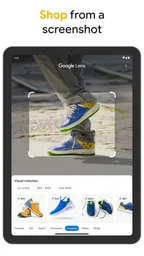
- Lens can identify objects from images.
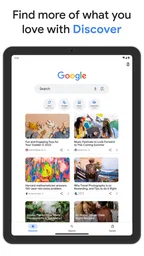
- Discover provides a personalized news feed.
- Incognito mode helps keep searches out of account history.
What could be better
- Some features require a Google account.
- Discover recommendations can feel repetitive.
- Search results may include sponsored links.
- Voice search works best with a stable connection.
- Personalization relies on collected activity data.





