
Files by Google review
 Analysis by Appsdrops
I think of Files by Google as a practical utility for the moments when a phone feels cluttered: a download has gone missing, storage is tight, or someone nearby needs a document without an internet connection. It is a free Android tools app from Google LLC, and its appeal is less about elaborate file management than about making common housekeeping tasks approachable. The important caveat is that a file manager can touch personal material, so I would judge it not just by convenience but by how deliberately I can choose what to view, remove, or share.
Trust starts with knowing what you are choosing
The app is widely used, with more than five billion installs and an average rating of 4.5 from around 9.1 million ratings. Those figures suggest that it has become a familiar option for Android users, but popularity alone is not a privacy guarantee. I would still treat each cleanup or sharing suggestion as a decision to review rather than an instruction to accept automatically.
That distinction matters because the app’s central jobs involve browsing files, finding items that may be safe to remove, and sending selected content to another device. These are useful abilities, but they are also moments when a rushed tap can have consequences. My preferred approach is to use the app as a guide: let it surface candidates, then inspect the details before deleting or transferring anything important.
Files by Google is rated for Everyone, which makes its straightforward presentation accessible to a broad audience. That rating describes suitability, not a promise that every operation is risk-free. If a phone is shared with family members, I would explain that deleting a file may affect content they still need, and I would avoid treating cleanup prompts as a substitute for checking who owns the files.
Useful organization without a desktop-style learning curve
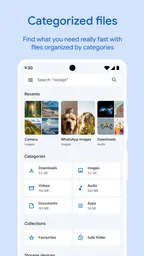
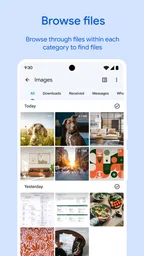
Some file managers put folder trees and technical controls first. This app takes a more guided route, which can be less intimidating when I simply want to locate a downloaded attachment or make room on the device. I find that orientation helpful for everyday use, especially for someone who rarely opens a file manager and does not want to learn a complicated folder system before solving a small problem.
The trade-off is that a guided interface is not automatically the best fit for advanced organization. If I regularly rename large batches, manage intricate folder structures, or rely on specialized storage workflows, a more configurable file manager may suit me better. Files by Google is most convincing when the task is concrete and modest: find something, review what is taking space, play a saved item, or pass a selected file to someone close by.
Controls that keep the user in the loop
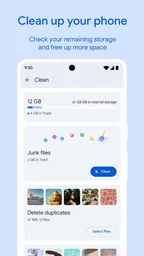
The most useful habit I can recommend is to treat cleanup as a review session, not a one-button ritual. When the app points out files that might be removable, I would open the relevant group and check names and context before confirming. A duplicate-looking file, for example, could be an intentional copy kept for a separate purpose; a large item may still be important even if it is rarely opened.
This approach also makes the app’s suggestions more valuable. Instead of asking only, “Can I delete this?”, I ask, “Do I know where this came from, and would I miss it?” That small pause is especially worthwhile for downloads, old documents, and media saved for a trip. It is a simple form of control that does not require technical knowledge.
For sharing, I would select only the files needed for the current exchange and check the selection before sending. Offline transfer is handy when a connection is unavailable or when I do not want to route a quick handoff through a messaging thread. It is not the same as a long-term backup: a file sent to another device is a copy for that recipient, not proof that my own copy is safely stored elsewhere.
The safest workflow is to inspect first, select narrowly, and confirm only after the action matches what I intended. That advice applies both to removing files and to sharing them. It is particularly useful on a phone where documents, personal photos, and temporary downloads can sit close together in the same broad library.
Where personal files make a difference
File browsing becomes sensitive when a device contains work documents, identification scans, private photos, or material saved from conversations. In those situations, I would be careful about what I open in a shared setting and what I choose to send. The app’s role as a file utility does not make every file suitable for casual viewing or transfer.
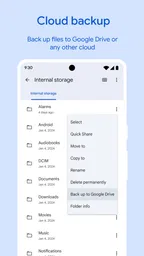
I also would not use a cleanup recommendation as my only protection against losing something. Before removing a document that matters, I would confirm that another copy exists somewhere I can access, or keep it until I have checked its purpose. This is a practical safeguard rather than a claim about a particular backup feature: a file manager can help me handle local files, but I should decide separately how important material is preserved.
A realistic example is preparing for a long commute. I might locate a downloaded document, play media already on the phone, and send a selected file to a nearby family member while offline. The useful detail is to separate those actions: finding and playing a file does not require sharing it, and sharing one item does not require exposing a whole folder. Choosing the smallest relevant selection keeps the handoff clear.
For private or regulated work material, my choice would depend on the rules attached to that information. If an employer requires a particular managed workflow, I would follow that rather than assume a general-purpose file utility is approved. Likewise, if a recipient needs a durable record, an offline transfer may be less suitable than an agreed storage method with clear access arrangements.
Practical choices for cleanup and sharing
One non-obvious trade-off is that freeing space can make the phone feel healthier while reducing the convenience of keeping older files close at hand. I would first look for items I can identify as temporary, such as a download I no longer need, rather than treating file size as the sole reason to delete something. Large does not mean disposable; a small document can matter more than a bulky video.
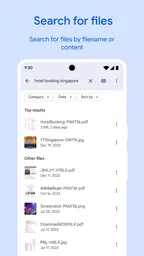
Another useful habit is to search with a specific task in mind. If I am looking for a receipt or attachment, I would narrow my attention to likely locations and filenames instead of browsing indiscriminately. This reduces the chance of opening unrelated personal content and saves time. It also helps when a phone contains many saved images or documents whose names are not memorable.
When sending files offline, I would confirm that the other person has the right item and that the transfer is meant for them before proceeding. For a quick photo or document, this can be simpler than composing a message. For sensitive content, however, convenience is not the only consideration: I would think about who is receiving it, whether the device is theirs, and whether an offline handoff is appropriate.
People sometimes ask whether this can replace a full backup routine. I would not rely on a file organizer alone for that job. Finding and sharing local content are different from maintaining a dependable second copy, so I would keep a separate preservation plan for files that would be difficult to recreate. That distinction is easy to overlook when a single app makes several file tasks feel connected.
Another common question is whether it is suitable for someone who wants complete control over every folder and operation. It can still be useful for basic discovery and cleanup, but users who need advanced sorting or highly specialized file operations may prefer a dedicated manager with the controls they rely on. The best choice depends on whether a guided, everyday workflow or deeper configuration matters more.
Everyday fit, with a few sensible limits
For a student, a parent helping manage a phone, or anyone who saves lots of downloads, the app can make small chores less frustrating. I would use it to locate a file before an appointment, review possible clutter after a busy month, or play media already stored on the device. Its offline sharing is particularly handy when two people are physically together but internet access is inconvenient.
I would be less likely to recommend it as the sole tool for a power user whose routine depends on detailed folder administration, or for someone who wants an app to make deletion decisions without their review. I also would not choose it as a substitute for an organization’s approved handling of confidential documents. In each case, the issue is not that a basic utility is inherently unsuitable; it is that the task calls for more control or a different process.
The current release is 1.13157.1011540316.0-release, and the app supports Android 8.0 and later. That makes the Android requirement a practical first check before installing. There is no purchase price to weigh, but “free” does not remove the need to use file access and sharing thoughtfully.
My cautious verdict
I recommend Files by Google to Android users who want a friendly place to find local content, review storage, play saved media, and make occasional offline transfers. Its strength is bringing several familiar file chores into an approachable experience, rather than asking me to build a complex system around folders and settings.
I would keep one boundary in mind: the app can help me see and act on files, but I remain responsible for deciding what is safe to remove and what is appropriate to send. For ordinary housekeeping, that balance works well. For advanced file administration, sensitive organizational documents, or dependable long-term preservation, I would use a more specialized or explicitly approved option alongside—or instead of—it.
Overall, my view is positive but deliberately measured. I like it most when I use its suggestions as prompts, verify each meaningful choice, and keep sharing limited to the item at hand. If that sounds like the way you want to manage a phone, it is a sensible free tool to try; if you expect automatic decisions or professional-grade file control, I would look elsewhere.
What we like
- Built-in cleanup suggestions help identify files you may no longer need.
- The file manager works without requiring an account.
- Nearby Share makes sending files to compatible devices convenient.
- A Safe Folder adds PIN or pattern protection for selected files.
- The interface is lightweight and easy to navigate.
What could be better
- Some cleanup suggestions may flag files you prefer to keep.
- Safe Folder contents are not backed up to Google Drive.
- Nearby sharing requires compatible devices and nearby connections.
- Cloud storage browsing is limited compared with a full desktop file manager.
- The app may not offer every advanced file-management feature power users expect.





