

Google Lens review
 Analysis by Appsdrops
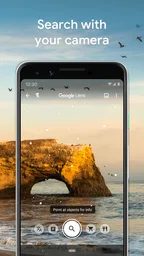
I find Google Lens most useful when I can point my phone at something but don’t know what to ask about it. Instead of typing a description into a search box, I can use the camera to identify a plant, make sense of unfamiliar text, or look for a product. That shift—from naming the problem to simply showing it—is the app’s defining strength. In my experience, it works best as a quick first step toward an answer, not as a substitute for careful research.
When a camera becomes the search box
Google Lens is a free visual-search tool from Google LLC, in the Tools category. It has a 4.7 average from around 2.9 million ratings, and it has passed one billion installs. Those figures suggest broad appeal, but the practical reason I’d recommend trying it is more straightforward: it can save the awkward effort of describing an object or copying text before you can look it up.
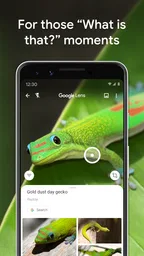
The camera-based approach is particularly handy when the thing in front of you has a name you don’t know. A plant on a walk, a label in another language, or an unfamiliar household item can be hard to search for using words alone. Lens lets the image do some of that explaining. It is rated for everyone and is available at no charge, so it is easy to treat as a utility to reach for occasionally rather than an app that demands a regular routine.
What visual search changes
With a normal search, I have to choose useful keywords. That can be the hardest part: I might know what a leaf looks like but not which details distinguish it from similar plants, or I might see a product without knowing its brand or model. Lens changes the first step. I frame the subject, capture or select an image, and let visual matching suggest what I may be looking at.
That convenience does not mean every result is a definitive identification. A picture gives the system evidence, not the full context a knowledgeable person might use. Similar-looking objects can lead to plausible but different matches, and a busy image can make the intended subject unclear. I treat the result as a useful lead, then check whether the details fit what I can actually see.
Getting a useful result in practice
My most useful habit is to make the target visually obvious before searching. I move closer, hold the phone steady, and avoid including several unrelated objects when one is the point of the search. For a plant, that can mean filling the frame with the leaf or flower rather than photographing the whole garden. For a product, I try to include a distinctive design feature or readable label. These small choices help reduce ambiguity without requiring special knowledge.
When the first result seems off, I don’t immediately assume the app has failed. I change the framing and try again: a different angle, a tighter crop, or a clearer view of the feature that makes the item distinctive. This is especially useful for objects with lookalikes. A broad shot might return a general category, while a close view of a logo, label, or unusual shape can make the search more informative.
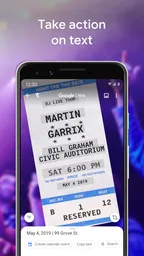
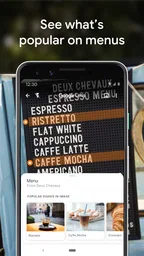
Text is another practical use. If I encounter words I cannot read comfortably, pointing the camera at them can be quicker than manually typing each character. I still check the result before relying on it, especially when a small difference could affect an instruction, ingredient, or address. A camera-based reading is convenient, but glare, unusual type, and crowded layouts can make the source image harder to interpret.
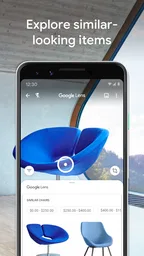
For products, I use visual search to narrow down what an item might be and to find related information, rather than assuming every similar-looking result is the exact same product. Packaging changes, regional variants, and near-identical designs can confuse a visual match. If I need a precise replacement, I compare visible labels and product details before deciding. That extra check is a small cost for avoiding a confident-looking but incorrect match.
A realistic everyday use
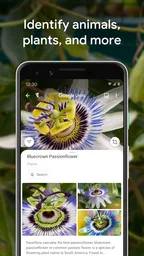
Imagine you are visiting a friend and notice a houseplant that looks appealing, but neither of you knows its name. You can take a close, well-lit image of the leaves and use Lens to get possible matches. Rather than accepting the first suggestion, compare the suggested plant with the visible leaf shape and growth pattern, then search further if you need care advice. The app helps you get from “that plant” to a useful search term; it does not remove the need to verify that the identification is right.
The same workflow suits a product you spot in a shop or a piece of equipment at home. A photo can help you discover what to call it, which makes later research easier. I would not use a quick visual match alone to make a safety-critical decision, identify something that could be hazardous, or confirm that a replacement part will fit. In those cases, a label, manual, or knowledgeable person is a better source of certainty.
Where it sits beside other search methods
Compared with typing into a conventional search engine, Lens is stronger when the object is visible and the right vocabulary is missing. It is weaker when the question is abstract, when the image does not show the relevant detail, or when I already know exactly what to search for. If I have a model number or a clear product name, entering that text directly is usually more precise than asking an image match to infer it.
Compared with asking a person, Lens is immediate and convenient, but it cannot ask follow-up questions about context in the way an expert can. A gardener might consider where a plant is growing; a repair specialist may ask about the device’s exact model. I use Lens to generate a starting point and then switch to a more suitable source when the answer needs experience, careful diagnosis, or confirmation.
It is also worth thinking about the image itself. A visual search requires showing the subject to the camera, which may be unsuitable for private paperwork, personal screens, or other sensitive material. For ordinary objects and public text, that interaction can feel natural. For something confidential, I would rather avoid capturing it and use a different method. The convenience is not a reason to photograph everything in front of me.
Small habits that make it more dependable
First, isolate one question at a time. If I photograph a whole shelf while looking for a specific object, the image offers several possible targets. A tighter composition tells Lens what matters. Second, use a second view when a result is uncertain. A front view may show the brand, while a side view may reveal a feature that distinguishes a lookalike. Third, treat the result as a search trail: follow up with a distinctive name or visible detail rather than stopping at the first match.
Those habits are more valuable than expecting the app to recognize every scene perfectly. They also make it easier to spot when the answer is merely a close visual resemblance. If the suggestions disagree or do not fit the object, that is a reason to refine the image or change methods—not to force a conclusion from an uncertain match.
Who will get the most from it
I’d recommend Lens to people who often encounter unfamiliar objects, labels, plants, or products and want a quick way to begin identifying them. It is especially useful for curious shoppers, travelers dealing with unfamiliar text, and anyone who prefers pointing a camera to searching for the right descriptive phrase. Since it is a free app from Google LLC and supports Android from version 6.0 onward, it is also an approachable tool for many Android users.
It is less compelling for someone who rarely needs visual lookup, already has a reliable text-based workflow, or wants a guaranteed expert answer from a single image. It may also frustrate people who expect identical results from every angle or who need precise identification without checking the evidence. The most satisfying use is exploratory: find a promising lead quickly, then decide whether it is accurate enough for the task.
My recommendation
After using Google Lens as a visual-search shortcut, I see its best quality as a reduction in friction. I don’t need to know the right words before I can start looking; I can begin with the thing itself. That is a meaningful advantage in everyday situations, particularly when a name, label, or product detail is just out of reach.
I would keep it as a convenient first stop, with sensible expectations. Good framing improves the chance of a useful match, and a second source matters when accuracy has consequences. If you want an easy way to turn an unfamiliar sight into a search you can continue, Lens is worth having. If you need a final, authoritative answer, use its suggestions as a starting point and verify them before acting.
What we like
- Identifies plants and animals from a quick photo.
- Copies text from images into other apps.
- Translates printed text through the camera view.
- Finds visually similar products and objects.
- Works with images already saved on your device.
What could be better
- Some features require an internet connection.
- Results can be inaccurate for unusual objects.
- Low-quality photos may lead to poor recognition.
- Some features vary by device and region.
- Image searches may raise privacy concerns.





