
Samsung Smart Switch Mobile review
 Analysis by Appsdrops
Changing phones is usually the moment I worry about the small things: contacts, photos, messages, and the settings I have grown used to. Samsung Smart Switch Mobile is built for that handover. It is a free Android tools app from Samsung Electronics Co., Ltd., intended to help move personal content to a Samsung phone. I see its main appeal as reducing the number of separate steps involved—not as a reason to assume every detail of an old phone will transfer perfectly.
What Smart Switch is useful for today
The app has been available since April 17, 2013, and its current version is 3.7.74.7. That long life makes it a familiar part of Samsung’s setup experience, but the practical question is simpler: does it make moving to a Galaxy phone less stressful? For people switching from another Android device or an iPhone, it can provide a guided route for bringing compatible content across, rather than making them rebuild their phone one contact or photo at a time.
Its audience is broad: the app is rated for Everyone, runs on Android 6.0 and later, and has an average rating of 3.9 from around 542,000 ratings. It has more than a billion installs and around 23,000 written reviews. Those figures suggest that many people encounter it during a phone change, but they don’t guarantee that every transfer will be smooth. The source device, its operating system, and the kinds of content involved all matter.
Smart Switch is most valuable as a migration tool, not as a daily organizer or backup habit. I would install or open it when preparing a new Samsung phone, check what the transfer offers, and treat the old device as the source until I have checked the result. If you already have a Samsung phone and are not moving or restoring content, there may be little reason to open the app regularly.
A calmer phone-to-phone move
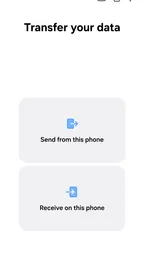
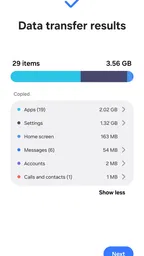
In an ordinary move, the goal is not just to get the new phone running; it is to avoid discovering weeks later that a familiar contact or a needed photo stayed behind. I’d start with both phones charged, keep them close, and give the transfer my attention rather than trying to use either device at the same time. Before beginning, I’d also make sure I know the account sign-ins I rely on. A transfer can bring content over, but it cannot replace knowing the credentials needed to use online services afterward.
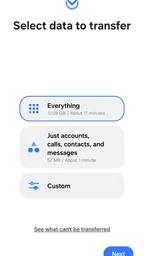
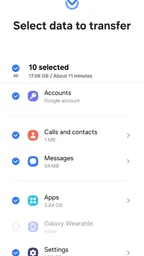
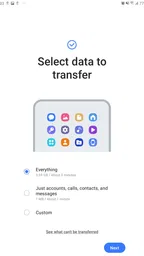
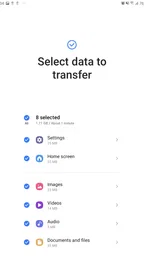
A useful, easily overlooked step is to decide what actually needs to come along. An old phone may contain years of screenshots, downloads, and duplicate images. Moving everything without a quick review can reproduce the clutter on the new device. If storage or tidiness matters, I’d remove obvious junk first, then use the transfer for the material I genuinely want to keep. That makes the move more purposeful and gives me less to sort out once the new phone is ready.
I would also keep the old phone intact until I have checked the important categories on the new one. Open the contacts app, inspect a few recent and older photos, and confirm that essential conversations or files are where you expect them. This is a practical safeguard, not a criticism of the app: transfers can be affected by differences between devices and by content that belongs to separate services. A quick spot-check is far easier than trying to reconstruct missing items after erasing the source phone.
What its long-running version history means
The app’s release history stretches back more than a decade, while the current version number is 3.7.74.7. That tells me Smart Switch has remained part of Samsung’s phone-migration approach over time. It does not, by itself, tell me which individual transfer capabilities changed in a particular update, so I wouldn’t treat the version number as proof that a specific feature has recently improved. What matters to a person switching phones is whether the current app and both devices can handle the content they need to move.
For existing Samsung users, continuity is useful: Smart Switch remains a recognizable option when upgrading to another Galaxy device. The app can also be opened through a Samsung device’s Settings menu if downloading it is not working. That is a particularly practical detail when the app is needed during setup and the usual route to finding it is inconvenient. If you are already using a Samsung phone, checking Settings is a sensible first step rather than repeatedly searching the app store.
Because it is free, the decision to try it does not involve an app purchase. Still, “free” should not be confused with “effort-free.” I’d set aside time to prepare, follow the on-screen choices carefully, and verify the result afterward. People who are moving only a handful of files may find manual copying simpler. Someone with a large collection of personal content is more likely to appreciate having a guided migration route, provided they are willing to review what arrived.
Where it fits against other transfer methods
The usual alternatives are a phone’s built-in setup process, cloud syncing, or manually copying selected files. Smart Switch is appealing when you want one Samsung-focused route for a phone change. Cloud syncing can be a better fit if your main concern is keeping contacts, calendars, and photos available across devices over time. Manual copying makes sense when you want tight control over a small number of documents or images, rather than a broader migration.
These approaches do different jobs, so I wouldn’t rely on a transfer app as the only safeguard for important information. If a contact or photo is already synced to an account, checking that account on the new phone can provide an additional way to confirm it is available. If you are moving from an iPhone, expect the process to involve choices about what is compatible and what is tied to Apple services; a phone-transfer tool cannot make two ecosystems behave identically. I’d verify the items that matter most instead of assuming that “transfer complete” means every app and setting has an exact counterpart.
Smart Switch is also not the best answer for every kind of move. If you are keeping the same phone and simply want a dependable ongoing copy of your data, look at the backup and sync options that suit your accounts and devices. If you are moving to a non-Samsung phone, a Samsung-centered migration app is unlikely to be the natural long-term tool for that destination. And if your old phone is damaged or cannot be operated reliably, a guided transfer may not be possible in the usual way; in that situation, existing cloud copies or manufacturer support may matter more.
Small choices that prevent avoidable trouble
My first tip is to make a short priority list before starting: contacts, recent photos, essential documents, and any other content you would be upset to lose. It gives you a concrete checklist for the final inspection. My second is to avoid wiping or trading in the old device until you have checked those priorities on the new one. My third is to think about clutter before transferring: migration is a convenient moment to leave behind files you never wanted to carry forward.
There is also a difference between moving personal content and recreating an entire phone exactly as it was. Apps may need to be installed or signed into again, and services can store information in their own accounts. I would therefore plan for a short settling-in period after the transfer: open your essential apps, confirm access, and review any settings that affect how you use the phone. That expectation makes the process feel more realistic and avoids blaming the transfer for things that depend on separate app accounts or services.
If the app is missing when you need it, Samsung’s Settings route is worth remembering. If the transfer stalls or a category does not appear as expected, I’d first check the connection and the choices shown on both devices, then retry only after understanding what will happen to the source content. Keeping the old phone untouched gives you room to troubleshoot without turning a minor inconvenience into a data-recovery problem.
Who I would recommend it to
I’d recommend Smart Switch to someone setting up a Samsung phone who wants a guided way to bring personal content from an older device. It is especially useful when the transfer involves more than a couple of files and you would rather review a migration than manually move everything. Its large installed base and long-running presence make it a familiar part of the Samsung experience, while its 3.9 average rating is a reminder that experiences can vary.
I would be more cautious if you expect a perfect clone of your old phone, need an ongoing cross-platform backup system, or are moving to a device outside Samsung’s ecosystem. In those cases, the phone’s setup flow, account-based syncing, or selective manual copying may be a better match. No matter which route you choose, confirm that the information you care about is accessible before giving up the old device.
My overall view is that Samsung Smart Switch Mobile earns its place when you are moving to a Galaxy phone, but it works best with a little preparation and a careful final check. I would use it for the handover, keep expectations realistic about ecosystem differences, and verify the essentials before calling the move finished. For a Samsung-bound upgrade, that is a practical and sensible role; for routine backups or transfers to another brand, I’d choose a tool designed around that different need.
What we like
- Transfers contacts and photos between compatible phones.
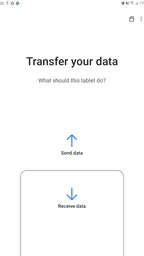
- Supports wireless transfers without a cable.
- Can move data from iPhone and Android devices to Samsung phones.
- Lets users choose which content to transfer.
- Offers cable transfer for faster moves between nearby devices.
What could be better
- Both phones need to be available during the transfer.
- Some app data cannot be moved to a new phone.
- Transfer options vary by source device and operating system.
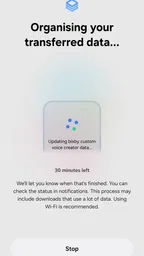
- Large transfers can take a long time over Wi-Fi.
- The app is mainly useful when setting up a Samsung phone.





