



Screen Recorder - XRecorder review
 Analysis by Appsdrops
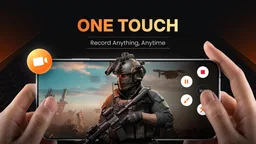
I see Screen Recorder - XRecorder as a practical Android tool for capturing what is happening on your screen, especially when a screenshot or a written explanation would not show enough. It is aimed at people who want to record a game, demonstrate a phone task, or save a short walkthrough, then make basic edits without moving straight to a separate desktop program. In my view, its appeal is less about elaborate production and more about making screen capture and simple editing available in one place.
Where recording can get frustrating
The first hurdle with any screen recorder is often not the record button but the conditions around a recording. A capture can be technically successful yet still disappoint if the important sound is missing, a notification interrupts the action, or the clip begins too late. XRecorder is designed to record games with audio, but the result still depends on the device, the app being recorded, and the audio choices available during setup. I would make a brief test clip before relying on it for a long session or an important demonstration.
That small test is especially useful for game footage. Start the game, record a short section with the sound you want, stop, and play the clip back with headphones. Check that both the picture and the relevant audio are present before spending time on a full run. If the game’s own sound is important, keep background audio and other apps quiet during the test; otherwise it can be difficult to tell whether a problem comes from the recorder or from competing sounds on the phone.
Notifications are another easy source of trouble. A message banner can cover a button or reveal private information just as the action you wanted to capture begins. Before recording, I would silence interruptions using the phone’s normal controls and close anything that does not belong in the demonstration. This is not a special XRecorder trick; it is a simple preparation step that makes the finished clip more useful and avoids having to repeat a take.
Long recordings also deserve a little planning. Screen video can take up space, and a clip that runs on after the useful part makes editing and sharing less convenient. Decide what the recording needs to prove, then stop once that moment is captured. For a tutorial, it often works better to make a few short clips for separate tasks than to record one sprawling session and hunt through it later.
Check the phone before pressing record
XRecorder is an app in the video players and editing category, made by InShot Inc. It is free to install, with in-app purchases ranging from $0.99 to $49.99 per item. Its audience is broad: the content rating is Everyone, and the app has passed 100 million installs. Those details suggest that it is familiar to many Android users, but popularity does not remove the need to check that it suits your particular phone and recording purpose.
The current version is 2.5.5.1, and the minimum supported Android version is 8.0. Before troubleshooting a failed or awkward recording, I would check that the device meets that requirement and that the app is up to date through the app store. If a phone’s own system controls or another recorder are active at the same time, close or stop the competing capture first. Trying to diagnose two recording tools at once can make the cause of a problem needlessly confusing.
For a clean demonstration, prepare the screen as carefully as the recording itself. Open the app or page you intend to show, dismiss unrelated panels, and navigate to the starting point before recording. If you are explaining a sequence, rehearse the taps once without capturing. That prevents a clip from filling with pauses while you search for a setting, and it makes the edit simpler because there is less dead time to trim.
A realistic example is showing a relative how to change a setting they keep missing. I would first move to the relevant screen, make sure personal messages will not appear, then record the steps at a steady pace. Afterward I would watch the clip once as if I were the person receiving it: can they see each tap, and does the explanation begin early enough to make sense? This quick review catches problems that are easy to overlook when you already know what you did.
Recover a useful clip without starting over
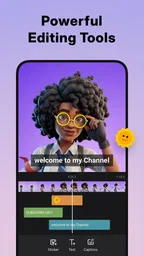
The built-in editor is valuable because capture is only half the job. A raw recording may begin with a wait, include a mistaken tap, or continue after the key moment. Rather than trying to make every take perfect, I prefer to capture the action safely and then remove the obvious beginning or ending clutter in the editor. That is a practical workflow for short guides and game highlights, where a clean, focused clip matters more than a polished montage.
If a recording seems incomplete, first play the saved clip from beginning to end. This separates a capture problem from a playback or editing misunderstanding. If the video ends before the action, repeat a brief test and stop the recording deliberately after the target moment. If the footage is there but the opening feels messy, trimming is a better remedy than recording everything again. Keep an untouched copy until you are satisfied with the edited version, particularly if the original contains a moment you may later need.
For a how-to clip, a useful edit is often subtraction rather than decoration: remove the seconds spent opening the relevant app, keep the actual steps, and cut off the idle time at the end. The same approach helps game clips. Find the moment worth sharing, trim the lead-in enough that the context remains understandable, and avoid cutting so tightly that viewers cannot tell what happened. The editor’s presence makes this kind of cleanup convenient, though it should not be mistaken for a full video-production suite.
Audio needs its own review. A clip can look fine while its sound is distracting or absent, so check playback before sending it. If the audio is not essential, a silent visual walkthrough may still be useful; if it is essential, retest before making a long capture. I would not assume that editing can restore sound that was never recorded. The reliable habit is to confirm the result early, while repeating the capture is still a minor inconvenience.
There is also a trade-off between recording everything and recording only what matters. A longer take can preserve context and avoid missing a spontaneous moment, but it takes more time to inspect and edit. Short segments are easier to share and revise, yet they require deliberate starts and stops. For tutorials, I favor separate clips by task. For an unpredictable game moment, I would accept a longer capture and then trim it down, provided the phone has enough room for the session.
When the recorder may not be the cause
Not every bad recording points to XRecorder. If a particular game or app behaves differently from the home screen, the source app may limit or alter what can be captured. If sound is missing only in one situation, repeat the test in another ordinary app before changing several settings at once. Comparing a short, controlled recording is more informative than making a long series of guesses.
Likewise, a clip that looks unclear on another person’s phone may reflect the way it is viewed or shared, rather than the original capture. Watch the saved video on your own device first, and if possible share a short sample with the intended recipient before making a large collection. That helps identify whether the issue appears during recording, editing, or the later handoff. It also avoids spending time polishing a file that is not displaying as expected.
If the app stops behaving normally, keep troubleshooting modest and reversible: close it, reopen it, and try a short capture again. Restarting the phone can be a reasonable next check when the problem persists. Avoid changing several unrelated phone settings together, because then it becomes hard to tell what helped. If the difficulty appears only with one game, one screen, or one audio situation, note that pattern; it is more useful than treating every failed attempt as the same problem.
For users who need precise editing, layered effects, or a carefully produced project, a dedicated video editor is a better fit after capture. XRecorder’s convenience is that recording and basic cleanup sit close together; that does not make it a replacement for tools built around detailed timelines or advanced post-production. On the other hand, someone who only needs a quick screen explanation may find a larger editing workflow excessive. The right choice depends on whether the priority is fast capture or control over the finished film.
Who will get the most from it
I would recommend XRecorder to Android users who regularly explain phone tasks, keep game moments, or need a straightforward way to make screen recordings and tidy them up. Its free entry point makes it easy to try, while optional purchases mean users should check the in-app choices before deciding whether paid additions matter to them. The app’s 4.7 average from around 7.7 million ratings and roughly 118,000 written reviews shows broad user engagement, though those figures cannot tell you whether its recording workflow matches your individual device and habits.
It is less compelling if you rarely capture your screen, want a full desktop-style editing process on your phone, or need every recording to work without a quick test. People who record sensitive screens should also take preparation seriously: hide private notifications, keep the capture focused, and review the clip before sharing. That is good practice regardless of the recorder, but it matters especially when a video preserves more on-screen detail than a still image.
My practical verdict: XRecorder is most useful when I treat it as a capture-and-cleanup tool, not a one-tap guarantee of a perfect video. A short test checks the sound, a prepared screen avoids distractions, and a quick edit can turn an ordinary recording into a clear walkthrough. Those small habits address most everyday friction and help the app’s simple workflow shine. If that is what you need, it is a sensible option to try; if you need sophisticated editing or a completely hands-off recording process, I would look for a tool better matched to that job.
What we like
- Records gameplay smoothly at high frame rates on supported devices.
- Supports internal audio recording on Android 10 and newer.
- Offers a floating control for quick access while recording.
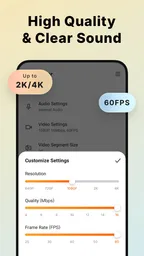
- Can export recordings at resolutions up to 1080p.
- Includes basic trimming tools for quick edits.
What could be better
- Internal audio support varies by Android version and device.
- Long recordings can use substantial storage space.
- Some features require a paid upgrade.
- The floating control may cover parts of the screen.
- Recording performance can reduce battery life.





