



Screen Recorder - G1REC review
 Analysis by Appsdrops
I like a screen recorder best when I can start capturing without turning a simple task into a project. Screen Recorder - G1REC is aimed at that kind of use: recording what is happening on an Android screen, with audio and facecam as part of its appeal. It suits quick gameplay clips, walkthroughs, and demonstrations, though the result still depends on choosing sensible settings and preparing the phone before pressing record.
G1REC is a free video recording and editing app from Eco Mobile Editor. It is rated for Everyone, and its current version is 3.8.1. The app has a 4.7 average from around 122,000 ratings and more than 10 million installs, so it is a familiar option for people looking for a mobile recorder rather than a full desktop production suite. In-app purchases range from $1.90 to $49.99 per item, so I would check any purchase screen carefully if I wanted to use more than the free offering.
Start with a simple, repeatable recording routine
My preferred way to use a recorder like G1REC is to decide the purpose of a clip before opening the controls. A gameplay highlight, a narrated how-to, and a clean app demonstration all need different treatment. For a short game clip, I would prioritize capturing the action and game sound. For a tutorial, I would make sure the explanation is easy to hear and keep the screen free of interruptions. Facecam is useful when a viewer benefits from seeing the person explaining something, but it can distract from small interface details.
A reliable routine begins before recording: close unrelated apps, silence notifications if practical, open the screen or game at the point where the action begins, and take a moment to check the recording controls. This is not a special G1REC feature; it is the difference between a clip that is ready to share and one that needs trimming or a second attempt. On a phone, incoming alerts and accidental taps can spoil an otherwise good take, so preparation matters more than adding lots of effects afterward.
For an everyday example, imagine showing a family member how to change a setting in an app. I would record the steps in one deliberate pass, speak only when needed, and keep facecam off unless a personal explanation adds something. For a game clip, I would do the opposite: start near the relevant moment and use facecam only if my reaction is part of the point. Thinking this through first keeps the capture focused and makes the finished video easier to watch.
The most useful habit is to treat each recording as a small task with a clear audience. That helps avoid capturing a long, meandering session when all you need is a short answer or highlight. It also makes it easier to decide whether audio or facecam belongs in the clip at all.
Settings that deserve a check before you press record
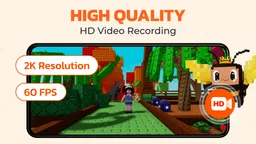
Screen recording has an unavoidable trade-off: higher-quality capture can demand more from a phone, while a longer or more demanding session can make performance and storage more important than maximum detail. I would test the settings with a short sample before recording anything difficult to repeat. Watch that test on the same kind of screen where it will be viewed, and listen with headphones if audio clarity matters. This small check can reveal a problem early without wasting a full session.
Audio needs particular attention because “with audio” does not automatically mean every sound source will behave as expected in every app or situation. Before a narrated walkthrough, make a brief test to check that the voice is understandable and does not compete with the content. For gameplay, compare a sample with the game sound turned up and down to find a balance that preserves both the action and any commentary. If a clip is meant to demonstrate a visual process, silence may actually be clearer than unnecessary background noise.
Facecam should be treated as a layout choice, not simply an extra feature to switch on by default. A small camera view can make a reaction clip feel personal, but it can cover buttons, captions, or details that a tutorial viewer needs to see. I would first identify the important area of the screen, then position the facecam only if it leaves that area readable. If the content is mostly menus or fine text, leaving the camera out is often the more considerate choice.
It is also worth checking the phone’s available storage and battery before a long capture. That advice applies especially to games or demonstrations that cannot be restarted easily. If the device feels hot or a game is already struggling, a recorder adds another demand to the session; shortening the clip or lowering the capture ambition may be wiser than pushing through and ending up with a stuttering result.
Faster patterns for repeat users
Experienced users save time by making the routine repeatable rather than relying on clever tricks. I would keep a simple mental checklist: prepare the screen, decide whether the clip needs voice or facecam, run a short test when quality matters, and start from the moment that actually belongs in the finished video. That sequence reduces dead air and makes clips easier to review later. It also helps when capturing several related steps, because each recording begins with the same basic checks.
For a series of app demonstrations, it can help to plan the route through the interface before recording. Know which screen comes first and which action proves the point. If a step is easy to miss, pause briefly before tapping so viewers can follow it. This approach is more useful than trying to speak continuously while rushing through menus. G1REC is a recorder, not a substitute for a clear explanation, so a little planning can improve the result more than extra editing.
For gameplay, I would avoid recording an entire session if I only want a few moments. Starting close to the event keeps the eventual clip manageable and reduces the chance of capturing private notifications or unrelated activity. If the timing is uncertain, record only when the content is worth keeping and review the result soon afterward. A quick review catches missing sound or an obstructed screen while the moment is still fresh in your mind.
Another practical habit is to make a brief sample whenever the recording conditions change. A game update, a different audio setup, or switching from landscape gameplay to a portrait app walkthrough can alter what makes a good capture. Rather than assume yesterday’s setup is ideal, check the first few seconds. This is especially helpful when facecam and voice are both involved, since the visual composition and audio balance need to work together.
Where a phone recorder reaches its limits
G1REC’s appeal is convenience: it keeps capture close to the Android content itself. That makes it a reasonable choice for casual clips and straightforward tutorials, especially if I want to record on the device I am already using. Compared with the built-in screen recording tools found on many phones, a dedicated app may be attractive to users seeking a more recording-focused workflow. But I would not assume that installing an app automatically solves every device-specific restriction or produces a better result in every game.
There is also a meaningful difference between capturing a screen and producing a polished video. If I need a complex timeline, detailed audio cleanup, multiple camera sources, or precise finishing controls, a desktop editor or a more complete production setup is likely a better fit. G1REC is more naturally suited to getting a usable capture than managing an elaborate post-production process. People planning professional lessons or highly edited gameplay should consider whether a mobile-first workflow gives them enough control.
Long recordings are another case where expectations matter. They take space, make review slower, and create more chances for interruptions or device strain. I would split a lengthy lesson into clear sections instead of recording one sprawling take. That makes errors easier to repeat and the material easier to organize. For a one-off short explanation, this may be unnecessary; for a sequence of lessons, the discipline pays off.
Privacy deserves a quick thought, too. A screen recording can include account names, messages, or other details that were not meant for an audience. Before sharing, I would watch the entire clip rather than just its opening and ending, especially if I recorded while moving between apps. If something sensitive appears, the safer choice is to redo the capture or edit it with a tool suited to that cleanup, rather than assume the recorder will handle it automatically.
Who will get the most from G1REC
I would recommend Screen Recorder - G1REC to Android users who want a convenient way to capture short gameplay moments, explain an on-screen process, or make a basic video with audio and optional facecam. It is most appealing when the phone itself is the natural place to record and the goal is a clear, shareable clip rather than a heavily produced video. The Everyone age rating and free entry point make it approachable, while the in-app purchase range is a reminder to review any paid options before committing.
I would steer away from it if you need guaranteed compatibility with every protected video, device, or app, or if your work depends on advanced editing and precise production controls. Recording movies or other protected material can be restricted by the content or platform, so a screen recorder should not be treated as a way around those limits. For polished multi-track projects, a dedicated editor is the better tool; for a quick demonstration or a gaming highlight, a phone recorder is far more convenient.
For a first try, I would make a short test clip, check the audio, and see whether facecam improves or obstructs the screen. Then I would settle on a simple routine and use it consistently. That is where G1REC makes the most sense: not as a complete studio, but as a practical capture app whose results improve when the user plans the shot, respects the phone’s limits, and reviews the video before sharing it.
What we like
- Records screen activity with a simple start-and-stop workflow.
- Can capture audio alongside video recordings.
- Useful for creating app demonstrations and gameplay clips.
- Recorded videos can be reviewed without leaving the app.
- A screen recorder can help document steps for troubleshooting.
What could be better
- Recording may use substantial storage for long clips.
- Performance can slow on older or less powerful devices.
- Some apps block screen capture for privacy or copyright reasons.
- Audio capture options may vary across Android versions.
- Recording notifications may appear in captured footage.





