



Proton VPN: Secure & Fast VPN review
 Analysis by Appsdrops
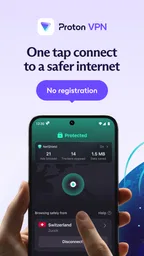
I think a VPN is easiest to judge when something goes slightly wrong: a page stalls, a login screen refuses to load, or a connection changes while you’re moving between networks. Proton VPN is a privacy-focused tool from Proton AG, and its appeal is straightforward: it can route your internet traffic through a VPN connection without asking you to become a network expert first. In everyday use, though, a VPN is still an extra step between your device and the internet, so a little patience and a sensible troubleshooting routine make a real difference.
It sits in the tools category and is free to install. The app has a 4.7 average from around 1.4 million ratings, and it has passed 100 million installs. Those figures suggest that it is widely used, but they don’t tell you whether a particular connection will suit your phone, network, or favorite services. My practical view is that it is worth considering if you want a familiar VPN app from a privacy-focused developer and are willing to accept that some websites behave differently when a VPN is active.
Getting unstuck when a connection behaves oddly
The most common point of confusion with any VPN is assuming that “connected” means every app and website must now work exactly as before. It doesn’t. A VPN changes the route your traffic takes, and a service may react to that change by asking for extra verification, loading slowly, or refusing a request. That can feel like the VPN has failed, when the issue is actually a particular site’s response to a different network route.
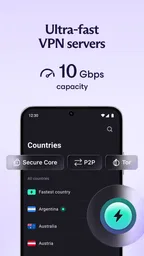
When something won’t load, I’d start with a small comparison rather than changing several settings at once. Check whether the same page works with the VPN disconnected, then reconnect and try again. If the problem appears only while connected, try another available server location and give the connection a moment to settle before retrying. Proton VPN’s store information describes servers in more than 190 locations, so there is a broad range of places to choose from; for ordinary browsing, I would begin with a nearby option rather than picking a distant location at random.
A nearby server is usually the sensible first test because it avoids adding unnecessary distance to the route. A faraway location may be useful when you have a specific reason to appear to connect from that region, but it can also make a slow or unstable connection harder to diagnose. I would not treat a change in speed as proof that the app is broken: the Wi-Fi or mobile network, the chosen route, and the website itself can all affect how quickly a page responds.
If a page remains stuck, close and reopen that page or app before repeatedly switching VPN locations. Some services keep a failed request around until you start a fresh one. For a sign-in problem, retrying once after the connection is stable is more useful than submitting the same form repeatedly. If the site continues to object, disconnecting briefly for that task may be the practical choice, especially for a routine account action that does not require a VPN connection.
Checks that make the first setup less frustrating
Before blaming the VPN, check the basics: your device should have a working internet connection before you connect, and the app should be allowed to finish its connection attempt. If ordinary browsing already fails with the VPN off, the VPN is unlikely to be the root cause. Try another page or app to see whether the trouble is limited to one service or affects the whole connection.
It also helps to decide what you want the VPN to do before choosing a location. If your goal is simply to use a VPN while browsing on public Wi-Fi, a nearby server is a reasonable starting point. If you are trying to reach a service that expects a particular region, choose accordingly, but keep in mind that services may restrict or challenge VPN traffic. The VPN can change the route; it cannot guarantee that a website will accept every request coming from that route.
On Android, Proton VPN requires version 8.0 or later. The current version is 5.20.98.0, so if you are comparing instructions with what appears on your screen, check that the app is up to date through the app store and that your device meets the minimum system requirement. Menus can change between releases, and advice for an older build may not match the controls you see now. I’d avoid following step-by-step instructions that ask you to alter advanced network settings unless you understand what they change.
One useful setup habit is to test a simple task immediately after connecting: open a familiar site, then try the app or service you actually care about. This gives you a baseline before you need the VPN for something time-sensitive. If a work login, travel booking, or payment service is especially important, test it in advance rather than discovering a compatibility issue while standing in a queue or trying to finish a deadline.
A recovery routine that avoids guesswork
When the connection drops or an app appears stuck, I’d work through a short sequence. First, confirm that the phone still has internet access with the VPN disconnected. Next, reconnect and wait for the app to indicate that the connection is established. Then retry the affected task, and if it still fails, switch to a different nearby location. Make one change at a time; otherwise, it becomes difficult to tell which step helped.
If the VPN connects but one service does not, test a second service before resetting anything. If both fail, check the underlying Wi-Fi or mobile connection. If only one site fails, the issue may be specific to that site’s handling of VPN traffic. This distinction matters: reinstalling an app or changing device settings is a lot of effort when the problem is just one website refusing a particular route.
For a phone that moves between home Wi-Fi, public Wi-Fi, and mobile data, a brief interruption during a network handoff is not automatically a sign of a serious fault. Wait for the new network to become usable, then check the VPN connection again. If other apps also cannot reach the internet, troubleshoot the network first. If general browsing works but the VPN does not, restart the connection attempt and try another location before making more drastic changes.
A realistic example: I’m at a café, connected to Wi-Fi, and a news page loads while my email app hangs. I would not immediately conclude that the VPN is blocking email. I’d confirm that the page still loads, reopen email, and try a fresh connection to the service. If email works when the VPN is disconnected but fails again when it is on, I’d test another server location. If it still fails and I need to send something urgently, I’d use the connection that works for that task, then investigate later. That is a more useful response than repeatedly tapping refresh without knowing which part is failing.
When the cause is outside the app
VPN troubleshooting can turn into a hunt for a setting that does not need changing. A crowded public network, a weak signal, a temporary service outage, or a website’s own security checks can all produce symptoms that look like a VPN problem. The best clue is whether the same issue happens with the VPN off and whether it affects more than one app. If normal browsing works only after disconnecting, the route or the site’s response is a stronger suspect than the phone’s entire internet connection.
It is also worth separating privacy expectations from connection troubleshooting. A VPN changes how traffic is routed, but it does not make every online activity anonymous or remove the need to use good account security. You still need to protect passwords, watch for suspicious sign-in prompts, and use trusted apps and websites. I would treat the VPN as one part of a broader set of habits, not as a substitute for them.
If you need help, describe the problem precisely: whether the app connects, whether general browsing works, which network you are using, and whether a particular service fails only when the VPN is active. That is more useful than saying simply that “the internet is broken.” Avoid sharing passwords or private account details while seeking support. Clear, limited troubleshooting information helps narrow the issue without exposing more than necessary.
Free access, upgrades, and who should choose it
The free price makes it easy to try without committing money first. In-app purchases range from $9.99 to $119.88 per item, so paid options are available if your needs grow, but I would begin by testing the free experience against the tasks you actually do. Don’t upgrade simply because one website has trouble: first establish whether changing location or using a different network resolves it, and whether the paid option addresses a need you genuinely have.
Compared with many basic VPN apps, Proton VPN’s strongest practical distinction is its association with Proton AG and its broad choice of server locations. The trade-off is the same one users face with VPNs generally: extra routing can introduce friction with services that expect a normal home or mobile connection. If you mostly want a one-tap tool and never want to think about why a website behaves differently, a VPN may feel like unnecessary complexity. If you need a VPN as part of your regular browsing routine, the app is a reasonable place to start.
It is designed for everyone in the app store’s age classification, but that does not mean it is the right fit for every user. I’d recommend it to someone who wants to try a VPN from an established developer, can tolerate an occasional login challenge, and is comfortable doing a few basic checks when something fails. I’d steer away from it if your main requirement is guaranteed access to a particular streaming, banking, or workplace service; no VPN can promise that every service will accept its traffic, and the service’s own rules matter.
My practical verdict
Proton VPN is a sensible choice if you want a free VPN app with a large selection of locations and are prepared to troubleshoot in a measured way. Its main weakness is not that every connection is destined to fail, but that VPN routing can make some everyday tasks less predictable. That is a real inconvenience when you need to sign in quickly or use a service that scrutinizes network changes.
For me, the best way to use it is to set it up before I need it, test the important apps on a nearby location, and remember a simple recovery order: check the underlying connection, reconnect, try another location, and compare with the VPN turned off if necessary. That routine keeps ordinary hiccups from becoming a long session of random setting changes. Proton VPN is worth trying if those trade-offs fit your habits; if seamless access to every site matters more than using a VPN, your usual connection may be the better option for some tasks.
The app was released on December 30, 2019, and its current Android requirement is version 8.0 or later. I’d regard those details as useful compatibility checks, not reasons on their own to install it. The deciding question is simpler: do you want a VPN enough to accept occasional route-related friction? If yes, this is a practical option to test. If not, you may be happier keeping your connection direct and using the app only when a VPN serves a clear purpose.
What we like
- The free plan has no data cap.
- The app uses strong encryption to protect VPN traffic.
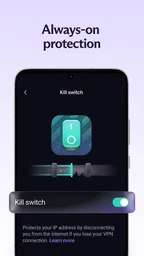
- A kill switch can block internet access if the VPN disconnects.
- Secure Core routes traffic through privacy-focused countries.
- Open-source apps make independent security review possible.
What could be better
- The free plan offers servers in only a few countries.
- Free users cannot manually choose a specific server.
- Some streaming services may block VPN connections.
- Secure Core can reduce connection speeds.
- Advanced settings may feel overwhelming for new users.





