
Precious - AI Photo Studio review
 Analysis by Appsdrops
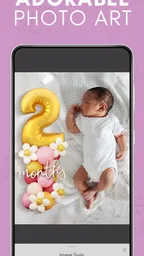
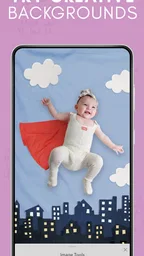
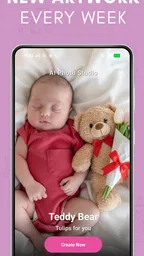
When newborn photos start piling up, I find the hard part is not taking a picture; it is turning a quick, ordinary moment into an image I’ll want to keep and share. Precious - AI Photo Studio is a parenting app built around that specific job: making baby portraits, newborn-style photoshoots, and monthly milestone pictures with AI editing. I’d consider it when I want a polished keepsake without arranging a full setup, while keeping in mind that an edited portrait is still different from a candid photo of the day.
Start with a photo you already like
My recommended starting point is a clear, well-lit picture of the baby, rather than expecting an editor to rescue a blurry or poorly framed shot. Choose an image where the face is visible and the pose is comfortable, then try an edit that supports the original moment instead of changing everything about it. That approach makes the result feel more personal and gives you a useful basis for deciding whether the app’s style suits your family.
The practical appeal is easy to understand. A newborn may be asleep for only a short stretch, or the room may be busy with feeding, visitors, and everyday clutter. With a photo already in the camera roll, Precious offers a way to create a more composed portrait without waiting for a convenient photoshoot. I’d treat it as a creative finishing step, not a reason to interrupt a calm moment or keep repositioning a baby for a picture.
For monthly milestones, consistency matters more than elaborate editing. I’d take a straightforward picture in a familiar spot, then keep the framing and general look similar from month to month. That gives the collection a sense of progression: the changes in expression, proportions, and personality remain the focus, rather than a new visual treatment competing for attention every time.
There is also a useful distinction between a milestone image and a family record. A stylized portrait can be lovely for sharing or printing, but I would preserve the untouched original too. It keeps the real lighting, expression, and surroundings intact, and it gives you a dependable version if an AI edit feels too polished or changes a detail you wanted to remember.
Make a repeatable routine, not a production
One small habit can make the process much less fussy: take several natural photos during a normal moment, choose the strongest one later, and edit only that candidate. This avoids judging the app while juggling a baby and a phone at the same time. It also means the editing decision is based on image quality, not on the pressure to make the first shot work.
If you are building a monthly series, decide on a simple visual rule before you begin. For example, use a similar crop and keep the baby’s face at roughly the same place in the frame. You do not need to make every background identical; the goal is to create enough continuity that the pictures read as a sequence. This is more reliable than chasing a perfect theme each month, especially when family schedules and lighting change.
For a one-off announcement or gift, I would use a different standard. A more imaginative treatment may be worth trying when the result is meant to feel like a special portrait rather than a documentary snapshot. The trade-off is that the more the final image departs from the original scene, the more important it becomes to check whether the baby still looks recognizably like the baby in the source photo.
Check the choices before settling on a look
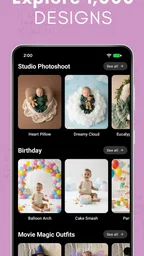
Before spending time on a batch of images, I’d first explore the available editing choices with one photo. Look closely at the face, hands, clothing, and edges of the frame; those details are where an otherwise attractive edit can feel less convincing. If a result makes the baby look unlike themselves, I would move on rather than trying to justify it because the background or styling looks appealing.
It is also worth thinking about the role of the finished picture. A portrait for a family chat can tolerate a more playful treatment than an image you plan to print as a long-term keepsake. For a print, I’d be more selective about natural-looking skin tones and fine details, and I would inspect the final image at a larger size before deciding it is ready. A quick glance on a phone can hide small inconsistencies.
Precious is free to install, with in-app purchases listed from $4.99 to $39.99 per item. I would approach those purchases as an optional part of the experience and first decide whether the editing style and workflow fit my needs. If I only want an occasional portrait, it makes sense to test the free experience before paying for anything. If I expect to create a regular milestone collection, I’d compare the value of a purchase with how often I will actually use the app.
The app is rated for Everyone and is made by Curious Creators Co. Its average rating is 4.7 from around 86,000 ratings, and it has over 500,000 installs. Those figures suggest that many people have tried it, but they do not tell me whether its particular visual style will match my taste. I’d make that judgment from a couple of real photos of my own rather than assuming a popular editor will suit every family.
Where it fits among the usual options
Compared with a standard phone editor, a baby-focused AI studio is appealing when the aim is a themed or more finished portrait rather than basic cropping, brightness, or color correction. A general editor is often the better choice if I want precise manual control and a subtle adjustment to a candid picture. Precious makes more sense when I want to explore portrait treatments designed around newborn and milestone imagery without assembling the look from separate editing tools.
It is not a replacement for a professional photographer when I need a planned family session, carefully directed lighting, or a set of portraits with several people in the frame. Nor would I choose an AI-generated look for every memory. The app’s strongest use is selective: a special newborn portrait, a monthly keepsake, or a polished image made from a good photo taken at home. For day-to-day family records, the camera app and an ordinary backup routine remain more straightforward.
There is a personal judgment involved in AI baby imagery that I would not skip. Some families enjoy imaginative portraits; others prefer photographs that show exactly what the room and moment looked like. Before sharing an edited picture, I’d ask whether I’m comfortable presenting it as a stylized creation rather than a literal record. That choice is not a technical flaw, but it matters when the image is meant to preserve a memory for relatives or for the child later on.
Know when the workflow is not worth it
Precious may not be the right fit if you mainly want quick corrections to everyday photos, dislike AI styling, or need a highly controlled editing process. It also may disappoint if the source picture is dark, obstructed, or taken from an awkward angle: a creative treatment cannot guarantee that every detail will look natural. In those cases, retaking the photo in better light or using a simple editor may be the more satisfying choice.
My practical limit is time. I would not turn every monthly photo into a long sequence of experiments. Pick a good source image, try a small number of looks, check the result at a useful size, and keep the original. If none of the edits feels right, stop there. The milestone itself is more important than producing a themed image on schedule.
Precious is version 1.1.10 and requires Android 8.0 or later. That makes the minimum operating-system requirement worth checking before installing on an older Android device. The app’s stated release date is February 24, 2026, so it is a relatively new option; I would be especially deliberate about testing its workflow on the device I plan to use before building a whole collection around it.
My verdict: best as a selective keepsake maker
I’d recommend Precious - AI Photo Studio to parents who already take plenty of baby photos and want an easier route to occasional, more polished portraits. Its parenting focus is more specific than a general-purpose editor, and the milestone use case gives it a clear reason to exist. The best results are likely to come from a thoughtful source photo, a consistent approach for recurring pictures, and a willingness to reject edits that do not look like your child.
I would skip it if I wanted every photo to remain strictly documentary, or if I needed the precision of a manual editor or a professional shoot. For everyone else, my advice is to start with one ordinary photo, keep the original, and judge the finished image by whether it feels like a memory you want to keep—not simply by how elaborate it looks. Used that way, Precious can add a distinctive portrait to a family album without making the photo-taking itself the main event.
What we like
- Creates polished portraits from simple selfies.
- Offers a playful way to explore different visual styles.
- AI processing can save time compared with manual photo editing.
- Useful for refreshing profile pictures and social posts.
- A straightforward concept makes experimentation easy.
What could be better
- Results may not closely resemble the person in the source photo.
- Some styles or features may require a paid plan.
- Generating images may take time depending on server demand.
- Uploaded photos may raise privacy concerns for some users.
- Output quality can vary between styles and attempts.





