







Pix Editor: AI Photo Maker review
 Analysis by Appsdrops
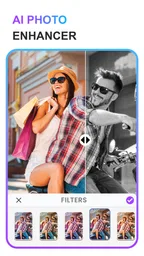
I find photo editors easiest to judge when I try to do something ordinary with them: crop a picture, make the subject stand out, and get a version I’m happy to share without turning the job into a project. Pix Editor: AI Photo Maker is aimed at that quick, visual kind of editing. It brings photo adjustments together with collage-making, background removal, frames, and filters, so it can suit people who want several familiar creative tasks in one place.
It is a free photography app from Signature EXP, with optional in-app purchases ranging from $0.99 to $254.99 per item. Its Everyone age rating makes it broadly suitable for general audiences, while its current version is 1.4.49 and it requires Android 7.0 or later. The app has a 4.0 average from around 43,000 ratings and has passed 10 million installs. Those figures suggest a widely tried editor, but they don’t tell me whether its interface will feel comfortable for every person or every kind of photo task.
Finding your way through a visual editor
The app’s range is its main convenience: rather than switching between separate tools for a collage, a cutout, and a styled image, you can approach those jobs from one editor. That is especially useful when the end goal is clear but the best finishing touch is not. I might start with a portrait, remove a distracting background, then decide that a frame or filter gives it a more finished look.
At the same time, a collection of creative options can make the first few minutes less straightforward than a single-purpose crop tool. Frames and filters invite browsing, while background removal and collage-making involve different decisions. I’d recommend choosing the task before opening the editor: “make this portrait clearer” is easier to follow than tapping around to see what everything does. That small habit can reduce unnecessary navigation and keep the editing session focused.
For a newcomer, the most approachable workflow is to begin with one photo and make one change at a time. First decide whether the subject or the overall mood needs attention. Then try a restrained filter or a frame, rather than applying several treatments at once. This gives you a useful comparison with the original and makes it easier to tell whether an edit actually improved the picture.
The strongest practical advantage is having multiple kinds of finishing work in a single app. A person preparing a birthday collage, for instance, may not need a full desktop suite; they may just want to combine a few images and give them a consistent visual style. Pix Editor is better suited to that kind of compact, outcome-focused session than to an open-ended professional workflow.
Keeping the controls manageable
For anyone who finds dense interfaces tiring, I suggest treating the available tools as a menu rather than a checklist. You do not need to explore every filter or frame to get a useful result. Pick the feature that solves the visible problem, make the edit, and stop if the image looks right. This is a simple way to avoid the familiar trap of spending more time choosing effects than improving the photo.
One useful comparison is with a phone’s built-in photo editor. The built-in option is often more direct for basic cropping or a quick adjustment, while Pix Editor makes more sense when you specifically want creative extras such as a collage, decorative frame, or background cutout. If your usual edits are limited to rotating images and correcting brightness, the additional choice may feel like clutter rather than a benefit.
Editing with different motor and sensory needs
Photo editing is a hands-on activity, and the kind of task matters. A broad stylistic choice, such as selecting a filter, is usually less exacting than carefully separating a person from a busy background. If precise touch movements are difficult, I would begin with the less detailed options and avoid making a complex cutout the first test of the app. The result depends not only on the editor but also on the source image: a clearly separated subject is generally a more sensible starting point than hair or clothing blending into a similarly colored background.
That distinction is important for users with limited dexterity, tremor, or fatigue. A collage assembled from a few well-chosen photos may be manageable in short bursts, while fine edge work can demand more patience. I would save the original image before attempting a substantial edit, then judge the result at a comfortable pace. If the subject’s outline still looks awkward after a reasonable attempt, a simpler crop or a different photo may produce a better shareable image with less effort.
For sensory comfort, filters and decorative frames are best used deliberately. Strong visual treatments can make a picture feel busy, and browsing a large creative selection can be tiring for someone sensitive to visual clutter. I’d compare the edited image with the original after each change, especially for portraits or images intended to communicate information. A frame should support the subject, not compete with it; a filter should preserve details that matter, such as facial features or text in the scene.
I also wouldn’t assume that an attractive preview is automatically the most readable result. If a photo will be used in a small social post or a message, details can disappear when the image is reduced. Before settling on a treatment, look at the subject and any important text at the size where people will actually see it. That quick check is useful for everyone, and particularly for people who rely on clear contrast and uncluttered images.
When the setting changes the best workflow
Pix Editor is a natural fit for casual, personal projects: a family collage, a profile image, or a quick attempt to remove a distracting scene behind a subject. Imagine taking a portrait at a busy gathering and wanting to share it with relatives. I would first check whether the person is distinct from the background, then try the cutout workflow, and only after that decide whether a simple frame or filter helps. If the separation looks rough, keeping the original setting and using a modest visual adjustment is the more reliable choice.
For someone editing during a short break, it helps to define a stopping point in advance. A useful target might be one finished image, not a complete tour of the app’s creative options. That approach also helps when attention is limited or interruptions are likely: finish the essential adjustment first, then treat extra styling as optional. If you are working in a noisy or distracting environment, doing the more delicate edit later can be better than rushing through a background removal.
There is also a practical difference between making an image for fun and preparing one where accuracy matters. A decorative collage can tolerate experimentation. A photo used to explain a product, show a document, or preserve a meaningful event should be edited more cautiously, because an overly strong filter or an imperfect cutout can obscure details. For those cases, I’d keep an untouched copy and compare it before sharing.
Compared with dedicated background-removal tools, an all-in-one editor has an appealing advantage: you can continue styling the picture without changing apps. The trade-off is that a specialist tool may be a better choice when edge precision is the whole job. Likewise, a dedicated collage maker can be preferable if you need highly controlled layouts, while a basic built-in editor remains quicker for simple corrections. Pix Editor is most convincing when you want a mix of creative tasks, not when you need one demanding operation performed with maximum control.
Costs, expectations, and points of friction
The app is free to install, but optional purchases mean that not every creative choice should be assumed to be free. The listed range runs from $0.99 to $254.99 per item, a wide spread that makes it sensible to check an item’s price before confirming a purchase. If you only need an occasional collage or a one-off portrait edit, try the available free workflow first and decide whether a paid option solves a specific problem you actually have.
That range may be a drawback for people who prefer predictable costs or are choosing an app for a child. The Everyone rating describes its age suitability, but it does not remove the need for an adult to pay attention to optional purchases. I’d also avoid buying anything just because an effect looks appealing in a preview; first consider whether it will make a meaningful difference to the images you regularly create.
The main limitation is not that the app tries to do too little, but that broad creative choice can be a poor match for someone who wants a quiet, minimal editor. People who prefer large, clearly explained steps, keyboard-based precision, or extensive control over a complex composition may be happier with a different kind of tool. If an interface feels demanding, using the phone’s simpler editing tools for routine corrections is a reasonable alternative, not a failure to use Pix Editor properly.
Another realistic friction point is that background removal is not equally forgiving on every picture. A cleanly outlined subject gives the task a fair chance; fine details against a similar-colored background are harder to judge and may call for extra correction. I would not choose this as my only option for a high-stakes product image or a carefully polished portrait unless the result can be inspected closely. For casual sharing, a slightly imperfect cutout may be acceptable; for professional presentation, accuracy matters more than convenience.
Who is likely to feel at home here?
I’d recommend Pix Editor to someone who enjoys making personal photos look more finished and wants collages, filters, frames, and background editing together. It is also a sensible option for a casual creator who would rather try a few visual treatments than learn a complex editing program. Its popularity and 4.0 average indicate that many people have tried it, but individual comfort still depends on whether its selection of creative tools suits the way you like to work.
I’d steer away from it if your priority is a stripped-back editor, exact professional retouching, or a workflow that depends on highly precise selection. It may also be frustrating if you find browsing effects overwhelming or if you need every action to be simple and predictable. In those situations, a built-in editor for basic changes or a focused specialist app for a demanding cutout may be a better fit.
Overall, I see Pix Editor: AI Photo Maker as a practical creative toolbox rather than a universal answer to photo editing. Its value is strongest when one image needs a few different kinds of attention, and weakest when simplicity or fine-grained control is the main requirement. Start with an easy photo, make one change at a time, and keep the original. That gives you a fair sense of whether the app’s visual approach works for you without turning a quick edit into a long session.
For inclusive use, I appreciate that the app’s range can support different creative goals, but that range also asks users to make choices and sometimes handle detailed touch work. My advice is to match the task to your comfort: use a filter or frame for a low-effort finish, reserve cutouts for images with clear edges, and choose a simpler alternative whenever the controls or visual browsing become a barrier. With those expectations, it can be a worthwhile free starting point for casual photo projects, while its optional purchases and broad toolset are reasons to approach it thoughtfully.
What we like
- AI tools can speed up common photo edits.
- A simple layout helps beginners get started.
- Creative effects offer ways to personalize images.
- Edits can help prepare photos for social sharing.
- It combines photo editing with AI image creation.
What could be better
- AI results may not match the intended prompt.
- Some features may require a paid plan.
- Processing can take longer on older devices.
- Generated images may need extra editing.
- Results may vary depending on the source photo.





