



Pinardin: Parental Control review
 Analysis by Appsdrops
Parenting apps can easily turn into dashboards that demand more attention than they save. Pinardin: Parental Control is aimed at a more practical need: helping a parent check where a child’s phone is, keep an eye on screen time, and support safer phone use. I’d approach it as a shared family tool, not a way to watch a child secretly. That distinction matters: location and phone-use monitoring work best when the child understands what is being checked and why.
Pinardin is a free parenting app from Pinardin OÜ, rated for everyone, with a 4.6 average from around 15,000 ratings and over 100,000 installs. Those figures suggest it has found an audience, but they don’t tell you whether it suits your family. The useful question is whether its mix of location, screen-time awareness, and phone monitoring fits a real routine without creating unnecessary friction.
What to expect from Pinardin
The app’s central appeal is that it brings several parental-control concerns together rather than focusing on only one. A parent who mainly wants a child’s location may otherwise rely on a phone’s built-in location sharing, while a family concerned about device habits might use a separate screen-time tool. Pinardin is intended to cover both kinds of concern in one place, alongside safer monitoring of a child’s phone.
That combination is useful when the questions overlap. For example, knowing that a child has arrived at a destination can be reassuring, while understanding how much the phone is shaping the day may be a separate but related conversation. I would not treat the app as a substitute for talking with a child, or as proof that every situation is safe. It can provide a practical point of reference; judgment and communication still belong to the family.
It is also worth setting expectations before installing. The description points to live location, screen time, and monitoring, but a parent should not assume that every phone behavior is visible or that the app can solve every safety problem. Parental-control tools depend on being set up appropriately on the devices involved and on the child’s age, habits, and willingness to cooperate. If your only need is an occasional location share, a simpler built-in option may be enough.
The app is free to install, with in-app purchases listed from $14.99 to $169.99 per item. I’d check what a paid option covers inside the app before building a routine around it, and make sure the cost fits your budget. The current version is 2.6.8, and the listed minimum operating system is 7.0. These details are useful when checking device compatibility, especially if a child uses an older phone.
Start with a clear family agreement
Before setup, decide what you actually want the app to help with. “I want to know you got to practice” is a specific goal; “I want to see everything you do” is broad enough to undermine trust. I recommend explaining the purpose in plain language, agreeing on when location checks are reasonable, and making room for the child to ask questions. For younger children, a parent may manage more of the setup; with older children, participation and clear boundaries become increasingly important.
This conversation also helps prevent the app from becoming a source of repeated checking. If you agree that location is for travel between home, school, and activities, you are less likely to refresh it whenever a child is briefly quiet. The practical benefit is not only reassurance: a shared expectation can reduce arguments about what monitoring means and when it is being used.
Make the first setup purposeful
On opening the app, I would begin by identifying which family member’s phone is being managed and which device will be used by the parent. Follow the app’s own prompts carefully, and check that the child understands which phone is involved. I would avoid rushing through setup just to reach a dashboard; a mistaken device association or unclear family arrangement can make the first results confusing.
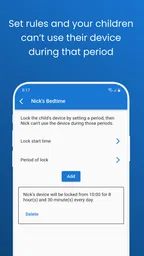
Then choose one immediate use case rather than trying to make the app answer every parenting concern at once. If the next school trip or walk home is the reason you installed it, start with location awareness. If phone habits are the concern, begin with screen time. A single clear goal makes it easier to tell whether the setup is working and keeps the first experience manageable.
When you test the setup, do it together if possible. Ask the child to use the phone normally while you check the relevant view, rather than relying on a rushed check during a stressful moment. If the information does not appear as expected, first confirm that you are looking at the intended device and that the app has completed its own setup steps. Do not jump straight to the conclusion that the child has deliberately changed something or that the app is malfunctioning.
The first meaningful success is a routine, not a feature tour
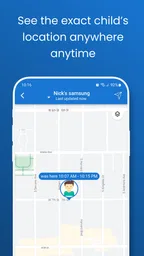
A useful first result might be a calm check that a child has reached an agreed destination. Imagine a weekday when a child walks from school to a relative’s home. Instead of sending repeated messages, you can use the location function as a shared reassurance tool, then leave the phone alone once the expected arrival is clear. That is a small success, but it shows whether the app fits the family’s real routine.
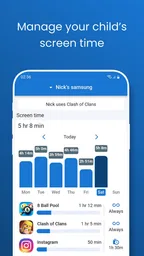
For screen time, the first useful step is similarly modest: look at the information together and use it to start a conversation, not to announce a punishment. A child may be surprised by their own habits, or may have a reasonable explanation for a particular day. Treating the display as a prompt rather than a verdict makes the app more likely to support cooperation instead of turning every number into an argument.
One non-obvious advantage of choosing a concrete trial is that it helps separate a setup problem from an expectation problem. If location is the immediate goal, you can assess whether that part is useful before deciding what else the family needs. If the goal is healthier phone habits, you can see whether the screen-time information leads to a change you can actually maintain. A tool is only helpful if its information changes a decision or reduces uncertainty.
Common points of confusion
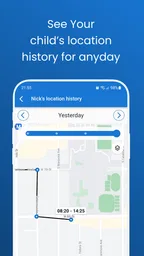
Location information should not be treated as a live guarantee of a child’s safety. A phone’s reported position is about the device, not necessarily the person holding it, and a displayed location may not answer why someone is somewhere. I would use it as one clue in an agreed routine, not as a replacement for calling, asking, or using common sense when something feels wrong.
Screen time can also be easy to misread. A total does not explain what a child was doing, whether the phone was needed for school, or whether a particular day was unusual. If your goal is better balance, discuss the pattern and agree on a practical adjustment. If your goal is to inspect every detail of a child’s digital life, this may not be the right approach; monitoring can damage trust when it expands beyond a clear and proportionate purpose.
Another likely source of friction is expecting one app to behave identically on every family phone. Pinardin supports devices running Android 7.0 or later, but families should still check compatibility for the devices they plan to use. If a child’s phone is too old or setup is unreliable, a simpler family location-sharing method—or a conversation and agreed check-in—may be more dependable than adding another app.
Finally, remember that “free” refers to getting started, not necessarily to every option. The listed purchase range is broad, so I would inspect the specific purchase screen and recurring terms, if any are presented, before paying. Don’t assume a higher-priced option is necessary just because it exists. First decide whether the basic experience handles your family’s main use case.
Where it fits among other choices
Compared with a phone’s built-in location sharing, Pinardin’s appeal is its parenting focus and the combination with screen-time awareness and monitoring. Built-in sharing may be preferable for a family that wants only occasional location visibility and already has a comfortable system. It can mean less to install and explain. Pinardin makes more sense when parents want these concerns gathered in a dedicated app and are prepared to establish clear boundaries around its use.
Compared with using several separate tools, a combined approach can reduce switching between apps and keep the routine easier to remember. The trade-off is that a dedicated parental-control app asks the family to trust another service and learn another setup flow. If your child is old enough to manage their own device responsibly and your concerns are limited, separate controls already available on the phone may be less intrusive. If you need a deeper digital-safety arrangement than the app’s stated focus suggests, check the available functions before relying on it rather than assuming it covers every kind of content or activity.
Pinardin has a 4.6 average from around 15,000 ratings, but ratings are not a substitute for trying the workflow on your family’s devices. The app is aimed at a broad audience and has an Everyone age rating; that rating does not mean every monitoring approach is automatically appropriate for every child. What matters is whether the level of oversight matches the child’s age and the family’s needs.
Who should use it—and when I’d choose something else
I’d consider Pinardin for parents who want a dedicated place to check a child’s location and screen-time habits, particularly when those needs come up repeatedly in everyday routines. It may suit families coordinating school travel, activities, or time with relatives, as long as the child knows what is being monitored and the adults use the information proportionately.
I’d skip it if you want a completely hands-off solution, expect monitoring to replace trust, or need a feature the app does not clearly offer. I’d also choose a simpler alternative if location sharing is your only concern and your phone already handles it well. And if you have not agreed as a family on why monitoring is being used, I would pause before installing: the conversation is more important than the dashboard.
Build on the first success without overchecking
After a successful first check, keep the routine small. Use the app for the agreed purpose, review screen-time information at a sensible moment, and revisit the arrangement if the child’s needs change. That approach turns monitoring into a tool the family can discuss, rather than a constant background inspection. If the app creates more checking, tension, or confusion than reassurance, that is a sign to adjust the boundaries or return to a simpler option.
Overall, Pinardin: Parental Control is best approached as a practical aid for location awareness and healthier phone conversations, not as an all-seeing safety system. Its free starting point makes it accessible to try, while purchases mean it is sensible to review costs before committing to a particular option. I’d recommend it to a parent with a specific, shared use case and a willingness to set expectations first. For a family that values minimal monitoring or already has an easy routine, a built-in tool may be the better fit.
What we like
- Helps parents set screen time limits for a child's device.
- Can make it easier to manage app access.
- Offers a way to monitor device use remotely.
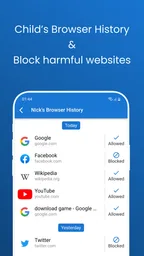
- May support safer browsing habits for children.
- Useful for setting consistent household screen rules.
What could be better
- Setup may require permissions that feel intrusive.
- Children may resist having their device use monitored.
- Some features may require a paid plan.
- Controls may vary across supported devices.
- Parents need to review settings as a child grows.





