
Picta x CVS Photo Print review
 Analysis by Appsdrops
Getting a favorite phone photo onto paper should be simple, but the last step can be surprisingly awkward: choosing a size, finding a convenient place to collect it, and making sure the crop still looks right. I see Picta x CVS Photo Print as a practical shortcut for people who want to order prints through CVS Pharmacy rather than build a photo project around a computer. Its focus is narrow, which helps keep the task manageable, but it also means this is not a general-purpose photo editor or a complete solution for every printing need.
Making the print-ordering process easier to follow
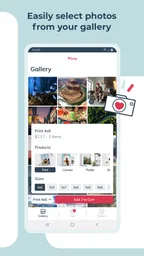
The app belongs to the photography category, but its purpose is more specific than editing pictures or organizing a library. It connects phone photos with print sizes such as 4-by-6, 5-by-7, square formats, and larger prints. That choice of familiar formats makes it easier to think about the result in physical terms: a small snapshot for a frame, a square print for a shelf, or a larger image for a wall.
In my view, a focused ordering app can be easier to understand than a broad photo service with editing, sharing, albums, and print projects all competing for attention. The useful question here is not whether it can transform an image, but whether it helps someone move from a picture already on their phone to a print order without unnecessary detours. For a straightforward order, that focused purpose is a strength.
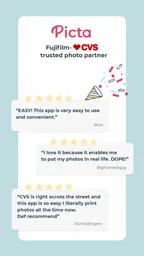
The developer is Pictarine - Printing Photos, and the app is free to install. Its average rating is 4.8 from around 13,000 ratings, with about 2,400 written reviews, and it has more than 100,000 installs. Those figures suggest that many people have tried it, though they cannot tell you whether the app will suit your particular vision, dexterity, phone setup, or local shopping habits.
Version 10.50.0 is the current release, and the app is listed for devices running Android 8.0 or later. It is rated for Everyone. It was released on November 9, 2019, so this is an established app rather than a newly launched experiment. I would still judge the actual experience on the device you plan to use: text size, contrast, and touch comfort can feel quite different across screens and settings.
Readability, choice, and avoiding crop surprises
Print ordering involves more than tapping a size. A phone image may have a different shape from the paper, so part of the photo can be cropped when it is printed. This is one of the most useful things to keep in mind before placing an order. If a face, sign, or other important detail sits close to the edge, check the image preview and consider a print shape that better matches the original picture.
That check matters especially for photos taken in portrait mode or screenshots with text near the margins. A standard rectangular print may cut away content that still looks complete on a phone screen. Square options offer a different shape, but they also require a different crop. I would choose the size based on what must remain visible, not simply on which format sounds most familiar.
For readability, a short, task-focused flow is preferable to a crowded interface, particularly when someone is ordering a small number of prints. Still, I would not assume every screen is equally easy for every reader. People who use larger system text, high contrast, or screen-reading tools should take a moment to inspect how the controls and image-selection steps behave on their own device before starting a large order.
A helpful habit is to prepare a small selection first rather than trying to sort an entire camera roll inside any print-ordering flow. Mark or gather the pictures you want beforehand, then work through them one at a time. This reduces the chance of choosing near-duplicates and makes it easier to pause if the screen becomes tiring or the order needs a second opinion.
Touch, vision, and other sensory considerations
Photo selection is a visual task, and that creates a real limitation for people who cannot easily distinguish similar thumbnails or inspect fine details on a small display. A print preview can help with composition, but it cannot replace checking the original image at a comfortable size. If sharpness, focus, or color accuracy is important, inspect the source photo separately before committing to prints.
For people with limited dexterity, the most demanding part may be repeated small taps: selecting images, choosing formats, and reviewing the order. I would avoid doing this in a hurry or while carrying the phone one-handed. A stable surface, a larger display if available, and a deliberate pass through the selected images can reduce accidental choices. These are practical workarounds, not special app capabilities.
Someone sensitive to bright screens or prolonged visual work may find it easier to prepare the photos in a short session and finish the order later. Likewise, anyone who relies on spoken feedback should test the ordering screens before depending on them for a complicated selection. The experience may depend on the phone’s accessibility settings and how individual controls are presented, so I would not treat the app as a substitute for checking those details personally.
When CVS pickup fits real life
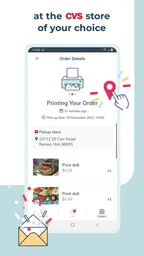
The strongest use case is a routine where collecting prints at CVS fits naturally into an existing trip. Imagine taking family photos over the weekend, choosing a few favorites during a quiet moment, and collecting the prints when you are already going to the pharmacy. In that situation, the app’s connection to CVS can make the process feel more direct than arranging a separate delivery.
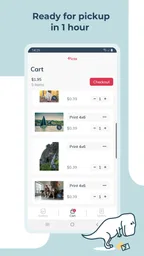
Same-day printing is the central convenience associated with the service, but a fast turnaround is only useful if the store, timing, and collection plan work for you. I would check the available options in the app before relying on prints for a birthday, school project, or other deadline. A same-day promise should not be treated as a reason to leave an urgent order until the last moment.
This approach is also handy for people who want physical copies without learning desktop photo software. A parent could select a handful of images for a relative, or someone moving into a new home could print a few pictures for inexpensive frames. The key is keeping the order modest and checking each image carefully; a quick pickup is less helpful if the crop or chosen size is wrong.
On the other hand, this is not the best fit if you want prints mailed to your home, need a specialized paper or finish, or are assembling a polished photo book. A dedicated lab or broader photo-printing service may offer more control over materials and delivery. Likewise, someone who wants extensive retouching should edit the pictures in a separate app first rather than expecting this ordering tool to do that work.
Where the focused approach can still create friction
A CVS-centered workflow is convenient only when CVS collection is convenient for you. If the nearest store is difficult to reach, pickup may add more effort than it removes. I would compare the whole errand—not just the time spent placing the order—with a mail-order alternative, especially for people with mobility constraints or limited transport options.
Another trade-off is that the familiar print sizes do not guarantee that every photo suits every format. A wide landscape image can lose important scenery in a portrait-oriented crop, while a close-up may feel cramped in a square. Before ordering several copies, use one image as a test of the format you have in mind, or carefully review the crop on every selected photo.
There is also a difference between making an order possible and making it comfortable. A person with low vision may find it hard to compare thumbnails, while someone with hand tremors may accidentally select the wrong image or size. If another person can help, asking them to verify the final selection can be sensible. For independent use, take time to test the flow with a low-stakes order before relying on it for an important event.
People who value privacy may also want to think through which pictures they are comfortable sending to a print service. That is a general consideration whenever personal images leave a device, not a claim about this app’s policies. Selecting only the photos needed for the order is a useful way to keep the task focused.
Who I would recommend it to
I would recommend Picta x CVS Photo Print to someone who already shops at CVS, wants ordinary photo prints, and prefers to place a simple order from a phone. It is especially sensible for occasional batches of family pictures or small gifts, where the convenience of local collection matters more than specialist print controls.
I would hesitate to recommend it as the only option for a user who needs highly adjustable accessibility support, extensive editing, delivery, or precise control over professional print materials. Those needs call for comparing alternatives before investing time in an order. People who depend on assistive technology should check the actual app flow on their own device, because a general age rating does not indicate how well every control works for them.
My overall view is that this is a practical, purpose-built route from phone photos to CVS prints, not a complete photography workspace. Its clearest advantage is reducing the distance between choosing a few images and arranging local collection. Its limits are equally important: crop decisions, visual checking, touch-heavy selection, and reliance on a convenient CVS location can all affect whether it feels easy.
If those conditions suit your routine, I would start with a small order, inspect the framing of every image, and confirm that the collection plan works before choosing photos for a time-sensitive occasion. That cautious first try is the best way to find out whether the app’s straightforward approach is genuinely accessible and useful for you.
What we like
- Order prints from your phone without visiting a store.
- Choose from multiple print sizes for different photo needs.
- Pickup at a nearby CVS can be convenient.
- The app supports photo gifts beyond standard prints.
- Review your selections before placing an order.
What could be better
- Pickup availability depends on your local CVS.
- Print prices and fees can vary by size and quantity.
- Large photo uploads may take time on a slow connection.
- Some products may not be available at every store.
- Photo quality can differ from what appears on your screen.





