





Photoshop Express Photo Editor review
 Analysis by Appsdrops
I reach for Photoshop Express when I want to tidy a photo on my phone without turning a quick edit into a full desktop-style project. Its appeal is less about replacing a professional image editor and more about making everyday pictures easier to share: a little color correction, a crop, a cleaner portrait, or a more deliberate look. After spending time with it, I see a capable, approachable editor with a broad toolkit, though the number of choices can make a simple job feel less immediate than expected.
Adobe makes this free photography app for Android and iOS. It is rated for Everyone, and its version is 18.5.45. The app has a 4.6 average from around 2.6 million ratings, with over 100 million installs. Those figures suggest that it has become a familiar mobile editing option, but they do not mean every part of the experience will suit every phone or every photographer. In-app purchases range from $2.99 to $99.99 per item, so I would check the available options in the app before assuming every tool or upgrade is included at no cost.
Quick edits are the natural starting point
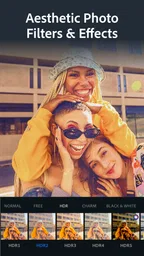
The easiest way to judge Photoshop Express Photo Editor is to start with a photo that needs one clear improvement. Maybe a lunch photo looks dull, a portrait has distracting shadows, or a landscape needs a tighter crop. I like that the app can serve as a practical editing stop between taking a picture and posting it, rather than demanding that I learn a complex workflow before making a useful change.
For speed, the important distinction is between a quick correction and a session where I explore every available effect. A focused edit—open an image, make a few adjustments, compare the result, and save—feels like the kind of task the app is built to handle. Browsing filters, retouching options, and AI-assisted tools takes longer, partly because deciding what looks right is slower than tapping through controls. I would not treat “fast” as a promise that every edit is instant; the image, the changes, and the device all matter.
My most useful habit is to make one change at a time and check the whole image after each one. A face can look polished when zoomed in but too smooth when viewed at normal size. Likewise, a strong filter may make a subject pop while pushing skin tones or a bright background too far. I get more natural results by using effects with restraint and treating them as finishing touches rather than corrections that should dominate the picture.
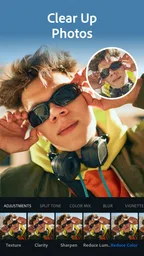
The editing tools are especially handy for portraits and selfies, where small adjustments can make a picture feel more considered without requiring a separate beauty app. Still, a retouching control is not a substitute for good light or a well-framed shot. If a photo is badly blurred or the subject is poorly lit, I would not expect an editor to turn it into a convincing camera-quality image. The best results start with a usable original.
A useful workflow for everyday photos
For a family snapshot or a picture I want to share, I would first crop away distractions and straighten the composition if needed. Next I would address the overall look, then make any portrait-specific refinements, and finally compare the edited image with the original. That order helps me avoid spending time polishing details that a later crop removes. It also makes it easier to notice when a filter has changed the mood more than I intended.
A less obvious but practical use is preparing a small set of related photos for one post. Rather than giving each image a completely different treatment, I can choose a restrained visual direction and apply it consistently. The trade-off is that matching edits by eye takes attention; the same setting can look different on a bright outdoor portrait and a dim indoor shot. I would use a shared style as a starting point, not blindly copy every adjustment across a batch.
That kind of workflow is where mobile editing earns its place. Suppose I take a picture at a café, notice that the table edge is distracting, and want the food to look closer to what I saw. A quick crop and modest tonal adjustment can be enough. If I then start testing several effects and retouching the background, I may spend longer than the photo deserves. Knowing when to stop is part of getting value from the app.
Where a heavier editing session can slow down
When I use several kinds of edits on one image, the app becomes more of a small creative workspace than a quick fixer. I may move between general adjustments, filters, face retouching, and AI editing tools, checking each result before committing to a look. That flexibility is useful, but it creates more decisions. The friction I notice most is not necessarily waiting for a particular control; it is the time spent learning what each option does and deciding whether the change improves the photo.
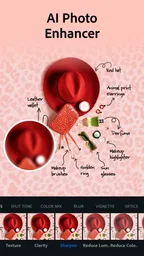
AI-assisted editing can be appealing when I want a more guided or ambitious change, but I would keep an eye on whether the result still looks like the original scene. Automated help is not automatically better than a subtle manual edit, especially for portraits where skin texture and natural lighting matter. I recommend comparing the result at a normal viewing size and backing off if the image starts to feel artificial. The strongest edit is often the one people notice least.
Another heavy-use moment is trying to make one image serve several purposes. A photo intended for a social post may need a different crop and visual emphasis from one I want to keep as a personal memory. I would save or preserve the original before experimenting, then make a deliberate version for the intended use. That simple precaution matters in any editor: it gives me room to try stronger changes without feeling I have to settle for them.
Reliability means checking the result, not just the controls
I judge an editor’s reliability by whether I can make a change, review it, and end up with an image I actually want to keep. In Photoshop Express, I would build in a final check before leaving the editing session: look at the full frame, inspect important details, and confirm that the finished version is the one I meant to save. This is especially worthwhile after portrait retouching, where a small adjustment can have a surprisingly large effect on the overall impression.
I would not make long, intricate edits without periodically pausing to review my direction. A quick comparison with the original helps catch over-editing before it becomes the new normal. If I am exploring effects, I also prefer to make changes in stages rather than stacking many strong treatments and trying to untangle them later. That is a general good editing practice, but it is particularly helpful in an app with enough options to encourage experimentation.
For valuable photos, I would keep a separate copy of the original in my regular photo library or backup routine. This is not a criticism unique to Adobe’s editor; it is a sensible habit whenever I work on images I cannot easily recreate. It also lets me return to the untouched shot if I decide later that a fashionable effect has aged badly or that a portrait looks better with less retouching.
How it compares with simpler and more advanced alternatives
Compared with the basic editing tools built into a phone’s photo library, Photoshop Express gives me a more dedicated place to explore portrait corrections, visual treatments, and more involved edits. The built-in editor may still be the better choice when I only need to rotate an image or make a tiny brightness change. It is already close at hand, and opening a separate app for one trivial adjustment can be needless effort.
At the other end, a full desktop editor is a better fit when I need detailed control over a complicated image or a carefully repeatable professional workflow. Photoshop Express is more convenient for an edit made on the same device where I took the photo, but that convenience does not make it a replacement for every advanced tool. I would choose it for polishing casual photos and portraits, not for work that depends on precise, layered, specialist control.
Dedicated beauty apps may also feel more direct if a user wants nothing beyond selfie effects. Photoshop Express makes more sense to me if I want portrait touches alongside general photo editing in one place. The trade-off is that an all-purpose tool can present more choices than someone seeking a single automatic look wants. If I only want a one-tap selfie filter, a simpler app may be easier to approach; if I want to adjust the picture before and after that treatment, Adobe’s broader editor is more useful.
Device limits and sensible expectations
I would expect the experience to depend on the phone and the image, especially when editing a large original or trying several effects in succession. A device with limited room for apps or photos may also make a large editing habit inconvenient, so I would keep the photo library organized and avoid treating every experiment as a final image. I cannot infer a specific performance level for every model; the practical approach is to try a representative photo on the device I plan to use.
If the app feels crowded or sluggish during a session, I would simplify the task first: close unrelated work, focus on one image, and avoid exploring every tool at once. That is a sensible way to reduce friction on a phone, though it does not guarantee a particular speed. For an occasional crop or portrait touch-up, a modest device may be enough for the job; for frequent, ambitious editing, I would put more weight on how comfortably the app behaves on that exact device before building a workflow around it.
The app is free to install, which makes it easy to test against your own photos before deciding whether its paid options are worthwhile. Because purchases are offered within the app, I would check what is included in the version I am using and whether a particular tool requires an extra purchase before relying on it for a regular routine. That is more useful than assuming that a free download means every editing option is free.
Who I would recommend it to
I would recommend it to someone who takes plenty of phone photos and wants more control than the basic gallery editor provides, especially if portraits and selfies are a regular part of their camera roll. It is also a good fit for people who like to adjust an image themselves rather than accept one automatic result. The broad audience reflected in its Everyone age rating does not change my advice: younger users and casual editors should still be thoughtful about purchases and about how much retouching feels comfortable.
I would skip it if I wanted a purely automatic camera experience, a tiny set of controls with no learning curve, or a desktop-level production environment on a phone. I would also avoid choosing any editing app as a fix for consistently poor lighting or focus; improving how I take the picture is usually more effective than trying to repair it afterward. For a user whose main need is detailed professional compositing, a more specialized editor is the clearer choice.
My overall impression is that Photoshop Express works best as a flexible mobile photo editor for everyday improvements, not as a magic fix or a complete professional studio. Its popularity and strong average rating make it an easy option to consider, but the real test is whether its range of controls feels helpful rather than distracting on your phone. I would install it for portraits, quick color work, and share-ready crops, then keep edits subtle and preserve originals. If that describes the way you take pictures, it is well worth trying; if you prefer one-tap simplicity or highly technical control, another kind of editor may suit you better.
What we like
- Quick one-tap adjustments make routine edits easy.
- The interface is approachable for beginners.
- Collage tools help combine photos into a single design.
- Selective edits offer control over specific parts of an image.
- It supports common formats such as JPEG and PNG.
What could be better
- Some advanced tools require a paid subscription.
- Export options may be limited compared with desktop editors.
- Large edits can feel slow on older phones.
- Some effects may look overly strong without careful adjustment.
- Cloud features may require an Adobe account.





