
PhotoBoost - AI Photo Enhancer review
 Analysis by Appsdrops
Some family photos are worth rescuing even when the original is soft, faded, or a little shaky. I’d reach for PhotoBoost when I want to try an AI-based repair before giving up on an image, especially if the picture matters more for the moment it captures than for technical perfection. It is a photography app from Tap AI, and its focus is straightforward: improving and restoring photos rather than replacing a full editing suite.
When one shared photo needs a second chance
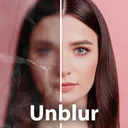
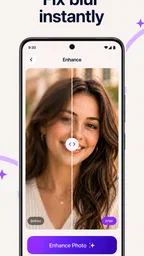
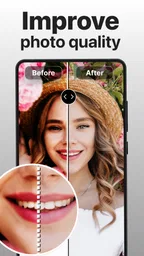
A realistic household use is the familiar handoff: someone finds an old picture on a shared device, perhaps a small portrait copied from an older phone, and wants to make it clearer before sending it to relatives. PhotoBoost can be a useful first stop for that kind of task. Its enhancement tools are aimed at reducing blur and improving image appearance, so the workflow is more approachable than opening a complex editor and adjusting many controls.
I’d treat the result as a fresh interpretation, not a faithful recovery of every detail. AI enhancement can make a face or texture look clearer, but it cannot reliably bring back information that was never captured. With a treasured photo, I would keep the original untouched, compare the edited version beside it, and decide whether the change still looks like the people and moment I remember.
That comparison matters most with faces, small details, and images that have already been compressed or enlarged. A sharper-looking output can be pleasing at a glance yet alter subtle features. For a family portrait intended for a keepsake, I would zoom in before sharing or printing; for a casual group chat, a modest improvement may be more than enough.
A simple job, not a complete photo studio
The app’s appeal is its narrow purpose. If I have one blurry image to improve, a dedicated enhancer can feel less distracting than a broad editor built around layers, color grading, and manual retouching. That focus is helpful for relatives who do not want to learn editing terminology just to make a picture easier to view.
It is less compelling when the problem is not blur or image quality. Cropping a photo for a frame, arranging several images into a collage, adjusting a scene’s colors, or removing an unwanted object may call for a different kind of app. I would choose an editor that exposes those controls when I need deliberate, repeatable changes rather than an AI-led result.
One practical tip is to start with the best source available, even if it does not look impressive on screen. If the same image exists in a larger original file, use that rather than a screenshot or a copy forwarded through several chats. Enhancement has more to work with when the starting photo retains its detail, and keeping the untouched source gives you a safe comparison point.
Setting sensible boundaries on a shared device
PhotoBoost is free to download, with in-app purchases priced from $1.99 to $199.90 per item. That wide range makes it worth checking the purchase details in the app store before anyone in the household commits to an option. I would not assume that a free download means every tool or use is free; a parent or device owner should review any purchase prompt with the person using the app.
On a device used by several people, a straightforward boundary is to agree who can approve spending and to avoid treating a purchase screen as a routine next step. That is especially useful when a child or less experienced relative is helping with photos. The app’s store age rating is Everyone, but that label is not a substitute for a household’s own rules about purchases, images, or who may use a shared device.
I would also decide where edited copies should live before starting a batch of family pictures. Keep originals in the household’s normal photo library, and use the enhancer for selected images rather than making it the only place a cherished picture exists. This is a simple safeguard: if an edit looks artificial, you can return to the original without trying to reverse an irreversible change.
For a shared tablet or phone, it helps to make the task specific: “improve this one scan” is easier to oversee than handing over a large collection without a plan. The person operating the app can show the before-and-after result, and whoever owns the photo can decide whether the edited copy is suitable to send. This keeps the decision about the picture with the people who care about it, without assuming that the app provides family-management tools.
Coordinating edits without creating duplicates and confusion
AI-enhanced pictures can quickly become mixed up with originals, especially when several people are fixing the same album. I’d use a clear naming or album convention in the household’s existing photo organization—for example, distinguishing a restored copy from the scan it came from. That small habit makes it easier to know which version is safe to edit again and which one should remain unchanged.
It is also worth agreeing on what “better” means before asking someone else to enhance a photo. One person may want a natural, slightly soft portrait; another may prefer a crisp result. Looking at the image together before sharing it avoids the common mismatch where an editor is pleased with extra sharpness but the person in the photo feels it has changed their appearance.
When sending a restored picture to relatives, I’d include the original as well if authenticity matters. That is particularly sensible for old family records, memorial images, or photos where facial details are important. The enhanced version can be easier to see, while the original remains the reference rather than letting a generated-looking detail become mistaken for something captured by the camera.
For quick decisions, I would test one representative image first instead of processing a whole set. A faded group shot, a close-up face, and a small scan can behave differently; success on one does not guarantee that every photo will look natural. A small trial reveals whether the app’s treatment matches the household’s taste before anyone invests time or money in a larger cleanup.
Age, trust, and practical expectations
PhotoBoost is rated for Everyone, which makes its intended audience broad, but I would still guide younger users through the first session on a shared device. The main household considerations are ordinary ones: who is allowed to edit personal photos, who can approve purchases, and whether an AI-altered version should be presented as an enhancement rather than an untouched original.
The app has an average rating of 4.6 from around 806,000 ratings, with about 4,600 written reviews and over 10 million installs. Those figures indicate that it has reached a large audience, but popularity does not tell me whether a particular old portrait will come out naturally. I would judge it with a few low-stakes images first, especially before using it on a photo that cannot be replaced.
Tap AI’s app is currently at version 2.0.0 and requires Android 9 or later. That is useful to check when an older household phone is being passed around: if the device does not meet the minimum system requirement, another approach will be needed. For compatible devices, the low-friction appeal is clear, but the right expectations still matter more than a version number.
Compared with a standard photo editor, PhotoBoost is better suited to a quick attempt at clarity than to careful, pixel-by-pixel correction. Compared with doing nothing, it offers a convenient way to see whether an AI treatment helps. But for documentary accuracy, delicate restoration, or a photo that must preserve exact facial details, I would prefer a manual workflow or a specialist restoration service where a person can control each change.
Who should use it—and when I would skip it
I’d recommend trying it if you have a handful of soft or older pictures, want a quick way to assess whether enhancement helps, and are comfortable checking the result rather than accepting it automatically. It can also suit a household member who finds traditional editing apps overwhelming, because the goal is easy to understand: improve a picture without learning a full set of editing tools.
I would skip it as the main solution if your priority is precise retouching, consistent edits across a large archive, or complete control over how every feature is reconstructed. I would also avoid making an enhanced version the sole copy of an important photograph. AI can make an image look cleaner, but a polished appearance is not proof that the result is more accurate.
At home, I see PhotoBoost as a useful shared tool for occasional photo rescue, provided the family agrees on purchase approval and keeps originals safe. Its free entry point makes it easy to try, while its in-app purchase range is a reason to read prompts carefully. My recommendation is to use it as a quick enhancement step, compare every meaningful result, and choose another editor when control and authenticity matter more than convenience.
What we like
- AI enhancement can sharpen blurry photos in a few taps.
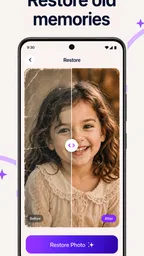
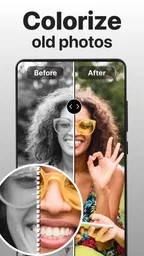
- Useful for restoring details in older or low-quality images.
- Simple controls make the main features easy to find.
- Quick processing suits occasional edits on the go.
- Can improve portraits without requiring manual editing skills.
What could be better
- Results may look overly smooth or artificial.
- Enhancement quality can vary between photos.
- Some features may require a paid subscription.
- Processing may take longer for larger images.
- Edited images may not match the original colors exactly.





