
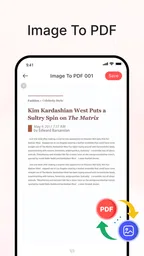
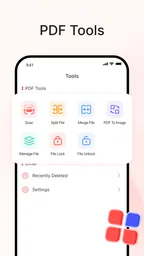
PDF Viewer – Document Viewer review
 Analysis by Appsdrops
I judge a document reader less by how many tools it advertises than by whether I can open the right file without turning a simple task into a project. PDF Viewer – Document Viewer is aimed at that everyday need: getting to documents and PDFs with minimal fuss. I see its strongest appeal in quick, practical reading rather than elaborate editing or document management. That focus can suit people who want a straightforward tool, though it also means I would not choose it automatically for every PDF task.
Reading and finding a document
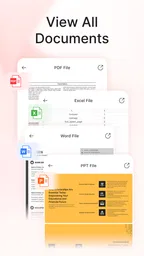
As a tools app, PDF Viewer – Document Viewer has a clear purpose: make documents easier to access and PDFs easier to read. The short description is spare, but that simplicity is useful when I am deciding what role the app should play. I would treat it as a reader to keep in mind for routine viewing, not assume it replaces a full office suite, a scanner, or a dedicated annotation workflow.
The practical test is how naturally the app fits the way documents arrive on a phone. A PDF might come from a message, a download, or a folder I have not opened in weeks. A focused viewer is valuable when I can move from locating that file to reading it without detouring through editing tools I do not need. If I mostly read rather than revise documents, that narrow purpose is a sensible trade-off.
For readability, I recommend judging it with the kinds of files you actually handle. A short letter, a form with small print, and a long report place different demands on a reader. On a phone, even a readable page can become awkward if it requires constant zooming or makes it hard to return to the right spot. Before relying on any viewer for regular study or work, I would open a representative document and check whether its text and layout remain comfortable at my preferred viewing size.
Navigation matters just as much as the page itself. With a long PDF, I want to move through the document deliberately rather than lose my place while scrolling. I would test the basic routine that matters most to me: open a file, find a particular section, leave the document, and come back. That small trial reveals more than a feature checklist because it shows whether the viewer works with my habits. If I regularly consult lengthy manuals, I would compare how quickly I can revisit a section here against the reader already built into my device.
A useful low-effort tip is to make the file itself easier to recognize before opening it. If several documents have nearly identical names, renaming them clearly in the folder or download area can prevent the wrong one from being opened in any viewer. This is especially helpful for people who use a phone for forms, receipts, and reference documents at the same time. A reader can display a file, but good file naming remains part of a reliable workflow.
Small-screen reading and visual comfort
PDF pages are often designed for paper, not a phone. A two-column report or a form with tightly packed fields may force a choice between seeing the whole page and reading the text comfortably. I would not blame a viewer for every layout problem: some documents are simply difficult to read on a small screen. The useful question is whether its everyday reading experience feels manageable with the files I need, not whether every PDF looks perfect.
When comfort is a concern, I suggest checking the same document in the phone’s built-in viewer as well. Some readers make one particular file easier to navigate, while another may better fit the device’s existing display settings or sharing flow. Comparing the two on a real document is a practical way to decide, rather than relying on a general claim that one reader is best for everyone.
Touch, pace, and different ways of using a phone
People do not all interact with a phone in the same way. Some can swipe precisely; others prefer fewer gestures, larger text, or pauses between actions. I would assess this app by whether its basic reading routine feels forgiving: can I move through a page without repeatedly correcting accidental actions, and can I stop and resume without needing to reconstruct where I was? Those questions matter more than a long list of optional controls for someone who simply wants to read.
For anyone with limited dexterity, a practical test is to open a document while holding the phone as they normally would, then try the navigation they expect to use most. If a PDF demands frequent pinching, dragging, and repositioning, that may be tiring regardless of which viewer is installed. Choosing a simpler document layout when one is available, or reading on a larger screen for extended sessions, can be a more effective adjustment than expecting a phone app to solve every motor challenge.
Sensory needs vary too. Brightness, contrast, text size, and the visual density of a page can all affect comfort, but the source PDF has a major influence on what any reader can do. I would avoid assuming a viewer can transform a poorly structured scan into easy reading. For a document with selectable text, ordinary device-level display adjustments may help; for a photograph of a page, the text may remain difficult to enlarge cleanly. Testing both kinds of file is a useful way to learn whether the app matches the material you actually receive.
When quick access helps most
The everyday scenario I have in mind is checking a travel confirmation or a form while away from a desk. I do not want to open a heavy editing tool just to confirm a date or find a line of instructions. A focused PDF reader can reduce that friction if the file is already on the device and easy to identify. For that kind of occasional reference, a direct viewer can be more convenient than opening a broader productivity app with menus I will not use.
The same idea applies to a student reviewing a handout between classes, or someone checking a household document while talking with another person. In these moments, speed is not about opening a file in a fraction of a second; it is about avoiding unnecessary steps and being able to read enough of the page comfortably. I would keep commonly needed documents in clearly named folders so they are easier to locate, while being careful with sensitive paperwork on a shared device.
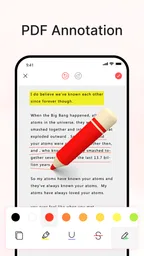
There is a trade-off between convenience and having every task in one place. If I need to mark up a contract, fill and sign a form, rearrange pages, or collaborate on a draft, I would look for a PDF editor or a document suite built for those jobs. A reader is the better fit when the goal is viewing. Expecting it to cover editing needs can lead to frustration, while installing a more complex suite just for occasional reading may be unnecessary.
Where another option may work better
Device-native PDF viewers are the most obvious alternative. They are often convenient when a document arrives through the operating system’s usual file-opening flow, and they may be enough for occasional reading. I would compare them with PDF Viewer – Document Viewer based on a specific task: locating a saved file, reading a long page, or returning to a document later. If the built-in option already handles those comfortably, switching may not add much value.
A general document suite is a stronger choice when PDFs are only one part of a larger workflow involving word-processing files or edits. A dedicated accessibility-oriented reading setup may also be preferable for someone who depends on particular assistive tools or carefully tuned reading controls. I would test compatibility with the person’s normal device settings before making this app the only route to important documents. A simple reader can be welcome, but simplicity alone does not guarantee that every person can use it comfortably.
Another non-obvious point is that the PDF itself can be the limiting factor. A scan with faint text, crowded tables, or pages rotated in different directions can make navigation awkward even in a capable reader. If I receive a problematic file, I first check whether there is a cleaner digital copy rather than spending time trying to compensate inside the viewer. For important paperwork, keeping the original source file or a clearer copy can save effort later.
Who should try it, and what to expect
PDF Viewer – Document Viewer is developed by StarEpoch and sits in the tools category. It is free, has an Everyone content rating, and its current version is 1.2.5. The app has a 4.3 average from around 1,600 ratings, with over 100,000 installs. Those figures suggest that it has found a substantial audience, but they do not tell me whether its reading flow suits a particular person’s vision, dexterity, or documents. A brief hands-on test is still the most useful way to decide.
It was released on December 18, 2025, and requires Android 11 or later. That requirement is worth checking before planning to use it on an older device. The date and version also make it sensible to keep expectations focused: I would assess the app as a straightforward reader rather than assume it already covers every specialized document workflow or accessibility need.
I would recommend giving it a try if your main need is opening and reading PDFs, especially when you prefer a dedicated tool over a larger office suite. I would be more cautious if you need dependable annotation, form completion, or a particular assistive workflow. In those cases, compare a document you use often with the alternatives you already have and choose the one that makes the whole task easiest, not merely the one that opens the page.
A practical verdict on inclusive everyday use
My overall view is that this app’s clearest strength is its focused purpose. It is aimed at people who want a direct route to their files and PDFs, and that can make occasional reading feel less cluttered than opening an all-purpose productivity app. The most helpful test is also simple: use a real document, check how easy it is to find and revisit a page, and see whether the text remains comfortable on your device.
For inclusive use, I would treat comfort and control as personal questions rather than assume one reader works equally well for everyone. Someone who reads short, clean PDFs may find a focused viewer entirely adequate. Someone who depends on intensive zooming, structured navigation, editing, or a specific assistive setup should compare options before committing. The right choice is the reader that lets you reach the information with the least strain, not the one with the broadest promise.
In short, PDF Viewer – Document Viewer makes sense as a free, focused option for everyday PDF access, provided its basic reading experience works with your files and your way of using a phone. I would try it for routine reference, keep a more capable editor for tasks that require changing documents, and use a larger screen when a dense page becomes tiring. That balanced setup is more useful than expecting one app to handle every document and every need.
What we like
- Opens PDFs quickly for convenient reading on mobile.
- Simple navigation makes pages easy to browse.
- Useful zoom controls help with small text.
- Supports reading documents in portrait or landscape.
- Handy for viewing files stored on your device.
What could be better
- Some advanced PDF tools may not be available.
- Large documents can take longer to load.
- The interface may include advertising.
- Editing PDF text may not be supported.
- A stable file source is needed to open documents.





