PDF Reader - All PDF Scanner review
 Analysis by Appsdrops
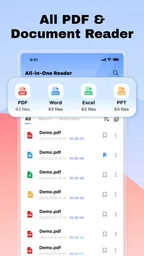
When I open a PDF on my phone, I usually want one thing: to get to the page I need without wrestling with a complicated document suite. PDF Reader - All PDF Scanner is aimed at that everyday job. It is a free productivity app by Dev Globeg, and its focus on viewing and editing local files gives it a practical, file-first feel rather than the scope of a full office platform.
That focus matters when connectivity is unreliable or simply not relevant. A document already saved on a device is a different task from finding one in cloud storage, and this app is positioned around managing local PDFs. I would consider it for routine reading and edits, while treating online services, syncing, and network-dependent tools as separate needs rather than assumed parts of the experience.
Reading PDFs when the network is not the point
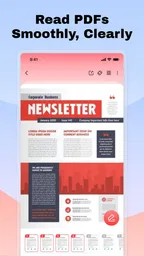
PDFs often arrive through email, messaging apps, or a work portal, but the useful moment is usually later: checking a bill while waiting in line, revisiting a form during a commute, or reading a handout away from a desk. A reader centered on local files can suit that pattern because it keeps the task anchored to documents on the phone instead of making cloud organization the main event.
That does not mean every part of a phone-based PDF workflow is automatically independent of the internet. Getting a document onto the device may still involve an online source, and sharing or sending a finished file can depend on other apps and a connection. I would separate those steps mentally: first obtain and save the file, then use a reader for the work that can happen on the device.
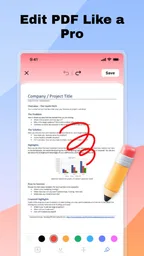
The app’s appeal is clearest when I want a straightforward place to open a PDF and make an edit without switching into a larger productivity suite. A dedicated reader can reduce distraction for a quick task. In contrast, if I need collaboration, cloud folders, or a complex document-production workflow, I would look at a broader office or storage app instead.
What the local-file focus means in practice
Keeping documents local can make a phone library feel more predictable: the important question becomes whether a file has actually been saved to the device, not whether it is currently available in a remote folder. Before a trip or appointment, I would open the specific PDF I expect to need and confirm it is accessible. That simple check is more useful than assuming a file visible in a recent list is necessarily stored where I need it.
For privacy-conscious users, local-file management may also feel more comfortable than building a workflow around an online account. Still, “local” describes the kind of file management the app is meant to handle; it is not by itself a promise about every connection the app may use. I would avoid putting sensitive documents into any tool without first understanding its current behavior and the device’s own sharing settings.
One practical trade-off is that local files need personal organization. If downloads, scans, and forms are scattered across folders, the reader cannot solve that clutter on its own. I would use clear filenames and a small folder structure—such as separating receipts from forms—so finding a document later does not become the slowest part of reading it.
Using it in the small gaps of a day
A realistic use case is a parent opening a school permission form while standing outside an office, checking the details, making a necessary change, then returning to it later before sending it through the appropriate channel. The value here is not a long editing session; it is having a PDF tool available at the moment a short task presents itself. That is where a focused mobile reader can earn a place on the home screen.
Phone screens impose their own limits. Dense tables, multi-column pages, and fine print can be tiring to inspect on a small display, even when the reader opens the file correctly. For a quick check, a phone is convenient; for comparing several pages or reviewing a contract carefully, I would prefer a larger screen. The app’s mobile setting should be treated as a convenience, not a replacement for every desktop reading situation.
Another useful habit is to distinguish reading from editing before opening a file. If I only need to confirm a date or address, changing nothing reduces the chance of leaving an unintended revision behind. If I do edit, I would reopen the saved copy afterward and check the relevant page. That extra pass is especially sensible for forms where a small change can affect the meaning.
When a connection drops, make the file the checkpoint
Network interruptions are most frustrating when they happen between receiving a document and being ready to use it. Since this app is described as managing local files, I would make the saved document—not a message preview or a remote listing—the reliable checkpoint. Open the file while the connection is available, ensure it is present in local storage, and avoid waiting until the moment you need it to discover that the source is no longer reachable.
If a document does not appear where expected, I would first check the phone’s file locations and confirm that the original download completed. Then I would try opening it from its saved location rather than relying only on a recent-items view. This is a useful recovery routine for any local PDF workflow because it separates a file-transfer problem from a reader problem.
Edits deserve similar care. When a change matters, I would preserve the original until I have checked the revised document. If I am working somewhere with a weak connection, I would postpone any step that requires sending or uploading the result, while keeping the local reading or editing task distinct. This reduces the risk of confusing “the document was changed” with “the document was successfully delivered.”
There is a limit to what a local reader can fix: it cannot make a missing source file appear, restore a download that never finished, or guarantee delivery through another app. If the job depends on live collaboration or shared cloud copies, a service built around that workflow is the better choice. For a file already on the phone, however, a dedicated reader can keep the core task simpler.
Managing data use without overcomplicating it
PDFs vary greatly. A short text form may be small, while a document full of scanned pages can be much larger. If I am trying to conserve mobile data, I would download large files over a trusted connection where practical, then work from the saved copy. That is a general file-handling choice, not a claim that the app has a special data-saving mode.
I would also think about where files are shared after editing. Sending a revised PDF through email or a messaging service may use data and may create another copy outside the phone. Before sharing, I would check the recipient and filename, especially when the document contains personal details. A simple naming convention—one that distinguishes a final copy from an untouched original—can prevent accidental mix-ups.
For someone who reads many documents on the move, the key question is not just whether the reader is lightweight, but whether the whole workflow is prepared: the file is saved, the right version is clear, and any later handoff is planned. That approach helps avoid needless repeat downloads and makes connectivity a choice at the transfer points rather than a constant dependency during every reading moment.
How it compares with broader PDF and office tools
Many people already use a built-in phone previewer or a general office app. Those can be enough for occasional viewing, particularly when the document is simple and no changes are needed. A dedicated PDF app makes more sense to me when PDFs are a recurring part of the day and I want a focused place to handle local files. The trade-off is that specialization does not automatically provide the collaboration and cloud-management features of a larger suite.
It is also worth distinguishing a PDF reader from a scanning workflow. The app’s name includes “Scanner,” but the confirmed description centers on viewing, editing, and managing local PDFs. I would choose it for PDF tasks, not assume it replaces a camera-scanning app or promises a particular scanning process. If turning paper pages into digital files is the main need, I would check that specific workflow before relying on it.
The same distinction applies to advanced document work. A reader designed for everyday handling may be more approachable than a feature-packed editor, but users who need complex layout changes, detailed annotations, team review, or consistent desktop-to-phone synchronization should compare those requirements carefully. I would not pick a focused local-file app as the sole tool for a team process that depends on shared, live versions.
Who I would recommend it to
PDF Reader - All PDF Scanner is a reasonable fit for someone who regularly opens PDFs on Android, wants a dedicated productivity tool, and mainly deals with files saved on the device. Its 4.2 average rating from around 9,700 ratings and more than a million installs suggest that it has reached a broad audience, though those figures cannot tell me whether it matches a particular person’s editing or syncing needs.
The app is free and rated for Everyone, which makes it easy to consider for ordinary personal use. It is at version 1.2.2, with Android 8.0 as the minimum operating-system requirement. Dev Globeg is the developer. Those details help set expectations about compatibility and availability, but I would still check the app’s current behavior on my own device before moving an important document workflow over to it.
I would skip it as my primary choice if my day revolves around shared cloud folders, live comments from colleagues, or editing long documents with precise formatting. I would also choose a larger screen when a PDF requires sustained close reading. For occasional viewing, the phone’s built-in reader may be enough; for a local collection of everyday forms and reference files, a dedicated app is easier to justify.
My connectivity verdict
What I like about the idea behind this app is its practical boundary: it is for handling PDFs already on a phone, rather than promising to solve every part of document management. That makes it most useful when I prepare files ahead of time and use the phone for short reading or editing sessions. Connectivity still matters when obtaining or sharing documents, but it need not define the core task once the file is saved locally.
My recommendation is measured rather than universal. If your usual problem is opening and managing local PDFs in the gaps between other tasks, this free productivity app is worth trying. If your real problem is synchronization, team review, scanning paper, or demanding document production, choose a tool built around that need instead. For me, the best workflow is to save the right file in advance, make only necessary edits, verify the result, and treat sending it as a separate step.
What we like
- Opens common PDF files without requiring a separate viewer.
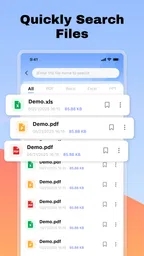
- Search helps locate words in lengthy documents.
- Page thumbnails make navigating large files easier.
- Supports sharing PDFs through other installed apps.
- A built-in scanner can turn paper pages into digital files.
What could be better
- Ads may interrupt the reading experience.
- Advanced tools may require in-app purchases.
- Scanned text may need correction after recognition.
- Large PDFs can take time to load on older devices.
- Some features may depend on device permissions.





