
Parental Control App - Kidsee review
 Analysis by Appsdrops
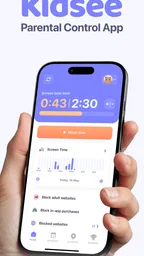
When I choose a parental-control app, I care less about having the longest feature list and more about whether its controls fit ordinary family routines. Parental Control App - Kidsee is built around a practical combination: managing children’s app access, setting screen-time limits and schedules, and checking their location. That makes it worth considering if you want these tasks together rather than relying on separate tools. It is not a substitute for conversations about device use, though; its value depends on setting clear rules with your child and applying them consistently.
What matters when choosing a family-control app
The first question I would ask is what problem I actually need to solve. If the main issue is that a child keeps opening particular apps during homework or bedtime, blocking and scheduled access are more relevant than a broad activity dashboard. If location is the concern, a control app that also offers a way to see where a child is may be more convenient than switching between unrelated services. Kidsee brings those needs into one parenting app from Artpoldev.
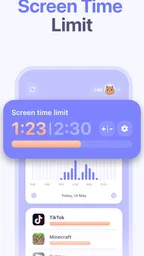
The second question is how much control feels appropriate. Limits can help a family agree on predictable device boundaries, but overly complicated rules can create friction for both parent and child. I would start with a small number of understandable rules, such as a screen-time limit and a schedule for a recurring part of the day, rather than trying to control every moment. That makes it easier to see whether the arrangement is helping before adding more restrictions.
Kidsee is free to install, with in-app purchases ranging from $2.99 to $99.99 per item. I would treat that range as a reason to check the purchase details in the app store before committing to any paid option, not as a promise that a particular plan or feature costs a particular amount. The app is rated for Everyone, and its current version is 11.1; it requires Android 7.0 or later. Those practical details matter if you are comparing it with tools already available on your family’s devices.
Where Kidsee fits naturally into the day
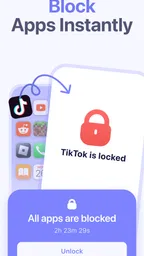
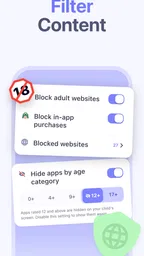
Its strongest appeal is the combination of app blocking and time management. A family may not want to ban a device altogether; instead, a parent might want to make certain apps unavailable during a study period and set a more suitable usage window for later. The useful distinction is between a rule aimed at a particular app and a limit aimed at overall screen use. Thinking about those separately can produce rules that feel more targeted and less arbitrary.
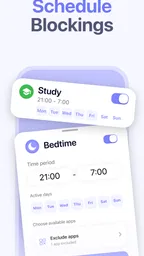
A realistic example is a school night when a child needs a phone for practical reasons but tends to drift into entertainment apps after arriving home. I would use a schedule to establish the part of the day when access should be limited, then block only the apps that are causing the distraction. That approach is more proportionate than treating every app as a problem. If the child needs a particular app for a legitimate task, I would account for that before turning on restrictions rather than discovering the conflict at the moment they need it.
There is a useful planning habit here: connect each restriction to a routine, not just a clock. For example, a parent can decide what should happen during homework, meals, or bedtime and then choose limits that support that agreement. Kidsee’s schedules can help make recurring boundaries less dependent on remembering to intervene every day. I would still review them when a child’s timetable changes; a rule that worked during term time may not make sense on a weekend or holiday.
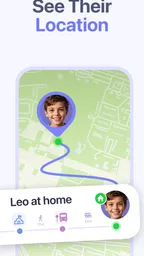
Location visibility adds a different kind of reassurance from screen controls. It may be valuable when a child is travelling between school and home or going to an agreed activity, because a parent can check location within the same general family-management setup. I would use that feature for a clear safety purpose and explain it to the child. Location checking is not a replacement for calling or messaging when plans change, and it should not become a reason to monitor constantly when there is no practical need.
Kidsee has a 4.4 average from around 7.5 thousand ratings, and it has passed 100 thousand installs. Those figures suggest that other families are using it, but they do not tell me whether its controls suit a particular household. I would pay more attention to whether the available scheduling and blocking options match the rules I want to set, and whether my child’s device meets the operating-system requirement.
Small setup choices that can prevent bigger frustrations
One trade-off with any blocking tool is that a restriction can interrupt something useful along with something distracting. Before applying a schedule, I would list the apps a child genuinely needs during that period, such as tools used for school or communication, and avoid blocking them by default. Then I would test the rule during a low-stakes part of the day. This gives the family a chance to catch an inconvenient setting before it disrupts an important task.
I would also make the schedule as simple as possible at first. A single clear boundary is easier to explain and maintain than a patchwork of exceptions. If the child follows it comfortably, the parent can decide whether another limit is needed. If the setup repeatedly needs adjustments, that is useful feedback: perhaps the boundary is too strict, the routine is changing, or a conversation would work better than adding another technical rule.
It is sensible to decide in advance how location checking will be used. A parent could explain that they will look when a child is travelling alone or has not arrived when expected, rather than checking as a habit. That conversation does not change the app’s controls, but it can change how those controls feel to a child. In my view, transparency is a more sustainable foundation for parental controls than relying on restrictions the child does not understand.
Another practical point is to think about who will manage the rules. If more than one caregiver is involved, agree on the intended limits before setting them up so that one person is not undoing or contradicting another’s decisions. I would keep a simple shared understanding of the schedule and the reason behind it. That is especially helpful when a family uses app blocks for specific routines rather than as a general punishment.
When another kind of option may be better
Kidsee will not be the right choice for every family. If you only need a basic daily screen-time boundary, built-in controls on a device may be enough and may involve less setup. If your priority is monitoring a child’s location alone, a dedicated location-sharing option may be a more focused fit. And if what you really need is a way to discuss online behavior, no blocker or schedule can do that work for you.
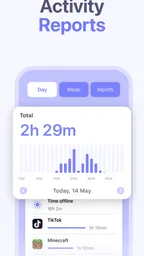
Families looking for extensive reporting, detailed activity histories, or controls beyond blocking, schedules, limits, and location should compare the available features carefully before choosing. I would not assume that an app covering several common needs automatically includes every kind of monitoring a parent might want. The better choice is the one whose actual controls match the household’s goals, not the one with the broadest-sounding description.
There is also a family-dynamics trade-off. A child who is old enough to manage their own routine may respond better to agreed device settings and regular check-ins than to increasingly strict blocks. In that situation, a simple screen-time tool—or no additional app at all—could be more appropriate. For younger children, or when particular apps consistently derail a routine, targeted restrictions can be easier to explain and enforce.
What switching to it involves
Moving to Kidsee means choosing which parts of your family’s existing setup it should take over. Before changing anything, I would write down the current screen-time rules, app restrictions, and situations in which location is checked. That quick inventory helps prevent duplicated controls or gaps. It also gives you a fair way to judge whether combining these tasks in one app actually makes the routine simpler.
I would then introduce one control at a time: first a recurring schedule or a specific app block, and then location checking if it serves a real need. Give the family a little time to adjust before adding more rules. If a child suddenly loses access to an app they need, the problem may be the schedule rather than the app itself. A gradual transition makes that easier to identify and correct.
Because paid items are available, I would inspect the purchase choices before relying on any feature that appears to require payment. The free download makes it possible to consider the app without an upfront purchase, but it does not mean every option is free. Keep the family’s device requirements in mind as well: the Android minimum is version 7.0, so an older device may not be suitable.
Kidsee was released on February 11, 2025, and is developed by Artpoldev. That relatively recent release date is useful context when comparing it with long-established parental-control approaches, but I would make the decision based on present-day fit rather than age alone. Its 54 written reviews offer a smaller pool of detailed commentary than its rating count, so I would not treat the average as a guarantee that every family will have the same experience.
My recommendation for parents weighing the options
I would consider Parental Control App - Kidsee if I wanted a single parenting app to help with app access, screen-time limits, recurring schedules, and checking a child’s location. Its best use is focused and practical: identify a repeated difficulty, set a clear rule around it, and review whether the rule helps. The combination is more compelling for families juggling several everyday concerns than for someone who only wants a simple timer.
I would skip it if built-in device controls already solve the problem, if the family does not want location monitoring, or if the child’s needs call for a different kind of support. I would also avoid adding restrictions before discussing what they are for. The app can help a parent make boundaries consistent, but it cannot decide whether those boundaries are fair or keep a family conversation from being necessary.
My advice is to begin with the smallest useful setup: one schedule or one targeted block, a clear explanation to the child, and a check-in after the routine has been used. Add location checking only when it serves a specific safety need, and review any in-app purchase before paying. For parents who want practical controls in one place and are comfortable managing them thoughtfully, Kidsee is a reasonable option to try; families who need only a basic limit or a different style of support may be better served by simpler alternatives.
What we like
- Screen time limits help establish healthier device routines.
- Parents can review app usage from a separate dashboard.
- Location tracking can help caregivers check a child's whereabouts.
- Activity reports make device habits easier to understand.
- Remote controls reduce the need to handle the child's device.
What could be better
- Some controls may require paid access.
- Setup requires permissions on the child's device.
- Location updates may drain battery life.
- Monitoring features depend on a reliable internet connection.
- Older children may find extensive monitoring intrusive.





