
Okta Verify review
 Analysis by Appsdrops
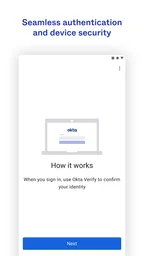
I think of Okta Verify less as a general-purpose security app and more as a key kept on my phone for work or other accounts that use Okta. That distinction matters: it can make signing in more secure and less tedious when an organization has configured it, but it is not a standalone password manager or a universal authenticator. If your workplace relies on Okta, it may become a routine part of getting into the tools you need. If not, there may be little reason to install it.
Free access, with value tied to your sign-in needs
Okta Verify is a free productivity app from Okta Inc., released on October 4, 2011. It has a 4.0 average from around 44,000 ratings, with more than 10 million installs. Those figures suggest it is widely used, but the practical question is whether the services you sign into support it. Free access is useful; it does not, by itself, make the app useful to every phone owner.
There is no purchase decision to weigh against a list of paid features here: the app is free. I would judge its value by whether it fits an account setup I actually need. For an employee whose organization requires Okta-based multifactor authentication, the benefit can be substantial because the app is part of the approved route into work accounts. For someone without an Okta-managed login, installing it just because it is free is unlikely to improve everyday phone use.
It is rated Everyone, which makes its age classification broad, but that should not be confused with a recommendation for every person. Its purpose is specific: it supports authentication for accounts connected to Okta. The setup and available sign-in choices are therefore shaped by the organization behind the account, not just by what a user prefers on their phone.
What the app is actually for
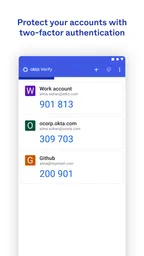
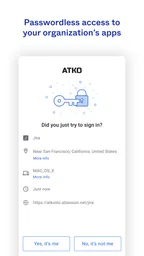
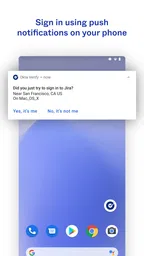
In ordinary use, an authenticator helps prove that the person signing in has access to a second factor beyond a password. Okta Verify serves that role for Okta-connected sign-ins. Depending on how an organization has arranged access, the app may be used to approve a sign-in or provide an authentication code. The important point is that the organization’s configuration determines which method appears; users should follow their workplace’s setup instructions rather than expect every option to be available everywhere.
I find that distinction useful when comparing it with the usual alternatives. A standalone authenticator is often chosen by an individual to manage codes for a range of services. Okta Verify is better understood as an organization-linked credential for Okta accounts. If you need one app for unrelated personal services, a general authenticator may be a more natural fit. If your company has standardized on Okta, using its supported app is usually more straightforward than trying to substitute another tool.
Where the value shows up in daily life
The strongest case for the app is a familiar workday situation: I open a work service on a laptop, enter my account details, and then need to confirm that it is really me. Having the phone-based step ready can turn that extra check into a brief part of signing in rather than a separate task involving a security key or another device. The security step remains an added step, but it can be easier to complete when the phone is already nearby.
A less obvious benefit is how it helps separate work access from personal sign-ins. If an employer uses Okta, keeping that authentication role on a dedicated app can make it clearer which prompts belong to work and which belong to personal accounts. That separation can be helpful when troubleshooting: if a work login fails, I can focus on the organization’s sign-in flow instead of searching through a general-purpose app full of unrelated codes.
There is also a practical enrollment trade-off. A user usually needs to connect the app to the relevant account as part of an organization’s setup process. I would do that while I have access to the onboarding instructions and any required support, rather than waiting until I am locked out and need to sign in urgently. The app cannot replace the organization’s account recovery process, so it is sensible to know whom to contact if a phone is lost, replaced, or unavailable.
Useful habits, and the friction to expect
One useful habit is to test the sign-in flow before relying on it for a time-sensitive task. Complete the organization’s enrollment, then try a normal login while you still have another route to reach help. That small check can reveal whether the account is enrolled correctly and whether the phone is ready for the prompt your organization uses. It is a better plan than discovering a setup problem just before a meeting.
Another practical point is to think through phone changes in advance. Because the app participates in account authentication, changing devices is not simply a matter of reinstalling any app and assuming access will carry over. The organization may have a specific re-enrollment or recovery procedure. I would check those steps before wiping an old phone, especially if Okta protects access to email, internal systems, or other services needed to resolve account issues.
The main friction is that authentication depends on more than the app itself. A sign-in may be interrupted if the phone is unavailable, the account is not enrolled correctly, or an organization’s chosen flow does not match what the user expects. That is not a reason to avoid multifactor authentication, but it does mean the app is not a magic offline pass for every login. Keep the phone accessible during sign-in and understand the help or recovery path provided by the account administrator.
Prompts also deserve attention rather than automatic approval. If a request appears when I am not trying to sign in, I would treat it as a warning and avoid approving it. This is a simple but important habit with any approval-based authentication method: a convenient tap should not become a reflex. The app can support a safer sign-in process, but the user still needs to recognize whether a request matches an action they initiated.
How it compares with other choices
Compared with using only a password, Okta Verify adds a separate confirmation step for accounts configured to use it. That extra step can be mildly inconvenient, particularly when moving quickly between devices, but it reduces reliance on a password alone. Compared with a physical security key, a phone app is often easier to carry because the phone is already part of most people’s day; a dedicated key may suit someone who wants a separate device or whose organization specifically requires one.
Compared with a broad authenticator app, Okta Verify’s advantage is its fit with Okta-managed access, not universal coverage. I would not choose it as my sole tool for unrelated accounts unless those services explicitly support it. Conversely, if an employer has made it the standard method, switching to a different authenticator can create extra setup work or simply fail to meet the organization’s requirements. The right comparison is therefore not “which app has the most features?” but “which method does this account support, and which can I reliably use?”
It is also worth separating the app’s role from account security as a whole. An authenticator does not make a weak or reused password a good one, and it does not decide who should have access to a work account. I would still use sensible password habits and follow workplace security guidance. Okta Verify is one part of a sign-in arrangement, not a complete personal security plan.
Who is likely to get real value
This app makes the most sense for employees, contractors, students, or other users whose organization uses Okta and asks them to enroll a phone for sign-in verification. For them, the fact that it is free removes a direct purchase barrier, while its value comes from being ready when an account requires that extra step. It can also suit people who want a clear, work-focused authentication tool rather than mixing work prompts with personal codes.
I would skip it if none of the accounts I use are connected to Okta and I have no instruction to set it up. In that situation, a general authenticator may cover more of my needs, while a password manager may be the more relevant tool if my main problem is keeping track of credentials. I would also pause before relying on the app as the only route into an important account if I have not learned the organization’s recovery procedure or regularly have my phone unavailable.
For families or casual users, the Everyone age rating may make the app appear broadly suitable, but suitability still depends on having an Okta-connected account to use. It is not a general phone utility that becomes valuable simply by being installed. The person who can explain its setup and recovery process is usually the organization managing the account, so following that guidance is part of using it well.
My verdict on whether to install it
My recommendation is conditional but clear: if your organization uses Okta and asks you to verify sign-ins with this app, install it and complete enrollment before you need it. The free price makes that an easy practical choice, and the focused role can make work authentication more convenient without asking you to adopt a new tool for every account. Take a moment to test the process and learn how to recover access if your phone changes.
If you do not use Okta for any account, I would not install it just in case. A different authenticator may serve personal services better, and no app can help with accounts that do not support its sign-in flow. The real value of Okta Verify is not the fact that it costs nothing; it is that it provides a straightforward phone-based step when an Okta-connected account requires one.
Overall, I see it as a practical, narrowly targeted productivity app rather than a universal security solution. It is at its best when an organization has already chosen Okta and the user wants a dependable way to complete the required sign-in check. Its limitations follow from that same focus: usefulness depends on account compatibility, setup, and having a workable plan for device changes. If those conditions match your situation, it earns its place on the phone; if they do not, there is little reason to make room for it.
What we like
- Supports push approval for quick sign-ins.
- Works with time-based one-time passcodes.
- Can secure multiple accounts in one app.
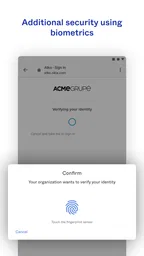
- Offers biometric checks on supported devices.
- Does not require a constant internet connection for codes.
What could be better
- Requires an organization that uses Okta.
- Push approvals need internet access.
- A lost phone can complicate account recovery.
- Some sign-in methods require extra setup.
- Availability of features depends on your organization's settings.





